

TL;DR
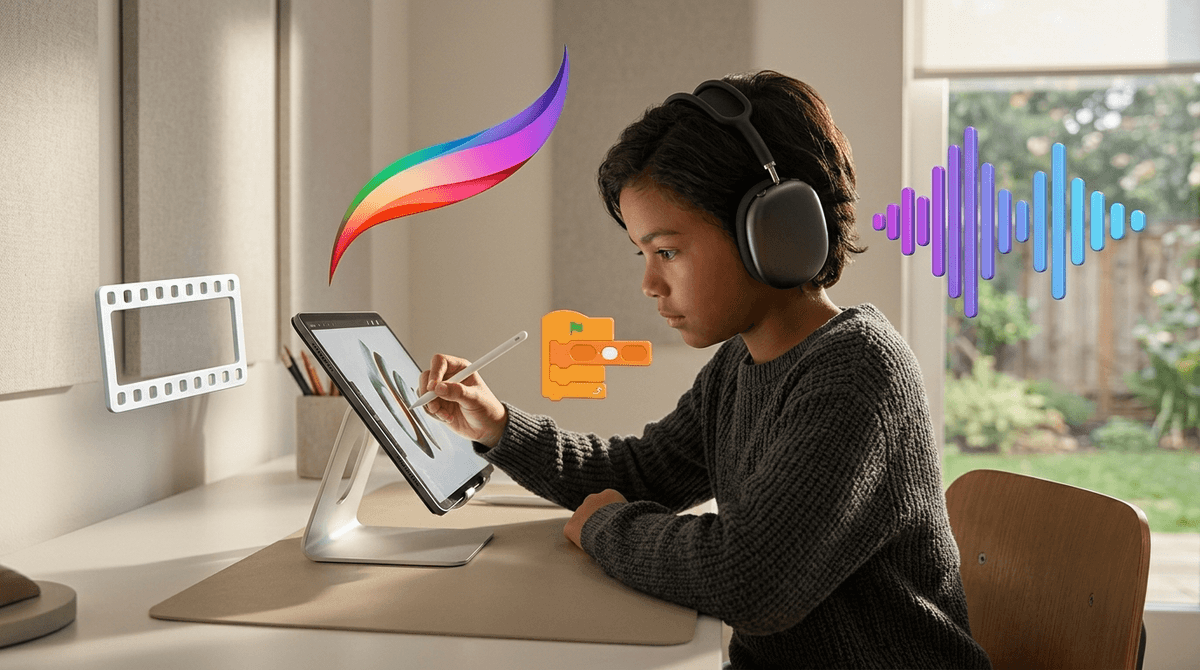
If you want to move your kid from "zombie scrolling" to "creative flow," these are the heavy hitters. These aren't digital coloring books; they are legitimate tools used by pros that have been simplified for younger hands.
- Best for Drawing: Procreate (iPad) or Tayasui Sketches
- Best for Music: GarageBand or Chrome Music Lab
- Best for Animation: Stop Motion Studio or Flipaclip
- Best for Creative Coding: Scratch
Get a creative tech plan based on your kid's interests
We’ve all been there. You look over at your kid on the couch and they’ve been in a YouTube shorts rabbit hole for forty-five minutes. Their thumb is twitching, their eyes are glazed, and if you try to speak to them, you get a grunt that sounds suspiciously like they’re speaking "Ohio" (which, for the uninitiated, basically means "weird" or "cringe" in Gen Alpha speak).
The goal isn't to ban the screen—that’s a losing battle in 2026. The goal is to change the posture. We want them leaning forward, making choices, and building things, rather than leaning back and letting an algorithm feed them content.
When a kid is making a Stop Motion Studio movie with their LEGOs, they aren't "using a screen." They are directing a film. They are solving problems with lighting, pacing, and physics. That’s the "Makers, Not Consumers" mindset.
Digital creativity isn't just about making "art." It’s about agency. In a world where AI can generate a generic image in three seconds, teaching a kid how to actually use Procreate to draw their own character gives them a sense of mastery that a prompt never will.
It also helps bridge the gap between their "weird" digital interests and real-world skills. If your kid is obsessed with Skibidi Toilet, don't fight it—encourage them to animate their own version in Flipaclip. They’ll quickly realize that making something "brain rot" actually requires a ton of technical skill.
Procreate (Ages 9+)
If you have an iPad and an Apple Pencil, this is the gold standard. It’s a one-time purchase (no annoying subscriptions!) and it is a professional-grade illustration tool.
- The Vibe: Serious but intuitive.
- Why it works: It allows for "layers," which is the fundamental concept of digital art. Once a kid understands layers, they can do anything.
- Parent Tip: There are thousands of free tutorials on YouTube for "Procreate for kids." Set them up with one of those instead of letting them aimlessly doodle.
Tayasui Sketches (Ages 6+)
If Procreate feels too intimidating or "pro," this is the "zen" version. The interface is incredibly clean—the tools look like real pens and markers on the side of the screen. It’s tactile and satisfying.
Canva (Ages 10+)
I know, I know—it’s a marketing tool. But hear me out. Kids today are obsessed with "brands." They want to make logos for their Roblox groups or thumbnails for their imaginary YouTube channels. Canva teaches them layout, typography, and hierarchy. It’s the gateway drug to graphic design.
GarageBand (Ages 8+)
Most of us have this sitting unused in a folder on our iPhones. It is essentially a world-class recording studio in your pocket.
- The Magic: The "Live Loops" feature allows kids to act like a DJ, triggering beats and synth lines that are always in key. It provides immediate gratification, which keeps them engaged long enough to eventually try the "Smart Instruments" where they actually learn about chords and scales.
Chrome Music Lab (Ages 5+)
This is a website, not an app, which makes it great for Chromebooks or older computers. It’s a collection of "experiments" that make music visual. The "Song Maker" is addictive—you just click squares to draw a melody. It’s the best way to explain rhythm and pitch to a kindergartener without using a single "music theory" word.
BandLab (Ages 12+)
Think of this as the social version of GarageBand. It’s browser-based and mobile, and it allows for collaboration. Warning: It has a social media component where users can share tracks, so this is definitely for the older middle schoolers who have a handle on digital citizenship.
Stop Motion Studio (Ages 6+)
This is probably the highest "value-to-effort" app on this list. You set up a phone or tablet on a tripod (or a stack of books), grab some LEGO minifigs or clay, and start taking pictures. The app stitches them together.
- The Lesson: It teaches patience. You can't rush stop motion. If you want the character to walk across the table, you have to move it a tiny bit twenty times. It’s the ultimate antidote to the "instant gratification" of TikTok.
Flipaclip (Ages 9+)
This is digital flip-book animation. It’s how a lot of the "indie" animators your kids watch on YouTube got their start. It’s frame-by-frame drawing, which is tedious but incredibly rewarding when they hit "play" and see their doodle come to life.
Toontastic 3D (Ages 6-10)
Created by Google, this app lets kids "puppeteer" 3D characters while recording their own voice. It’s essentially a digital puppet theater. It’s great for kids who love storytelling but might not have the fine motor skills yet to draw every frame.
Scratch (Ages 8-14)
If your kid spends all their time on Minecraft or Roblox, they need to be on Scratch. Developed by MIT, it uses "blocks" of code to let kids build their own games and interactive art.
- The Community: It’s a huge, moderated social network where kids can "remix" each other's projects. It’s the best way to learn that code is just another medium for art.
Ages 5-7: The "Exploration" Phase
At this age, it’s all about cause and effect. Apps like Toca Boca World (which has great "video recording" features for digital storytelling) or Chrome Music Lab are perfect. They don't need "pro" tools yet; they just need to know that their input changes the output.
Ages 8-12: The "Skill Building" Phase
This is the sweet spot for Stop Motion Studio and GarageBand. They have the focus to work on a project for more than ten minutes. This is also when they start caring about "quality." They’ll want their drawings to look like the ones they see online.
Ages 13+: The "Mastery" Phase
If they’ve stuck with it, they’ll want Procreate or even industry-standard software like Logic Pro or Adobe Premiere. At this point, "screen time" is essentially "vocational training."
The biggest hurdle to digital creativity isn't the app—it’s the setup.
- Hardware Matters: A cheap stylus (even a $10 one from Amazon) transforms an iPad from a "movie screen" into a "canvas."
- Storage is the Enemy: Creative apps eat storage. If your kid's iPad is full of cached Netflix shows, they won't have room to export their 4K stop-motion masterpiece.
- The "Export" Moment: The magic happens when they show you what they made. Make a big deal out of it. AirPlay their GarageBand track to the living room speakers. Text their Stop Motion Studio clip to the grandparents.
We spend a lot of time worrying about what tech is doing to our kids. These apps flip the script. They turn the tablet into a guitar, a sketchbook, and a film camera.
If you’re not sure where to start, download Stop Motion Studio, grab a handful of LEGOs, and tell your kid you want to see them make a 10-second movie. You might be surprised at how quickly the "zombie" stare disappears.
- Identify the interest: Is your kid a doodler? A beat-maker? A storyteller?
- Clear the decks: Delete the "brain rot" games for a weekend and only leave the creative apps on the home screen.
- Learn with them: Spend 20 minutes on a Procreate tutorial together. It’s actually... kind of fun?
Get a list of YouTube channels that teach kids to use these apps