

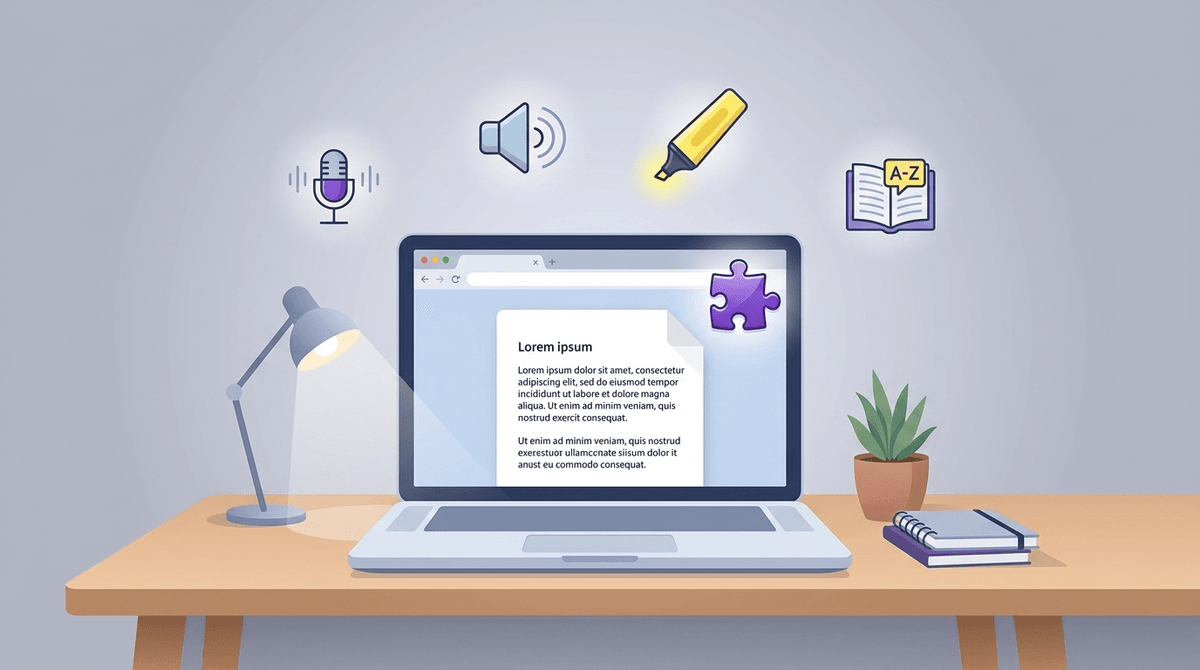
TL;DR: Read&Write for Chrome is a browser extension (the "purple puzzle piece") that provides a toolbar of literacy support tools. It helps kids who struggle with reading, writing, or focus by offering text-to-speech, dictation, and vocabulary support. Most importantly: your kid’s school probably already pays for it.
Quick Links for the Homework Grind:
- Google Docs - Where most of the writing magic happens.
- Canva - For when they need to make that history presentation look "aesthetic."
- Quizlet - Great for studying, but even better with Read&Write’s screen masking.
- National Geographic Kids - A perfect site to test out the "Simplify" feature.
If you’ve looked over your child’s shoulder while they’re working in Google Chrome, you might have noticed a small purple puzzle piece icon in the top right corner. That is Read&Write.
It’s an "all-in-one" toolbar designed to help students interact with digital content. It’s not just for kids with dyslexia or IEPs (though it’s a lifesaver for them); it’s a productivity suite for any student who finds a giant wall of text on a Wikipedia page or a complex Google Docs assignment a bit overwhelming.
Think of it as a Swiss Army knife for the browser. It reads text aloud, predicts what they’re trying to type, and even helps them highlight and collect research notes across multiple websites.
We are living in an era where "reading" often means "scrolling through a chaotic website with 47 ads for Roblox skins and three auto-playing videos." For a kid with ADHD or even just a tired 10-year-old, that’s a nightmare.
Read&Write matters because it levels the playing field. It moves the focus from the mechanics of reading and writing to the comprehension of the material. If your kid is a brilliant storyteller but struggles to get words from their brain to their fingers, this tool bridges that gap.
Learn more about how digital tools support neurodivergent learners
The toolbar can look a bit busy at first, but there are four or five "heavy hitters" that your student will actually use.
1. Text-to-Speech (The "Read Aloud" Button)
This is the core of the app. It reads any digital text aloud with a dual-color highlighting system (one color for the sentence, another for the word). This is huge for proofreading. We’ve all seen our kids write a sentence like "The dog go to park" and not catch the error because their brain fills in the gaps. Hearing it read back via Read&Write makes those errors obvious.
2. Talk&Type (Dictation)
Basically, it’s Siri for their homework. It’s remarkably accurate. If your kid is "Ohioposting" or talking about Skibidi Toilet lore, it might get a little confused by the slang, but for a standard essay on the Oregon Trail, it’s a game-changer for kids who have "blank page syndrome."
3. Simplify Page
This is my personal favorite. One click and it strips away the ads, sidebars, and "related content" from a website, leaving just the text and relevant images. It turns a chaotic news site into something that looks like a clean Kindle book. It’s like an "Ad-Blocker" but for the student’s brain.
4. Prediction
Similar to the predictive text on your iPhone, but smarter. It learns the student's style and suggests words as they type. For a kid who struggles with spelling, this prevents them from getting "stuck" on a word and losing their train of thought.
5. Vocabulary Tools
Kids can highlight words they don't know, and with one click, the extension creates a Google Docs vocabulary list with definitions and "picture dictionary" icons. It makes the jump from "I don't get this" to "I'm learning this" much shorter.
Check out our guide on the best educational Chrome extensions
I get this question a lot at pickup. "If the computer reads it to them, are they actually reading?" or "If they dictate, are they actually writing?"
Here’s the no-BS take: No, it’s not cheating. It’s a scaffold.
When your kid is learning to ride a bike, you use training wheels. Eventually, they come off. When a kid is learning to process complex information, Read&Write provides the support they need so they don't get frustrated and give up. For many kids, the barrier isn't their intelligence; it's the physical act of decoding letters or the fine motor skills of typing.
If they use Read&Write to finish a report on The Wild Robot by Peter Brown, they are still engaging with the themes of the book. They are still organizing their thoughts. They are just using a 2025 tool to do it.
- Grades K-2: Probably overkill. At this age, we want them focusing on phonics and the tactile feel of writing. If they need something read aloud, PBS Kids or Epic! usually have built-in audio.
- Grades 3-5: The "Sweet Spot." This is when "learning to read" shifts to "reading to learn." Read&Write is perfect for those first big research projects or when they start using Google Classroom.
- Middle & High School: Essential. The workload triples, and the "Simplify" and "Highlighter" tools become vital for managing the sheer volume of digital reading.
Read&Write is made by Texthelp, a company that specializes in education. They are generally very good about data privacy and comply with COPPA and FERPA (the big student privacy laws).
However, it is a Chrome extension, which means it "reads" the data on the pages you visit to work its magic. If you are worried about privacy, you can set it to only run on specific sites like Google Docs or Canvas.
Before you go out and buy a personal subscription, check with your school.
Most school districts in the US and UK have a "Domain License." This means if your child logs into Google Chrome using their school email address, the "Premium" features are already paid for.
If they don't have a school account, there is a free version, but it’s pretty limited (mostly just the basic text-to-speech). The premium version is a bit pricey for an individual family, so definitely poke your school's IT department or the teacher first.
Read&Write for Chrome isn't "brain rot" or a shortcut. It’s a high-quality accessibility tool that turns a frustrating homework session into a manageable one. If your kid is struggling to stay focused or getting "the ick" every time they see a long reading assignment, it’s worth the five minutes it takes to install and test out.
- The "Puzzle Piece" Check: Have your kid open Chrome and see if the purple puzzle piece is already there.
- The "Simplify" Test: Go to a busy site like Time for Kids and have them try the "Simplify Page" button. It’s the closest thing to magic they’ll see in a browser.
- Proofreading Hack: Next time they finish an essay in Google Docs, have them use the "Play" button to listen to their own work. They’ll catch five mistakes in the first paragraph.
Check out our guide on how to set up a distraction-free study space