

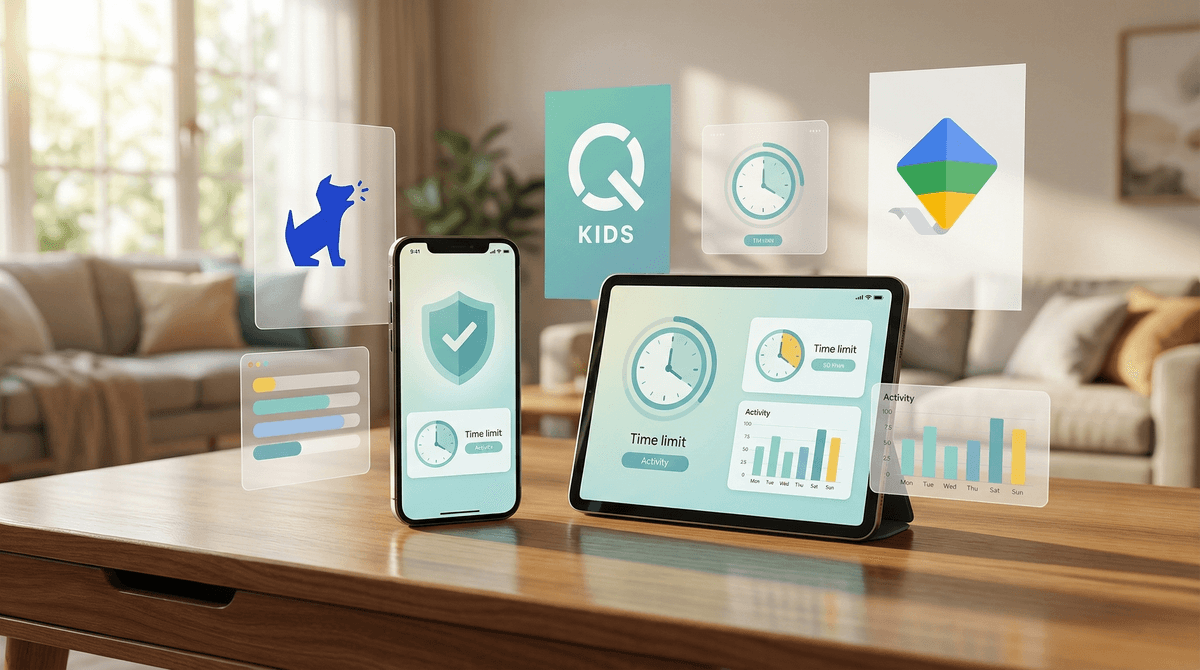
TL;DR: If you want the "set it and forget it" approach for basic time limits, stick with Apple Screen Time or Google Family Link. If you’re worried about what’s actually being said in the DMs, Bark is the gold standard for AI-powered safety alerts without being a total creep. For the "nuclear option" of hard filtering and blocking, Qustodio is your best bet.
Check out our full comparison of parental control apps
We’ve all been there. You look over and your kid is three hours deep into a Roblox marathon, their brain is basically "Skibidi" mush, and you realize you have no idea who they’re talking to or what they’re seeing.
The immediate parent reflex is to go full "Lockdown Mode." You want to password-protect every pixel and turn their iPhone into a glorified brick. But here’s the No-BS truth: Digital parenting isn’t about building a prison; it’s about building a perimeter.
If you make the digital world a forbidden fruit, your kids will just become world-class hackers by age eleven. (Seriously, I’ve seen kids bypass Apple Screen Time by changing the system clock or deleting and reinstalling apps—it's impressive and infuriating).
The goal is to find a balance where the tech handles the "grunt work" of safety so you can focus on actually talking to your kid.
At their core, these tools do three things:
- Time Management: "You get two hours, then the iPad turns into a coaster."
- Content Filtering: "No, you cannot access that weird corner of Reddit or 'spicy' websites."
- Monitoring/Alerting: "Hey parent, your kid just used the word 'suicide' or 'meet up' in a text message."
Some apps are "Low-Key" (they only alert you if something is wrong), while others are "Lockdown" (they block everything by default). Which one you choose depends entirely on your kid’s age and how much you trust their current "Ohio" level of decision-making.
Before you buy a third-party subscription, you need to master the tools you already own.
If your family is all-in on iPhones and iPads, this is the default. It’s free, it’s built-in, and it’s... okay. It’s great for setting "Downtime" (no tech after 8 PM) and "App Limits." The Reality Check: It’s buggy. Sometimes the limits just don't sync. Also, smart kids know that if they watch YouTube through the Safari browser instead of the app, it sometimes bypasses the limits.
For the Android and Chromebook families, this is actually a bit more robust than Apple’s version. You can remotely lock a device, see their location, and approve every single app download. It’s essential if your kid is playing Minecraft on a tablet.
If your kid is a PC gamer spending all day on Fortnite or Valorant, you need this. It’s the only way to effectively manage screen time on a Windows computer.
When the built-in settings aren't enough—usually around the time they want Snapchat or TikTok—it's time to look at the pros.
Bark is the "cool parent" of monitoring apps. Instead of letting you read every single text (which, let's be honest, is a great way to make your teenager never talk to you again), Bark uses AI to scan for trouble. It looks for signs of cyberbullying, depression, or predatory behavior across 30+ platforms, including Instagram and Discord. Why it’s good: It respects privacy while providing a safety net. You only get an alert if something is actually concerning. The Downside: It can be a bit of a pain to set up on iPhones due to Apple’s privacy restrictions.
If Bark is a smoke detector, Qustodio is a security guard. It gives you a detailed breakdown of every site visited and every app used. You can set a "hard stop" for the internet. Why it’s good: It’s very hard for kids to bypass. It’s great for younger kids (ages 7-11) who are just starting to explore the web. The Downside: It can feel very "Big Brother." If you use this with a 16-year-old, expect some major pushback.
Aura is the new kid on the block that combines parental controls with identity theft protection and "Safe Gaming" features. It’s specifically designed to flag if someone is being toxic to your kid in the voice chat of Roblox.
Find parental control app recommendations based on your kid's age
The "Training Wheels" Phase (Ages 5-9)
At this age, they shouldn't have unrestricted access to the open web.
- The Move: Use Google Family Link or Apple Screen Time to whitelist only specific apps.
- Media Diet: Stick to YouTube Kids (with comments turned off!) and curated games like Toca Life World.
- The Talk: "The tablet is a tool we use together. When the timer goes off, we're done."
The "Social Exploration" Phase (Ages 10-13)
This is the danger zone. They want to be where their friends are, which usually means Discord or Roblox.
- The Move: This is the time to install Bark. You need to know if the "friends" they are meeting online are actually peers.
- Settings: Turn off "Direct Messaging" from strangers in every single app.
- The Talk: "I'm not reading your texts to be nosy; I'm using a tool that alerts me if someone is being mean or if you're in a situation you don't know how to handle yet."
The "Independence" Phase (Ages 14-17)
By now, they probably know more about the settings than you do. If you try to "Lockdown" a 16-year-old, they will find a workaround in ten minutes.
- The Move: Transition from "Monitoring" to "Check-ins." Maybe you keep a common-sense limit on total hours, but you stop looking at the content alerts unless there's a reason to be worried.
- The Talk: "You've earned more privacy, but that comes with the responsibility of coming to me if something weird happens online."
- Filters are not 100%: No app is perfect. A kid can still see something traumatizing on a "safe" site. Don't let the app replace your eyes and ears.
- The "Delete and Reinstall" Trick: This is the oldest trick in the book. If your kid deletes Instagram and reinstalls it, sometimes the time limits reset. Check the "Battery" settings in the phone to see which apps are actually sucking power—it’s a great way to see if they’re using an app they "deleted."
- The Wi-Fi Loophole: If you block an app on the phone, but they have an old iPad or a smart TV with a browser, they’ll just go there. Consider a hardware solution like Gryphon Routers to manage the whole house at the source.
If you sneakily install Bark on your kid's phone in the middle of the night, you are destroying trust. Period.
Instead, try this: The Digital Contract. Sit down and say, "I want you to have this phone/game because it's fun and it's how you talk to your friends. But my job is to keep you safe. So, we're going to use Apple Screen Time to help us keep track of time, and Bark to make sure no one is harassing you. If you show me you can handle it, we'll loosen the settings over time."
Make it a negotiation, not a sentence.
Parental control apps are like seatbelts. They won't prevent the car from crashing, but they'll keep your kid from flying through the windshield when it does.
Start with the free native settings. If your kid is tech-savvy or starting to use social media, level up to Bark. And most importantly, keep the conversation going. No app can replace a parent who knows what "Ohio" means and why Skibidi Toilet is currently the bane of your existence.
- Check your settings: Open Apple Screen Time or Family Link right now and see what the "Daily Average" actually is. Prepare for a shock.
- Pick one app: Don't try to install five different trackers. Pick one (we recommend Bark for most) and learn it well.
- Have the "Tech Talk": Use dinner tonight to ask them what their favorite thing on TikTok is. Don't judge, just listen.
Check out our guide on how to talk to your kids about digital safety