

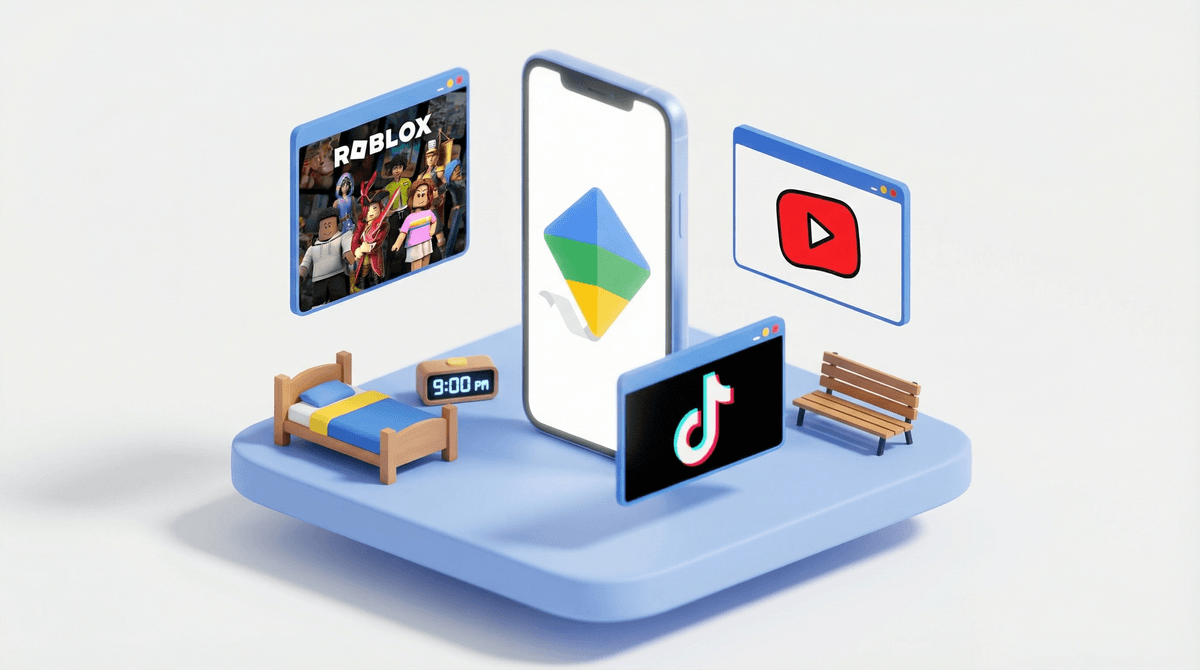
Google Family Link is Google's free parental control system that lets you manage your kid's Android device, Chromebook, or even their iPhone (though with fewer features). Think of it as the Android equivalent of Apple's Screen Time, except it actually works pretty well and doesn't cost anything extra.
Here's what it does: You install the Family Link app on your phone, set up a supervised Google account for your kid, and boom—you can now see what apps they're using, set screen time limits, approve app downloads, and even lock their device remotely when it's time for dinner and they're "just finishing this one level."
The catch? It only works if your kid is using a Google account you control. So if they've already got their own Gmail account they set up themselves, you'll need to migrate them to a supervised account—which is doable but slightly annoying.
Let's be real: most kids today are getting their first phone between ages 9-12, and handing over a fully unrestricted smartphone is like giving them the keys to a Ferrari with no driving lessons. Google Family Link gives you training wheels without being overly restrictive.
What makes Family Link particularly relevant is that it's built into the Android ecosystem. If you're buying your kid a budget Android phone (which, honestly, is the smart move for a first phone), Family Link is your best free option. Apple's ecosystem is more locked down by default, but Android's openness means you need something like this.
The other reason it matters: it grows with your kid. You can start with tight controls at age 10 and gradually loosen them as they prove they can handle more freedom. When they turn 13, they can choose to "graduate" from supervision (though you can keep it going if they agree).
App Management
You approve every app they want to download. No more surprise $100 in-app purchases or sketchy apps that promise free Robux. When your kid tries to download something, you get a notification and can approve or deny it right from your phone.
You can also hide apps you don't want them using—like the browser if you're not ready for unrestricted internet access, or YouTube if you want them on YouTube Kids instead.
Screen Time Limits
Set daily limits for total screen time, or limits for specific apps. Want them to have unlimited access to Duolingo but only 30 minutes of TikTok? You can do that.
There's also a "bedtime" feature that locks the device during certain hours—crucial for kids who would absolutely stay up until 2am watching YouTube Shorts if given the chance.
Location Tracking
Yes, you can see where their phone is. This is either "essential safety feature" or "helicopter parenting" depending on your philosophy. Either way, it's there if you want it.
Activity Reports
Weekly reports show you what apps they're using and for how long. It's not as detailed as some paid services, but it's enough to spot if they're spending 4 hours a day on Roblox when they told you they were "just checking it real quick."
Here's where expectations need adjusting:
It's not a content filter. Family Link won't block inappropriate websites or filter search results beyond Google's basic SafeSearch. If you want that level of filtering, you'll need to layer on something like Google's own content restrictions in Chrome or use a third-party service.
It doesn't monitor messages. You can see they're using Messages or WhatsApp, but you can't read their conversations. (Whether you should be reading their texts is a whole other conversation.)
It's not foolproof. Determined kids can find workarounds—like using a friend's phone, creating a new Google account, or factory resetting their device. It's a tool, not a prison.
Ages 8-10: If you're giving a kid this young a device, go maximum supervision. Approve every app, set tight time limits, stick to YouTube Kids instead of regular YouTube, and use location tracking without shame. They need guardrails.
Ages 11-12: This is the sweet spot for Family Link. Keep app approval on, but start having conversations about why you're saying yes or no to certain apps. Loosen screen time limits gradually as they prove they can self-regulate. Start letting them use regular YouTube with SafeSearch on.
Ages 13-14: At this age, Family Link should be shifting from "parental control" to "family agreement." Keep the activity reports so you can have informed conversations, but consider removing some of the harder limits. When they turn 13, they'll get the option to remove supervision entirely—talk about this before it happens so you're not blindsided.
Ages 15+: Honestly? If you still need Family Link at this age, you've got bigger issues than screen time. At this point, it should be voluntary on their part or you're probably just driving them to find workarounds.
The setup process takes about 15-20 minutes and requires your kid's device in hand. Google's instructions are actually pretty good, but here are the pain points:
-
If your kid already has a Google account, you'll need to transfer it to supervision, which logs them out of everything. Give yourself time to log back into all their apps.
-
You need to be signed into your own Google account on your phone. If you use multiple accounts, make sure you're using the one you want to be the "parent" account.
-
The first few days are annoying because they'll be requesting app approvals constantly. Push through it—it gets better once they have their core apps set up.
Over-restricting too early. If you set the daily limit at 30 minutes total screen time, your kid will just use a friend's phone instead. Start with reasonable limits and adjust based on behavior.
Not explaining why. Family Link works best when your kid understands it's about safety and learning self-regulation, not punishment. Have the conversation.
Forgetting to update as they grow. What makes sense for a 10-year-old is ridiculous for a 14-year-old. Review and adjust every few months.
Using it as a replacement for actual parenting. Family Link tells you your kid spent 3 hours on YouTube—but you still need to talk to them about what they're watching and whether it's complete brain rot .
.
Google Family Link is a solid, free tool that does exactly what it promises: gives you visibility and control over your kid's device usage. It's not perfect, it's not comprehensive, and it definitely won't replace actual conversations about digital citizenship.
But for families with Android devices, it's absolutely worth setting up. The alternative is either spending money on third-party parental control software (which often works less smoothly) or just... hoping for the best. And we all know how that usually goes.
Start with tighter controls than you think you need, then loosen them as your kid proves they can handle more freedom. Think of it as scaffolding, not a cage.
- Download the Family Link app on your phone from the Play Store
- Have a conversation with your kid about why you're setting this up (before you set it up)
- Set it up together so they see what you're doing and don't feel like you're being sneaky
- Plan a check-in in 2-3 weeks to review what's working and what needs adjusting
- Consider what other tools you might need—like content filtering or conversation starters about online safety
And remember: the goal isn't perfect control. The goal is teaching your kid to eventually manage their own digital life responsibly. Family Link is just the training wheels.