YouTube Kids is only as safe as the settings you turn on. | Screenwise

A parent’s playbook

YouTube Kids is only as safe as the settings you turn on.

Treat it as a locked-down tool, not a babysitter: match the content mode to your kid's age, turn off search and autoplay, and decide whether you're hand-picking the channels. Here's exactly how — and what to watch instead when it isn't working.

WISE 54

The bottom line

The training-wheels version of the world's biggest video site—safer than the main app, but still a masterclass in keeping your kid glued to a screen.

YouTube Kids is a utility, not a destination.

It’s the best way to let a young child explore video content without the immediate danger of the 'Wild West' main site, but it’s still designed by Google to maximize watch time.

If you use it as a digital babysitter and leave 'Search' on, you’ll eventually find your kid deep in a hole of weird AI-generated nursery rhymes.

If you use the 'Approved Content Only' setting, it becomes a fantastic, curated library.

It’s only as good as the guardrails you actually bother to set.

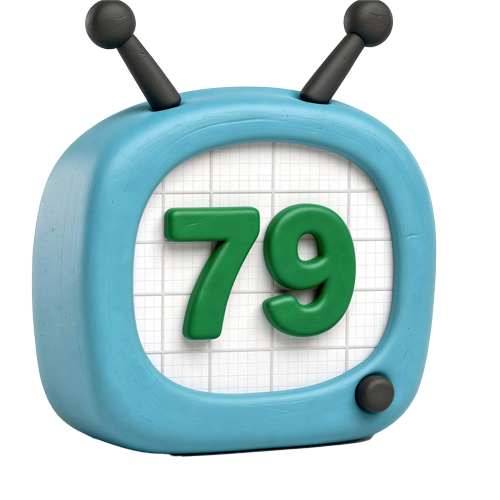
Wholesome

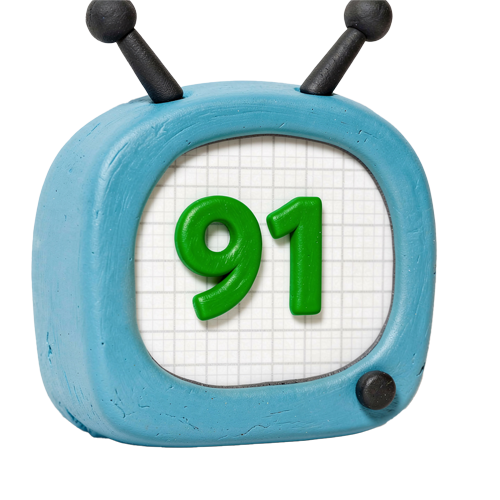
58/100

While it filters out the truly dark corners of the internet, the pacing is often frantic. It favors high-energy, loud, and repetitive content like toy unboxings and 'challenge' videos that can leave kids overstimulated rather than emotionally grounded.

Imaginative

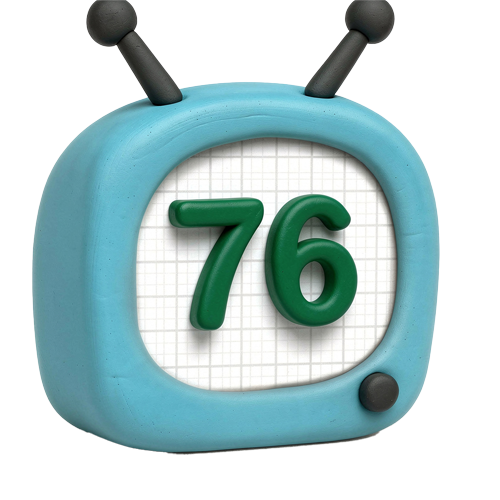
42/100

It's primarily a consumption engine. While there are great 'how-to' and DIY channels, the algorithm's gravity pulls kids toward passive viewing of 'satisfying' loops and influencer stunts rather than creative play.

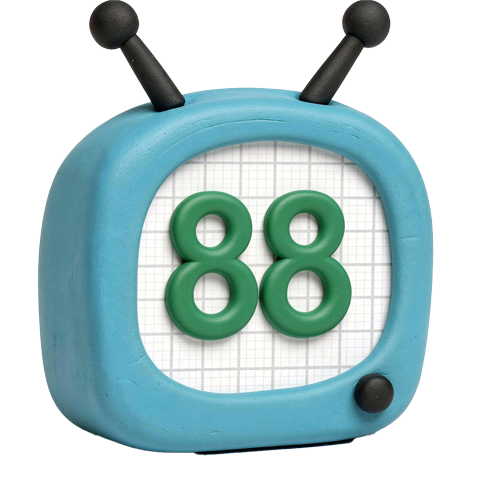
Safe

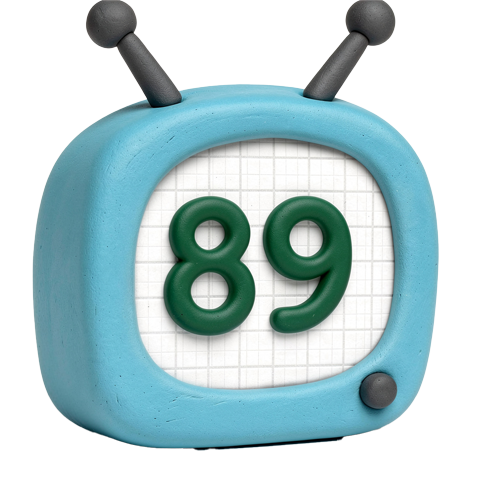
62/100

Significantly safer than the main app, especially with 'Approved Content Only' turned on. However, the automated filters aren't perfect; 'Elsagate' style AI-slop and heavy-handed 'stealth' advertising for toys still slip through the cracks.

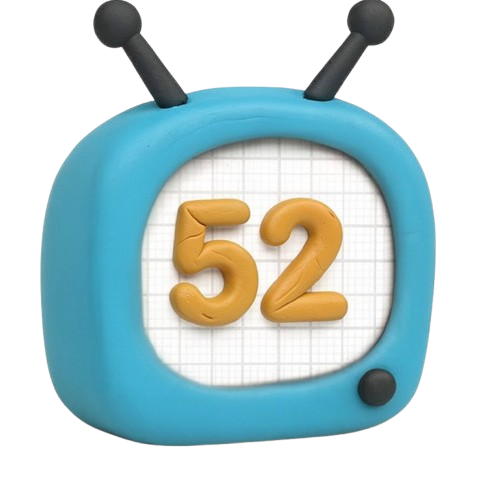
Enriching

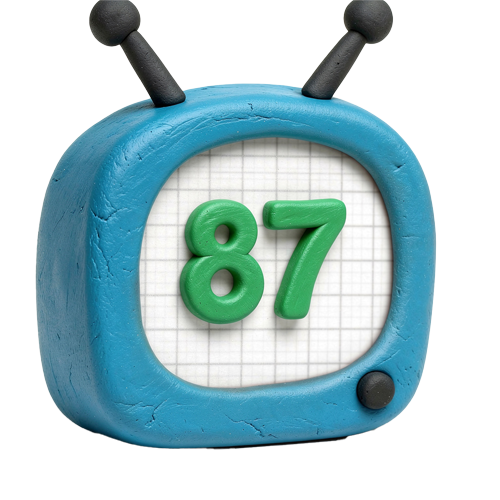
55/100

The floor is low (brain rot), but the ceiling is high (NASA, PBS Kids, Mark Rober). Its value depends entirely on whether a parent curates it or lets the algorithm take the wheel.


Is YouTube Kids right for your kid specifically?


YouTube Kids is a walled-off version of YouTube: four age modes, a screen-time timer, a flag button, and a promise that everything inside is made for kids. The pitch is reassuring. The reality is that the wall is built by an algorithm, not by hand — and that single fact is the whole story of this app.

We score every app on four dimensions, and YouTube Kids lands at Wholesome 58, Imaginative 42, Safe 62, Enriching 55. Safe is the highest of the four and it's still a middling number — because "safe" here depends entirely on how you set it up. The low Imaginative and Enriching scores are the tell: the default modes optimize for watch-time, so the same app that can serve a kid genuinely great science and storytelling can just as easily drop them into a 40-minute loop of someone else opening toys.

So the real question isn't whether to allow YouTube Kids. It's which mode, and how locked down. For a child under seven, that means Approved-content-only or Preschool mode, search switched off, autoplay off. The "Older" mode quietly opens a door to far more than most parents expect, and the highest-leverage thing you can do in the entire app is turn off the search bar — it's the difference between a curated shelf and the open firehose.

It's a different app with you in the room, at least for the first week. Watch a session. See what the recommendations serve up once your kid taps around. Prune the junk out of the history. Ten minutes of co-viewing tells you more about whether this is working than any single toggle.

And if it keeps serving junk no matter how you tune it, the answer may be a different app entirely. PBS Kids, Khan Academy Kids, and Epic are curated by people instead of an engine, and a hand-picked set of channels worth keeping often beats the feed outright. YouTube Kids can be a fine front door to video. It just was never meant to be left open.

The real watch-out isn't a setting — it's the algorithm.

Every safety toggle in YouTube Kids sits on top of one thing the toggles can't fully fix: a recommendation engine built to keep a kid watching. Even inside the kid modes, autoplay queues the next video, and the next, each one chosen to hold attention rather than to be worth their time. The fix is partly mechanical — turn autoplay off, set the timer — and partly a habit: review the history together and prune what you don't like, so the engine learns a better picture of your kid.

On the weird and creepy stuff: YouTube Kids has spent years cleaning up after the wave of disturbing, algorithmically-assembled knock-offs that slip past automated filters — bright, familiar characters dropped into content that is anything but. Far less of it gets through now, but "far less" is not "none." If something off-key surfaces, flag it for review and block the channel; both take one tap. Our full breakdown of why these videos happen and how to stop them goes deeper.

On ads and buying pressure: YouTube Kids is free because it's ad-supported — your kid will see ads unless you have YouTube Premium. Separately, a lot of what feels like content is selling: unboxings, merch hauls, and creator promos that aren't labeled as paid ads. Kids don't draw that line on their own, so it's worth naming out loud.

On the "Older" mode: the difference between modes is enormous, and it's easy to set once and forget. "Older" widens the library dramatically and can re-enable search. Know which mode each of your kids is on, and re-check it after every app update — settings have a way of drifting back toward the defaults.


Five settings turn YouTube Kids from a firehose into a walled garden.

Pick the content mode that matches your kid

The single most important choice. Preschool and Younger lean on the curated library; Older widens it sharply and can turn search back on; Approved-content-only hands the keys entirely to you. The mode you choose at profile setup quietly decides how much of the open firehose your kid can reach.

Platform
Set when you create the kid's profile · change anytime in Settings → your child's profile
Best way in
Under 7? Choose Approved-content-only or Preschool. Don't reach for "Older" until you've seen exactly what it opens up.

Turn off Search

This is the highest-leverage toggle in the app. With search off, your kid is limited to the curated shelf instead of typing anything they can spell into an open box. It's the difference between a bounded set of videos and the entire platform.

Platform
Settings → your child's profile → Search: off
Best way in
Off by default for younger kids. Leave it off until your kid is old enough that you'd hand them open YouTube anyway.

Set a timer and kill autoplay

The built-in timer freezes the app when time's up, which turns "five more minutes" into a hard stop the app enforces, not you. Switching autoplay off breaks the rabbit hole — each video ends instead of feeding the next.

Platform
Timer: lock icon → Set timer · Autoplay: Settings → Autoplay: off
Best way in
A timer plus autoplay-off is the combo that does the most work for the least effort.

Use "Approved content only" for full control

The one mode where a person decides, not the engine. You hand-pick the channels, videos, and collections your kid can see — nothing else loads. More setup, but it's the closest YouTube Kids gets to a shelf you curated.

Platform
Settings → your child's profile → Approved content only
Best way in
Worth the effort for under-6s, or any kid who keeps drifting into junk. Pair it with the step-by-step approved-channels walkthrough in the guides linked below.

Check the history and block what you don't like

The watch history is your feedback loop. Skim it now and then, block any video or channel that doesn't belong, and flag the genuinely bad ones for review. Every block and flag also teaches the recommendations to do better next time.

Platform
Watch it again / history tab · tap ⋮ on any video → Block
Best way in
A two-minute history check once a week catches more than any one-time setting.

After they play.

A few things worth asking when they put the controller down:

  • Show me the best thing you watched on there this week — what made it good?
  • Did anything pop up that felt weird, or that you didn't like?
  • That video was trying to get you to buy something — did you notice? How could you tell?
  • If you could add any channel to your approved list, what would it be and why?
  • You watched that one three times — what is it about it that you love?

Curated, not algorithmic

Apps that don't need this much babysitting.

These are filtered by people, not an engine — so the floor on what a kid stumbles into is a lot higher. The closest thing to handing your kid a video app and not hovering.

Browse all rated media

Worth approving

Channels good enough to hand-pick.

If you use Approved-content-only mode, start with these. Strong, genuinely enriching YouTube channels that earn a spot on a curated shelf.

Browse all rated media

Watch instead

When you'd rather skip the feed entirely.

Shows and podcasts with a beginning, middle, and end — no autoplay, no rabbit hole. The antidote to an endless scroll of clips.

Browse all rated media


What other families are actually doing.

The next time your kid says “but everyone” about a phone, a TikTok account, or a new app — here’s the actual data by grade.

What kids are watching, by grade

Sign in to personalize this guide with data from families in your school, city, and community

Average Screen Time by Grade (Hours/Day)

Weekday Hours
Weekend Hours
Average

YouTube Access by Grade

No YouTube
Supervised
Independent

YouTube Kids vs Regular YouTube

No YouTube
YouTube Kids
Regular YouTube

FAQ.

Real questions parents actually ask about YouTube Kids


Go deeper

Read more.

More YouTube Kids-adjacent guides — episode breakdowns, comparisons, voice-tested takes on related shows, and the screen-time conversations every parent eventually has.

YouTube Alternatives for Kids: 7 Ad-Free & Safe Platforms

YouTube Alternatives for Kids: 7 Ad-Free & Safe Platforms

Switch to safer platforms like PBS Kids and Jooki that avoid the YouTube rabbit hole. We compare the best ad-free options with an age-by-age breakdown.

Read the guide
YouTube Kids Algorithm Explained: How to Stop Weird Videos

YouTube Kids Algorithm Explained: How to Stop Weird Videos

The algorithm uses watch history and 'made for kids' tags to suggest content, but it's not perfect. Learn how to lock down your child's feed today.

Read the guide
Fake YouTube Kids Videos: How to Spot Disturbing Content

Fake YouTube Kids Videos: How to Spot Disturbing Content

Disturbing fake YouTube kids videos often bypass filters. Here is how to spot creepy content and protect your child from algorithmic nightmares.

Read the guide
How to Change YouTube Kids Age Settings: Step-by-Step

How to Change YouTube Kids Age Settings: Step-by-Step

Learn how to adjust YouTube Kids content levels for Preschool, Younger, or Older kids. We show you how to lock search and block specific channels easily.

Read the guide
Beyond Cocomelon: The Best Family-Friendly YouTube Channels for 2026

Beyond Cocomelon: The Best Family-Friendly YouTube Channels for 2026

Vetted creators like Mark Rober and Art for Kids Hub that offer safe, high-quality entertainment for every age group.

Read the guide
Set Up Approved YouTube Channels: A 3-Step Guide for Parents

Set Up Approved YouTube Channels: A 3-Step Guide for Parents

Stop the algorithm from suggesting junk. Use the "Approved Content Only" setting to limit your child to specific channels you trust. Plus, our top 15 picks.

Read the guide
YouTube Kids Premium: Is the $22.99 Family Plan Worth It?

YouTube Kids Premium: Is the $22.99 Family Plan Worth It?

YouTube Premium (formerly YouTube Kids Premium) removes ads and allows offline play. We break down if the family plan price is worth your sanity.

Read the guide
YouTube Kids: The Honest Parent Review You Actually Need

YouTube Kids: The Honest Parent Review You Actually Need

Is the 'safer' version of YouTube actually safe? What works, what doesn't, and how to use it without regrets.

Read the guide

Want recs for your kid specifically?

Take the 5-minute Screenwise family survey. We’ll use it to surface the shows, games, and books that actually fit your kid — not just the generic top 10.

Take the 90-second Gut Check