

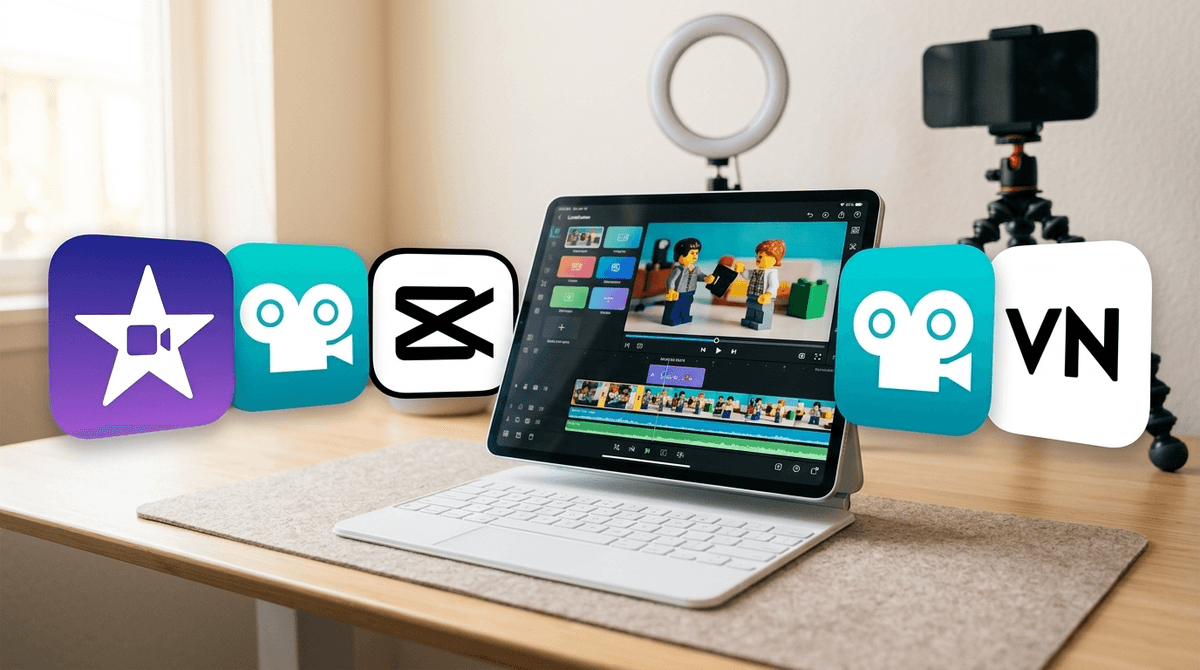
TL;DR: The Best Video Editing Apps for Kids
- Best for Beginners (iOS): iMovie — Free, safe, and no social media "discovery" feed.
- Best for Creative Play: Stop Motion Studio — Perfect for the Lego-obsessed kid.
- Best for Budding Professionals: LumaFusion — A one-time purchase that rivals Hollywood software.
- The "Proceed with Caution" Choice: CapCut — Incredible tools, but it's a direct pipeline to TikTok.
If your kid has asked you how to make a "Sigma" edit or wants to know how to add those weird sound effects to a video of their dog, you’ve officially entered the Creator Economy phase of parenting.
Gone are the days when kids just sat back and watched Bluey. Now, they want to be the ones behind the camera (or the iPad). They want to cut, transition, and meme-ify their world. On one hand, this is awesome—it’s a genuine technical skill that combines logic, timing, and storytelling. On the other hand, a lot of video editing apps are just "social media lite" platforms in disguise, designed to suck kids into a bottomless pit of scrolling under the guise of "editing."
Here is how to navigate the world of video editing apps without accidentally handing your 10-year-old a backdoor to the weirdest corners of the internet.
It’s not just about being "famous." For many kids, video editing is the modern equivalent of playing with a massive box of Legos. They see a trend on YouTube or Roblox and want to replicate it.
Whether they are making "Skibidi Toilet" parodies or "Ohio" memes (don't ask, it just means "weird" now), they are learning how to layer audio, use "green screen" effects, and understand pacing. It’s a high-level cognitive task. The goal for us is to keep the creativity while stripping away the data-harvesting and the pressure to go viral.
If you want to keep the "social" out of "multimedia," these are your best bets. They live on the device, don't require an account, and won't show your kid "suggested content" from strangers.
If you have an iPhone or iPad, this is the gold standard for beginners. It’s free, it’s powerful enough to make a real movie, and it has zero social features. No one is going to comment on your kid's video within the app. It’s a "walled garden" in the best way possible.
Also from Apple, this is essentially "TikTok without the TikTok." It allows kids to make short, punchy videos with stickers, live captions, and fun filters. It’s great for younger kids (ages 6-9) who want the "vibe" of a social media video without actually being on a platform.
This is a parent favorite for a reason. It requires patience. Your kid has to move a toy an inch, take a photo, and repeat. It’s the ultimate "slow tech" video app. There is a free version, but the paid version (usually a small one-time fee) is worth it for the extra sound effects and green screen features.

Once your kid hits middle school, iMovie might start to feel "too basic." They’ll want more "overlays," better text options, and more sophisticated transitions. This is where things get tricky.
We have to talk about CapCut. It is currently the most popular editing app for kids and teens. Why? Because it’s owned by ByteDance (the same company that owns TikTok).
- The Good: The features are insane. It has "Auto-Cut," amazing background removal, and every trending song your kid wants to use.
- The Bad: It is essentially a social network. There is a "Templates" tab that is basically a TikTok feed. It’s very easy for a kid to spend two hours "editing" when they are actually just scrolling through other people's templates.
- The Verdict: If you allow it, turn off notifications and keep a close eye on the "Templates" tab.
If your kid is actually serious about film—like, they’re talking about frame rates and color grading—skip the "free" apps and buy LumaFusion. It’s a one-time cost (around $30), which sounds like a lot for an app, but it is a professional-grade tool. Most importantly: it has no social feed. It is a pure tool for creators.
A lot of apps in the App Store look "free" but are actually "subscription vampires." They’ll let your kid edit a whole video, and then when they go to save it, a giant "PAY $9.99/MONTH TO REMOVE WATERMARK" pop-up appears.
- KineMaster: It’s a solid editor, but the subscription model is aggressive and annoying for families.
- VivaVideo: Often flagged for excessive data permissions. Generally not worth the privacy trade-off.
When your kid starts editing video, they are effectively handling "Personal Identifiable Information" (their face, your house, their school shirt).
- The "Export" Rule: Make sure your kid knows that "Exporting" a video to the Camera Roll is different from "Sharing" it to an app.
- Metadata: Most video files contain GPS data of where they were filmed. If they are uploading these to a public site, that's a risk.
- The Background Check: Teach them to look at what's behind them in a video. Is there a piece of mail on the counter with your address? A school trophy with their full name?
Instead of just saying "no" to an app like CapCut, try having a conversation about the business model.
"Hey, I noticed this app is free but it's showing you a lot of videos from people you don't know. Why do you think the company does that?"
Help them see that the "Templates" are there to keep them in the app longer, not necessarily to make them a better editor. If they just want the tools, suggest LumaFusion or iMovie as a way to "level up" their actual skills without the distractions.
Video editing is one of the few "high-value" screen time activities. It’s the difference between eating a meal and learning how to cook one.
If your kid is just starting out, stick to iMovie or Stop Motion Studio. If they are ready for the big leagues but you want to avoid the TikTok-style "backdoors," invest in LumaFusion.
The goal isn't to stop them from creating; it's to make sure they are the creator, not the product.
- Check the Screenwise Community Data: See what percentage of parents in your school district are allowing CapCut.
- Set a "No Face" Rule: For younger kids, suggest they make videos of their Lego sets, drawings, or pets before they start filming themselves.
- Explore Game Design: If they love editing, they might love Scratch. Check out our guide to coding for kids.