

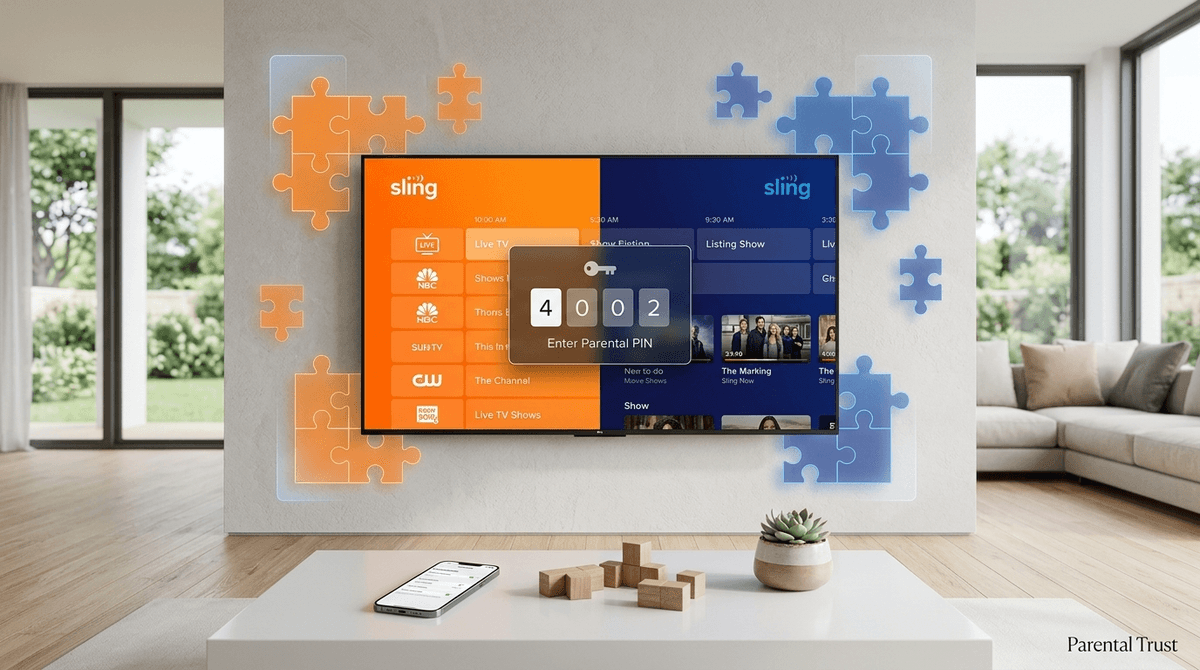
TL;DR: Sling TV is the budget-friendly "I’m finally cutting the cord" choice that feels like a logic puzzle designed by a caffeinated toddler. To keep it safe in 2026, you need to master the Orange vs. Blue channel split, set up a mandatory Parental Control PIN, and understand that the new Minor's Profiles are a great start but won't filter out every pharmaceutical commercial during a sports game.

If you’ve looked at YouTube TV or Hulu + Live TV lately, you know they’ve become just as expensive as the cable bills we all tried to escape. Sling TV remains the "build-your-own" alternative, but it comes with a catch that confuses almost every parent: the color-coded tiers.
- Sling Orange: This is the "Kid & Sports" tier. It has Disney Channel, Freeform, and ESPN. The kicker? You can only stream on one device at a time. If your kid is watching Bluey in the playroom, you can't watch the game in the living room.
- Sling Blue: This is the "News & Entertainment" tier. It has Discovery, Bravo, and local Fox/NBC stations in some markets. It allows three simultaneous streams, but it usually lacks the core Disney/ESPN lineup.
- Sling Orange + Blue: The "I give up, just give me everything" tier. It’s more expensive but solves the streaming conflict.
For most intentional parents, the "Orange" tier is the honey trap. You want the Disney Channel, but the single-stream limitation is a recipe for a Saturday morning argument.
As of early 2026, Sling finally rolled out dedicated Minor's Profiles. Previously, Sling was notorious for having a "one size fits all" interface where your 7-year-old would see a thumbnail for a TV-MA horror documentary right next to SpongeBob SquarePants.
The new profiles allow you to designate a user as a "Minor," which does three things:
- Filters the Grid: It hides channels that are rated above the threshold you set (e.g., only showing TV-Y and TV-G).
- Restricts Search: If they search for something like "Deadpool," nothing comes up.
- Locks the Exit: You can require a PIN to switch back to an adult profile.
The Reality Check: While these profiles are a massive improvement, Sling is still Live TV. This means that even on a "safe" channel like Cartoon Network, the commercials are not curated for kids. In 2026, we’re seeing more "dynamic" ad insertion, which means your kid might see a trailer for a PG-13 movie or a localized ad that feels a bit too "grown-up" even if the show itself is fine.
In a world of YouTube and TikTok, you might wonder why kids care about Sling. It usually comes down to "Appointment Viewing" and specific brands.
Kids still love the "live" feel of events. Whether it's the Nickelodeon Kids' Choice Awards or live sports, there's a social currency in watching things as they happen. If their friends are talking about a new episode of The Loud House the moment it drops, Sling is often the cheapest way to give them that access without a $90 cable bill.
If you’re moving your family to Sling, do not skip these three steps. The default settings are "open doors," and you want to close them before you hand over the remote.
1. Enable the Parental Control PIN
Go to Settings > Parental Controls. The first thing you must do is "Enable" and set a 4-digit PIN. Without this, any "locks" you put in place can be turned off by a curious third-grader in about six seconds.
2. Lock by Rating (The "Nuclear" Option)
Sling allows you to lock content by rating (G, PG, TV-14, etc.).
- Recommendation: Lock everything TV-14 and above.
- The "Unrated" Trap: There is a toggle for "Unrated" content. Lock this. Many movies and older shows on Sling’s "On Demand" section are tagged as unrated, and some of them are definitely not for kids.
3. The "Purchase Protect" Toggle
Sling makes it incredibly easy to add "Extras" (like the Comedy Extra or Kids Extra) with one click. If you don't want to find an extra $15 on your bill because someone wanted to see what was on the Boomerang channel, make sure the PIN for Purchases is toggled to ON.
If you're looking for high-quality viewing that justifies the subscription, here are the gems currently available on the 2026 Sling lineup:
Available through the "Heartland Extra" or specific on-demand bundles. This is the gold standard for "edutainment." It’s visually stunning and actually teaches something about the world, unlike the 24/7 loop of Skibidi Toilet parodies they might find on YouTube.
Frequently cycling through the premium movie channels on Sling. It’s a beautiful adaptation that handles themes of technology and nature with more grace than almost anything else in the "kids" category right now.
Usually found on the Science Channel or Discovery (Sling Blue). It’s strangely hypnotic and great for "wind-down" time. It builds a sense of curiosity about engineering and manufacturing without the high-octane stress of modern cartoons.
Sling has a feature called "Freestream." You don't even need a credit card to watch it. It’s ad-supported, "FAST" (Free Ad-supported Streaming TV) television.
While it sounds great, the quality control on Freestream is... questionable. It’s a mix of old reality shows, obscure 80s movies, and "viral video" channels. If your kids are using the Sling app, they can easily toggle over to Freestream. The 2026 Minor's Profiles should filter this, but we’ve seen community reports that some "borderline" content still slips through the Freestream cracks because the metadata isn't as clean as the major networks.
Instead of just being the "Remote Police," use Sling's interface to talk about how media works:
- The "Why" of Ads: When a commercial comes on, ask: "Who do you think they are trying to sell this to?" It's a great way to build media literacy.
- The Choice Architecture: Talk about why Sling puts certain shows on the "Home" screen. Is it because they are good, or because Sling wants you to buy a new "Extra" pack?
- Live vs. On-Demand: Discuss the difference between waiting for a show to air and clicking "Play" on Netflix. It’s a small lesson in delayed gratification that we’ve almost lost in the streaming era.
Sling TV is a solid choice for the intentional parent who wants to save money but still keep a foot in the world of live television. It isn't as "set it and forget it" as Disney+ or Apple TV+, but with the 2026 Minor's Profiles and a solid PIN strategy, it’s a manageable tool.
Just remember: Orange for Disney, Blue for Multi-stream, and PINs for your sanity.
Next Steps:
- Audit your "Extras": Are you paying for "Kids Extra" just for one channel your kid doesn't watch anymore?
- Test the Minor's Profile: Create one today and try to search for an R-rated movie to make sure the filter is actually holding.
- Check the community data: See what percentage of parents in your school district are using Sling vs. YouTube TV.