

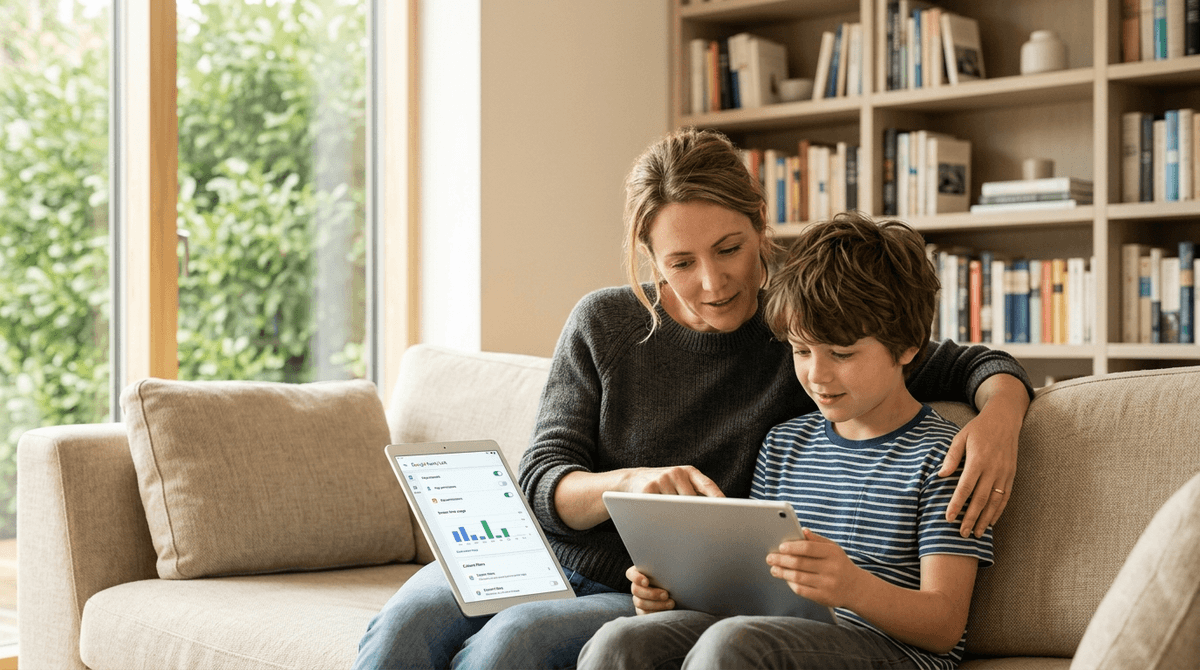
TL;DR: Google Supervised Accounts are the bridge between the "walled garden" of YouTube Kids and the wild west of the open internet. By using Google Family Link, you can toggle the new School Time feature to kill distractions, manage Contact Approvals so your 10-year-old isn't texting strangers in Ohio, and graduate them into a "supervised" version of YouTube that filters out the worst brain rot.
Think of a Google Supervised Account as the "learner’s permit" of the digital world. Technically, Google requires kids to be 13 before they can manage their own account. Before that, they are essentially "supervised" via Google Family Link.
It’s not just about "spying" or locking things down; it’s the master key that lets you decide which doors stay locked and which ones they’re ready to open. It connects their email, their YouTube history, their Android phone or tablet, and even their school Chromebook into one ecosystem that you actually have a say in.
Get a step-by-step setup guide for Family Link
We’ve all been there: you give them the tablet for "twenty minutes" and suddenly they’re three hours deep into a Skibidi Toilet marathon or watching some "influencer" scream about Roblox hacks.
The supervised account is the only way to stop the "infinite scroll" without physically ripping the device out of their hands and dealing with the inevitable meltdown. Google has finally realized that "On" and "Off" aren't the only two settings parents need. We need nuance. We need a way to say, "You can use your phone for music and calling me, but you can't play Brawl Stars during math class."
Google recently dropped some updates that actually make these accounts useful for the 2025 landscape.
This is the MVP of the recent updates. Previously, "Down Time" just locked the whole phone. School Time allows you to set a schedule where the device becomes a "dumb phone." They can access the dialer (to call you) and maybe a few educational apps you’ve whitelisted, but TikTok and YouTube are totally dark. It’s perfect for kids who have their first phone in middle school but lack the impulse control to keep it in their backpack.
Contact Approvals
If your kid is using Google Messages, you can now require approval for who they can communicate with. This is huge. It prevents the "random friend of a friend" from adding them to a group chat that’s 90% memes and 10% stuff you really don't want them seeing yet.
YouTube Supervision
This is the big transition. YouTube Kids is great for toddlers, but by age 9, kids think it’s "for babies." A supervised account lets them use the "real" YouTube app but with three tiers of content:
- Explore: Generally for ages 9+. Filters out most "mature" content but allows vlogs, gaming, and music.
- Explore More: For ages 13+. Opens up more music videos and "edgy" content.
- Most of YouTube: Basically everything except age-restricted content.
Learn how to transition your kid from YouTube Kids to YouTube
If you're setting up a supervised account, you're likely looking for content that won't melt their brains. Here’s how to populate their digital world once you've got the "Master Key" in place.
For the "Younger" Supervised Crowd (Ages 8-10)
At this age, they want to feel "big" but still need heavy guardrails.
- National Geographic Kids: The gold standard for "I'm bored" browsing that actually teaches something.
- Scratch: If they want to "make games" instead of just spending your money on Roblox, this is the place to start.
- Brains On!: A podcast that treats kids like the smart people they are.
For the "Pre-Teen" Crowd (Ages 11-12)
This is where the pressure for Instagram and Snapchat starts. Use the supervised account to offer "safer" alternatives first.
- Duolingo: Use the "App Approvals" feature to make this a requirement before they get gaming time.
- MrBeast: Look, he’s controversial in the "is this too much consumerism?" way, but for a 12-year-old on a supervised account, it’s the "water cooler" talk of their generation. It’s better they watch this than deep-dive into the weird "Sigma" edit rabbit holes.
- Minecraft: Still the best game for building actual logic and spatial skills.
Check out our guide on the best coding apps for middle schoolers
Ages 5-8: The "Walled Garden" Phase
They shouldn't really have a full Google Account yet. Stick to YouTube Kids and PBS Kids. If they have a tablet, use Family Link to lock it down so they literally cannot leave the apps you've approved.
Ages 9-12: The "Training Wheels" Phase
This is the sweet spot for Supervised Accounts. Enable School Time, set a hard "Off" time at 8:00 PM, and use YouTube Explore mode. This is the time to talk about why you’re seeing what they’re searching for. It’s not about catching them; it’s about seeing that they’re obsessed with Terraria and using that to connect with them.
Ages 13+: The "Independence" Phase
At 13, Google gives them the option to "take over" their account. Don't panic. If you've spent the last three years using the supervised tools as a conversation starter rather than a digital cage, this transition is much smoother. You can still keep some supervision on if they agree to it, but the "hard locks" usually start to fade here.
Here is the truth: Google Supervised Accounts are not a silver bullet.
If your kid wants to find something "sus," they will. They’ll find it on a friend's phone, or they’ll find a workaround. The goal of these tools isn't to create a 100% sterile environment—that’s impossible and honestly kind of weird. The goal is to reduce the friction of parenting in a digital age.
Also, a warning: YouTube Shorts is the crack-cocaine of the supervised account. Even with "Explore" settings, the Shorts algorithm is designed to keep them scrolling forever. It’s a lot of "brain rot" content—loud noises, fast cuts, and questionable "pranks." If you notice your kid is becoming a "Shorts Zombie," use the Family Link app to set a specific time limit on the YouTube app itself.
Learn more about the "Shorts" dopamine loop and how to break it
Don't set this up in secret. That’s how you lose trust before the first app is even downloaded. Sit them down and say:
"Hey, we're setting up your Google account. This is like your digital learner's permit. I’m going to have the 'Master Key' for a while so I can help you navigate the weird parts of the internet. We’re going to use 'School Time' so your phone doesn't distract you from your friends at lunch, and I’ll be approving the apps you download so we can make sure they aren't just trying to drain my bank account for Robux."
Make it about safety and focus, not control and suspicion.
Google Supervised Accounts are currently the best tool we have for managing the "middle years" (ages 9-12). Between School Time and the tiered YouTube access, you can finally stop playing "Digital Cop" every single night.
It takes about 15 minutes to set up correctly, but it saves you about 15 hours of arguments per month. That’s a trade-off any parent should take.
Next Steps:
- Download the Google Family Link app on your phone.
- Create a Google Account for your child (or migrate their existing one to your family group).
- Set up your School Time schedule immediately—even if it's just for a few hours a day.
- Sit down with your kid and look at the YouTube "Explore" settings together.
See a comparison of Google Family Link vs. Apple Screen Time