

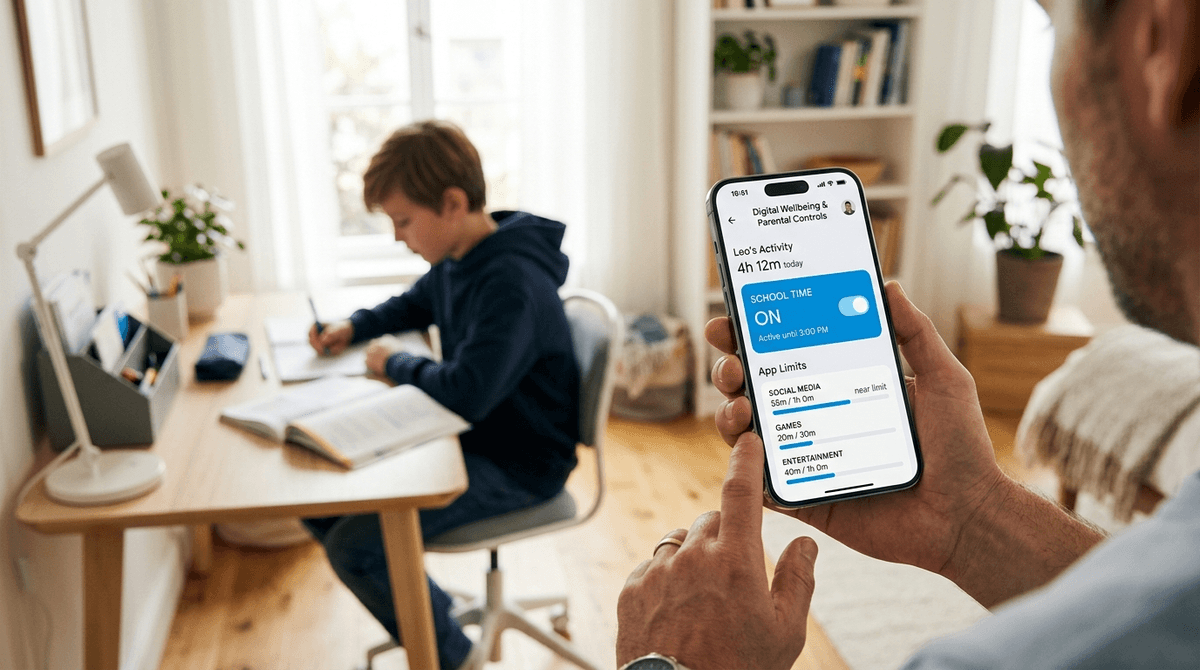
TL;DR: Google is officially moving away from the clunky, separate Family Link app and baking parental controls directly into the Android operating system. This shift focuses on "School Time" modes, native contact approvals, and more granular app limits. It’s less about "policing" and more about setting invisible guardrails so your kid doesn't end up in a Roblox rabbit hole when they should be doing long division.
Quick Links:
For years, Android parents had to juggle the Family Link app. It was... fine. But it felt like an afterthought, and kids (who are basically tiny hackers when they want ten more minutes of YouTube) found ways around it constantly.
In 2026, Google has finally integrated these features into the core Android settings. This means the controls are harder to bypass and easier for you to manage. If your kid thinks they’re being "Ohio" (which, for the uninitiated, is currently kid-speak for "weird" or "cringe") because you’re checking their screen time, you can now blame the phone’s "wellness settings" rather than a specific "spy app."
This shift is about moving toward digital independence. We’re moving away from the "I lock your phone at 8 PM" vibe and toward "Your phone knows it's bedtime, so it's helping you wind down."
The biggest update is the expansion of School Time. Previously restricted to smartwatches, this is now a flagship feature for all Android phones and tablets.
School Time allows you to set a schedule where the phone becomes a "dumb phone" with a few exceptions. You can whitelist Google Classroom or Khan Academy, but TikTok and Brawl Stars are completely greyed out.
The beauty here is that it also silences notifications. No more buzzing in the backpack because a "Skibidi Toilet" meme went viral in the group chat.
See how to whitelist specific educational apps for School Time
By the time kids hit 5th grade, roughly 60% of them have a personal smartphone or tablet. By 8th grade, that number jumps to 91%.
We aren't just managing "games" anymore; we’re managing their entire social lives and their dopamine receptors. Android’s new native settings recognize that a 7-year-old playing Minecraft needs a different set of rules than a 14-year-old trying to navigate the social landmines of Snapchat.
1. Contact Approvals
This is a game-changer for younger kids. You can now require approval for any new contact added to their phone. If "SigmaAlpha123" tries to text your 10-year-old, you’ll get a notification on your device to approve or block. It’s a necessary layer of protection against the weirdness of the open web.
2. Native App Limits (with "Bonus Time")
Instead of a hard shut-off that causes a meltdown in the middle of a Fortnite match, the 2026 update allows for "Bonus Time." You can remotely grant an extra 15 minutes from your own phone notification shade without diving deep into menus. It makes you the "cool parent" while still maintaining the boundary.
3. Content Filtering that Actually Works
Google has beefed up the "SafeSearch" and "YouTube Restricted Mode" integrations. While YouTube Kids is great for the preschool set, older kids find it "for babies." The new Android settings allow you to bridge that gap by filtering the main YouTube app more effectively based on their age.
Learn more about the difference between YouTube Kids and Restricted Mode
The "Little" Years (Ages 5-9)
At this age, the phone or tablet should be a walled garden.
- Focus on: PBS Kids, Endless Alphabet, and Toca Boca.
- Android Strategy: Use Fixed App mode or "Pinning." This keeps them inside one app so they don't accidentally end up on the broader internet or buying $100 worth of gems in a random game.
The "Tween" Years (Ages 10-12)
This is the "Ohio" phase. They want Roblox and they want to talk to their friends.
- Focus on: Teaching them why we have limits.
- Android Strategy: Use School Time strictly. Set a "Digital Bedtime" that is 30 minutes before actual lights out to allow their brains to stop buzzing from the blue light and the MrBeast videos.
The Teen Years (Ages 13+)
This is about transition. If you’re still "approving" every app for a 16-year-old, you’re going to have a bad time.
- Focus on: Transparency.
- Android Strategy: Turn off the "approval" for apps but keep the Screen Time reports active. Sit down once a week and look at the data together. "Hey, you spent 6 hours on Instagram yesterday—how are you feeling? A bit drained?"
You’ve probably heard the term "brain rot" thrown around. It’s the current slang for low-effort, high-stimulation content like "Skibidi Toilet" or those infinite-scroll TikTok challenges.
Android’s new controls can’t filter out "cringe," but they can help you limit the volume of it. If you notice your kid’s mood tanking after an hour on YouTube Shorts, you can specifically limit that app while leaving Spotify or Duolingo open.
Pro-tip: Some apps are "brain rot" by design. I’m looking at you, Talkie: Soulful AI. It’s basically an AI-fueled rabbit hole that offers very little value. If you see it on their phone, it’s worth a conversation.
Let’s talk about Roblox. Is it teaching entrepreneurship? Maybe a little. Is it a gambling simulator for kids? Also maybe a little.
Android’s native controls allow you to disable in-app purchases entirely or require a biometric (your thumbprint) for every single cent spent. Do not, under any circumstances, give your kid your Google Play password. They will find a way to spend $50 on a "limited edition" hat for their avatar before you can finish your coffee.
The worst way to introduce these controls is to do it in secret. Kids aren't stupid; they’ll notice when their phone suddenly cuts them off.
Try this: "Hey, I’m updating the settings on your phone to help us both out. We’re using this 'School Time' feature so you don't have to worry about your phone buzzing during class, and we’re setting a bedtime limit so we both get better sleep. It’s not about me spying; it’s about making sure the phone is a tool, not a boss."
If they complain it’s "not fair," remind them that even adults struggle with this. Show them your screen time stats. It builds a "we’re in this together" vibe rather than "warden vs. prisoner."
Android’s 2026 update is a massive win for intentional parents. By moving these controls into the native OS, Google has made digital wellness a feature, not a chore.
Is it perfect? No. A determined 12-year-old with a Wi-Fi password and a dream can still find trouble. But these tools provide the guardrails necessary to let them explore the digital world without falling off a cliff.
Next Steps:
- Open Settings on your kid's Android device.
- Search for Parental Controls or Digital Wellbeing.
- Set up your Family Group.
- Activate School Time based on their actual school schedule.
- Have a 5-minute "no-BS" talk about why these limits exist.