

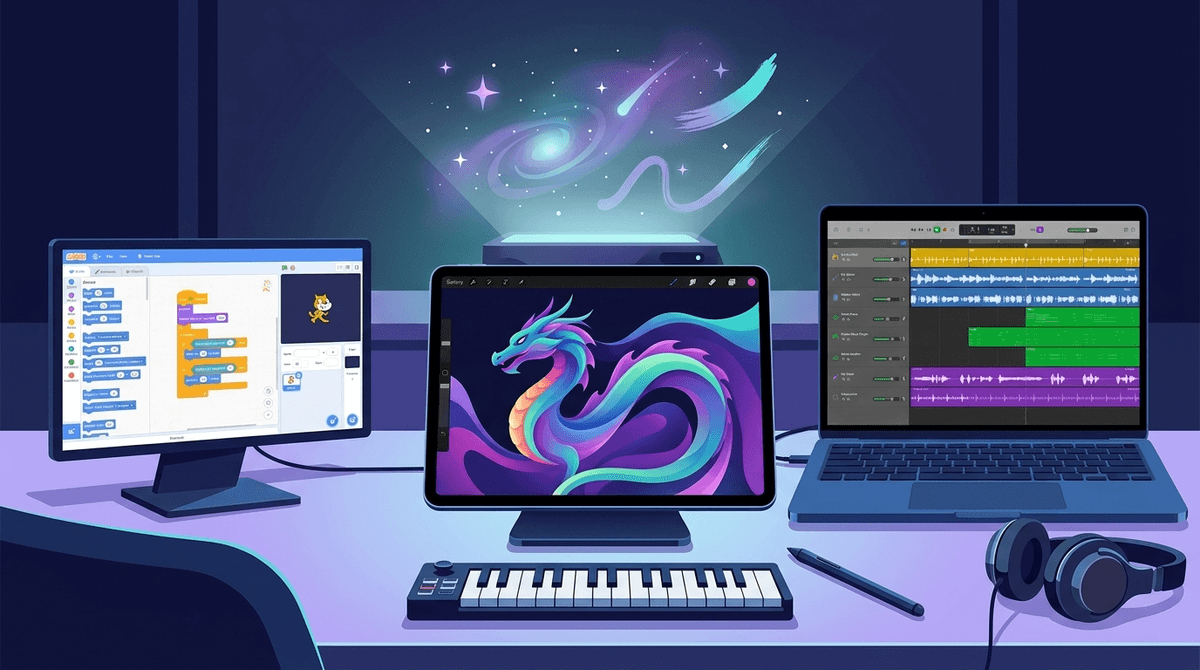
TL;DR: The Best Tools for Digital Creators
If you’re looking to move your kid from "consumer" to "creator," here are the heavy hitters:
- Best for Drawing: Procreate (iPad) or Canva (Web/App).
- Best for Animation: FlipaClip.
- Best for Music: GarageBand (iOS) or Chrome Music Lab (Web).
- Best for Coding/Art Hybrid: Scratch.
- Best for AI Exploration: Adobe Firefly.
Get a creative curriculum for your kid
We’ve all been there. You look over at your kid on the couch and they’ve been scrolling through 30-second clips of Skibidi Toilet memes or some "Ohio" POV video for forty-five minutes. It feels like brain rot. It feels like a waste.
But here’s the thing: the line between "mindless consumption" and "high-level creation" is thinner than you think. Most of the kids making those weird videos are actually learning video editing, layering audio, and understanding comedic timing.
If we want our kids to have a healthy relationship with tech, we have to show them that the iPad isn't just a portable TV—it’s a $500 paintbrush, a recording studio, and an animation desk. When a kid shifts from watching YouTube to trying to figure out how a YouTuber made a specific effect, their "digital wellness" score basically triples overnight.
In the "real world," we value "starving artists," but in the digital world, these skills are actual superpowers. Whether they grow up to be graphic designers, engineers, or just someone who knows how to make a really good presentation, digital literacy starts with play.
It’s about agency. Instead of the algorithm feeding them content, they are the ones feeding the world. Plus, it’s a great way to bond. Trust me, asking a 10-year-old to "teach you how to use layers" in a drawing app is the ultimate ego boost for them.
Ages 8+ If you have an iPad and an Apple Pencil, this is the gold standard. It’s what professional illustrators use, but it’s intuitive enough for a 3rd grader. There are no subscriptions (bless them), just a one-time fee.
- The Pro Tip: If your kid says they "can't draw," tell them to look up "Procreate brushes." They can "paint" with textures like fur, clouds, or light rays. It feels like magic and builds confidence fast.
Ages 10+ Canva is basically "Graphic Design for Dummies," and I mean that in the best way possible. Kids love it for making posters, YouTube thumbnails, or even custom birthday cards. It teaches them about layout, fonts, and "vibe."
- The Catch: It has a massive library of stock photos and elements. It’s a website and an app, but the social features (sharing designs) mean you should probably keep an eye on who they are collaborating with.
Ages 7+ Does your kid want to make their own cartoons? This is the best entry point for frame-by-frame animation. It’s essentially a digital flipbook. It’s surprisingly powerful but simple enough that they can have a "stickman" walking across the screen in ten minutes.
Ages 8-16 Developed by MIT, this is technically a coding platform, but most kids use it to create interactive art and games. It’s a website where they snap blocks together.
- Why we love it: It teaches logic alongside creativity. If they want their character to turn blue when clicked, they have to "code" that. It’s the ultimate "stealth learning" tool.
Ages 6+ If you have an iPhone or Mac, you already own this. It is arguably the best free creative tool ever made. Kids can play "Smart Instruments" where they don't even need to know chords to sound like a rockstar.
- The "Ohio" Factor: Kids love making "remixes." Let them record themselves saying something weird and then loop it over a heavy EDM beat. It’s hilarious, and they’re accidentally learning about tempo and bars.
Ages 4-10 This is a website that is pure, unadulterated fun. It’s a collection of "experiments" that let kids visualize sound. The "Song Maker" is a grid where they draw colorful squares to make melodies. No login required, no ads, just vibes.
Ages 13+ This is like a social, cloud-based version of GarageBand. It’s huge with teens right now.
- Parental Warning: BandLab is also a social network. Users can collab with strangers and post their tracks to a public feed. It’s amazing for aspiring musicians, but it requires the "don't talk to strangers" talk.
Read our full guide on social music apps
It’s 2025. We can’t talk about digital art without talking about AI. Your kids are definitely seeing AI art on TikTok or Roblox.
Instead of banning it, I recommend exploring it together. It’s a great conversation starter about "what is art?" and "who owns an idea?"
Adobe is the "adult" in the room when it comes to AI. They trained their model on images they actually own the rights to, which is a much better ethical starting point than some other bots.
- How to use it: Sit with your kid and type in prompts like "A cat wearing a tuxedo eating spaghetti on the moon in the style of Van Gogh." It’s a lesson in descriptive language and prompt engineering.
Learn more about talking to your kids about AI ethics
Elementary (Ages 5-10)
Focus on tactile digital tools. Use a stylus if possible. Keep them on apps that don't have "community galleries" or public comment sections. PBS Kids has some great basic drawing tools, and Chrome Music Lab is perfect for this age.
Middle School (Ages 11-13)
This is the "remix" age. They want to take existing things (memes, songs, game characters) and change them. CapCut is a massive favorite for video editing, but be aware it’s owned by ByteDance (the TikTok people) and has a lot of social pressure. Encourage them to use Procreate to develop a unique style.
High School (Ages 14+)
At this point, they might be looking at "portfolio" level stuff. Adobe Creative Cloud is the professional leap, but it’s expensive and has a steep learning curve. If they are serious about music, Logic Pro is the next step after GarageBand.
Most creative apps want to be social networks. They want your kid to "Upload to the Gallery" or "Share with the Community."
- Privacy Settings: Always check if the "community" is moderated. On Scratch, it’s pretty well-policed. On Sketchbook, it can be a bit more of a Wild West.
- Copyright: Kids often don't understand that they can't just use a Taylor Swift song in their YouTube video without it getting flagged. It’s a good time to talk about "Fair Use."
- Data Privacy: Creative apps often ask for "Access to All Photos." Be careful—they only need access to the one photo they are editing, not your entire family vacation library.
I get this question at every soccer game. "My kid spent 3 hours on the iPad today... but he was drawing. Is that bad?"
Here is my non-judgmental take: Active screen time is not the same as passive screen time. If your kid is frustrated because they can’t get the shading right on a digital dragon, their brain is working. They are problem-solving. They are practicing "grit." That is vastly different from the hypnotic trance of YouTube Shorts.
If they are creating, I usually give them a "creative pass" on the strict time limits—within reason. (They still need to eat a vegetable and see the sun occasionally).
Digital art and music aren't just "hobbies"—they are the language of the future. By providing the right tools, you're turning a potential distraction into a powerful outlet for self-expression.
Start small. Download GarageBand or open Chrome Music Lab this afternoon. Ask them to make a "theme song" for the family dog. You’ll be surprised how quickly "screen time" becomes "studio time."
Next Steps
- Audit your devices: Do you have an old stylus or MIDI keyboard gathering dust? Dig it out.
- Set a challenge: "Can you make a 10-second animation of a bouncing ball?"
- Check the stats: See what apps other kids in your grade are using for creativity
- Ask a pro: Get a 5-day "Digital Art Boot Camp" for your kid