

TL;DR
Apple Family Sharing is the foundation of your digital household. If you’re tired of your kid "accidentally" spending $50 on Roblox currency or staying up until 2 AM watching "Skibidi Toilet" lore on YouTube, this is your primary toolkit.
- Essential Features: "Ask to Buy" for app/in-app purchases, Screen Time for app limits, and Location Sharing via Find My.
- Pro Tip: Use the "Communication Safety" feature to blur sensitive images in Messages—it’s a lifesaver for the middle school years.
- The Vibe: It’s not about being a "digital warden"; it's about creating a predictable environment so you don't have to argue about the iPad every single night.
Check out our guide on setting up your first iPhone for a child
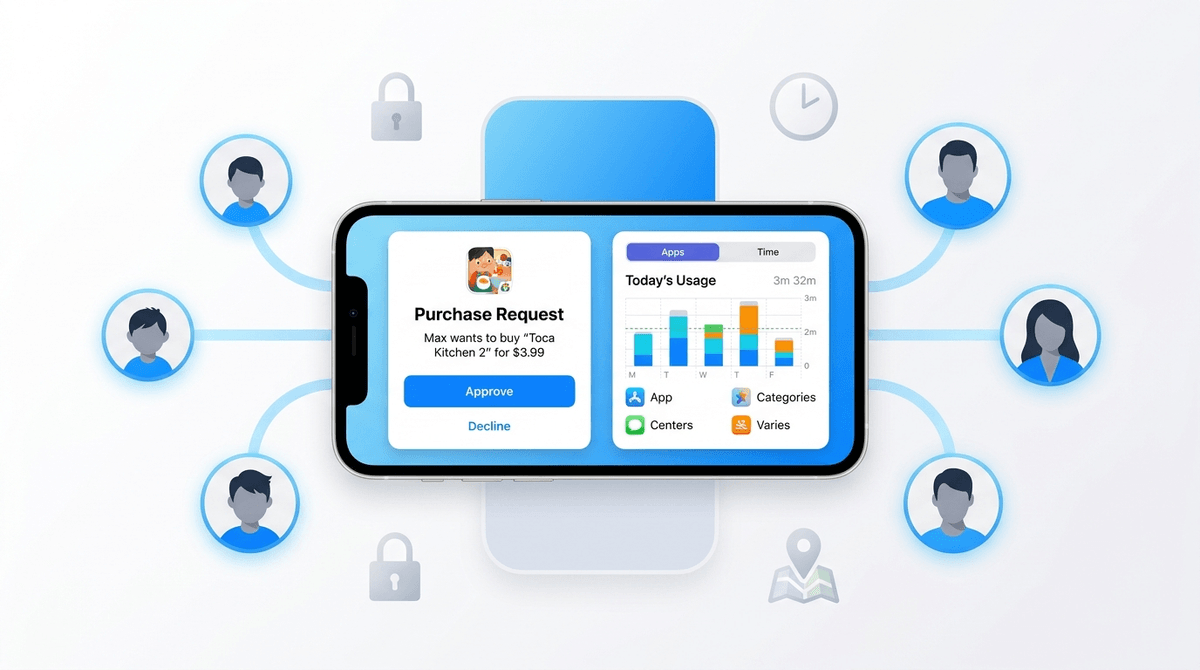
Think of Apple Family Sharing as the "OS" for your home. It allows up to six family members to share subscriptions like Apple Music and Apple TV+, share App Store purchases (so you only buy Minecraft once), and—most importantly—gives you a remote control for your kid’s device from your own phone.
In 2026, Apple has made this more seamless, but let’s be real: the menus can still feel like a labyrinth designed by someone who doesn't actually have a screaming seven-year-old. When you set up a "Child Account" (for those under 13), you gain the ability to manage their digital life without having to physically pry the device out of their hands.
We’ve all seen it: a kid calls something "Ohio" (meaning weird or cringey) because they saw it on a TikTok trend they probably shouldn't have been watching in the first place. Without guardrails, the algorithm is the one parenting your child.
Apple’s parental controls aren't just about "blocking the bad stuff." They are about pacing. They help a 10-year-old learn that Duolingo is a "whenever" app, but Brawl Stars is a "30 minutes after homework" app.
This is the single most important setting for your sanity and your bank account. When your kid wants a new app or those tempting Robux, a notification pops up on your phone. You can see exactly what it is, check the age rating, and hit "Decline" or "Approve." It turns a potential "Why is there a $99 charge from Apple?" crisis into a 5-second decision.
You can set "Downtime" (e.g., 8 PM to 7 AM) where the phone basically turns into a brick, except for phone calls and essential apps like the Calculator or Apple Books.
- App Limits: You can group apps. Maybe you give them 1 hour total for "Social" (which includes Instagram and Snapchat) but unlimited time for Khan Academy Kids.
This is a newer, underrated gem. If enabled, the device uses on-device AI to detect if a child receives or is trying to send photos that contain nudity. The photo gets blurred, and the child gets a warning with helpful resources. It doesn't report them to the "internet police," but it gives them a beat to think before they do something they can't take back.

Kids are basically amateur hackers when it comes to getting five more minutes of Fortnite. Here are the common workarounds and how to shut them down:
- The Time Zone Trick: Kids used to change the time zone in Settings to trick the phone into thinking Downtime hadn't started yet. The Fix: Under Screen Time settings, ensure you have "Lock Settings" toggled on, which prevents them from changing the date and time.
- The Delete-and-Redownload: If an app limit is reached, some kids delete the app and redownload it from the App Store to reset the clock. The Fix: In "Content & Privacy Restrictions," go to "iTunes & App Store Purchases" and set "Deleting Apps" to "Don't Allow."
- The Screen Recording: Some kids will start a screen recording before they hand the phone to you, hoping to capture you typing in the Screen Time passcode. The Fix: Be a ninja. Don't let them see the code, or better yet, use FaceID to authorize extra time.
Ages 5-9: The "Walled Garden" Phase
At this age, the device should be a curated toy.
- Strict Web Filtering: Use the "Limit Adult Websites" feature in Screen Time.
- App Store Lockdown: Use "Ask to Buy" for everything, even free apps.
- Recommended Media: Stick to high-quality, low-stimulation content. We love Snoopy in Space on Apple TV+ or The Wild Robot by Peter Brown via the Books app.
Ages 10-13: The "Training Wheels" Phase
This is when the social pressure starts. They’ll want Discord to talk to friends while playing Minecraft.
- App Limits are Key: Start negotiating time. "You get 2 hours of 'fun' apps, use them how you want."
- Location Sharing: This is the age where they start walking to the park or a friend's house alone. "Find My" is your best friend here.
Ages 14-17: The "Trust but Verify" Phase
By high school, heavy-handed blocking often leads to kids getting "burner" accounts or finding even more elaborate ways to bypass you.
- Focus on Communication Safety: Keep the nudity filters on, but maybe loosen the "App Limits" in favor of "Check-Ins."
- Content Restrictions: You might move from "Block all adult sites" to "Specific Website Only" or just having an open dialogue about what they are seeing on Reddit.
Let's talk about Roblox. It is a brilliant platform for creativity, but it is also a casino for kids. Without "Ask to Buy" enabled, a child can spend hundreds of dollars on "limited" items or "bloxbux" in seconds. Apple's Family Sharing is your primary defense against this.
If you do allow purchases, consider using an Apple Gift Card to give them a "digital allowance." Once the $20 is gone, it's gone. It teaches them the value of a dollar way better than an infinite link to your credit card does.
If you suddenly turn on all these restrictions without a word, you're going to have a rebellion on your hands.
Try this: "Hey, I noticed that we're both spending a lot of time on our phones lately. I'm setting up some 'Downtime' for the whole family so we can actually talk to each other at dinner and sleep better. It’s not a punishment; it’s just a way to make sure the devices don't take over our lives."
When they ask for a new app like TikTok, don't just say no. Say, "Let's look at the Screenwise guide for TikTok together and see if we can set it up safely."
Apple Family Sharing isn't a "set it and forget it" solution. It’s a living system that needs to grow with your child. It won't replace parenting, and it won't prevent every single "brain rot" video from reaching their eyes, but it will give you the data and the control you need to be an intentional parent in a digital world.
Next Steps
- Audit your Family Group: Go to Settings > [Your Name] > Family Sharing and make sure everyone is categorized correctly (especially the "Child" accounts).
- Set a Screen Time Passcode: Make sure it’s different from your phone's unlock code.
- Enable "Ask to Buy": Even if you trust them, it’s a great "pause" button for digital consumerism.
- Explore Apple Arcade: It’s included in many family plans and features great games like Sneaky Sasquatch that have zero ads or in-app purchases.