

The Ultimate Guide to Xbox One Offline Play
TL;DR: Yes, Xbox One works offline — but setup matters. Most physical games work immediately, digital games need a one-time online activation, and you'll need to designate your console as the "Home Xbox" for your account. Parental controls work offline through the Microsoft Family Safety app, but you'll need to configure them while connected first. Screen time limits? That's where things get tricky without internet.
Maybe your internet went out. Maybe you're taking the console to grandma's house. Maybe you're one of those intentional parents who specifically wants gaming to happen without the constant online chatter, microtransaction prompts, and "friend is online" notifications that turn every gaming session into a social negotiation.
Whatever your reason, offline Xbox gaming is absolutely possible — and honestly, it can be kind of refreshing. No updates interrupting gameplay, no random voice chat from strangers, no "Mom, can I buy V-Bucks?" every fifteen minutes.
This is the most important thing to understand: Xbox One has a "Home Xbox" designation that determines which games work offline.
Here's how it works:
- Each Xbox account can designate ONE console as its "Home Xbox"
- Any digital games purchased by that account work offline on that Home Xbox
- Any other accounts on that Home Xbox can also play those games (even offline)
- If you're NOT on your Home Xbox, you need internet to verify your game licenses
To set it up (while you still have internet):
- Press the Xbox button to open the guide
- Go to Profile & system > Settings > General > Personalization
- Select "My home Xbox"
- Choose "Make this my home Xbox"
This one step solves 90% of offline gaming problems. Without it, your kids will get the dreaded "Do you own this game or app?" error message every time they try to launch something offline.
Games that work great offline:
- Physical disc games (obviously — the game is literally in your hands)
- Digital games on your Home Xbox (after that one-time download)
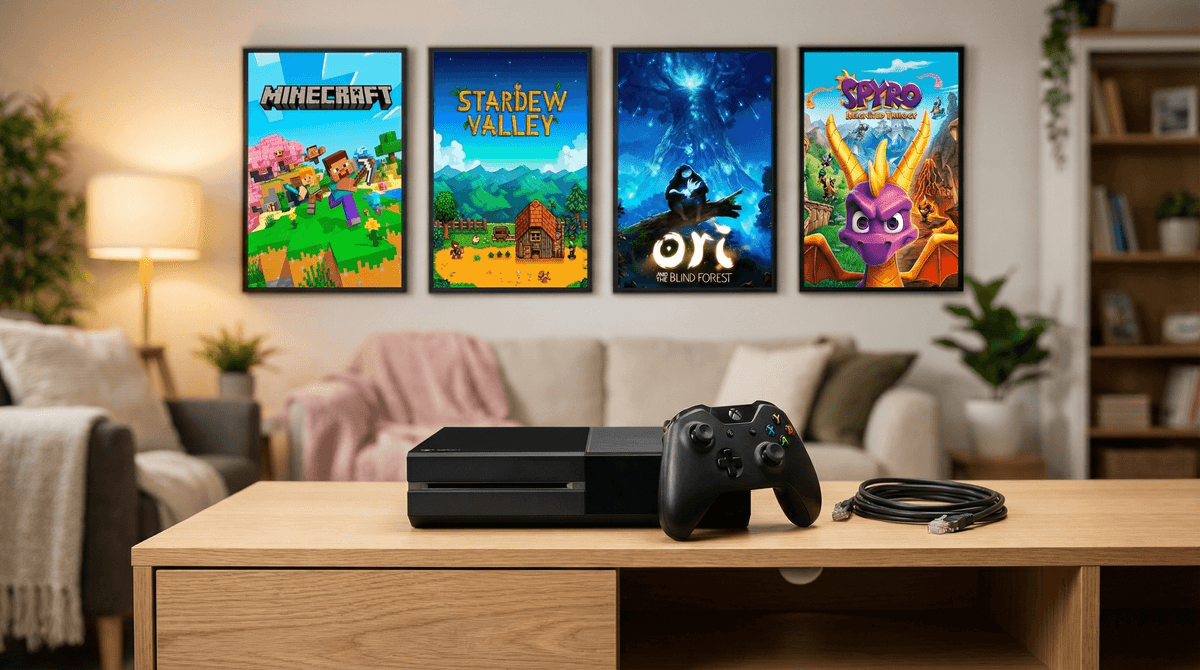
- Single-player campaigns in games like Minecraft, LEGO Star Wars, or Stardew Valley
- Local multiplayer games (couch co-op, split-screen)
Games that DON'T work offline:
The gray area:
- Games with both online and offline modes (like Minecraft) work fine offline, but you can't access online features
- Save data syncs when you reconnect, so offline progress isn't lost
- Some games will nag you about not being connected but still work
The Microsoft Family Safety system mostly works offline, but you need to configure it while connected to the internet first.
What works offline:
- Content restrictions (game ratings, age limits)
- Purchase restrictions (kids can't buy anything without internet anyway)
- Privacy settings (who can contact them, etc.)
What DOESN'T work offline:
- Screen time limits (the console can't enforce time limits without checking Microsoft's servers)
- Activity reports (obviously — no internet means no reporting)
- Real-time notifications to your phone
To set up parental controls before going offline:
- Go to Microsoft.com/family on your computer or phone
- Add your child's account to your family group
- Set content restrictions, privacy settings, and purchase controls
- On the Xbox, sign in with your child's account while online at least once
- The console will cache these settings for offline use
The limitation here is real: you cannot enforce screen time limits offline. The Xbox simply has no way to track time or enforce limits without internet connectivity. This is where old-school parenting comes back into play — you'll need to use a kitchen timer, set clear expectations, or just be the bad guy who says "okay, time's up."
Since Microsoft's built-in screen time controls don't work offline, here are your options:
Low-tech solutions:
- Physical timers (kitchen timer, phone alarm, even an hourglass)
- Clear house rules ("one hour after homework")
- The power cord is in your possession (nuclear option, but effective)
Medium-tech solutions:
- Smart plugs with scheduling (TP-Link, Wemo) — schedule when the Xbox has power
- Outlet timers (like the kind people use for Christmas lights)
- These work even without internet since they're locally controlled
The reality check: Honestly? Offline gaming is often self-limiting in ways online gaming isn't. Without the social pressure of friends being online, without the daily challenges and battle passes, without the "just one more match" multiplayer loop — kids often just... stop playing when they're done with the story or level they're on.
If you're intentionally choosing offline gaming, here are some genuinely great options:
Ages 6-10:
- LEGO games (any of them — Marvel, Star Wars, Harry Potter)
- Minecraft (creative mode is perfect offline)
- Spyro Reignited Trilogy
- Rayman Legends
Ages 10-14:
- Ori and the Blind Forest (stunning, challenging, emotional)
- Stardew Valley (farming sim that's secretly about life)
- Hollow Knight (harder but incredibly rewarding)
- Celeste (platformer with mental health themes)
Family co-op (local multiplayer):
- Overcooked 2 (chaotic cooking, hilarious)
- It Takes Two (requires two players, amazing story)
- Lovers in a Dangerous Spacetime
- Moving Out
Check out our cozy games for kids guide for more low-stress options.
"Do you own this game or app?"
- Your console isn't set as the Home Xbox for the account that bought the game
- Fix: Set it as Home Xbox while online, then go offline
Game won't launch without updating
- Some games force updates before playing
- Fix: Update while online, then disconnect — or buy physical copies of games (they work on the disc version even without updates, though you'll miss bug fixes)
Save data seems missing
- Xbox saves locally AND to the cloud
- Your saves are fine — they'll sync when you reconnect
- Offline saves are stored on the console's hard drive
Controller won't connect
- This isn't an online/offline issue — check batteries
- Try the sync button on the console and controller
- Wired controllers always work (USB cable)
Here's the thing: the gaming industry doesn't really want you playing offline. They make money from online engagement, microtransactions, battle passes, and keeping you in their ecosystem.
But offline gaming has real benefits:
- No microtransactions — can't buy what you can't connect to
- No toxic chat — voice chat requires internet
- Actual endings — story-driven games have conclusions, unlike endless online loops
- Focused play — no notifications, no friends list, no FOMO
- Cheaper games — older single-player games go on deep discount
The downside? Your kids might complain that "everyone else" is playing Fortnite or Roblox online. And yeah, they probably are. This is where you decide what matters more: social connection through gaming or the benefits of offline play.
There's no wrong answer — just different tradeoffs.
Xbox One offline play absolutely works, but it requires setup:
- Set your console as the Home Xbox for your main account (do this first)
- Configure parental controls while online (they'll work offline after)
- Accept that screen time limits won't work without internet (use timers or house rules)
- Choose games that are actually fun offline (single-player campaigns, local co-op)
- Buy physical discs if you want maximum offline flexibility
Offline gaming isn't worse than online gaming — it's just different. It's more like reading a book than hanging out at the mall. Both have value.
- Set up your Home Xbox designation while you have internet
- Configure Microsoft Family Safety settings at microsoft.com/family
- Check out our guide to best single-player games for kids
- Consider which games your kids actually want to play offline
- Have an honest conversation about why you're choosing offline gaming (if that's your goal)
And remember: you can always reconnect to the internet. This isn't a permanent decision. Sometimes offline gaming is just what your family needs for a weekend, a summer, or a specific situation. There's no trophy for parenting on hard mode.