

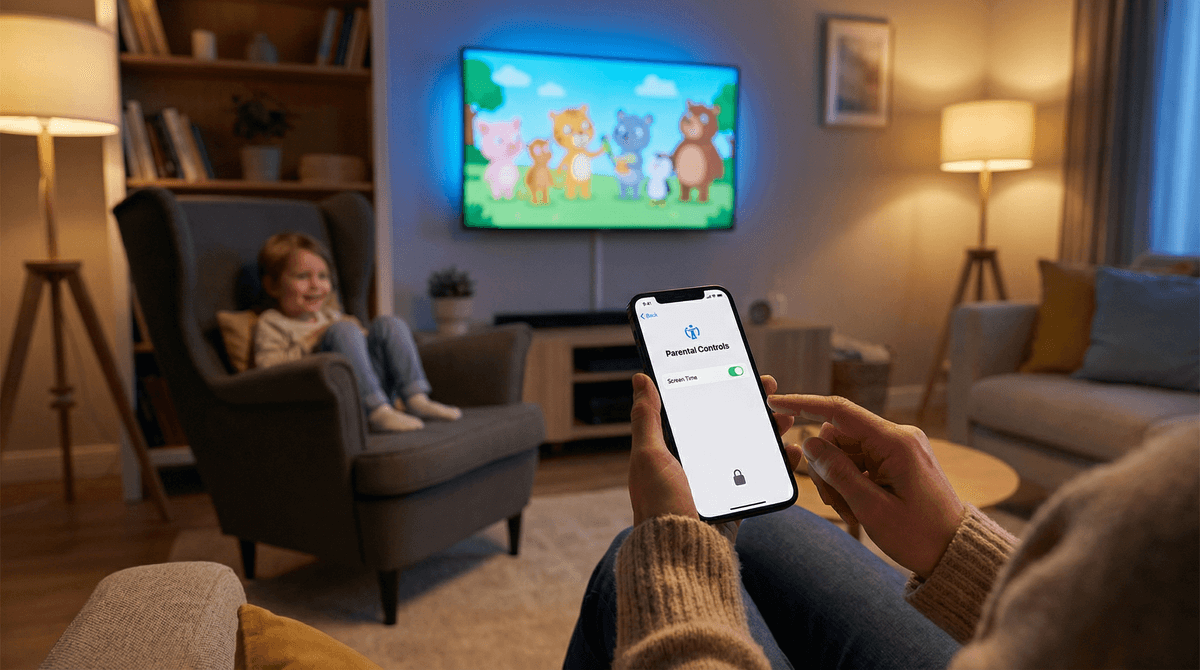
TL;DR: The 2-Minute Lockdown
If you only have time to do three things before the popcorn finishes popping, do these:
- PIN-protect your adult profiles. This is the #1 way kids end up watching things they shouldn't. They aren't hackers; they just click the first face they see.
- Turn off "Autoplay Next Episode." This is the "just one more" engine that turns a 20-minute wind-down into a three-hour binge.
- Audit your YouTube settings. YouTube is a different beast than Netflix. If they are under 10, YouTube Kids is the only "safe" play, and even then, it needs a watchful eye.
We’ve all been there. You’re in the kitchen trying to get dinner started, the kids are "safely" watching TV in the other room, and suddenly you hear a sound that definitely isn't Bluey. You walk in to find your seven-year-old staring wide-eyed at the thumbnail for Squid Game or a trailer for a horror movie because they clicked the wrong profile.
Streaming platforms are designed to keep us watching. Their algorithms don't care about your family's values or your kid’s sleep schedule; they care about "engagement." But as intentional parents, we’re the gatekeepers. Setting up parental controls isn't about being a "helicopter parent"—it’s about creating a digital environment where your kids can explore without stumbling into the "Ohio" side of the internet before they’re ready.
Most parents think parental controls are just about blocking "the bad stuff"—violence, language, and "the talk" scenes. But in 2026, it’s also about brain rot and dopamine loops.
When a kid watches Skibidi Toilet on repeat, or gets sucked into the infinite scroll of previews on a smart TV, it affects their attention span. Controls allow us to curate the quality of what they see, not just the rating.
Learn more about the "brain rot" phenomenon and why kids are obsessed with it
Netflix is the gold standard for controls, but they hide the best features in the web browser settings, not the TV app.
- The Profile Lock: Go to your account settings in a web browser. You can put a 4-digit PIN on every adult profile. This is non-negotiable.
- Maturity Ratings: You can set specific ratings (G, PG, etc.) for each child's profile.
- Title Restrictions: If there is a specific show you just cannot stand—looking at you, Cocomelon—you can actually block specific titles so they never even show up in the search results.
- Turn off Autoplay: This is the best gift you can give your child’s brain. Forcing them to manually click "Next Episode" creates a "stop moment" where you can actually intervene and turn the TV off without a meltdown.
Disney+ used to be the "safe" app, but then they added the entire Marvel library and stuff like The Bear and Shogun.
- Junior Mode: This is a simplified interface for younger kids. It’s great for toddlers, but your 8-year-old who wants to watch The Mandalorian will find it too restrictive.
- Content Ratings: Like Netflix, you can set profiles to 14+ or TV-MA. Make sure your "Main" profile is PIN-protected, or they’ll just hop over to yours to find the "cool" stuff.
YouTube is the Wild West. Even with "Restricted Mode" on, things slip through.
- YouTube Kids: If your kids are under 10, stick to the YouTube Kids app. Use the "Approved Content Only" setting. This means they can only watch channels you have manually whitelisted. No algorithm, no "suggested" weirdness.
- Supervised Accounts: For the tweens who feel they’ve outgrown the "baby" app, you can create a supervised account on the main YouTube. It gives you three levels of content access: Explore, Explore More, and Most of YouTube.
Should I let my 10 year old watch MrBeast?
Prime Video is arguably the most annoying to set up because the controls are tied to your entire Amazon account.
- Purchase PIN: This is the most important setting. If you don't have this, your kid can accidentally "buy" a $25 digital copy of a movie with two clicks.
- Viewing Restrictions: You can apply these by device. So, the iPad has a "G" limit, but the living room TV allows "PG-13."
It’s not just the shows themselves; it’s the previews. Most streaming apps automatically play a loud, high-energy trailer when you just hover over a title. For a kid with sensory sensitivities or a vivid imagination, even a 5-second clip of a "scary" movie can cause nightmares.
Pro-Tip: Check your TV’s system settings (not just the app). Most smart TVs (Roku, Fire Stick, Apple TV) have their own "Global" parental controls that can require a PIN to even open an app like Max or Hulu.
Ages 2-5: The Curated Era
At this age, they shouldn't even know a search bar exists. Use YouTube Kids with "Approved Content Only" or a strictly locked-down Netflix Kids profile. Stick to high-quality, slower-paced shows like Trash Truck or Puffin Rock. High-speed editing (common in modern "brain rot" content) can be overstimulating.
Ages 6-9: The "I Want What They're Watching" Era
This is when they start hearing about Minecraft videos or Roblox gameplay on YouTube. This is the time to introduce "Supervised Accounts" and have conversations about why we don't watch certain creators.
Ages 10-12: The Trust-but-Verify Era
They want autonomy. They want to watch Stranger Things because everyone at school is talking about it. This is a great time to move from "blocking" to "monitoring." Use the "Watch History" feature to see what they’re choosing when you aren’t in the room. It’s not "spying"—it’s parenting.
When your kid asks, "Why do I have a PIN on my profile and you don't?" or "Why can't I watch this?" don't just say "Because I said so."
Try this: "We use these settings because your brain is still growing, and some shows are designed to be like 'junk food' for your head. They make it hard to stop watching and can make you feel grumpy or anxious. We want to make sure the stuff you're watching is actually fun and good for you, not just something an app is trying to trick you into clicking."
Get a script for talking to your kids about screen time limits
Parental controls are a tool, not a solution. There is no setting in the world that replaces you sitting on the couch next to them for 15 minutes to see what they're actually into.
The goal isn't to build a digital prison; it's to build a digital playground with a very sturdy fence. You want them to have the freedom to discover The Wild Robot by Peter Brown or learn how to code on Scratch, without accidentally ending up in the dark corners of the internet.
- The "Sunday Night Audit": Take 10 minutes this Sunday to check the "Watch History" on your kids' profiles. You might be surprised by what's in there.
- Set the PINs: Seriously. Do it right now. It takes 60 seconds and saves a world of headache.
- Take the Survey: If you want to see how your family's streaming habits compare to other intentional parents in your community, jump into the Screenwise Survey. We'll give you a personalized roadmap that's way more specific than a general blog post.