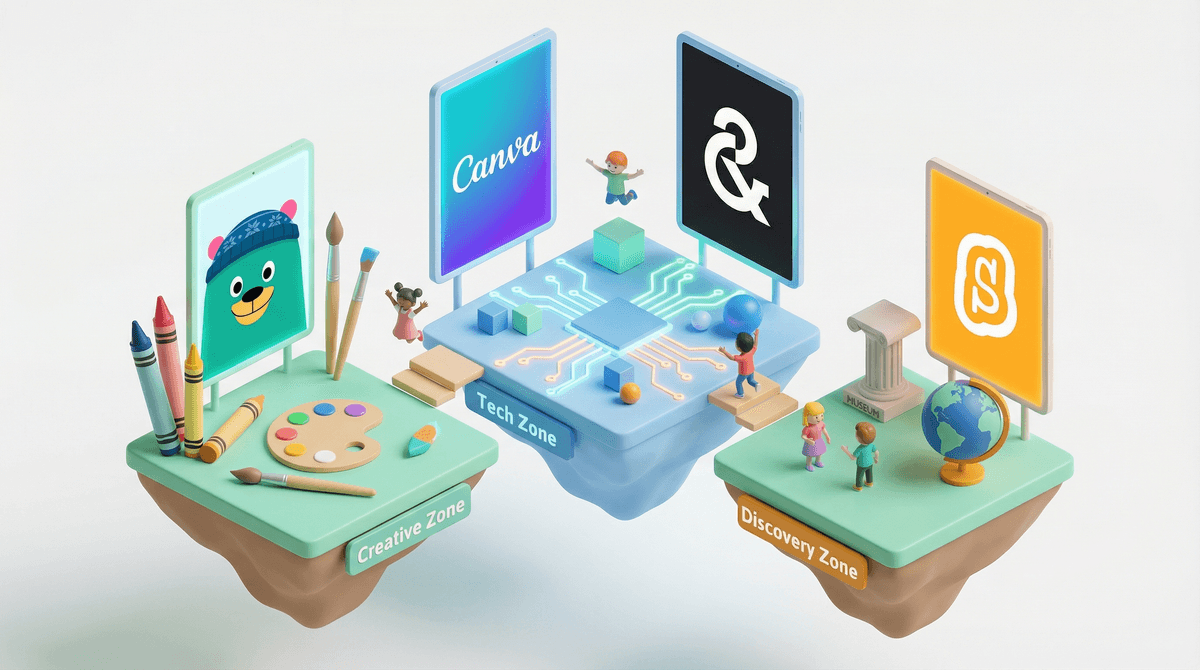
If you grew up struggling to align text boxes in Microsoft Word or fighting with the "bring to front" button in PowerPoint, watching a ten-year-old use Canva for Education will feel like a personal attack. It is effectively a cheat code for aesthetic competence. By the time most kids hit middle school, they aren't just using this for book reports; they're using it to build their entire digital identity.
The "Pro" polish without the price
The leap from the standard free version to the Education tier is significant because it unlocks the "Magic" suite of tools that usually sit behind a paywall. For a kid, being able to use a Background Eraser or the Magic Eraser to clean up a photo for a project isn't just about utility. It’s about confidence. When a student realizes they can make a presentation that looks better than the one their teacher made, the psychological shift from "student doing an assignment" to "creator making a product" happens almost instantly.
If your child is already using quality screen time to explore creative hobbies, Canva is the natural next step. It bridges the gap between "fiddling with an app" and "building a portfolio." If they’ve spent years building elaborate houses in Roblox or Minecraft, they’ll find the drag-and-drop mechanics here familiar, but the stakes feel higher because the output is real.
The AI friction point
The most interesting—and potentially distracting—addition is the AI integration. Tools like Magic Design and the text-to-image generator have turned Canva from a layout tool into a playground. A kid can type "a cat wearing a space suit on Mars" and get a usable asset in seconds.
The friction here isn't about safety (the Education version has filters for a reason); it’s about laziness. There is a specific moment where a kid stops designing and starts just "prompting." You’ll want to watch for the "template trap," where they spend two hours picking the perfect AI-generated background and zero minutes actually writing the content of their history report. It is one of the top must-have software tools for K-5 classrooms for a reason, but it requires a bit of a "content first, sparkles second" rule at home.
The social media training wheels
Even if you aren't ready for your kid to have a TikTok or Instagram account, they are likely already making "reels" and "posts" inside Canva. The app provides templates for every social format imaginable. This is actually a benefit. It allows kids to experiment with the visual language of social media—the fonts, the "Beat Sync" for music, the transitions—in a closed environment.
They get to scratch the itch of "content creation" without the baggage of a public comment section or an algorithm. If they are obsessed with the idea of being a YouTuber, let them spend a Saturday making thumbnails and channel banners here. It’s a harmless way to see if they actually enjoy the process of design, or if they just like the idea of being famous.
How to spot the time-sink
The biggest complaint from teachers on Reddit is that Canva can become a massive time-waster. Because there are over 2 million assets and 500+ fonts, a simple "About Me" poster can turn into a six-hour odyssey of font choices.
If you see your kid staring at a blank screen or cycling through fifty different shades of blue, they aren't "working"—they're stuck. The best move is to encourage them to use a template as a starting point rather than building from scratch. The goal of Canva isn't to become an expert in every tool; it's to get a great-looking idea out of their head and onto the screen as fast as possible.