

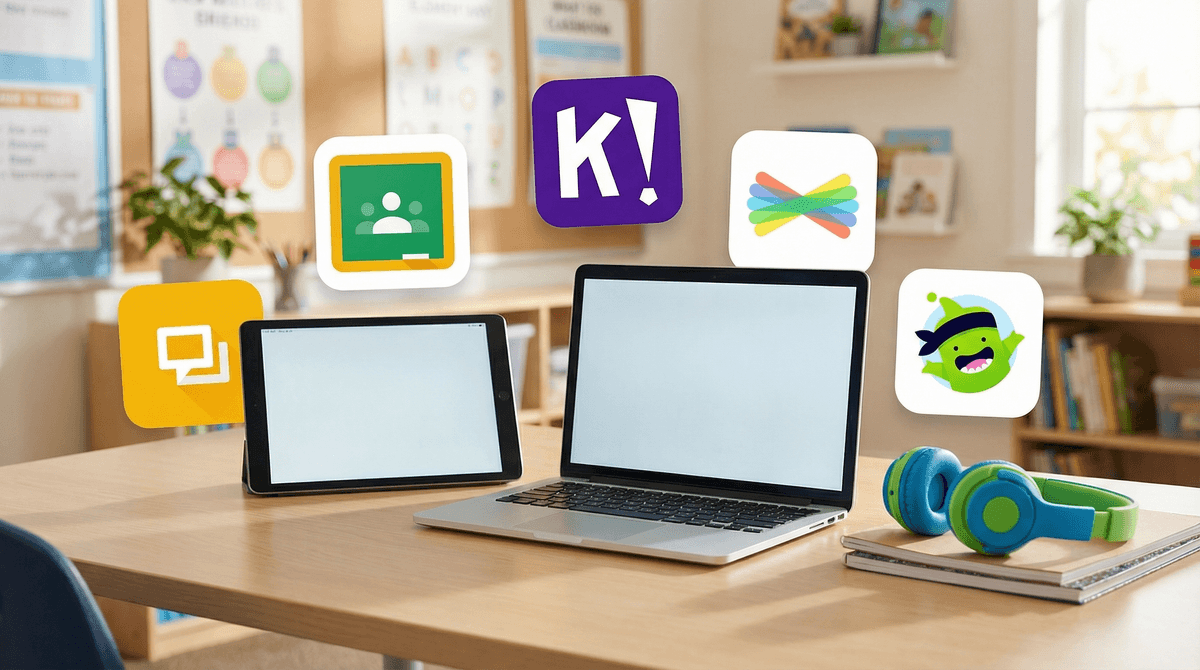
The K-5 Classroom Tech Stack: What Your Child Is Actually Using at School
From AI lesson generators to adaptive math apps—the software shaping elementary education in 2024-2025.
Your kid's classroom probably runs on 5-10 core apps you've never heard of. The big players: Seesaw for portfolios, Google Classroom for assignments, Clever as the login gateway, Lexia or iReady for adaptive reading/math, and Epic! for digital books. Teachers also love ClassDojo for behavior management (those little monster avatars), Kahoot! for quiz games, and increasingly, tools like Canva for Education and Book Creator for student projects.
The good news? Most of this software is actually pretty solid. The weird news? Your 2nd grader might be using more sophisticated productivity tools than you do at work.
Remember when "computer class" meant Oregon Trail once a week? Yeah, those days are gone. Today's elementary classrooms are running full digital ecosystems—and not just for remote learning anymore. These apps are baked into daily instruction, homework routines, and how teachers communicate with families.
The challenge for parents: You're suddenly supposed to help with homework on platforms you've never seen, troubleshoot login issues for apps you didn't know existed, and monitor your child's screen time when half of it is technically "educational."
Plus, schools rarely send home a comprehensive guide to their tech stack. You get piecemeal emails about downloading this app or that, but no big picture of what your kid is actually using all day.
So here's that guide.
What it is: The homework hub. Teachers post assignments, students submit work, parents can get email digests of what's due.
Grades: K-5 (though younger kids need way more parent help)
Why teachers love it: It's free, integrates with Google Docs/Slides/Sheets, and most districts are already on Google Workspace for Education. Teachers can create, grade, and organize assignments all in one place.
What parents need to know: Your kid probably has a school Google account ([email protected]). This is separate from any personal Gmail. Younger kids will need help navigating the interface—it's not exactly intuitive for a 6-year-old. The email notifications can be overwhelming, so adjust your settings early.
The catch: Google Classroom is only as good as the teacher using it. Some teachers are meticulous about posting everything; others use it sporadically and you'll still need to check the paper folder.
What it is: A digital portfolio where kids document their learning through photos, videos, drawings, and voice recordings. Think Instagram for schoolwork.
Grades: K-5 (especially popular in K-2)
Why teachers love it: It's visual, kid-friendly, and parents can see what's happening in class in real-time. Kids can record themselves reading, take photos of their math work, or create digital art projects.
What parents need to know: You'll get notifications when your child posts something—it's genuinely delightful to see their work pop up on your phone. The family app is separate from the student app. Younger kids can use Seesaw independently with minimal reading skills since it's icon-based.
The catch: Some teachers use it religiously; others abandon it by October. Also, the constant notifications can feel like a lot if you have multiple kids.
What it is: The single sign-on portal. Instead of remembering 10 different passwords, kids log into Clever once and access all their other apps through it.
Grades: K-5
Why schools love it: It solves the password chaos problem. Teachers don't have to manage 25 different logins for 25 different kids across 10 different apps.
What parents need to know: Clever itself isn't a learning app—it's just the gateway. Your kid will have a Clever badge (often a QR code or visual pattern) that they can scan or click to log in, which is perfect for kids who can't type yet. Keep the Clever login info somewhere safe—it's the key to everything else.
The catch: When Clever goes down (rare but it happens), the entire school's digital ecosystem grinds to a halt.
What it is: Adaptive reading software that meets kids at their level and adjusts in real-time. Core5 is for K-5; PowerUp is for older struggling readers.
Why it's everywhere: It's research-based, aligns with the Science of Reading movement, and teachers get detailed data on exactly where each kid is struggling (phonics, fluency, comprehension, etc.).
What parents need to know: Lexia is intense. Kids can't skip ahead or guess their way through—it forces mastery before moving on. This is great for learning but can be frustrating for kids. The recommended usage is 20 minutes, 3-4 times per week. If your school assigns it for homework, it's one of the few apps where time limits are built-in.
The catch: It's not fun. Kids tolerate it, but they're not begging to play Lexia. The robot voice can be grating.
What it is: Adaptive math and reading instruction. Kids take a diagnostic test a few times a year, then get personalized lessons based on their results.
Why it's everywhere: Districts love the data. Teachers can see exactly which standards each kid has mastered and which need work.
What parents need to know: iReady gets a bad rap among kids—search "iReady memes" and you'll see. The lessons can feel repetitive, and the diagnostic tests are long (45-60 minutes). But it is genuinely adaptive, so struggling kids aren't just spinning their wheels on grade-level work they're not ready for.
The catch: The gamification elements are weak. Kids earn virtual coins but can't do much with them. Also, some of the word problems are... confusing. Don't be surprised if your kid needs help interpreting what iReady is even asking.
What it is: Leveled reading library with thousands of books kids can read on-screen, with built-in quizzes and recording features.
Grades: K-5
Why teachers love it: Massive library organized by reading level, kids can read independently, and there's a built-in accountability system (quizzes after each book).
What parents need to know: Raz-Kids is the student-facing side; Reading A-Z is the teacher side. Kids get assigned a level (like "Level M") and can choose books within that level. They can also record themselves reading and submit it to the teacher. It's a solid homework option because it's genuinely reading practice, not just clicking through screens.
The catch: The robot reader voice is... not great. If your kid is listening to books instead of reading them, they're not getting the same benefit.
What it is: Behavior management meets parent communication. Teachers award points for positive behaviors, kids have cute monster avatars, and parents get updates on their child's day.
Grades: K-5 (most popular in K-3)
Why teachers love it: It's a gentle way to manage behavior without constant verbal corrections. "I love how Table 3 is ready to learn—you just earned a point!" Kids are wildly motivated by those little digital points.
What parents need to know: You'll get notifications about your kid's points, and you can message the teacher directly through the app. Some teachers also post photos and updates about what's happening in class. The messaging feature is clutch for quick questions.
The catch: Some kids get too focused on the points and have meltdowns when they don't earn one. Also, if your kid is losing points regularly, those notifications can sting. The behavior tracking raises some questions about surveillance and extrinsic motivation that are worth thinking about.
What it is: Quiz game platform. Teacher projects questions on the board, kids answer on their devices, everyone sees the live leaderboard. It's chaotic and loud and kids love it.
Grades: K-5 (and beyond)
Why teachers love it: It makes review fun. Even kids who normally zone out get competitive about Kahoot.
What parents need to know: If your kid mentions Kahoot at home, it's always positive. This is the good stuff. Occasionally teachers assign Kahoot for homework, which is fine—it's just multiple choice questions with a timer.
The catch: The music is extremely annoying. Teachers know this. We're sorry.
What it is: Netflix for kids' books. Massive digital library with read-to-me options, audiobooks, and reading logs.
Grades: K-5
Why teachers love it: Free for teachers, huge selection, kids can explore interests beyond what's in the classroom library.
What parents need to know: Epic offers a family subscription ($12.99/month), but if your kid's school has a class subscription, they can access it free through school. The "Read-to-Me" feature is great for beginning readers or kids who need audio support. There's also a surprising amount of nonfiction—dinosaurs, space, animals, etc.
The catch: The recommendations algorithm can be hit-or-miss. Your kid might get suggested books way above or below their level. Also, some of the self-published books on Epic are... not great. Steer them toward recognizable publishers.
What it is: Simple app for making digital books with text, images, drawings, and audio. Kids can create stories, reports, or portfolios.
Grades: K-5
Why teachers love it: It's intuitive enough for kindergarteners but robust enough for 5th graders. Kids can record their voices reading their stories, which is great for fluency practice.
What parents need to know: If your kid brings home a "published" book from school, it might be a Book Creator project. The final products can be really impressive—and you can save them as PDFs or videos.
What it is: Graphic design tool with templates for posters, presentations, social media graphics, etc. The education version is free and has kid-friendly templates.
Grades: 3-5 (sometimes younger with support)
Why teachers love it: It makes student work look professional without a steep learning curve. Kids can make posters, infographics, or slide presentations that actually look good.
What parents need to know: This is legitimately a useful skill. Canva is widely used in the adult world, so learning it in elementary school is actually practical. If your kid is working on a project at home, Canva is a solid option—way better than the old posterboard-and-markers routine (though there's still a place for that too).
What it is: Math practice disguised as a fantasy RPG. Kids battle monsters by answering math questions.
Grades: 1-8
Why teachers love it: Kids actually want to do it. The game adapts to each kid's level, and teachers get data on what skills kids are practicing.
What parents need to know: Prodigy has a freemium model. The basic version (which schools use) is free, but kids will beg for the premium membership to get pets, outfits, and other cosmetic upgrades. The math content is identical whether you pay or not. The upsells are aggressive, which is annoying, but the actual math practice is solid.
The catch: Some kids spend more time decorating their avatar than doing math. Also, the story/game elements can be distracting for kids who just want to focus on the math.
What it is: Block-based coding platform from MIT. Kids drag and drop code blocks to create animations, games, and interactive stories.
Grades: 3-5 (sometimes younger)
Why teachers love it: It teaches computational thinking without requiring typing skills or syntax knowledge. Kids can see their code come to life immediately.
What parents need to know: Scratch is free and web-based—no app download needed. If your kid gets into it, there's a huge community of projects they can remix and learn from. It's also a great bridge to more advanced coding tools later.
Flipgrid (now called "Flip"): Video discussion platform. Kids record short video responses to prompts. Great for shy kids who need processing time.
Nearpod: Interactive lesson platform. Teachers push slides to student devices with embedded quizzes, polls, and activities. Kids can't skip ahead, which keeps everyone on pace.
Quizlet: Flashcard app with games and study modes. Popular for spelling words and vocabulary.
BrainPOP / BrainPOP Jr.: Short animated videos on every subject imaginable, with quizzes and activities. BrainPOP Jr. is for K-3; regular BrainPOP is for older kids.
Typing Club / Typing.com: Typing practice. Not glamorous, but necessary. Most schools start keyboarding instruction in 2nd or 3rd grade.
Some schools are piloting AI tools for personalized tutoring, lesson planning, and even writing feedback. Khanmigo (Khan Academy's AI tutor) is the most common in K-12 spaces. Teachers are using AI lesson generators like Magic School to create materials faster.
Should you worry? Not yet. Most K-5 AI use is teacher-facing, not student-facing. The bigger conversation is happening at the middle and high school level. But it's coming, so stay informed about AI in education.
Your kid is probably using 10-15 apps regularly. That's a lot of logins, a lot of screen time, and a lot of cognitive load. If your child is struggling to keep track of it all, that's normal—it's overwhelming for adults too.
Not all "educational" screen time is equal. Twenty minutes of Lexia (focused, adaptive, skill-building) is not the same as twenty minutes of watching a BrainPOP video (passive). When schools say "homework should take 20 minutes," they often mean active work, not passive consumption.
The tech stack varies wildly by district, school, and even teacher. Your neighbor's kid might be using completely different apps. Don't assume your experience is universal.
Teachers are learning this stuff too. Most teachers didn't train on these tools in college. They're figuring it out alongside your kid, which means glitches, confusion, and occasional tech fails are part of the deal.
You can ask for a tech overview. At back-to-school night or in an email, ask your child's teacher: "What are the main apps or platforms my child will use this year, and how can I support them at home?" Most teachers are happy to send a quick list with login info.
The good news: Most of these platforms are FERPA-compliant (the education privacy law) and don't sell student data. Schools vet these tools carefully.
The concerns:
-
Password fatigue is real. Kids forget logins constantly. Use a password manager for families or keep a written list at home.
-
Screen time adds up fast. Between math apps, reading apps, and assignment platforms, kids can easily hit 2+ hours of school-related screen time per day. This is separate from recreational screen time. Monitor the total
, not just the fun stuff. -
Some apps have social features. Seesaw, Flipgrid, and others allow kids to comment on classmates' work. Most teachers moderate this, but it's worth talking to your kid about kind online communication.
-
Home vs. school accounts matter. If you have a personal Epic or Prodigy account at home, it's separate from the school one. Don't be surprised if progress doesn't transfer.
Your child's classroom tech stack is probably more sophisticated than you realized—and that's okay. These tools aren't replacing teaching; they're augmenting it. The best teachers use technology strategically, not as a babysitter.
Your job isn't to become an expert in all these apps. Your job is to:
- Know what your kid is using
- Help them manage logins and basic troubleshooting
- Monitor total screen time (school + home)
- Talk to them about what they're learning and creating
And remember: Oregon Trail is still available on some of these platforms. So there's hope for us all.
- Ask your child's teacher for a tech list at the start of the year
- Set up a homework station with logins written down or saved in a password manager
- Check in weekly about what apps they're using and how it's going
- Explore these tools yourself—most have parent/family accounts so you can see what your kid sees
- Learn more about managing educational screen time and how it fits into your family's overall digital wellness plan
The classroom tech stack isn't going anywhere. But with a little knowledge and a lot of patience, you can help your kid navigate it successfully—one login at a time.