

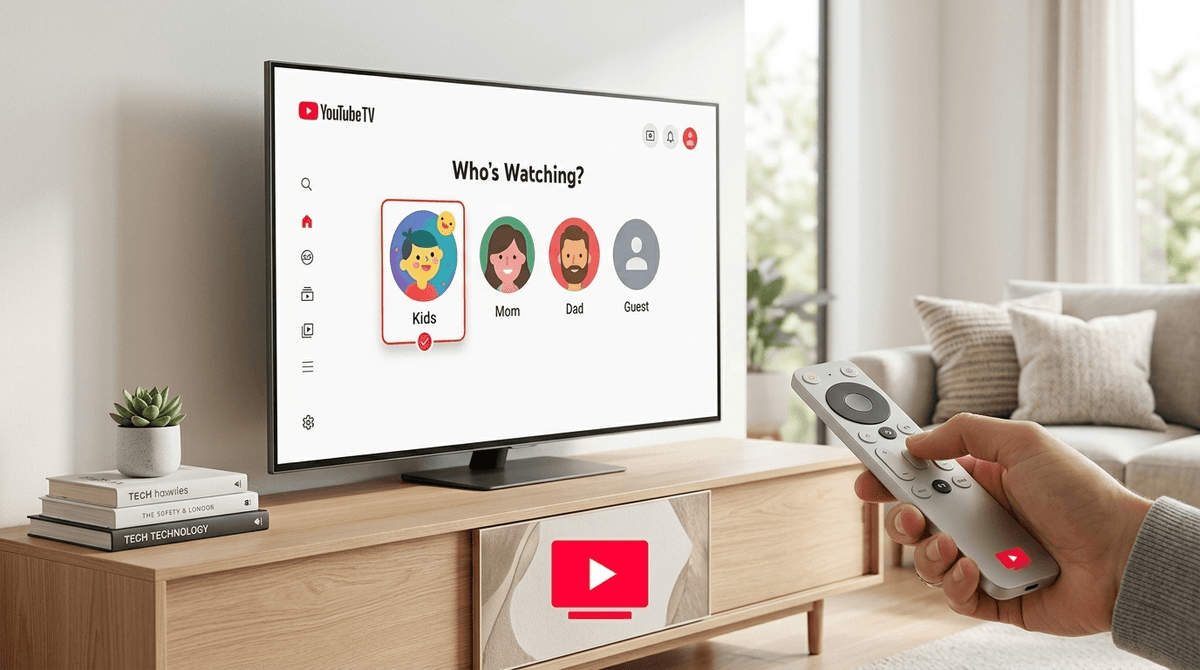
TL;DR: The Quick Cheat Sheet
- Create Separate Profiles: Never let your kid watch on your main account unless you want your "Suggested for You" feed to be 100% Minecraft parkour and Skibidi Toilet.
- Set a Secret PIN: Prevent your "tech-savvy" seven-year-old from hopping over to your profile to watch Yellowstone.
- Enable "Kids" Mode: Use the built-in filters to limit content to TV-Y, TV-Y7, and G ratings.
- Disable Search: If you’re in the "high-anxiety" phase of parenting, turning off search is the ultimate safety net.
- Check the "Live" Guide: Remember that YouTube TV is live cable—certain channels (looking at you, Adult Swim) are inherently riskier.
First things first: YouTube TV is not the same thing as the YouTube app where people upload videos of themselves eating spicy chips or playing Roblox.
YouTube TV is a live streaming service meant to replace your cable box. It has local news, sports, and channels like Disney, Nickelodeon, and AMC. Because it’s a "Live TV" service, the parental controls work a little differently than they do on the standard YouTube or YouTube Kids apps.
You aren't just filtering out "brain rot" user-generated content; you’re filtering out live broadcast television. This means you have to deal with commercials, live news events, and the fact that a "safe" channel at 2 PM might turn into a "not-so-safe" channel at 9 PM.
We’ve all been there. You sit down on a Friday night to watch a documentary or a gritty HBO drama, and your entire "Recommended" row is filled with Cocomelon or some guy screaming about MrBeast.
Beyond the annoyance, there's the "accidental exposure" factor. If your child is using your profile, they are one click away from the "Resume Watching" section of your latest true-crime obsession. Setting up parental controls on YouTube TV isn't just about safety; it’s about digital hygiene for the whole house.
Learn more about how to protect your own recommendation feeds
The absolute foundation of YouTube TV safety is the individual profile. Since YouTube TV allows for up to six accounts per household, there is zero reason for your kid to be on yours.
- Create a Google Account for your child: If they are under 13, you should do this through Google Family Link.
- Add them to your Family Group: This lets them share your YouTube TV subscription without seeing your DVR or your search history.
- The Switcher: Every time you turn on the TV, make it a habit to select the correct profile.
Setting the PIN
Kids are smart. They know that "Dad’s Profile" has the "cool" shows. To prevent them from profile-jumping, you can set a 4-digit PIN on your own profile.
- Go to Settings > Family > Manage.
- Select your profile and enable the Profile Secret PIN.
- Do not use "1-2-3-4" or their birthday. They will guess it.
YouTube TV has a "Restricted Mode" that helps hide potentially mature content. It’s not a perfect system—it relies on metadata and algorithms—but it’s a solid first line of defense.
- Open YouTube TV on your TV or device.
- Click your Profile Picture.
- Go to Settings > Filter.
- Toggle on Restricted Mode.
Note: This is a device-specific setting. If you have three TVs, you have to do this on all three. It’s a pain, but it’s the only way to ensure the basement TV isn't a Wild West of content.
One of the best features of YouTube TV is the ability to customize the "Live" guide. If you don't want your kids to even see that a certain channel exists, you can hide it entirely.
If you’re setting up a profile for a younger child, I highly recommend hiding channels like CNN, MSNBC, and Fox News. Not because of politics, but because the 24-hour news cycle is inherently stressful and often features graphic imagery that kids don't need to see while they're looking for Paw Patrol.
Check out our guide on the best educational channels for kids
Once you've locked down the settings, you want to make sure the library is filled with stuff that isn't "brain rot." Here are a few Screenwise-approved picks available on YouTube TV (via various networks like PBS Kids, Disney, and Nat Geo):
Ages 3-103. Honestly, if you aren't watching Bluey, are you even parenting in 2026? It’s the gold standard for emotional intelligence and realistic family dynamics. It’s the opposite of brain rot; it’s soul-nourishment.
Ages 4-9. This is the ultimate "I feel good about my kid watching this" show. It teaches zoology and biology through an adventure lens. It’s fast-paced enough to keep them interested but grounded in actual science.
Ages 6+. If you want a "family hang" show, this is it. It’s kind, it’s low-stakes, and it might actually inspire them to help you in the kitchen (though the flour cleanup is on you).
Ages 8+. For the older kids, this is a classic for a reason. It teaches the scientific method, skepticism, and the fact that "failure is always an option."
Let’s be real: No filter is 100%.
- For Toddlers (Ages 2-4): Stick to the YouTube Kids app rather than YouTube TV if possible. If you must use YouTube TV, stay in the room. Live commercials for horror movies can pop up even on "safe" channels.
- For Elementary (Ages 5-10): This is the prime age for "Restricted Mode" and "Search Off." They are curious enough to find things they shouldn't, but young enough to be genuinely upset by what they see.
- For Tweens/Teens (Ages 11+): At this point, the filters are more about "house rules" than actual prevention. They know how to get around things. This is when you transition from filtering content to mentoring consumption.
The biggest "gotcha" with YouTube TV is the Live DVR.
If your child records a show that is "safe" (like a sports game), but the game runs long and the following show is a TV-MA movie, the DVR might capture both. If they watch that recording, they might accidentally see the first ten minutes of something very inappropriate.
Pro-tip: Encourage your kids to watch shows through the "VOD" (Video On Demand) library rather than the DVR recordings. VOD versions are usually edited for content and don't have the "overrun" issues of live TV.
Even with the best filters on YouTube TV, your kids are going to hear things. They’re going to talk about things being "Ohio" (meaning weird or cringe) or mention Skibidi Toilet.
Don't panic. This is just the "slang of the day." The goal of parental controls isn't to keep them in a bubble where they never hear a weird word; it’s to prevent them from seeing graphic violence, sexual content, or the kind of hyper-stimulating "junk food" content that turns their brains into mush.
When you set these controls, don't do it in secret like a digital ninja. Talk to them about it.
"Hey, I’m setting up a PIN on my profile because there are shows I watch that are for grown-ups and might be scary or confusing for you. You have your own profile with all your favorite shows, and that’s your space."
By being transparent, you’re teaching them that media has categories and that intentional viewing is a skill, not just a restriction.
YouTube TV is a powerful tool for getting rid of the cable company, but it requires a bit of "weekend project" energy to set up correctly.
- Profiles are your best friend.
- PINs are your security guard.
- Restricted Mode is your safety net.
Digital parenting isn't about achieving a "Set It and Forget It" state. It’s about staying involved enough to know when your kid has outgrown their filters and when it’s time to have a new conversation.