

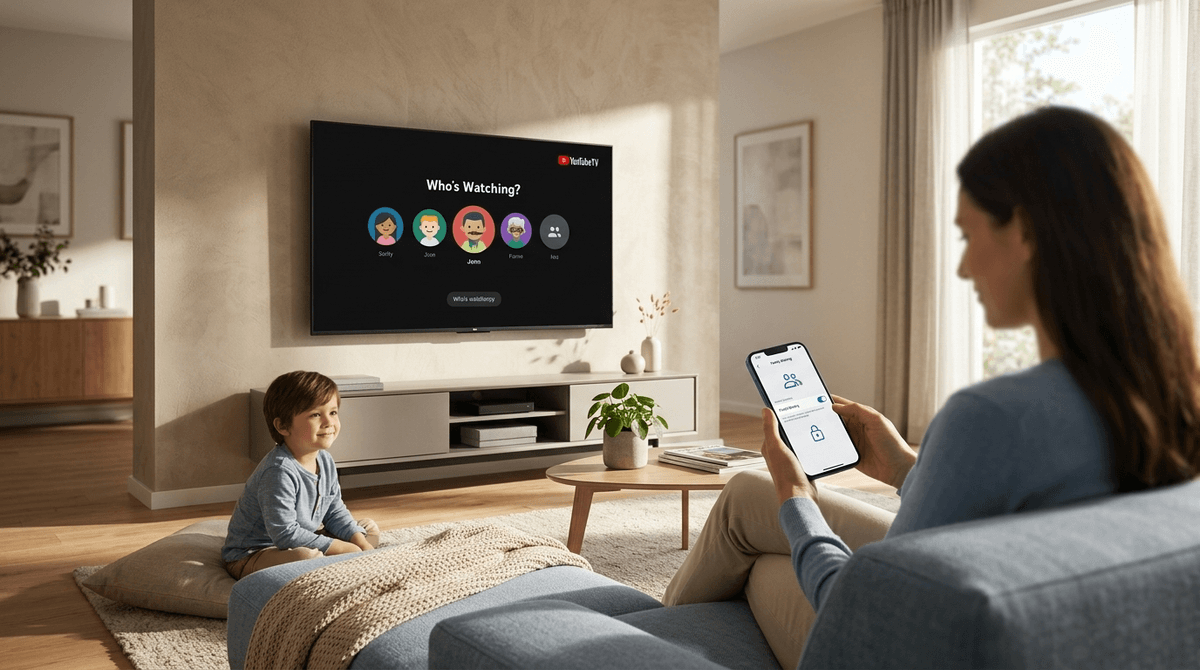
TL;DR: YouTube TV is basically cable for the 2020s, but with better DVR and more ways for your toddler to accidentally stumble into a Dateline marathon. To keep things safe, you need to use Google Family Groups, set Filter levels for each profile, and—most importantly—lock your own profile with a PIN so they don't "borrow" your access to HBO.
Quick Links for Safe Viewing:
- Best for Littles: Bluey or Sesame Street
- Best for Elementary: Wild Kratts or The Magic School Book Rides Again
- Best for Families: The Great British Baking Show or The Amazing Race
First, let's clear up the confusion because Google is terrible at naming things. YouTube TV is not the same thing as the YouTube website where people post "Skibidi Toilet" remixes or MrBeast challenges.
YouTube TV is a live streaming service. It’s a replacement for Comcast or Spectrum. It has 100+ channels like ABC, Disney, ESPN, and HGTV. While it’s "safer" than the wild west of standard YouTube because the content is professionally produced for television, it still carries the same risks as traditional cable: inappropriate commercials, violent news cycles, and the inevitable "TV-MA" movie that starts right after a "PG" one ends.
Learn more about the difference between YouTube and YouTube TV
We’ve all been there. You put on a nature documentary for the kids, walk away to start a load of laundry, and come back to find them watching a "breaking news" segment about a local crime because the previous show ended.
Unlike Netflix or Disney+, where you just pick a show and it stops when it's over, YouTube TV is a constant stream. If you don't set up boundaries, the "Next Up" feature can lead your kids into some very grown-up territory very quickly.
YouTube TV’s parental controls aren't perfect, but they are functional if you know where to look. Here is how to lock it down without losing your mind.
1. Set Up a Family Group
Don't let your kids use your profile. Their "Recommended" feed will quickly become a mess of sports highlights and procedural dramas, and yours will be full of Blippi.
- Go to your profile picture in the app.
- Select Settings > Family Sharing.
- Invite your family members (they’ll need their own Google accounts).
- Note: If your kid is under 13, you should manage their account via Google Family Link.
2. Enable Content Filters
Each profile in your family group can have its own filters. This is the "set it and forget it" part of the process.
- Sign into the kid's profile.
- Go to Settings > Filter.
- You can choose to allow only "TV-Y," "TV-Y7," and "G" rated content.
- The No-BS Take: This filter is decent, but it only filters VOD (Video on Demand) content and the Live Guide. It doesn't magically edit a live broadcast. If a channel is "Live," the filter might hide the channel entirely if the current show is too old for them, but it’s not 100% foolproof.
3. The "Secret Weapon": Customizing the Live Guide
This is the most underrated feature. You can actually hide channels from the lineup. If you don't want your kids (or yourself, honestly) doom-scrolling through CNN, Fox News, or MSNBC, you can just delete them from the guide.
- This has to be done on a computer or mobile device (not the TV app).
- Go to Settings > Live Guide.
- Uncheck every channel you don't want to appear.
- Pro Tip: Uncheck the "Shopping" channels and the "Spanish Language" channels if you don't speak Spanish—it just declutters the experience and keeps them from clicking on things they shouldn't.
4. Lock Your Profile with a PIN
If your kids are smart (and they are), they will eventually realize that your profile has the "good" shows (the ones with the swearing and the explosions).
- YouTube TV recently added a Profile Secret Code feature.
- Go to Settings > Family > Manage.
- Set a 4-digit PIN for your specific profile. Now, when the TV turns on, they can click their name, but if they click yours, they’re blocked.
Check out our guide on setting up digital boundaries for siblings
Since YouTube TV is live, the best way to use it is to "Record" (add to Library) the shows you actually want them to watch. This turns the service into a curated library of safe hits.
Bluey (Ages 3-7)
If you aren't watching Bluey yet, what are you doing? It’s on the Disney channels on YouTube TV. It’s the gold standard for "non-brain rot" content. It’s funny for parents and teaches actual emotional intelligence to kids.
Is Bluey actually good for parents too?
Wild Kratts (Ages 5-10)
Available on PBS Kids. It’s fantastic for animal-obsessed kids. It’s educational without being "preachy," and it’s a much better alternative to the weirdly aggressive "educational" videos you find on standard YouTube.
The Amazing Race (Ages 8+)
This is peak "Co-Viewing." It’s a reality show that actually teaches geography, culture, and problem-solving. Plus, watching people struggle to navigate a foreign city without a smartphone is a great "back in my day" teaching moment for your kids.
MasterChef Junior (Ages 7+)
A great way to show kids that people their age can actually do things like cook a beef wellington while we're just trying to get them to put their shoes on. It’s inspiring and generally very positive.
The "Search" Problem
Even with filters on, the search bar is a bit of a loophole. If a kid searches for something, YouTube TV might show them results from "YouTube" (the main site) if the accounts are linked. This is where things get dicey. The Fix: Go into Settings > Privacy and "Pause Search History." This prevents the algorithm from getting too "smart" and suggesting things based on a one-off search for "funny cats" that leads down a rabbit hole.
The Commercials
This is the biggest "No-BS" warning: Parental controls do not block commercials. If your kid is watching a "G" rated show on a major network like ABC or NBC, they are still going to see commercials for horror movies (like M3GAN or whatever the latest slasher is) or prescription drugs with side effects that lead to awkward "Mom, what’s erectile dysfunction?" questions. The Fix: Encourage them to only watch things from the "Library" (DVR). That way, they can fast-forward through the commercials.
YouTube "Shorts" Integration
Google is trying to push YouTube Shorts everywhere. Sometimes, these pop up in the YouTube TV interface. Shorts are the definition of "brain rot"—endless, fast-paced, dopamine-loop videos.
How to talk to your kids about the dopamine loop of short-form video
Instead of just locking the TV down like Fort Knox, have a conversation.
"Hey, we’re setting up these profiles so that the TV knows what you like and what I like. Your profile is going to have all your Minecraft stuff and Disney shows, and mine is for the boring grown-up news. If you see something that looks scary or weird in a commercial, just let me know and we’ll fast-forward it."
It’s not about being a "tech cop"; it’s about being a "tech mentor."
YouTube TV is a great service for families who want live sports and local news without the cable contract. But it requires a "trust but verify" approach.
- Create profiles for everyone.
- PIN protect your own account.
- Hide the "junk" channels from the Live Guide.
- Use the DVR (Library) to avoid the commercial jump-scares.
If you’re feeling overwhelmed by the sheer amount of content, take a breath. You don't have to get it perfect on day one. Start by hiding the news channels and go from there.
Next Steps:
Find a 'safe channel list' for your kid's age
Check out our guide on YouTube vs. YouTube Kids
Explore the best 'Cozy Games' to play as a family