

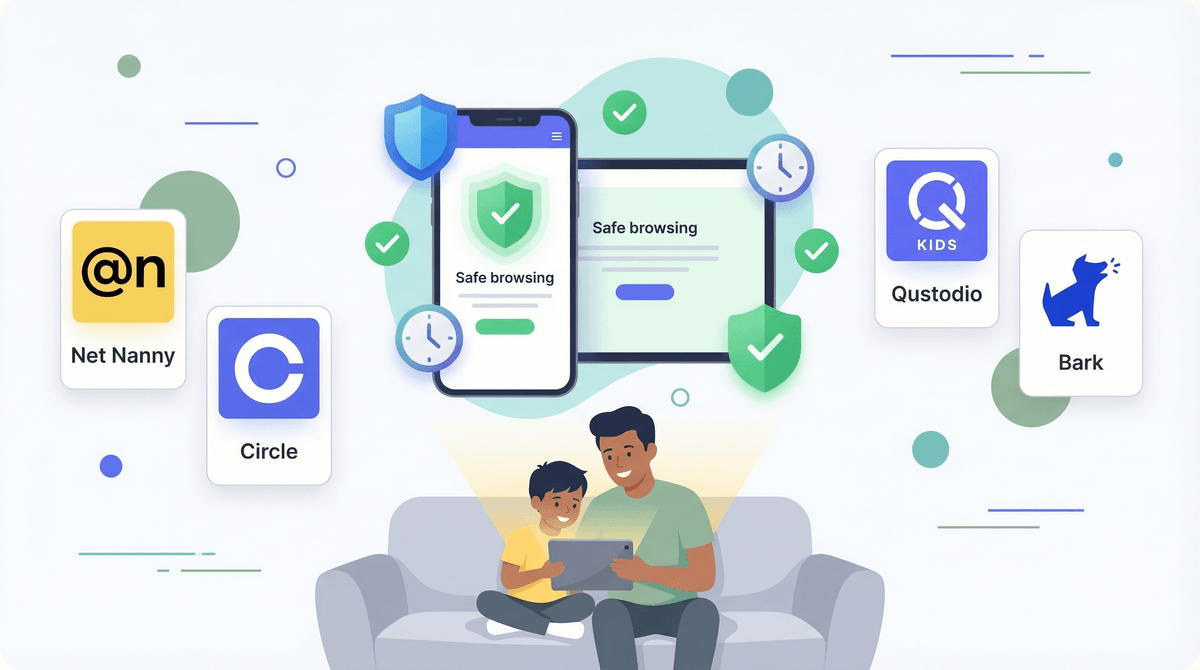
The Ultimate Guide to Parental Control Apps and Digital Safety in 2026
Parental control apps have come a long way from the clunky blockers of the 2010s. Today's options range from heavy monitoring (tracking every text and screenshot) to light guardrails (just managing screen time limits). The right choice depends entirely on your kid's age, maturity, and your family's tech philosophy.
Quick picks:
Let's dig in.
Here's the reality: no app can replace actual conversations about digital citizenship, but that doesn't mean these tools are useless. Think of parental controls like training wheels—they're scaffolding while kids build judgment and self-regulation.
The stats are sobering: by age 11, about 53% of kids have their own smartphone. By 13, that number jumps to 84%. And they're not just texting their friends—they're on Discord, watching YouTube at 2am, and getting DMs from strangers on Roblox.
Parental control apps can help you:
- Set boundaries around screen time without constant nagging
- Filter inappropriate content (though filters are imperfect—more on that below)
- Monitor for red flags like cyberbullying, self-harm content, or predatory behavior
- Manage app downloads so your kid doesn't rack up $500 in Robux
- Track location (if that aligns with your family values)
But here's what they can't do: teach your kid why those boundaries matter, or help them develop internal motivation to make good choices. That's still on you.
Cost: $5-14/month
Best for: Parents who want monitoring without constant surveillance
Bark is the Goldilocks of parental control apps—not too invasive, not too hands-off. Instead of logging every keystroke, it uses AI to scan for concerning content across texts, emails, social media, and even YouTube comments. You only get alerts when something potentially problematic pops up (like mentions of drugs, violence, depression, or sexual content).
Pros:
Cons:
- AI isn't perfect—you'll get false positives (your kid discussing a "sick" skateboard trick isn't a health crisis)
- Doesn't work for encrypted apps like WhatsApp
- Teens will figure out workarounds if they're motivated enough
Bottom line: Great middle ground for families who want to catch serious issues without reading every text.
Cost: $55-138/year
Best for: Parents who want detailed reports and granular control
Qustodio is the spreadsheet lover's dream. You get detailed dashboards showing exactly how much time your kid spent on every app, every website they visited, and every YouTube video they watched. You can set time limits per app, block categories of websites, and even pause the internet entirely.
Pros:
- Incredibly detailed activity reports
- Works across all devices (phones, tablets, computers)
- Can set different rules for different kids
- Location tracking included
- Panic button feature for emergencies
Cons:
- More expensive than competitors
- Feels very Big Brother-ish to teens
- Can slow down devices slightly
- Kids know they're being watched (the app icon is visible)
Bottom line: If you need forensic-level data or have a kid who's already broken trust, Qustodio delivers. But be prepared for pushback.
Google Family Link
Cost: Free
Best for: Android families on a budget
If your family is Team Android, Family Link is built right into the OS. You can manage screen time, approve app downloads, set bedtime schedules, and lock devices remotely. It's not fancy, but it works.
Pros:
- Completely free
- Simple interface
- Kids can request more time or permission to download apps
- Location tracking included
Cons:
- Only works on Android (or Chromebooks)
- No content monitoring—you can block apps but won't know what they're doing in them
- Stops working at age 13 unless your kid agrees to keep it active (spoiler: they won't)
Bottom line: Perfect for younger kids or as a starter option. Pair it with conversations about digital citizenship .
.
Apple Screen Time
Cost: Free
Best for: iOS families who want basic guardrails
Apple's built-in tool does the essentials: time limits, app restrictions, content filters, and downtime schedules. It's not sophisticated, but it's deeply integrated into iOS, so kids can't easily disable it.
Pros:
- Free and built-in
- Works across all Apple devices (iPhone, iPad, Mac)
- "Ask to Buy" feature for app purchases
- Communication limits (restrict who your kid can text/call during downtime)
Cons:
- No monitoring of what kids are actually doing
- Easy for tech-savvy kids to bypass (there are literally YouTube tutorials)
- Clunky interface for managing multiple kids
Bottom line: Great first step for elementary-age kids. Less useful once they hit middle school.
Cost: $10/month or $130 for a hardware device
Best for: Families who want network-level control
Circle takes a different approach—it manages your entire home network, not just individual devices. That means it can control screen time on smart TVs, gaming consoles, tablets, and any device connected to your WiFi.
Pros:
- Controls everything on your network, including Nintendo Switch, Xbox, smart TVs
- Pause the internet for dinner or bedtime
- Set time limits by device or by kid
- Filter content across all devices
Cons:
- Doesn't work when kids are on cellular data or other WiFi networks
- No content monitoring—just time management and filtering
- Hardware device requires setup and maintenance
Bottom line: Excellent for managing the chaos of multiple devices, especially gaming consoles. Less useful for monitoring actual content.
Cost: $40-90/year
Best for: Families focused on web filtering
Net Nanny has been around since the '90s (seriously), and it's still one of the best at blocking inappropriate websites. It uses real-time content analysis instead of just keyword blocking, so it catches more nuanced stuff.
Pros:
- Excellent web filtering (blocks porn, violence, hate speech, etc.)
- Real-time alerts for blocked attempts
- Social media monitoring for major platforms
- Works on Windows, Mac, Android, iOS
Cons:
- Clunky interface that feels dated
- Doesn't cover as many apps as Bark or Qustodio
- Can be overly aggressive (blocks legitimate educational content about health, anatomy, etc.)
Bottom line: If your main concern is web content, Net Nanny does it well. But it's not a comprehensive solution.
Don't sleep on the parental controls built into the apps and platforms your kids are already using:
- Roblox parental controls: Account restrictions, chat filters, spending limits
- YouTube Kids: Curated content for younger kids (though still not perfect)
- TikTok Family Pairing: Link your account to your teen's to manage screen time and content settings
- Discord: Privacy settings, friend requests, DM filtering
- Gaming consoles: PlayStation, Xbox, and Switch all have robust parental controls
These platform-specific tools are often more effective than third-party apps because they're baked into the experience. Use them in combination with a broader parental control app.
Ages 5-8: Start with basic screen time limits using Apple Screen Time or Google Family Link. Focus on co-viewing and alternatives to screens rather than heavy monitoring. At this age, you should still have full access to their devices anyway.
Ages 9-12: This is when things get tricky. Kids want more independence, but they're not ready for the full internet. Consider:
- Bark for monitoring without invasion
- Strict app approval processes
- No social media yet (seriously, Instagram and TikTok are designed for 13+)
- YouTube Kids instead of regular YouTube
Ages 13-15: The training wheels start coming off, but you're still actively involved:
- Transition to monitoring-based tools like Bark instead of blocking everything
- Have regular conversations about digital citizenship
- Allow social media with agreed-upon boundaries
- Consider a phone contract
Ages 16+: At this point, if you're still using heavy monitoring, you've probably already lost the battle. Focus on:
- Mutual respect and open communication
- Spot checks rather than constant surveillance
- Natural consequences (if grades slip due to phone use, phone gets limited)
- Preparing them for full independence at 18
Let's be honest: kids will find workarounds. They'll use a friend's phone, switch to encrypted apps, factory reset their device, or just get better at hiding stuff. The more you tighten the screws, the more creative they get.
Research shows that heavy-handed monitoring can backfire, damaging trust and preventing kids from coming to you when they actually need help. If your kid thinks you're reading every text, they won't tell you when something scary happens online.
The goal isn't to create a surveillance state—it's to build scaffolding while kids develop judgment. That means:
- Being transparent about what you're monitoring and why
- Gradually loosening controls as they demonstrate responsibility
- Focusing on red flags (signs of depression, bullying, predatory behavior) rather than every little thing
- Having regular check-ins about their digital life
If you're using parental controls as a substitute for actual parenting, you're doing it wrong.
This is the big question, and there's no one-size-fits-all answer. Some families operate on "trust but verify." Others believe kids deserve privacy even if they're minors. Both approaches have merit.
Here's a framework:
- Younger kids (under 13): Full access to devices, co-use of apps, monitoring is expected and normal
- Teens (13-15): Shift from blocking to monitoring, focus on red flags, maintain transparency
- Older teens (16+): Minimal monitoring, focus on open communication and natural consequences
Whatever you choose, be consistent and explain your reasoning. "Because I said so" doesn't cut it in 2026. Kids need to understand that you're not trying to control them—you're trying to keep them safe while they learn.
Over-relying on filters: No filter is perfect. Kids will encounter inappropriate content eventually—the question is whether they'll come to you about it.
Installing monitoring apps secretly: This destroys trust and teaches kids that surveillance is normal in relationships. Don't do it.
Using parental controls as punishment: These tools should be about safety and structure, not leverage in arguments.
Ignoring platform-specific settings: Third-party apps can't do everything. Learn the parental controls for Roblox, TikTok settings for teens, and Discord safety features.
Forgetting about school devices: Your kid's school-issued Chromebook might have zero restrictions. Talk to the school about their policies.
Parental control apps are tools, not solutions. The best one for your family depends on:
- Your kid's age and maturity
- Your family's values around privacy and autonomy
- Your technical comfort level
- Your budget
For most families, a layered approach works best:
- Built-in platform controls (YouTube Kids, Roblox parental settings, console restrictions)
- Device-level controls (Screen Time or Family Link for basic guardrails)
- A monitoring tool like Bark for red flags
- Regular conversations about what they're doing online
Remember: the goal is to raise adults who can navigate the digital world safely, not to control every click until they turn 18. These apps buy you time to have those conversations and teach those skills.
Start with the free built-in tools, add monitoring if needed, and always prioritize trust and communication over surveillance.
- Audit your current setup: What protections do you already have in place? (Might be more than you think.)
- Talk to your kid: Explain why you're considering parental controls and get their input.
- Start small: Try built-in tools before paying for premium apps.
- Review regularly: What worked for a 10-year-old won't work for a 14-year-old. Adjust as they grow.
Need help figuring out what's right for your family? Get help choosing a parental control app about your specific situation.