

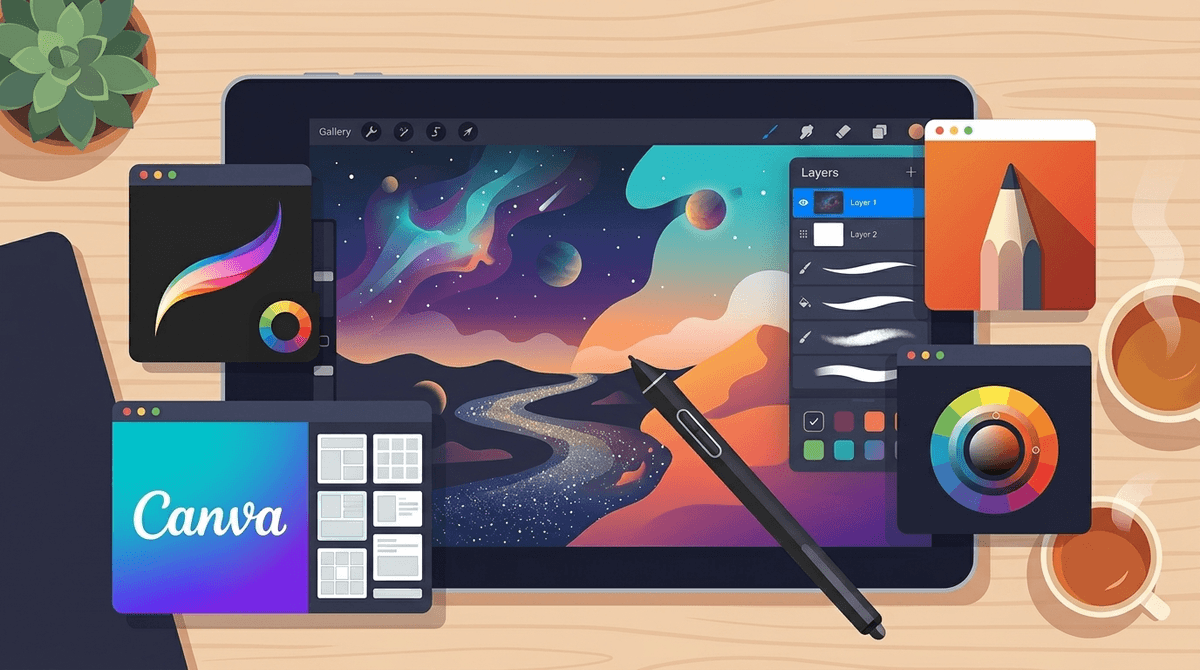
TL;DR: If you’re looking to move your kid past the "scribbling on the Notes app" phase, here are the heavy hitters: Procreate is the gold standard for iPads, Canva is the ultimate "I need a poster for school" tool, and Tayasui Sketches is the best "Zen" entry point for younger kids. If they want to code their art, head to Scratch.
We’ve all been there: you hand your phone to your kid to keep them occupied for ten minutes, and you get it back with 400 blurry photos of the carpet and a "masterpiece" drawn in the Markup tool of your Photos app.
But here’s the thing—digital art is one of the few areas where "screen time" actually lives up to the hype of being "educational." It’s not just mindless scrolling or watching a 24/7 loop of Skibidi Toilet memes. When a kid picks up a stylus (or even just their finger), they’re learning spatial awareness, color theory, and—most importantly—how to fail and "undo" their way to something better.
Whether your kid is still in the "Ohio" phase of calling everything weird or they’re a teenager looking to start a freelance design side-hustle, there is an app that fits.
The most obvious benefit is that there’s no glitter. None. You won't be finding sparkles in your rug three years from now.
But beyond the cleanliness, digital art lowers the barrier to entry for kids who are perfectionists. In the physical world, one wrong stroke of a Sharpie ruins the paper. In the digital world, Undo is a superpower. This encourages kids to take risks. It also introduces them to the tools professionals actually use. If your kid gets good at Canva now, they’re basically pre-loading a job skill for 2035.

The Starter Kit (Ages 4–7)
At this age, we want "low friction." If there are too many menus, they’ll just get frustrated and go back to watching Blippi.
- This is arguably the most beautiful art app out there. It’s minimalist. The tools look like actual pencils and markers. It’s tactile and satisfying. It’s great for "Zen" doodling without the clutter of a million buttons.
- Specifically, their art and "create" sections. This is a safe, walled garden where they can play with color and characters they already know from Daniel Tiger's Neighborhood.
- It’s like a digital version of those giant plastic art kits we had in the 90s. It’s simple, colorful, and very "what you see is what you get."
The Creative Powerhouse (Ages 8–12)
This is the sweet spot where kids start wanting their art to look "real." They’re also starting to care about stickers, fonts, and "vibes."
- Honestly, Canva is the MVP of the digital world right now. It’s not "drawing" in the traditional sense, but it’s graphic design. Kids love making YouTube thumbnails (even if they don't have a channel), birthday cards, or school presentations. It’s incredibly intuitive.
- (Formerly Autodesk Sketchbook). This is a great "bridge" app. It’s more powerful than Sketches but less intimidating than Procreate. It has a great perspective tool that helps kids who are obsessed with drawing 3D buildings or Minecraft scenes.
- If your kid is more of a "logic" artist, Scratch lets them code their own art. They can create "pen" programs that draw complex geometric shapes. It’s art-meets-math in a way that doesn't feel like schoolwork.
The Pro Path (Ages 13+)
If your teen is serious, stop messing around with free apps and just get the professional stuff.
- It’s a one-time purchase (no annoying subscriptions!) and it is phenomenal. Most of the digital art you see on Instagram or TikTok was probably made here. It supports layers, custom brushes, and even 3D painting. It’s the gold standard.
- If you’re already paying for an Adobe Creative Cloud subscription, Fresco is amazing because the "live brushes" actually mimic how oil paint or watercolor bleeds on paper. It’s freakishly realistic.
- If your kid is obsessed with Anime or Manga, this is the app they want. It’s specifically designed for comic book illustration and frame-by-frame animation.
We can't talk about digital art in 2026 without talking about AI. Apps like ChatGPT (via DALL-E) or Midjourney allow kids to type "a cat riding a skateboard in space" and get a masterpiece in five seconds.
Is it "cheating"? Some people think so. But it’s better to think of AI as a collaborator or a mood-board tool.
- The Pro: It helps kids who struggle with fine motor skills get their ideas out.
- The Con: It can make kids lazy. If they can generate an image in seconds, they might lose the patience required to actually learn how to draw a hand (which, to be fair, even AI still struggles with).
If your kid is using AI art, encourage them to use it for inspiration, then try to recreate or "remix" the output in an app like Procreate.
Art apps are generally "Green Light" apps in the Screenwise world, but there are two things to watch out for:
- The "Community" Features: Some apps, like Sketchers United or the built-in galleries in some "color by number" apps, have social feeds. Like any social media, these can have toxic comments or inappropriate art. Always check if the "Share to Gallery" feature can be turned off.
- The Subscription Trap: Many "free" art apps for younger kids are loaded with ads for "brain rot" games or require a $9.99/week subscription to unlock the color pink. Avoid these. Stick to the reputable apps listed above.
Instead of asking "How much longer are you going to be on that iPad?", try these:
- "Can you show me how you made that texture?"
- "I love the color palette you chose for this. What inspired it?"
- "Show me the 'Time-lapse' of your drawing!" (Procreate and many other apps record a video of the drawing process—kids love showing these off).
Digital art isn't just a way to keep them quiet in the car; it’s a legitimate creative outlet that builds technical skills. If your kid is showing interest, investing in a decent stylus (it doesn't have to be the $120 Apple Pencil—there are great $20 alternatives) and one of the apps above is a high-value move for their digital wellness.
Next Steps:
- Download Tayasui Sketches for a low-stakes trial run.
- Check your iPad compatibility—Procreate requires specific hardware, so check before you buy.
- Set a "Gallery Night" where they can airplay their creations to the TV for the family to see.