

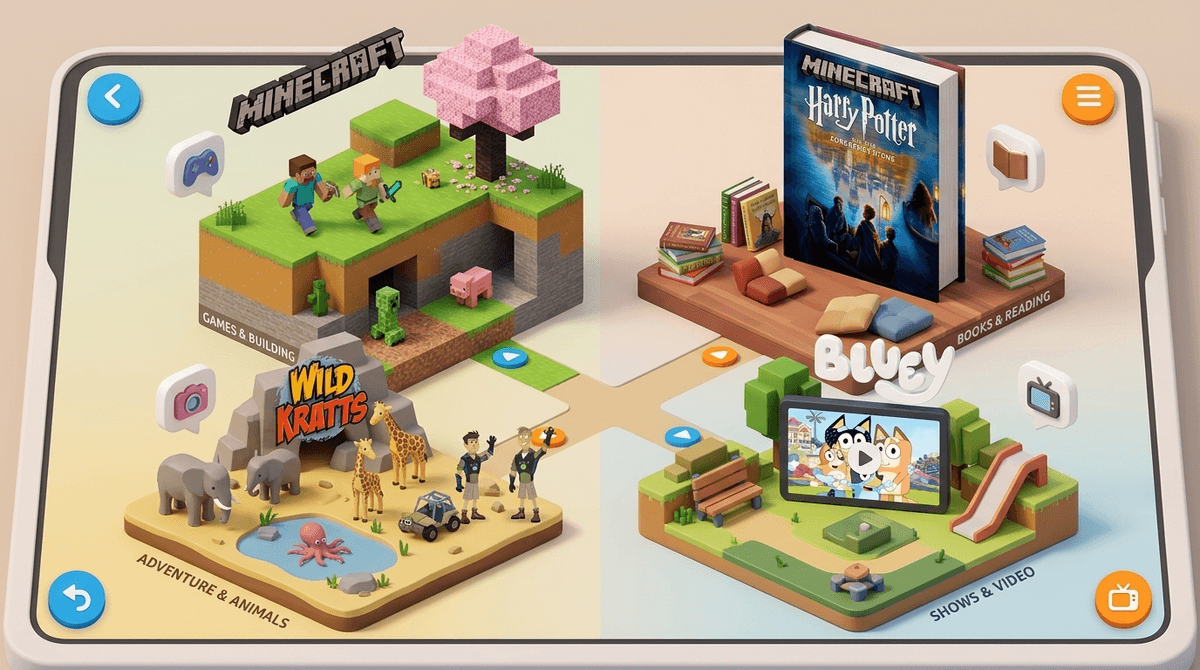
TL;DR: Yes, Amazon FreeTime Unlimited is now called Amazon Kids+. It’s the exact same "walled garden" subscription service, just with a different logo. It’s arguably the best value for parents of kids aged 3–9 who want a "set it and forget it" digital environment, but it gets cluttered fast.
Quick Links to Top Kids+ Content:
- Bluey (The GOAT of preschool shows)
- Minecraft (Available on Kids+ Fire tablets)
- Harry Potter and the Sorcerer's Stone (Always available in the library)
- PBS Kids (The gold standard for educational content)
- LEGO Batman Movie (Actually funny for parents too)
If you’ve been around the block, you remember Amazon FreeTime. It was that blue-background app on Fire tablets that locked your kid into a safe zone. Amazon eventually realized that "FreeTime" sounded like a childcare service and "Kids+" sounded like a streaming competitor, so they rebranded.
At its core, Amazon Kids+ is a massive library of books, movies, TV shows, and apps curated for kids. It lives primarily on the Amazon Fire Kids Edition tablets, but you can also access it on Kindles, iOS, and Android.
The selling point is simple: No ads, no in-app purchases, and no social media. Your kid can click on any icon they see, and you don’t have to worry about a $99 charge for "Gems" or them accidentally watching a "Skibidi Toilet" parody that turns into a horror movie halfway through.
The best thing about this ecosystem isn't the content—it's the Amazon Parent Dashboard. You can access it from your own phone or computer without touching their tablet.
In the dashboard, you can:
- Set "Learn First" goals: This is the holy grail. You can tell the tablet to block all "entertainment" (games/videos) until your kid finishes 30 minutes of reading or educational apps.
- Set Bedtimes: The tablet literally turns into a brick at 7:00 PM (or whenever you decide). No "just one more video" negotiations.
- Age Filters: You can slide a bar to say "only show content for ages 4–7." It’s not perfect, but it keeps the Stranger Things vibes away from your kindergartner.
Check out our full guide on setting up Amazon parental controls
Kids love the autonomy. In a world where they usually have to ask permission to download anything, Kids+ feels like a buffet. They can download Toca Kitchen 2 one minute and Sonic Dash the next.
However, the interface is... a lot. It’s a never-ending scroll of colorful icons. For a kid with low impulse control, it can be overstimulating. They often end up "app hopping"—playing a game for two minutes, getting bored, and downloading something else. It’s the digital equivalent of dumping out the entire toy box and playing with nothing.
Amazon boasts "thousands" of titles, but let’s be real: about 60% of it is filler. You’ll find high-quality stuff from brands like Disney, Nickelodeon, and PBS, but you’ll also find a lot of low-budget "educational" games that are basically just digital worksheets with loud sound effects.
Top Recommendations on Kids+
For the Readers: The Kindle integration is where Kids+ shines. Having the entire Harry Potter series or Big Nate at their fingertips is huge. Explore our list of best books for 8-year-olds
For the Gamers:
- Sago Mini World: Perfect for toddlers. It’s gentle, creative, and doesn't have "winning" or "losing."
- Crossy Road: A classic that’s included in the subscription.
- Monument Valley: If your kid is older (8+), this is a beautiful puzzle game that feels like art.
For the Viewers: Skip the weird YouTube-ripped content that sometimes sneaks in and stick to:
- Daniel Tiger's Neighborhood
- Wild Kratts
- The Legend of Korra (for the older kids)
Does "Learn First" actually get kids to read? Sometimes.
If your kid loves Diary of a Wimpy Kid, they’ll happily knock out their 30 minutes of reading to get to their games.
But be warned: kids are smart. They will find the "educational" app that requires the least amount of effort. They might spend 20 minutes clicking random buttons in a math app just to satisfy the timer. You still have to check the dashboard to see what they were doing, not just how long they were doing it.
- Ages 3–5: This is the sweet spot. The walled garden is perfect here. They can’t break anything, they can’t buy anything, and the content is mostly safe.
- Ages 6–9: Still very useful, especially for the book library. This is when you start needing to use the "Add Content" feature to bring in outside apps like Roblox or Minecraft (which you can do through the Parent Dashboard).
- Ages 10+: They will likely start to find the Kids+ interface "babyish." They’ll want a "real" tablet. At this point, you’re better off transitioning to a standard tablet with Google Family Link or Apple’s Screen Time controls.
Mostly, yes. Because there is no open web browser and no social interaction (no chat rooms!), the risks of "stranger danger" or inappropriate content are near zero.
The main "danger" is Screen Addiction. The interface is designed to keep them clicking. Even though the content is "safe," spending five hours straight on Subway Surfers isn't exactly a win for digital wellness. Use those time limits aggressively.
Learn more about the signs of screen addiction in elementary kids
- The Hardware Matters: If you use Kids+ on a Fire Tablet, it’s a bit laggy. It’s not an iPad. If your kid is used to a fast smartphone, they might get frustrated with the load times.
- You Can Add Your Own Stuff: If there’s a great app like Khan Academy Kids that isn't in the Kids+ library, you can buy it on your adult profile and "share" it to the kid’s profile.
- The Rebrand is Just Marketing: Don't feel like you're missing out on new features if you still see "FreeTime" on some of your older devices. Just update the software.
Amazon Kids+ is the best "training wheels" for a child's first digital experience. It’s cheap (especially if you have Prime), it’s secure, and the parental controls are actually functional.
It won’t teach your kid to self-regulate—it’s a system of external boundaries. But when you’re just trying to get dinner on the table and you need 20 minutes of "safe" quiet time, it’s a lifesaver. Just be prepared to prune the library every now and then so they don't drown in a sea of "brain rot" fluff.
- Audit the Dashboard: Log in tonight and see what your kid is actually clicking on. You might be surprised that they've spent 4 hours on a weird "Surprise Egg" video app.
- Set a "Reading Goal": Try setting a 15-minute reading goal before any games unlock and see how they handle it.
- Purge the Junk: Use the "Remove Content" feature to hide the shows or games you find particularly annoying. Yes, you have that power.
Check out our comparison of Amazon Kids+ vs. YouTube Kids
Find the best Fire Tablet settings for a neurodivergent child