

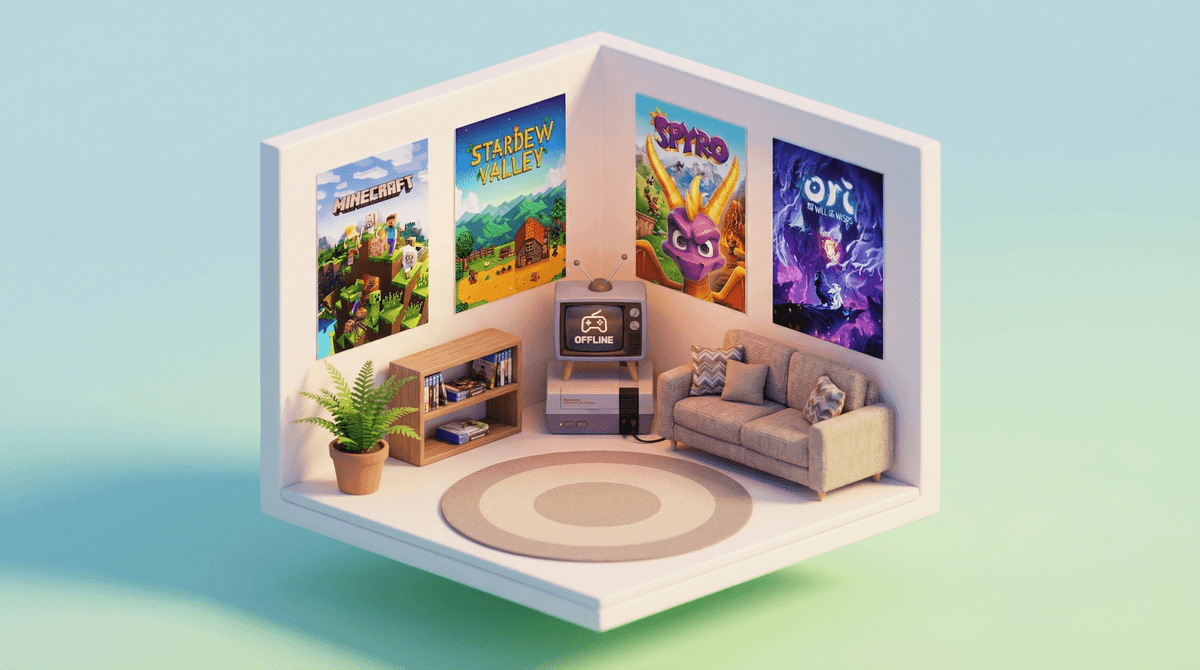
Look, we've all been there. The internet goes down mid-afternoon, or you're heading to a cabin with spotty WiFi, or maybe you're just trying to enforce some boundaries around online multiplayer. And then your kid asks: "Can I still play Xbox?"
The answer is... complicated. Yes, the Xbox One can absolutely work offline, but it's not as simple as just unplugging the ethernet cable. Microsoft designed this console during the "always online" era (remember the backlash?), so offline play requires some setup ahead of time. And not every game will work the way you think it will.
Here's what actually happens when you take an Xbox One offline, what works, what doesn't, and how to set it up properly so you're not troubleshooting while your kid melts down.
There are a few genuinely good reasons you might want your Xbox to work offline:
Internet outages happen. And they always seem to happen right when you need 45 minutes of peace.
Travel. If you're bringing the console to a vacation rental or grandparents' house, you might not have reliable internet (or want to deal with connecting to someone else's network).
Controlling online interactions. Maybe your 8-year-old can handle Minecraft, but you're not ready for them chatting with strangers online. Offline mode is one way to enforce that boundary without constant monitoring.
Managing screen time. Some parents find it easier to allow "offline gaming only" during certain hours, which naturally limits access to the endless scroll of online features, battle passes, and friend requests.
Here's where it gets tricky. Not all Xbox games are created equal when it comes to offline play.
Games That Work Fine Offline:
- Single-player disc games - If it's on a physical disc and doesn't require online features, you're usually good. Think LEGO games, story-driven adventures, sports games in single-player mode.
- Digitally purchased single-player games - As long as the Xbox is set as your "Home Xbox" (more on this in a sec), digital games will work offline.
- Local multiplayer - Games with couch co-op or split-screen still work offline. Your kids can play together on the same console.
Games That Absolutely Won't Work:
- Online multiplayer games - Obviously. Fortnite, Roblox, Apex Legends... these literally can't function without internet.
- Games that require "always online" connection - Some games (looking at you, Destiny 2) won't even launch without internet, even if you just want to play solo content.
- Game Pass games (sometimes) - If you have Xbox Game Pass, offline access is hit-or-miss and requires specific setup. The console needs to "check in" periodically.
The Gray Area:
- Games with online features - A game like Minecraft will work offline, but your kid can't join Realms or play with friends. This might lead to disappointment if they don't understand the limitation ahead of time.
- Games that need updates - If a game hasn't been updated in a while and tries to force an update on launch, you might be stuck.
Okay, here's the actual setup. Do this before you need it, not during the internet outage.
Step 1: Set Your Xbox as the "Home Xbox"
This is crucial. If your Xbox isn't designated as the Home Xbox for your account, digital games won't work offline.
- Press the Xbox button to open the guide
- Go to Profile & system > Settings > General > Personalization
- Select "My home Xbox"
- Choose "Make this my home Xbox"
Parent note: You can only have one Home Xbox at a time. If you have multiple consoles in your house, only one can be the Home Xbox. The others will need internet to verify game licenses.
Step 2: Keep Your Console Updated
When you have internet, make sure your console is fully updated. Go to Settings > System > Updates and download everything. An outdated console might have issues going offline.
Step 3: Launch Games While Online First
Before going offline, launch each game at least once while connected to the internet. This ensures the game is fully installed, updated, and licensed. Some games need that initial "handshake" with Microsoft's servers.
Step 4: Manage Automatic Sign-In
Go to Settings > Account > Sign-in, security & passkey and make sure your child's profile is set to sign in automatically. You don't want them stuck at a login screen that requires internet verification.
Step 5: Going Offline
When you're ready to go offline:
- You can either disconnect from WiFi (Settings > Network > Network settings > Go offline)
- Or just unplug the ethernet cable
- The console will show a notification that it's offline
Important: Don't just turn off the router and leave the Xbox trying to connect. Actually put it in offline mode or disconnect it properly. Otherwise it'll waste time trying to connect and some features might not work right.
The "Check-In" Problem
Even with everything set up perfectly, Xbox Game Pass games need to "check in" with Microsoft's servers every 30 days or so. If you're planning a month-long off-grid adventure, Game Pass games might stop working.
Save Files Are Local (Mostly)
Game saves are stored locally on the console, but they also sync to the cloud when online. If your kid plays offline for a week and then goes back online, their progress will sync. However, if you have multiple consoles and they play on a different one, offline saves won't be there until they sync.
No Achievements While Offline
Achievements earned offline will sync once you reconnect, but they won't pop up in real-time. Some kids really care about this.
Parental Controls Still Work
The good news: screen time limits, content restrictions, and other parental controls you've set up through your Microsoft Family account will still function offline. The console remembers these settings locally.
The "Always Online" Trend
Here's the reality: gaming is moving more and more toward online-required experiences. Even single-player games increasingly have online features, live events, and battle passes. Learn more about how modern games are designed to keep kids online . Offline gaming is becoming less common, which is worth considering for your family's long-term digital habits.
If you're specifically looking for quality offline experiences, here are some parent-approved options:
Ages 6-10:
- LEGO games (any of them - Star Wars, Marvel, Harry Potter)
- Minecraft (creative mode, no Realms)
- Spyro Reignited Trilogy
Ages 10-14:
- Ori and the Will of the Wisps (beautiful, challenging platformer)
- Stardew Valley (cozy farming game)
- Hollow Knight (harder, but incredible)
Ages 14+:
- Red Dead Redemption 2 (mature themes, but story mode is offline)
- The Witcher 3 (mature, but a masterpiece)
- Celeste (tough but meaningful platformer)
Xbox One offline play is absolutely possible, but it requires advance planning. Set up your Home Xbox, launch games while online first, and understand which games in your library will actually work without internet.
The bigger question: Is offline gaming even the goal? For some families, offline mode is a temporary solution during travel or outages. For others, it's a deliberate boundary to limit online interactions and the constant pull of multiplayer games.
Either way, it's worth having a conversation with your kids about why you're going offline (if it's intentional) and what they can expect. Setting expectations prevents the "but I thought I could play with my friends!" meltdown.
If you're setting up offline play for the first time:
- Designate your Home Xbox today (while you have internet)
- Launch all your kid's favorite games while online
- Test offline mode on a random Tuesday afternoon, not during a crisis
If offline gaming is part of your digital boundaries:
- Check out alternatives to always-online games that might fit your family better
- Consider whether Game Pass is worth it for your family given the online check-in requirements
- Learn how to set up Xbox parental controls that work alongside offline mode
And remember: the Xbox will survive without internet. Your kid might act like it won't, but it will.