

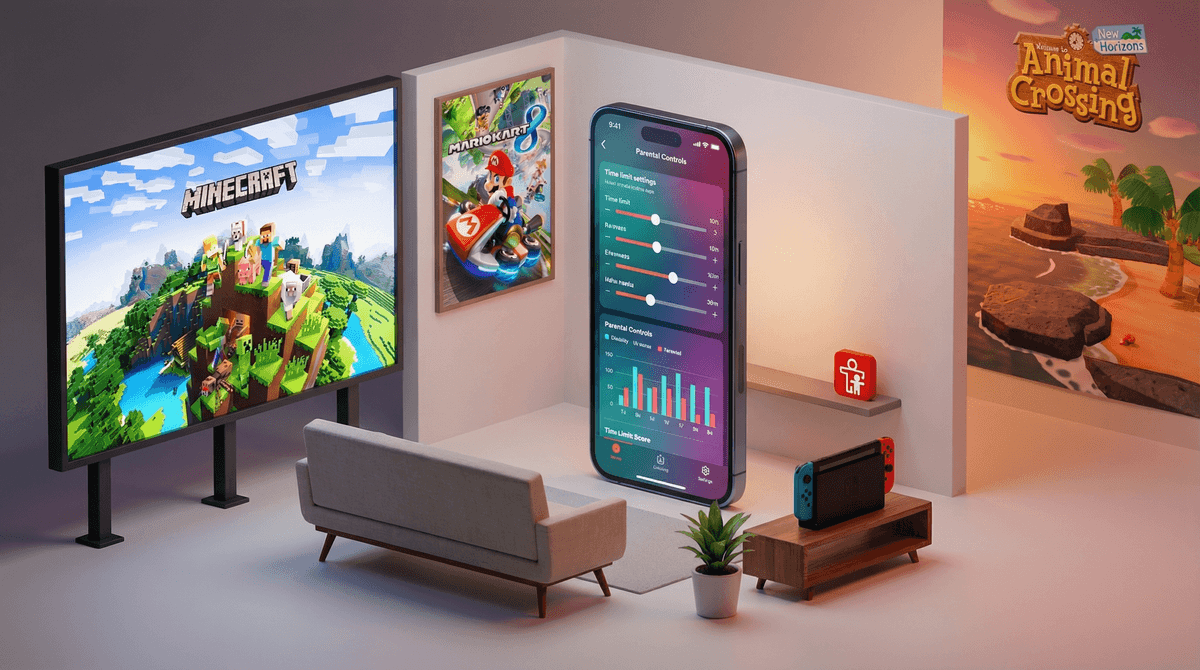
The Nintendo Switch has something most gaming consoles don't: actually good parental controls that work without a computer science degree. We're talking about a dedicated smartphone app (yes, really) that lets you set time limits, restrict content, monitor what your kids are playing, and even pause the console remotely when dinner's ready and they're "in the middle of a boss battle."
The Nintendo Switch Parental Controls app (free on iOS and Android) connects to your kid's Switch and gives you a surprisingly robust dashboard. You can see exactly how much time they spent on Minecraft versus Mario Kart, set daily time limits that actually enforce themselves, and restrict games by age rating. The console itself also has built-in controls if you prefer to manage everything locally.
Here's what makes it different from other gaming platforms: Nintendo actually designed this with parents in mind, not as an afterthought. The app is intuitive, the notifications are helpful without being annoying, and the whole system respects that you're trying to parent, not surveil.
The Switch is wildly popular—and for good reason. It's genuinely great hardware with incredible games. But here's the thing: it's portable. Your kid can take it to their room, under the covers, to the bathroom, wherever. Unlike the old days when the TV was in the living room and you could see exactly what was happening, the Switch lives in backpacks and travels to friends' houses.
This portability is both the best and worst thing about it. Best because road trips just got 400% easier. Worst because "just one more level" can happen at 11 PM on a school night without you knowing.
Also, the Switch has a shockingly wide age range of users. You've got 6-year-olds playing Animal Crossing and 16-year-olds grinding Splatoon 3. The parental controls let you actually customize the experience for your specific kid's age and your family's values, rather than just hoping for the best.
Step 1: Download the app Get the "Nintendo Switch Parental Controls" app from the App Store or Google Play. It's the official one with Nintendo's logo—not a third-party thing.
Step 2: Link it to the Switch On the Switch, go to System Settings > Parental Controls > "Use Your Smart Device." You'll get a registration code. Enter that code in the app. Done. Seriously, it takes like 90 seconds.
Step 3: Set your restrictions Now the fun part. Here's what you can control:
Time limits: Set daily playtime limits. When time's up, the Switch will give a warning, then suspend gameplay. Your kid can request more time through the app, and you can approve or deny it remotely. (This is clutch when you're at work and they text "pleeeease 30 more minutes.")
Age restrictions: Restrict games by ESRB rating (Everyone, Everyone 10+, Teen, Mature). If your kid tries to launch a game above their rating, it'll ask for a PIN. You can also restrict specific games individually if you want to allow some Teen games but not others.
Communication features: This is huge. You can restrict the ability to post screenshots to social media, disable voice chat, and prevent communication with strangers in games. Learn more about online gaming safety.
eShop purchases: Require a PIN for any purchases. This prevents the dreaded "Mom, why is there a $200 charge for V-Bucks?" situation. (Wrong console, but you get it.)
Content sharing: Disable the ability to view or post content online, which is especially important for younger kids.
Ages 5-8: Set strict time limits (30-45 minutes on school days, maybe an hour on weekends), restrict to Everyone-rated games only, and disable all communication features. At this age, the Switch should be a completely offline, time-limited experience. Keep it in a common area and have them hand it over when time's up.
Ages 9-12: You can probably bump up to Everyone 10+ games and extend time limits to 60-90 minutes on school days. Consider allowing communication only with approved friends (the Switch lets you do friend-specific settings). Start having conversations about what makes a game appropriate and why certain games are restricted. This is also when kids start wanting Fortnite and Roblox—both of which have their own additional parental controls you'll need to set up.
Ages 13+: Teen-rated games might be appropriate depending on your family values and the specific kid. Time limits can be more flexible, but honestly, even teenagers benefit from structure. The "one more hour" feature in the app is great here—they can request extensions and you can approve based on homework status, behavior, etc. Keep communication features restricted to friends-only unless you have a very specific reason to allow open chat.
Daily summaries: Every day, you get a notification showing exactly what they played and for how long. This is gold for spotting patterns—like realizing they're playing at 6 AM before school or spending 3 hours on a game you thought they'd quit.
Remote pause: If you're not home and time's up but they're still playing, you can pause the console from the app. It's not subtle (they'll know you did it), but it works.
Bedtime alarm: Set a specific time when the Switch becomes unusable. The console will give warnings, then lock itself. No negotiations, no "I didn't hear you call me."
Monthly reports: See trends over time. Is screen time creeping up? Are they playing more on weekends? The data helps you have informed conversations rather than just feeling like something's off.
The PIN is everything: Set a PIN that your kid doesn't know. Don't use their birthday or 1234. The whole system falls apart if they can just bypass it. And yes, tech-savvy kids will try to Google how to reset it—which is why you should also set a PIN on your Nintendo account.
Friend codes are complicated: The Switch uses friend codes instead of usernames for adding friends, which is more private but also more annoying. Your kid will need to share their friend code (or get someone else's) to play together online. You can view their friends list in the app and remove anyone you don't recognize.
It won't solve everything: Parental controls are tools, not solutions. If your kid is motivated enough, they'll find workarounds—playing at a friend's house, using a different profile, whatever. The controls work best when combined with actual conversations about why the limits exist. Here's how to talk to kids about screen time .
.
The Switch Lite is extra tricky: If you have a Switch Lite (the smaller, handheld-only version), it's even more portable and personal. Same controls apply, but enforcement is harder because it's truly a personal device that never connects to the TV.
Online play requires Nintendo Switch Online: This is a separate $20/year subscription. If you don't want your kid playing online at all, just don't subscribe. Problem solved. But many popular games (Splatoon, Mario Kart online mode, Minecraft multiplayer) require it.
Setting limits too strict then giving up: Start with limits you can actually enforce. Better to set 90 minutes and stick to it than set 30 minutes and constantly make exceptions because it's too restrictive.
Not checking the app: The daily summaries are only useful if you look at them. Set a reminder to check once a week, at least.
Forgetting about multiple profiles: Each user profile on the Switch can have different parental control settings. Make sure you've locked down all profiles, including any "guest" profiles.
Assuming "Everyone" rated means toddler-appropriate: Everyone-rated games are generally fine for ages 6+, but some have mild cartoon violence or complex themes. "Everyone" doesn't mean "every age"—it means "everyone in the gaming audience." Still preview games for younger kids.
Nintendo Switch parental controls are legitimately good—probably the best of any gaming console. But they only work if you actually use them and have the conversations that go along with them.
Set them up before your kid gets too attached to unlimited playtime. It's way easier to start with limits than to impose them later. And be consistent—the app makes it easy to see if you're being consistent or if "just this once" has become every day.
The goal isn't to eliminate gaming (the Switch has genuinely great games that can be creative, social, and fun). The goal is to make gaming one part of a balanced life, not the only part. These controls help you do that without having to be the bad guy every single time.
-
Download the app right now if you haven't already. Seriously, stop reading and do it.
-
Set age-appropriate restrictions based on your kid's age and your family values. When in doubt, start more restrictive—you can always loosen up.
-
Have a family meeting about the new limits. Explain why they exist and what the consequences are for trying to bypass them. Get buy-in if possible, or at least make expectations crystal clear.
-
Check the app weekly for the first month, then settle into a rhythm that works for your family.
-
Explore game options together. Use the controls as a framework, but also actively help your kid find games that are worth their time. Check out alternatives to popular games or cozy games for kids
.
The Switch isn't going anywhere—it's a great console. But with the right controls in place, it can be a part of your kid's life without taking over their life. And honestly? That's the whole point.