

TL;DR: The Quick Start Guide to Controller Mastery
If you’re looking to move past the "staring at the floor while walking into a wall" phase of gaming, here are the top recommendations to get your kid moving:
- Best First Game: Mario Kart 8 Deluxe (Switch) – Use "Smart Steering" and "Auto-Accelerate."
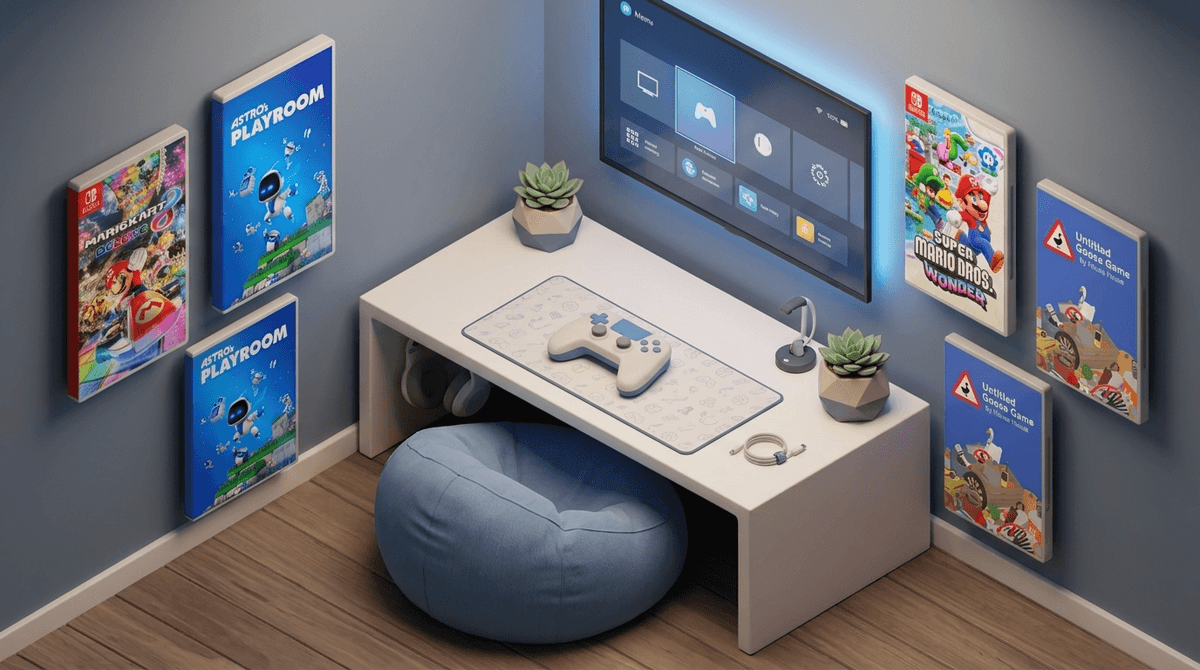
- Best for Fine Motor Skills: Astro's Playroom (PS5) – It’s literally a tutorial for the controller.
- Best for Stress-Free Exploration: Alba: A Wildlife Adventure – Low stakes, high reward.
- Best Hardware: Nintendo Switch Joy-Cons (for small hands) or the 8BitDo Lite 2 for a smaller form factor.
Find games based on your child's age
We often forget that using a modern controller is like learning to play a musical instrument while simultaneously navigating a 3D space. For a five-year-old, the Xbox or PlayStation controller is massive, heavy, and features about 14 different inputs.
The biggest hurdle isn't just "pushing buttons." It’s the dual-stick struggle. Asking a child to move a character with the left thumbstick while managing a camera with the right thumbstick is a cognitive overload that leads to the "look at the sky" or "spin in circles" meltdown.
Teaching these skills is about scaffolding. You wouldn't hand a kid a calculus textbook before they can count to ten; you shouldn't hand them Elden Ring (or even some "kids" games with bad cameras) before they've mastered the basics of 2D movement.
Beyond just wanting them to be able to play Minecraft without needing your help every thirty seconds, controller skills are actually a masterclass in:
- Fine Motor Development: Precise thumb movements and trigger pulls.
- Spatial Awareness: Understanding how a physical movement in their hands translates to a 3D environment on screen.
- Frustration Tolerance: Learning that "Game Over" isn't a failure, but a chance to try a different thumb position.
The jump to 3D is where most kids lose interest because they can't see where they're going. Start with side-scrolling games where the "camera" is fixed. This allows them to focus entirely on the relationship between the thumbstick and the character's movement.
This is the gold standard for a reason. If they play as Yoshi or Nabbit, they don't take damage from enemies. This removes the "I keep dying" frustration and lets them focus purely on the "A" button to jump and the stick to move. It’s the ultimate "training wheels" experience.
This is a quirky, hilarious game where you play as a hole in the ground. You move the hole, things fall in, the hole gets bigger. There is no "dying." There is no complex camera management. It’s perfect for kids who are still figuring out how to aim a thumbstick.
I’ll be honest: as an adult, this game is mind-numbingly boring. But for a 4-year-old? It’s perfect. It’s a 2D plane with zero "fail" states and very clear button prompts on the screen that match the controller colors.
Many modern games have "assist" features designed specifically for accessibility that double as incredible teaching tools.
This is arguably the best "first game" ever made because of two specific settings:
- Smart Steering: An invisible barrier keeps the car on the track. No more driving into the grass for three laps.
- Auto-Accelerate: The car goes by itself. The child only has to focus on steering.
As they get better, you can turn these off one by one. It’s a literal progression system for their motor skills.
The Lego games are generally great, but they can be surprisingly tricky with platforming. Use the settings menu to turn on "Fall Recovery" and "Homing Bolts" (which helps their attacks hit enemies even if their aim is a bit off).
Check out our guide on the best Nintendo Switch settings for families
Once they can move left-to-right without looking at their hands, it's time to introduce the dreaded Right Stick (the Camera).
If you have a PlayStation 5, this game is free and it is a masterpiece of industrial design. It uses the haptic feedback in the controller to let the child feel the difference between walking on grass or skating on ice. It introduces the camera slowly and uses motion controls (tilting the controller) to help bridge the gap between physical movement and digital action.
The camera is mostly fixed, but the interactions are complex. It teaches them that a button doesn't just "jump," it "interacts." Honking the horn, picking up a rake, and hiding in a box requires a multi-step thought process that builds "controller literacy."
Standard controllers are designed for adult hands. If your 6-year-old is struggling to reach the triggers (L2/R2 or ZL/ZR), it’s not a skill issue—it’s a physics issue.
- Joy-Cons: Using a single Joy-Con sideways is often the easiest way for tiny hands to start, though the lack of buttons can be limiting later on.
- The "Claw" vs. "Palm": Watch how they hold it. If they are resting the controller in their lap, they might have more success.
- 8BitDo Lite 2: This is a fantastic third-party controller that is significantly smaller and flatter, making it much easier for kids to reach all the buttons without overextending their thumbs.
Ages 3-5: The "Button Masher" Phase
At this age, it’s all about cause and effect. They press a button, something happens. Don't worry about them "winning." Focus on games like Kirby's Return to Dream Land Deluxe where you can play as a "helper" and literally carry them through the level.
Ages 6-8: The "Spatial Awareness" Phase
This is when you introduce Minecraft in Creative Mode. There's no pressure to survive, just the need to navigate. This is where the dual-stick muscle memory really forms.
Ages 9+: The "Precision" Phase
Now they can handle games that require timing and precision, like Super Mario Odyssey or Ratchet & Clank: Rift Apart.
When you start teaching them 3D games, you'll encounter the "Inverted Y-Axis" debate. Some people (mostly older Gen X and Millennials who grew up on flight simulators) prefer to push the stick down to look up. Most kids today find this completely unintuitive. Stick to "Standard" controls unless they naturally seem to be fighting the camera, in which case, try Inverted.
When the meltdown starts—and it will—don't just take the controller away. Try these:
- "Let's be Player Two." Many games have a "co-star" mode where you can help them jump or aim without taking the controller out of their hands.
- "Focus on your thumbs, not the screen." Sometimes they just need to look down and realize their thumb has slipped off the stick.
- "This is a 'Hard' level, let's go back to a 'Fun' level." Remind them that they can go back to an easier area to practice.
Teaching controller skills is a marathon, not a sprint. If they’re getting frustrated, it’s usually because the game is asking for a level of coordination their brain hasn't wired yet.
Stick to 2D games, turn on every assist setting available, and remember that Roblox is actually surprisingly hard to control for a beginner—so if they're struggling there, it might be time to take a break with some Mario.
- Check the Settings: Open up your child's favorite game and look for "Accessibility" or "Assists." You'd be surprised what's in there.
- Try a "Cozy" Game: Animal Crossing: New Horizons is a great way to practice movement without any enemies chasing you.
- Watch their hands: If they’re "death-gripping" the controller, they’re going to get tired and frustrated faster. Encourage a light touch.