

So You Just Got a Nintendo Switch: A Parent's Setup Guide
The Nintendo Switch just arrived. Maybe it was the birthday gift, the holiday surprise, or the "fine, everyone else has one" moment. Either way, before you hand it over and watch your kid disappear into Mario Kart 8 Deluxe for six hours straight, let's talk about setting this thing up in a way that won't make you regret everything.
The good news? The Switch actually has some of the best parental controls of any gaming system. The less good news? They're not automatic, and if you skip this setup, you'll be fighting uphill battles about screen time for years.
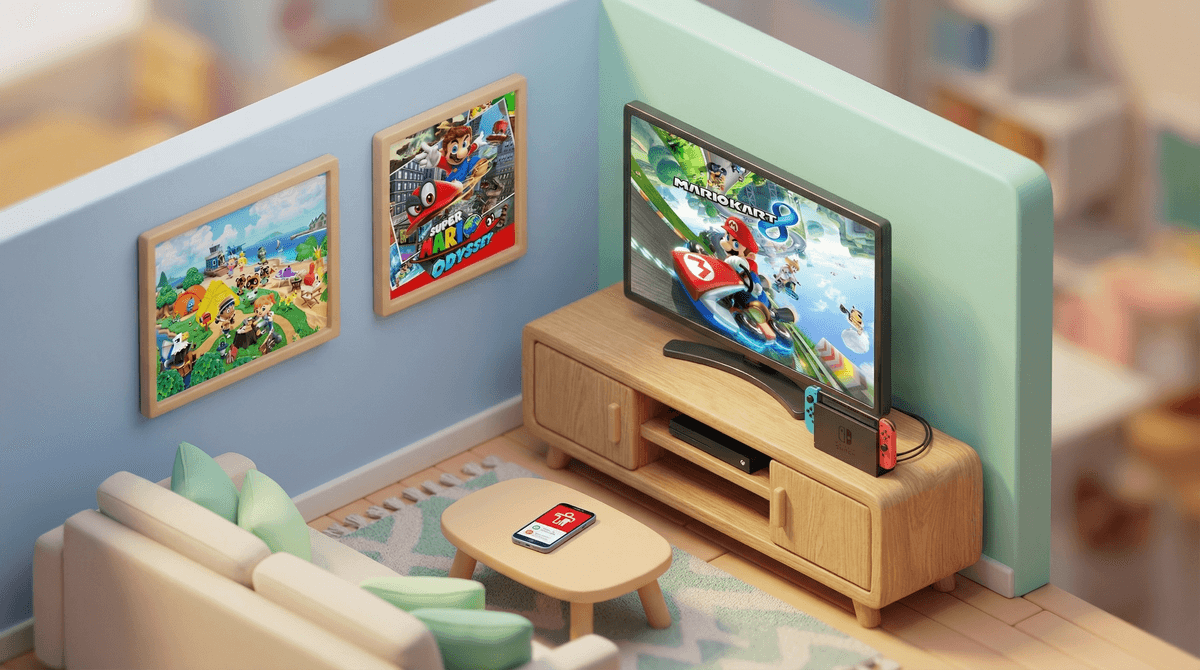
The Nintendo Switch is Nintendo's current gaming console, and it's genuinely clever – it works both as a handheld device (like a tablet for gaming) and connects to your TV. Kids can play Animal Crossing: New Horizons on the couch, then take the same game in the car. This flexibility is why kids love it. It's also why it can be tricky to monitor – that portability means they can game anywhere.
There are three versions: the original Switch (does both handheld and TV), the Switch Lite (handheld only, slightly cheaper), and the Switch OLED (nicer screen, more expensive). All play the same games, though the Lite can't connect to a TV.
Here's what to do before your kid even touches the thing:
1. Create the Family Group (5 minutes that save you hours)
You need a Nintendo Account (free) to access parental controls. Go to accounts.nintendo.com and create one. Then set up a Family Group and add your child as a supervised account.
Ages 12 and under: You'll create and manage their account entirely.
Ages 13-17: They can have their own account, but you can still link it to your Family Group for monitoring.
This Family Group structure is how you'll control everything from spending to play time limits.
2. Download the Parental Controls App
This is non-negotiable. The Nintendo Switch Parental Controls app (free for iOS and Android) is where the magic happens. It lets you:
- Set daily play time limits (and the Switch will actually enforce them)
- See what games they're playing and for how long
- Restrict games by age rating
- Disable social features and communication
- Pause gameplay remotely when dinner is ready (yes, really)
- Get monthly activity reports
The app is way more powerful than the controls on the Switch itself. Use it.
3. Configure Age Restrictions
The Switch uses ESRB ratings (Everyone, Everyone 10+, Teen, Mature). You can restrict which games can be played based on these ratings.
Reality check: Most popular Switch games for kids are rated E or E10+. Minecraft, Mario, Splatoon 3, Pokemon – all fine for elementary schoolers. Fortnite is rated Teen (13+), which surprises some parents since it seems like every third-grader plays it. More on that conversation here .
.
This is where things get expensive fast. Switch games cost $40-60 new, and the digital store (eShop) is designed to make buying easy.
Essential settings:
- Require a password for all purchases (turn this on immediately)
- Don't save credit card info on the device
- Consider Nintendo eShop gift cards instead of linking your card
- Talk about the difference between buying a game ($60 once) vs. games with in-game purchases
Games like Fortnite and Roblox are free to download but sell V-Bucks and Robux. Rocket League is similar. If your kid plays these, you need a clear plan about whether/how much they can spend on cosmetics.
The Switch has two types of online interaction:
1. Online multiplayer gaming: Playing Mario Kart 8 Deluxe or Splatoon 3 against random people online. This requires a Nintendo Switch Online subscription ($20/year for individuals, $35/year for families).
2. Communication features: Voice chat, messaging, sharing screenshots. Here's the thing – Nintendo is super restrictive by default. Unlike Xbox or PlayStation, there's no built-in voice chat with strangers. Most communication happens through the Nintendo Switch Online app or external apps like Discord.
For elementary school kids: You can disable all online communication and still let them play online multiplayer. They'll race against other players in Mario Kart but can't talk to anyone.
For middle schoolers: Many use Discord to chat with friends while gaming. That's a separate conversation about Discord safety (which is significant).
Ages 6-9:
- Mario Kart 8 Deluxe (the gateway drug)
- Animal Crossing: New Horizons (wholesome island life)
- Minecraft (creative building)
- Kirby and the Forgotten Land (adorable platformer)
- Pokemon Scarlet/Violet (adventure RPG)
Ages 10-13:
- The Legend of Zelda: Breath of the Wild (epic adventure)
- Splatoon 3 (team-based shooter with paint, not bullets)
- Stardew Valley (farming sim that's weirdly addictive)
- Super Smash Bros. Ultimate (fighting game, but Nintendo-style)
Ages 13+:
- Fortnite (if you're going there)
- The Legend of Zelda: Tears of the Kingdom
- Hollow Knight (challenging but beautiful)
The parental controls app lets you set daily limits (30 minutes, 1 hour, 3 hours, etc.). When time's up, the game pauses and shows a notification. Kids can request more time, and you can approve it from your phone.
What's normal?
- Ages 6-10: Most families aim for 30-60 minutes on school days, 1-2 hours on weekends
- Ages 11-14: 1-2 hours on school days, 2-3 hours on weekends
- Reality: These are averages. Some days will be zero, some will be more. Having a plan matters more than perfection.
The key is consistency. If the Switch says time's up, it's up. Don't override it constantly or the system becomes meaningless.
Here's something worth mentioning: the Switch is excellent for family gaming. Mario Kart 8 Deluxe, Mario Party Superstars, Overcooked 2 – these are games you can actually enjoy playing with your kids.
Co-playing occasionally gives you insight into what they're experiencing and creates shared experiences. It's also how you'll understand why they're so obsessed with getting that one star in Super Mario Odyssey.
The Switch can be a great addition to your family's digital life if you set it up intentionally from the start. The parental controls actually work, the game library is genuinely good, and it's less of a social media/communication minefield than phones or tablets.
But none of that happens automatically. Take 20 minutes now to set up the Family Group, download the app, configure restrictions, and talk about expectations. Your future self will thank you.
- Today: Set up your Nintendo Account and Family Group, download the Parental Controls app
- Before first play: Configure age restrictions, spending controls, and time limits
- This week: Have a conversation about online play and communication expectations
- Ongoing: Check the monthly activity reports and adjust as needed
Want to dig deeper into specific game choices? The Screenwise chat can help you evaluate specific titles based on your family's values and your kid's interests.
And remember – you don't have to figure all of this out perfectly on day one. Start with basic controls and adjust as you learn what works for your family. That's what intentional parenting looks like in practice.