

TL;DR
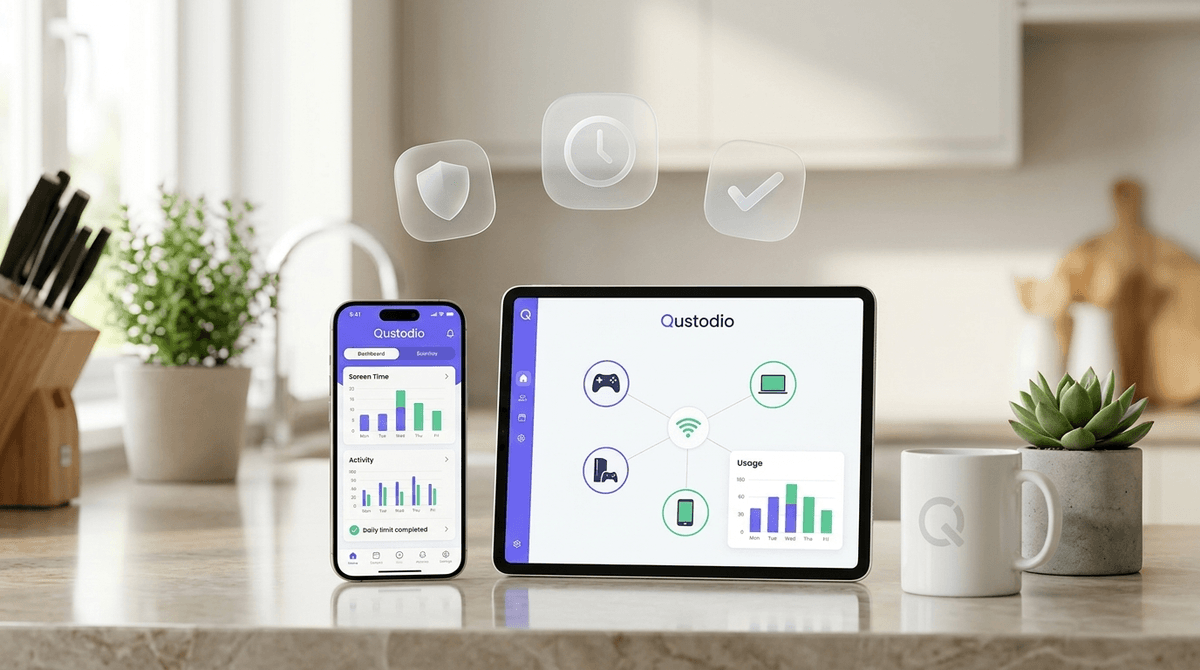
Qustodio is the "Swiss Army Knife" of parental control apps. It’s best for families with a mix of devices (Windows, iPhones, Kindles, Androids) who want hard screen-time limits and specific app blocking. It won’t solve the "brain rot" of YouTube Shorts entirely, but it gives you the kill switch when things get out of hand.
Quick Links:
If you’ve ever found yourself in a standoff over a tablet at 9:00 PM while your kid insists they need to finish one more round of Roblox or watch just one more Skibidi Toilet episode, you know the "digital drama" is real. It’s exhausting. You want to be the "chill parent," but you also don't want your kid's brain to turn into mush before they hit middle school.
Enter Qustodio. It’s one of the oldest players in the game, but their 2026 updates have actually kept them relevant in a world where AI is everywhere and "Ohio" is somehow the ultimate insult.
At its core, Qustodio is a cross-platform monitoring and management tool. Unlike Apple Screen Time, which is great if you’re a 100% Apple family but falls apart the second a Windows laptop or a Kindle Fire enters the house, Qustodio plays nice with almost everything.
You install the "Kids App" on their devices and the "Parents App" on yours. From there, you become the CEO of their digital life—for better or worse.
Most kids today aren't just on one screen. They start a video on YouTube on their phone, move to Minecraft on the PC, and then try to sneak some TikTok on a tablet.
The genius of Qustodio is that it can set a cumulative time limit. If you give them two hours of "screen time," it counts those two hours across all their devices. No more "but I only used the iPad for ten minutes!" excuses.

Qustodio has leaned hard into AI recently, and it’s actually pretty useful. Here’s the breakdown of what actually works:
This is usually the #1 reason parents buy this app. Qustodio lets you see exactly what they searched for and what they watched.
- The Win: On Android and Windows, it’s robust. You can see titles and thumbnails.
- The "Meh": On iOS (iPhone/iPad), it’s a bit more limited because of Apple’s privacy rules. It works best if they watch YouTube in a browser rather than the app.
The "Always Allowed" List
This is a 2025 lifesaver. You can set the phone to lock down at 8:00 PM but keep Spotify for sleep music or Duolingo for that Spanish streak available. It rewards "good" screen time while killing the Instagram scroll.
AI Categories & Alerts
Qustodio now has a specific filter for AI Websites. If you’re worried about your kid using ChatGPT to write their history essay or stumbling into weird AI image generators, you can block the whole category with one click.
They also added AI-powered alerts for DMs on Snapchat and TikTok (Android only). It won't show you every boring "hey" they send, but it flags "concerning" language. It’s less "spying" and more "smoke detector."
Location Tracking & "My Places"
It’s basically Life360 lite. You can see where they are in real-time and get an alert when they arrive at school or home.
- The Panic Button: On Android, there’s an SOS button the kid can hit that sends you their location immediately. Hopefully, they never need it, but it’s a nice "just in case" feature.
Elementary (Ages 6-10)
At this age, Qustodio is mostly about Filtering. You want to block the "unfiltered" web and keep them on safe sites like PBS Kids or National Geographic Kids. Use the "Hard Pause" feature for dinner time to avoid the Skibidi-induced trance.
Middle School (Ages 11-13)
This is the "Wild West" of digital parenting. This is when they want Discord and Snapchat. Use Qustodio for Time Limits more than content blocking. Let them explore, but give them a "hard stop" so they actually sleep. Read our guide on the "Middle School Phone Transition"
High School (Ages 14-18)
By now, they probably know how to bypass Qustodio with a VPN or a proxy (yes, they are that smart). At this stage, Qustodio should be used for Transparency. "I’m not reading your texts, but I am seeing that you’re on TikTok until 2:00 AM, and that’s why you’re failing Chemistry." It’s a data tool for hard conversations.
Let’s be real: your kids will hate this app. They will call it "sus" and say it’s "low-key mid." They might even try to find "how to delete Qustodio" videos on YouTube (which you will then see in their search history—ironic, right?).
The key is to not pull a "gotcha." If you see something concerning, don't just swoop in like the digital police. Use it as a conversation starter. "Hey, I noticed you've been spending four hours a day on YouTube Shorts. How does your brain feel after that? Let’s look at the stats together."
Qustodio isn't a replacement for parenting, and it won't magically make your kid stop saying "gyatt" or "fanum tax." But it will give you back your evenings.
If you have a kid who struggles with "just five more minutes" or you’re worried about the sheer volume of TikTok content they're consuming, Qustodio is the best "all-in-one" hammer in the toolbox.
Next Steps:
- Start with the Free Trial: Don't commit to the $100/year "Complete" plan until you see if the installation process makes you want to throw your router out the window.
- Install on the "Main" Device first: Usually the phone. See how the "Always Allowed" list works for your family.
- Have the "Talk": Tell them why you're installing it. Focus on "digital wellness" and sleep, not "I don't trust you."