

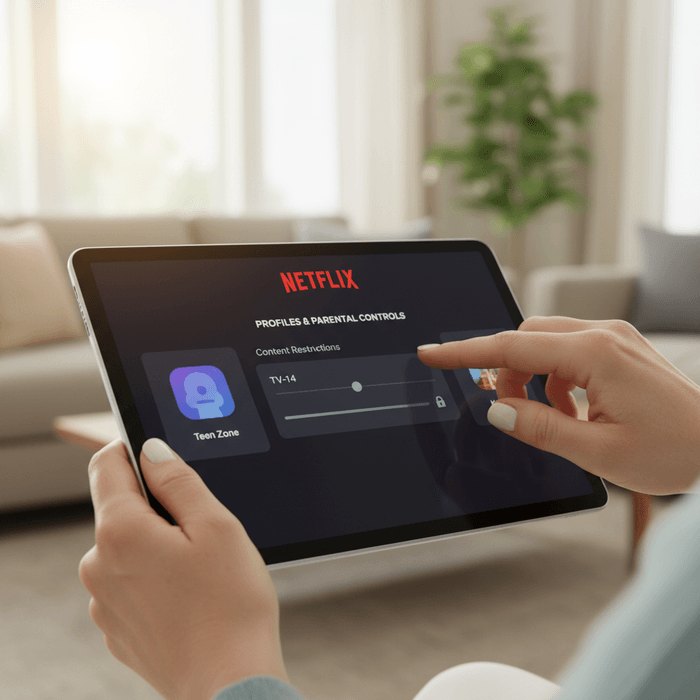
TL;DR: Netflix’s "Kids" profile is a start, but it’s easily bypassed. To truly manage content, you need to set Profile Lock PINs, hard-code Maturity Ratings for each user, and use the Viewing Restrictions tool to block specific shows entirely.
Quick Links to High-Quality, Non-Brain-Rot Content:
- Ages 3-6: Bluey, Numberblocks, StoryBots
- Ages 7-12: Hilda, Avatar: The Last Airbender, The Dragon Prince
- Teens: Stranger Things, Enola Holmes
We’ve all been there. You set up a "Kids" profile, feel like a responsible parent, and then walk into the living room twenty minutes later to find your seven-year-old watching a clip of a horror movie because they figured out how to click your profile icon.
Netflix is designed to keep eyes on the screen, and its default "Kids" setting is more of a polite suggestion than a digital fortress. If you want to move beyond the basic "Kids" button and actually curate what your kids are seeing—and how long they’re seeing it—you have to get under the hood of the account settings.
The biggest loophole in Netflix’s safety system is the ease of switching profiles. On most smart TVs and tablets, switching from a restricted child profile to an unrestricted adult profile takes exactly two clicks. Kids are observant; they watch you enter your PIN (if you have one) or they simply realize that the "Adult" icon doesn't have the same restrictions.
To fix this, you need to implement a Profile Lock. This requires a four-digit PIN to access specific profiles.
- Access your account settings via a web browser (you can’t do the deep-level stuff on the TV app).
- Go to Profile & Parental Controls.
- Select your own profile and find Profile Lock.
- Set a PIN that your kids haven't seen you use for your phone or the garage door.
Netflix uses a broad brush for its "Kids" experience, often grouping everything from Cocomelon to Wednesday under the same umbrella depending on how you’ve toggled the settings.
Instead of relying on the "Kids" experience toggle, go into the Viewing Restrictions for each child’s profile. Here, you can set a hard ceiling on maturity ratings (TV-Y, TV-G, PG, TV-14, etc.).
If you have a ten-year-old who is ready for Marvel movies but definitely not ready for the "suggested for you" TV-MA documentaries, setting the limit to PG-13/TV-14 is your best bet.
This is the most underrated feature in the Netflix arsenal. We all have that one show that makes us want to pull our hair out—whether it’s because it’s "brain rot" (high-stimulation, low-substance content) or because it’s just plain annoying.
In the Viewing Restrictions section of a profile, there is a box labeled Title Restrictions. You can type in the name of any show or movie, and it will be completely hidden from that profile. It won’t show up in search, and it won’t appear in the "Trending" or "Recommended" rows.
If you’ve decided that Skibidi Toilet knock-offs or certain hyper-active YouTube-style shows have no place in your home, this is how you delete them from existence.
Find "brain rot" shows to consider blocking
Not all screen time is created equal. There is a massive difference between a child watching a beautifully animated, narratively complex show like Hilda and mindlessly scrolling through auto-playing clips of unboxing videos.
"Brain rot" isn't just a meme; it refers to content designed with high-frequency cuts, loud noises, and zero narrative arc, specifically engineered to trigger dopamine hits in developing brains. This content is what leads to the "Netflix Trance" and the subsequent meltdown when the TV finally turns off.
Ages 7+ This is the gold standard for modern kids' TV. It’s whimsical, it’s adventurous, and it respects the intelligence of its audience. It follows a blue-haired girl who moves from a wilderness full of elves and giants to a walled city. It’s cozy, thoughtful, and the opposite of brain rot.
Ages 9+ If your kid is into Dungeons & Dragons or The Lord of the Rings, this is the show. Created by the head writer of Avatar: The Last Airbender, it features deep lore, complex villains, and actual consequences. It’s entrepreneurship for the imagination.
Ages 3-8 If you need fifteen minutes to cook dinner, this is the show you want on. It’s genuinely educational, incredibly funny (even for adults), and features guest stars like Snoop Dogg and Edward Norton explaining things like "how electricity works."
When you’re setting these filters, it helps to know what the community norms are. Based on Screenwise data, we see a significant shift in how parents manage Netflix as kids age:
- Pre-K (Ages 3-5): 92% of parents use a strict "Kids" profile with Autoplay turned OFF. The focus is on preventing the "binge-loop."
- Elementary (Ages 6-10): 65% of parents move to specific Title Restrictions. This is the age where kids start hearing about "scary" shows at school and might go looking for them.
- Middle School (Ages 11-13): Most families move to a TV-14 rating limit and focus more on "Profile Locks" for the parents' accounts rather than restricting the child's search results.
Check out our guide on sibling dynamics and shared Netflix accounts
One of the most "deliberate" decisions you can make for your family's digital wellness is to turn off Autoplay.
Netflix is a master of the "cliffhanger." By automatically starting the next episode, they bypass a child’s (and an adult’s) natural stopping point.
- Go to Playback Settings for your child’s profile.
- Uncheck Autoplay next episode in a series on all devices.
- Uncheck Autoplay previews while browsing on all devices.
Turning these off changes the experience from a passive "content firehose" to an intentional choice. Your kid has to actually decide to watch another episode, which gives you a natural opening to say, "That was the end of the show, time to head outside."
Filters are a tool, not a parenting style. If you block a show or set a PIN, tell your kids why.
You don't have to be a buzzkill. You can say: "I noticed that when you watch [Show Name], you seem really grumpy when it's time to turn it off. We're going to take a break from that show and find something that's more of a story and less of a loud noise machine."
Or, regarding the PIN: "My profile has shows that are made for grown-up brains. Just like you don't drive the car yet because your legs aren't long enough, some shows are for when your brain is a bit more developed. The PIN helps us keep those things separate."
Netflix can be a library of incredible stories or a digital junk-food dispenser. The difference lies in about ten minutes of clicking through the Account Settings on a web browser.
Don't trust the "Kids" button to do the parenting for you. Lock your profile, block the brain rot, and turn off the autoplay.
- Audit your profiles: Log in to Netflix on a laptop tonight and check the maturity ratings for every user.
- Set your PIN: Lock the adult profiles so "profile jumping" isn't an option.
- Curate the queue: Add shows like Hilda or Our Planet to their "My List" so they have high-quality options ready to go.
- Take the Survey: If you want to see how your Netflix habits compare to other intentional parents in your community, walk through the Screenwise habits survey.