

TL;DR: The Cheat Sheet
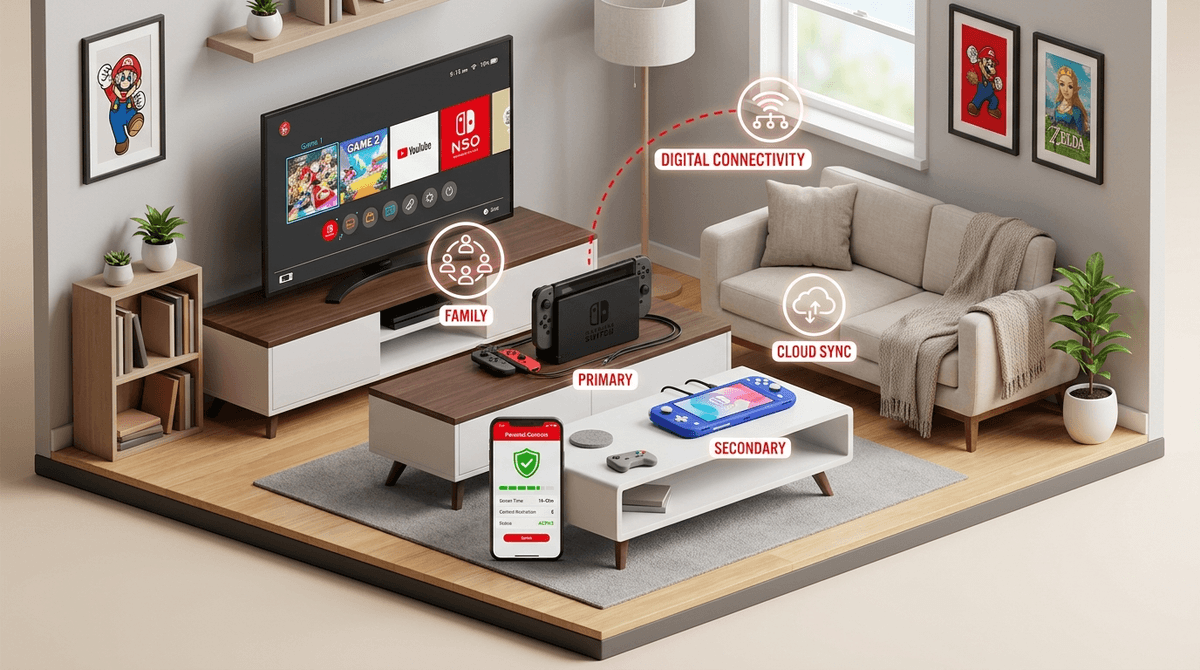
- The Family Group is non-negotiable: Save your sanity and your wallet by linking up to 8 accounts under one Nintendo Switch Online Family Membership.
- Master the "Primary Console": Digital games are tied to the account that bought them, but anyone can play them on that account’s "Primary" Switch.
- Physical vs. Digital: Physical cartridges like Mario Kart 8 Deluxe are easier to share between devices, but digital is better for not losing tiny, expensive plastic squares in the couch cushions.
- The App is your best friend: Download the Nintendo Switch Parental Controls app immediately.
If you’ve ever found yourself staring at a "This software cannot be played" error message while your kid is mid-meltdown because their sibling is currently playing Animal Crossing: New Horizons on the other Switch, welcome to the club.
Nintendo makes some of the best games on the planet, but their account management system feels like it was designed by a committee that has never actually met a human child. It’s confusing, it’s restrictive, and it’s the leading cause of "digital tug-of-war" in modern households.
But don't worry. We’re going to break down how to set up your "Family Group," how to share your digital library without buying three copies of Super Mario Bros. Wonder, and how to make sure you aren't accidentally funding a Roblox shopping spree.
Think of a Family Group as your digital household. You can have one "Admin" (that’s you) and up to seven other members. These can be "Supervised" accounts for the kids or full accounts for other adults.
The main reason you want this is for the Nintendo Switch Online Family Membership. For about $35 a year, everyone in the group gets online play, cloud saves, and access to that massive library of retro NES and SNES games. If you pay for individual memberships for two kids, you’re already overspending.
This is where most parents lose their minds. Nintendo has a very specific rule: One account can have one "Primary Console."
- On your Primary Console: Anyone who picks up the Switch can play any digital game you’ve bought.
- On a Secondary Console: Only you (the buyer) can play your games, and you have to be connected to the internet to "verify" the license.
The Pro-Parent Move: If you have two Switches (let’s call them the "Living Room Switch" and the "Kid’s Switch Lite"), set the Kid’s Switch as your (the parent's) Primary Console.
Why? Because then the kids can log in as themselves on that Switch and play all the games you bought (like The Legend of Zelda: Tears of the Kingdom) without needing to be on your account. Meanwhile, you can still play your games on the "Living Room Switch" (the Secondary) as long as you have Wi-Fi.
Ask our chatbot for a step-by-step on switching primary consoles
In 2026, we love the convenience of digital downloads. No clutter, no lost discs. But for families, physical cartridges are often the better "No-BS" choice.
If you buy a physical copy of Pokemon Scarlet, you can just hand that cartridge to whichever kid isn't currently grounded. There are no "Primary Console" checks or license errors.
The Verdict:
- Buy Physical for: Big, single-player adventures like Pikmin 4 or Luigi's Mansion 3.
- Buy Digital for: "Forever games" that kids jump into for 15 minutes every day, like Minecraft or Splatoon 3.
The Nintendo eShop is a dopamine factory. It’s bright, it has catchy music, and it’s constantly showing "Sales" on games that are, frankly, brain rot. For every masterpiece like Hades, there are ten "Calculator" apps or "Hentai" puzzles that somehow sneak past the filters.
Safety Considerations:
- Password Protect the eShop: Do not, under any circumstances, save your credit card info without a password requirement. Kids don't understand that "Gold Points" aren't the only thing being spent.
- Supervised Accounts: Set your kids up with Supervised Accounts so you can restrict spending and viewing content by age rating.
The Switch is a "sticky" console. Between Fortnite marathons and the endless loop of Roblox "obby" games, it’s easy for a "quick 20 minutes" to turn into three hours.
This app is actually one of the best parental tools in gaming. It’s not just for locking the console down; it’s for seeing what they are actually doing.
When you’re managing a family library, you want games that offer "bang for your buck"—titles that multiple kids of different ages will actually enjoy.
Ages 4+ The "Smart Steering" feature is a godsend for preschoolers who just want to feel like they’re playing with their older siblings without driving into a wall for twenty minutes straight. It’s the ultimate family equalizer.
Ages 10+ If you want to move away from the high-stress chaos of Fortnite, this is the "cozy" gold standard. It teaches resource management, patience, and—believe it or not—the value of a hard day's work. Plus, it has split-screen co-op so siblings can farm together (or argue over who forgot to water the melons).
Ages 6+ A warning: This game will cause fights. It is designed to be unfair. But it’s also a great way to teach kids how to lose gracefully (or at least, how to lose without throwing a Joy-Con at the TV).
You’ll hear kids talk about "trading" in Roblox or Pokemon Scarlet like they’re Wall Street day traders. While there is some logic to it, be wary. Digital scarcity is a powerful drug.
Nintendo is generally better than most about "loot boxes," but titles like Fortnite (which is huge on Switch) rely entirely on "FOMO" (Fear Of Missing Out). If you’re sharing an account, make sure your kids aren't "trading" away digital items that actually cost real-world money.
Managing a Nintendo family isn't about being a digital prison guard; it’s about setting up a system where you aren't the bottleneck for their fun.
- Set up the Family Group for the online benefits.
- Strategic Primary Console placement to share your digital library.
- Physical cartridges for the big-ticket items you want to pass around.
- Use the Parental Controls app to keep an eye on the "brain rot" levels.
The goal is to move from "Who took my Switch?!" to "Hey, want to play Super Mario Bros. Wonder together?"
- Audit your accounts: Go to the Nintendo website and see who is in your Family Group.
- Check your Primary: Open the eShop on your kid's Switch, click the user icon, and scroll down to see if it’s registered as the "Primary Console."
- Talk to your kids: Ask them what games they actually want to play with their siblings versus what they want to keep "private" (usually their Minecraft worlds).
Ask our chatbot for more tips on digital wellness for gamers