

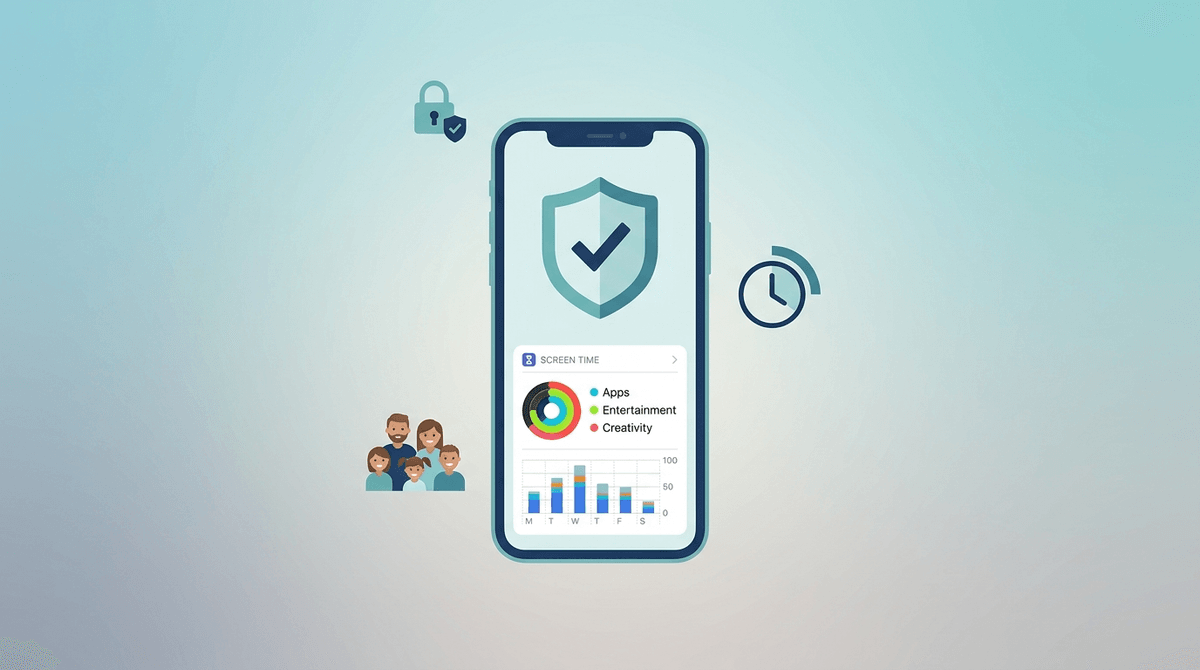
TL;DR: Modern iPhone parental controls have moved way beyond just shutting off the phone at 8:00 PM. We're talking about Communication Safety to block explicit photos, App Limits for the TikTok rabbit hole, and the new iOS 18 ability to lock specific apps behind Face ID. If you're feeling overwhelmed, start with our quick guide to Apple Screen Time and check out how to manage Roblox spending if your bank account is feeling the "Skibidi" tax.
We’ve all been there at school pickup, scrolling through our own phones while waiting for the kids to emerge, listening to a group of fifth graders discuss why everything is "Ohio" or "Sigma." It's a weird world. But while we're trying to figure out if Skibidi Toilet is actually "brain rot" (spoiler: it kind of is, but so was Ren & Stimpy), our kids are carrying around the most powerful piece of surveillance and entertainment tech ever created.
The iPhone isn't just a phone anymore; it’s a portal. And honestly, the old way of "parental controls"—just taking the phone away—doesn't work when they need it for the group chat about the math homework or to check the practice schedule on SportsEngine.
Apple has finally realized this. They’ve moved from "Screen Time" being a blunt instrument to a nuanced "Safety Shield." Here is how to actually master it without becoming the family dictator.
When we talk about "Parental Controls" on an iPhone, we’re actually talking about a suite of features tucked inside the Settings > Screen Time menu. It’s not one single switch; it’s a collection of tools that let you decide what they can see, who they can talk to, and how much "brain rot" they can consume before the phone tells them to go touch grass.
The most important thing to understand is Family Sharing. If you haven't set up a Family Group, do it now. It allows you to manage their settings from your phone. There is nothing worse than trying to wrestle a sticky iPhone 13 out of a 10-year-old's hands just to change a setting.

Kids are creative. If there is a workaround, they will find it. They’ll change the time zone on their phone to bypass Downtime, or they’ll watch YouTube through the browser inside the Roblox app to get around app limits.
Mastering these controls isn't about being "cringe" or overbearing. It’s about creating a perimeter. We wouldn't drop them off at a mall in a different state and say "see ya at dinner," yet an unmanaged iPhone is basically a digital version of that.
This is the big one. It uses on-device AI to detect if a child receives or is trying to send photos that contain nudity. The phone blurs the image and gives them a warning and resources to get help. It doesn't report them to the police or even to you (unless you've set up specific alerts in newer iOS versions), but it acts as a digital "hey, are you sure about this?"
Don't just limit "Social Media." Be specific. You might want to give them unlimited access to Duolingo or Khan Academy Kids, but put a hard 30-minute stop on Instagram.
- Pro Tip: Always keep the "Phone" and "Messages" apps in the "Always Allowed" section. You want them to be able to call you even if they've used up their Minecraft time.
This is where you prevent them from installing new apps without your permission (the "Ask to Buy" feature) and where you can block adult websites in Safari. It's also where you can turn off "In-App Purchases" so they don't accidentally spend $400 on Robux while you're in the shower.
4. Locking Apps with Face ID (New in iOS 18)
This is a game-changer for older kids. You can now require Face ID to open specific apps. If your teen is worried about siblings snooping through their texts or their Notes app, this is a great way to give them privacy while still maintaining the overall safety of the device.
Elementary School (Ages 6-10)
At this age, the iPhone is likely a hand-me-down used for Toca Life World or watching Bluey on Disney+.
- The Move: Strict "Ask to Buy" enabled. Hard Downtime starting at 7:00 PM. No social media apps whatsoever. Use YouTube Kids instead of the main YouTube app.
Middle School (Ages 11-13)
The "Skibidi" years. This is when the social pressure to be on Discord or Snapchat hits a fever pitch.
- The Move: Use App Limits for social apps. Enable "Communication Safety." This is also the time to have the "digital footprint" talk. Remind them that a "disappearing" snap isn't actually gone if someone takes a screenshot.
High School (Ages 14-18)
By now, they probably know more about the iPhone than you do.
- The Move: Transition from "Manager" to "Consultant." Loosen the time limits but keep the "Content & Privacy Restrictions" for things like location sharing (Find My). It's less about stopping them and more about being able to find them if they're out late.
Here is the "No-BS" part: Apple’s Screen Time is notoriously glitchy. Sometimes the limits just... don't work. Sometimes you'll get a request to "Approve for 15 minutes" and you'll hit approve, and nothing happens.
Don't let this discourage you. It’s a tool, not a savior. If the tech fails, that’s when the "real world" parenting kicks in. If you see them on Fortnite at 11:00 PM when the phone was supposed to be locked, don't just blame the software—use it as a conversation starter about why they felt the need to bypass the rules.
Instead of saying, "I'm locking your phone because I don't trust you," try: "I'm setting these limits because these apps are literally designed by geniuses to keep you scrolling forever. I’m just giving you a tool to help you put the phone down so your brain can actually rest."
It frames you and the child as a team against the "attention economy" of apps like TikTok and YouTube.
The iPhone is a "Safety Shield" only if you take the 20 minutes to set it up. It’s not a "set it and forget it" situation; it’s an evolving conversation. As they get older, the digital "training wheels" come off, but the goal is to make sure they know how to ride the bike before they're out in traffic.
Next Steps:
- Check your Family Sharing: Make sure everyone is in the group.
- Audit the "Always Allowed" list: Remove anything that isn't essential.
- Turn on Communication Safety: It's a non-negotiable for anyone under 18.
- Set a "Downtime" schedule: Start small (e.g., 9:00 PM to 7:00 AM).
Check out our guide on the best educational apps for iPhones