

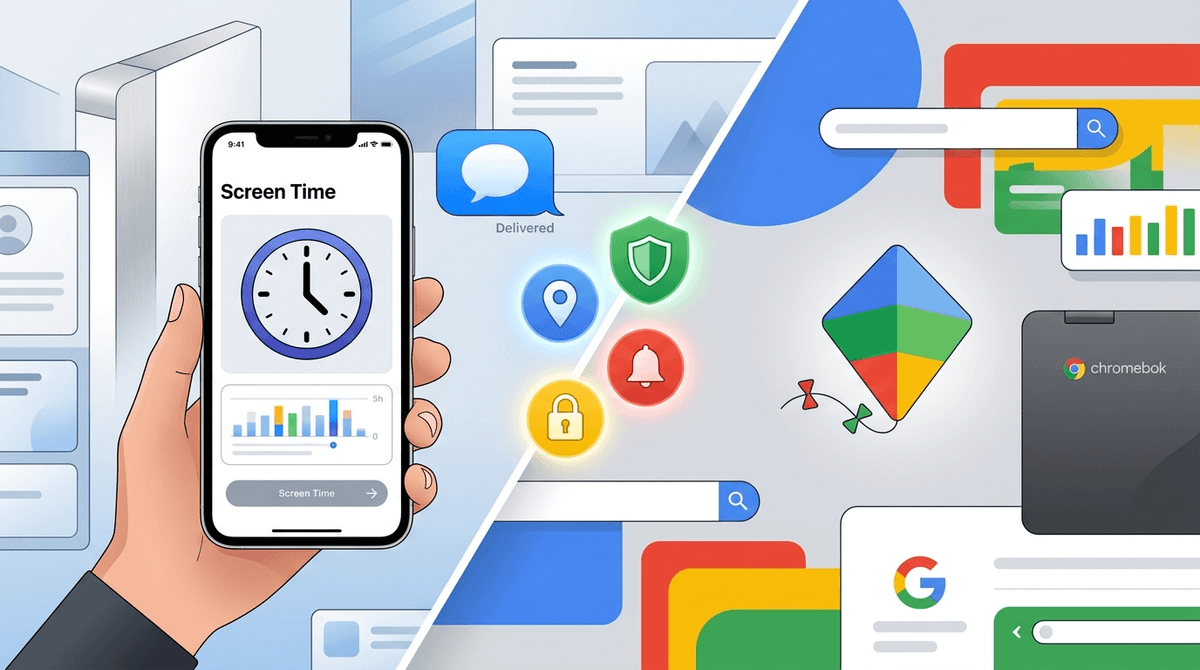
TL;DR: If your house is a strictly Apple-only zone, Apple Family Sharing is the gold standard for seamless integration. If your kids are using Android phones or those ubiquitous school Chromebooks, Google Family Link offers more granular control and better cross-platform flexibility for parents. If you’re a "mixed marriage" (Mom has an iPhone, kid has a Pixel), prepare for some technical friction.
We’ve all been there at school pickup. You’re standing by the fence, and someone mentions their kid just asked for Roblox or, heaven forbid, they’ve started talking about "Skibidi Toilet" and you’re trying to figure out if that’s a meme, a virus, or a reason to call a priest. (Spoiler: It’s just weird YouTube lore that looks like brain rot but is basically just this generation’s G.I. Joe).
But before we even get to the content, we have to talk about the pipes. How does the internet actually get to your kid’s eyeballs, and how do you put a valve on it?
Choosing between Google Family Link and Apple Family Sharing isn't just a tech choice; it’s a lifestyle choice. It’s about whether you want to live in a "Walled Garden" where everything is pretty but expensive, or in the "Open Field" where things are flexible but occasionally a bit messy.
At their core, both Google Family Link and Apple Family Sharing are "digital umbrellas." They allow you to:
- Approve or block apps before they are downloaded.
- Set screen time limits so your kid doesn't stay up until 3:00 AM watching MrBeast challenges.
- Track location so you know they actually made it to soccer practice and didn't detour to the gas station for Takis.
- Manage content filters to try (and often fail) to keep the "Ohio" parts of the internet away from their innocent eyes.
If you are an iPhone family, Apple’s system is incredibly seductive. It’s baked into the iOS settings. There’s no extra app to download for the kid; it’s just part of the phone's DNA.
Why It’s Great
Apple’s "Ask to Buy" feature is the undisputed champ. Your kid wants to buy $20 worth of Robux in Roblox? You get a notification on your Apple Watch or iPhone. You can tap "Decline" while you’re mid-conversation without breaking eye contact.
They also have Communication Safety, which can blur out "sensitive" (read: "nude") photos in iMessage before your kid sees them. In 2026, with AI-generated everything, this is a massive win.
The Downside
Apple is a jealous god. Apple Family Sharing works beautifully if your kid has an iPhone and you have an iPhone. If your kid has a cheap Android tablet or a Chromebook for school, Apple Screen Time is useless. It won't see them. It won't stop them.
Google’s approach is different. Since Google makes the software for almost every non-Apple device (Android phones, Samsung tablets, Chromebooks), Google Family Link has a much wider reach.
Why It’s Great
Google gives you per-app limits that are much easier to manage than Apple’s. You can say "You get 3 hours of total tablet time, but only 30 minutes of that can be TikTok."
Also, if your kid uses a Chromebook for school (which is basically every kid in America right now), Family Link is the only thing that will actually manage their school account and their personal account under one roof. Plus, the "Bonus Time" feature is a lifesaver. You can grant an extra 15 minutes of Minecraft as a reward for actually putting their shoes in the cubby for once.
The Downside
The setup can be a bit of a "choose your own adventure" nightmare. Because Google lives on so many different types of hardware (Samsung, Pixel, Motorola), the menus don't always look the same. Also, Google is an advertising company. While they are better about privacy for kids than they used to be, you are still essentially feeding your family's data into the Google machine.
This is where things get spicy. If you have an iPhone but you bought your kid a $100 Android tablet to save money, you can still use Google Family Link. You just download the app on your iPhone. It works surprisingly well.
However, if you have an Android and your kid has an iPhone? Godspeed. You basically cannot manage an iPhone from an Android device using native tools. You’ll end up needing a third-party app like Qustodio or Bark, which are fine, but they often feel like they’re fighting the phone’s operating system.
Let’s get real for a second. Most parents aren't worried about their kid looking at spreadsheets. They are worried about Roblox.
Is Roblox teaching your kid entrepreneurship by letting them build "experiences"? Maybe. But mostly it’s a casino designed by toddlers. Both Apple and Google allow you to shut off in-app purchases entirely. Do this immediately. Unless you want to find a $400 charge for virtual "Pet Simulator 99" gems, you need these ecosystem tools to act as the bouncer at the club.
Ages 5-9: The "Lockdown" Years
At this age, they are likely using a tablet for Disney+ or PBS Kids.
- Recommendation: Use Google Family Link on a dedicated "kids" tablet (like a Kindle Fire or a cheap Samsung). It allows you to whitelists specific apps and lock the rest.
- Watch out for: YouTube. Even YouTube Kids can get weird fast. Use the "Approved Content Only" setting.
Ages 10-12: The "Social" Transition
This is when they start asking for a phone because "everyone else has one" (stats show about 50% of kids have a smartphone by age 11).
- Recommendation: If they are getting an iPhone, stay in the Apple Family Sharing ecosystem. The "Communication Safety" features are vital as they start texting friends who might send them "edgy" memes or worse.
- Watch out for: Discord. It’s the new mall, and it’s where the "Ohio" memes go to die and be replaced by something weirder.
Ages 13+: The "Trust but Verify" Years
By 13, they can technically opt-out of some tracking (depending on the platform and how you set it up).
- Recommendation: Shift from "blocking" to "monitoring." Talk about why they are spending 6 hours a day on Instagram.
- Watch out for: Burner accounts. No parental control app can stop a kid who is determined to hide a second account. This is where the "real conversation" part of parenting kicks in.
Apple generally wins the privacy debate. They don’t care about your kid’s data because they already took $800 of your money for the hardware. Google is free, but you are the product.
However, Google’s location tracking (via Google Maps) is often more accurate and updates faster than Apple’s "Find My" service, which can occasionally lag or show your kid in the middle of a lake when they are actually just at the library.
Neither of these tools is a "set it and forget it" solution.
- Apple Screen Time is notorious for "glitching" where the limits you set just... disappear. You have to check it weekly.
- Google Family Link can be bypassed if your kid figures out how to create a secondary, unmanaged Google account (which they will learn from a 30-second YouTube Shorts video).
The most important "parental control" is the one between your kid’s ears. Use these tools as a safety net, not a cage.
If you want the easiest setup and you have the budget: Buy iPhones and use Apple Family Sharing. It’s cohesive, privacy-focused, and handles the "Blue Bubble" social pressure.
If you want the most control and you’re on a budget: Go Android/Chromebook and use Google Family Link. You’ll have better luck managing specific app usage and school-work balance.
- Audit your devices. Are you a mixed-OS household? If so, download the Google Family Link app on your iPhone today just to see what it can do.
- Set a "Digital Sunset." Use either tool to lock all devices at 8:00 PM. No exceptions.
- Talk about the "Why." Don't just block TikTok. Explain that the algorithm is designed to keep them scrolling until their brain feels like mashed potatoes.
Get a script on how to talk to your teen about screen limits