

Netflix, Disney+, or Prime Video: Which Streaming Service is Best for Your Family?
TL;DR: All three major platforms offer solid parental controls, but they work differently. Netflix gives you four preset content levels and a lockable Kids Mode. Disney+ lets you set granular rating caps (TV-Y7, TV-PG, etc.) and has a simplified Junior Mode for young kids. Prime Video has kids profiles but fewer documented controls—you'll need to dig into settings yourself. Based on our community data, about 80% of families use at least one of these services, with many juggling multiple subscriptions to cover everyone's needs.
Choosing a streaming service for your family used to be simple—Netflix or cable. Now? You're comparing parental controls, kids' profiles, ad tiers, simultaneous streams, and whether your 6-year-old can accidentally stumble onto Squid Game while looking for Bluey.
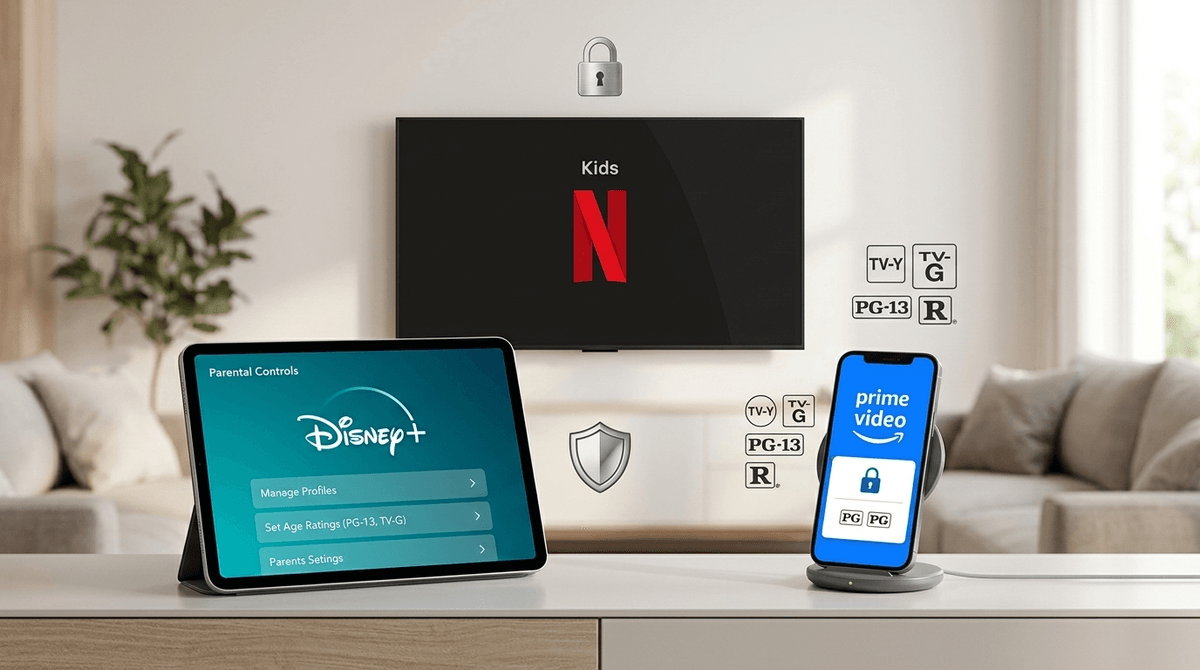
The good news: Netflix, Disney+, and Amazon Prime Video all offer dedicated kids' profiles and built-in parental controls. The less-good news: they each handle content filtering differently, and what works for one family might frustrate another.
Our community data shows that 40% of families let kids browse Netflix independently, while 50% use Disney+ as a family viewing experience. Meanwhile, 38% don't use Prime Video at all—possibly because its parental controls aren't as clearly documented or easy to navigate.
Let's break down what each platform actually offers, so you can make an informed decision without subscribing to all three (though let's be honest, many of us end up there anyway).
Netflix has been in the family-streaming game the longest, and it shows. When you create a Kids profile, you get to choose from four preset content restriction levels:
- For Little Kids Only: Strictly G-rated content. Think Cocomelon, Bluey, and other preschool-friendly fare.
- For Older Kids: Opens up to PG-rated shows and movies with mild violence or humor. This is where you'll find Avatar: The Last Airbender and The Wild Robot.
- For Teens: PG-13 territory, with limited explicit content. Includes most Marvel movies and teen dramas.
- For Everyone: No restrictions—basically an adult profile.
What makes Netflix particularly useful is Kids Mode, which locks the entire account to a child's profile. Your kid can't just click "Who's Watching?" and switch to your profile to watch Breaking Bad. You can also add a four-digit PIN to individual profiles, so older kids can't hop into a younger sibling's account and mess with their watch history (or vice versa).
These settings are managed from the "Manage Profiles" screen and apply across all devices—phone, tablet, TV, whatever. Once you set it, you're done.
The catch: Netflix's ad-supported tier limits you to two simultaneous streams, which can be a problem if you have multiple kids or someone's watching on the road. The premium plan unlocks four streams and full library access, but you're paying more for that flexibility.
Best for: Families who want simple, preset content filters and don't want to micromanage every rating level. Also great if you need a truly locked-down Kids Mode that prevents profile-hopping.
Disney+ takes a different approach: instead of preset categories, you set a maximum content rating per profile (TV-Y, TV-Y7, TV-PG, PG-13, etc.). Any title rated higher than your cap is hidden from browsing and search. This gives you more control than Netflix's four buckets—if you want your 8-year-old to see TV-Y7 but not TV-PG, you can do that.
For younger viewers, Disney+ also offers Junior Mode, a simplified interface that shows only age-appropriate titles, removes ads (if you're on the ad-free plan), and includes a "Kid-Proof Exit" to keep children from leaving the mode. It's basically a walled garden for preschoolers and early elementary kids.
You can lock each profile with a four-digit PIN, and you can even restrict the creation of new profiles altogether—so your 10-year-old can't just make a new "definitely not a secret profile" account to bypass your restrictions.
If you bundle Disney+ with Hulu (which many families do), the same rating settings apply across both services, which is handy for managing everything in one place.
The catch: Disney+ is ad-free only with a paid subscription, and many families prefer uninterrupted viewing for kids. The ad-supported tier exists, but it's not ideal when your 5-year-old is trying to watch Encanto and gets interrupted by car commercials.
Best for: Families who want precise control over content ratings and don't mind paying for an ad-free experience. Also great if you have young kids who need a simplified, locked-down interface like Junior Mode.
Amazon Prime Video does support kids' profiles, but here's the thing: the publicly available documentation doesn't spell out its rating filters or PIN options the way Netflix and Disney+ do. You can create a kids profile, and it will hide adult content, but the specifics of how it filters—and what customization options you have—aren't as transparent.
This doesn't mean Prime Video is unusable for families. It just means you'll need to dig into the settings yourself and test what works. Some parents love it because it's bundled with Amazon Prime (free shipping, anyone?), and the kids' library includes solid titles like The Wilds and Tumble Leaf. But if you're someone who wants clear, documented parental controls, you might find it frustrating.
Our community data shows that 32% of families use Prime Video with supervision, while 30% let kids browse freely. That split suggests some parents trust it, while others feel the need to keep an eye on what's being watched.
The catch: If you're not already an Amazon Prime member, you're paying for a subscription just for the streaming service—and the parental controls aren't as robust or well-documented as the other two.
Best for: Families who already have Amazon Prime and want a secondary streaming option. Also fine if you're comfortable supervising or testing the kids' profile yourself.

Let's talk money, because this matters when you're juggling multiple subscriptions.
- Netflix: Ad-supported tier is cheaper but limits you to two streams. Premium unlocks four streams and no ads, but it's pricier. If you have multiple kids or devices, you'll likely need the premium plan.
- Disney+: Ad-free requires a paid subscription, which most families prefer for uninterrupted kids' viewing. The bundle with Hulu is a solid deal if you want adult content too.
- Prime Video: Bundled with Amazon Prime, so if you're already paying for free shipping, it's "free." But if you're subscribing just for streaming, it's less competitive.
Our community data shows that families average 4.2 hours of screen time per day (4 hours on weekdays, 5 on weekends), and streaming services are a big chunk of that. If you're going to pay for a subscription, you want it to work for you, not against you.
Here's a rough guide based on what we see working for families:
- Preschool (Ages 3-5): Netflix's "For Little Kids Only" or Disney+ Junior Mode. Both lock down content to G-rated, and Junior Mode's simplified interface is perfect for this age.
- Elementary (Ages 6-10): Netflix's "For Older Kids" or Disney+ with a TV-Y7 or TV-PG cap. You'll get access to shows like Gravity Falls and The Mandalorian without worrying about inappropriate content.
- Tweens (Ages 11-13): Netflix's "For Teens" or Disney+ with a PG-13 cap. This opens up Marvel movies, teen dramas, and more mature storytelling.
- Teens (Ages 14+): At this point, you're probably moving toward a more trust-based system. Profile PINs and open conversations about content are your best tools.
If you want simple, preset content filters and a truly locked-down Kids Mode, go with Netflix. If you want granular control over ratings and a simplified interface for young kids, go with Disney+. If you're already paying for Amazon Prime and want a secondary option, Prime Video is fine—but expect to do some manual testing.
And honestly? Many families end up with at least two of these services. Our data shows that 80% of families use at least one, and it's common to have Netflix for the kids and Disney+ for family movie nights (or vice versa).
The real question isn't "which one is best?"—it's "which one fits your family's viewing habits, budget, and tolerance for tinkering with settings?" Answer that, and you'll know where to start.