

The Best Creativity Apps for Kids: Building Digital Makers, Not Just Consumers
Look, we all know the guilt spiral: your kid's been on screens for an hour and you're wondering if their brain is turning into cottage cheese. But here's the thing—not all screen time is created equal. There's a massive difference between passively watching someone else unbox toys on YouTube and actually making something.
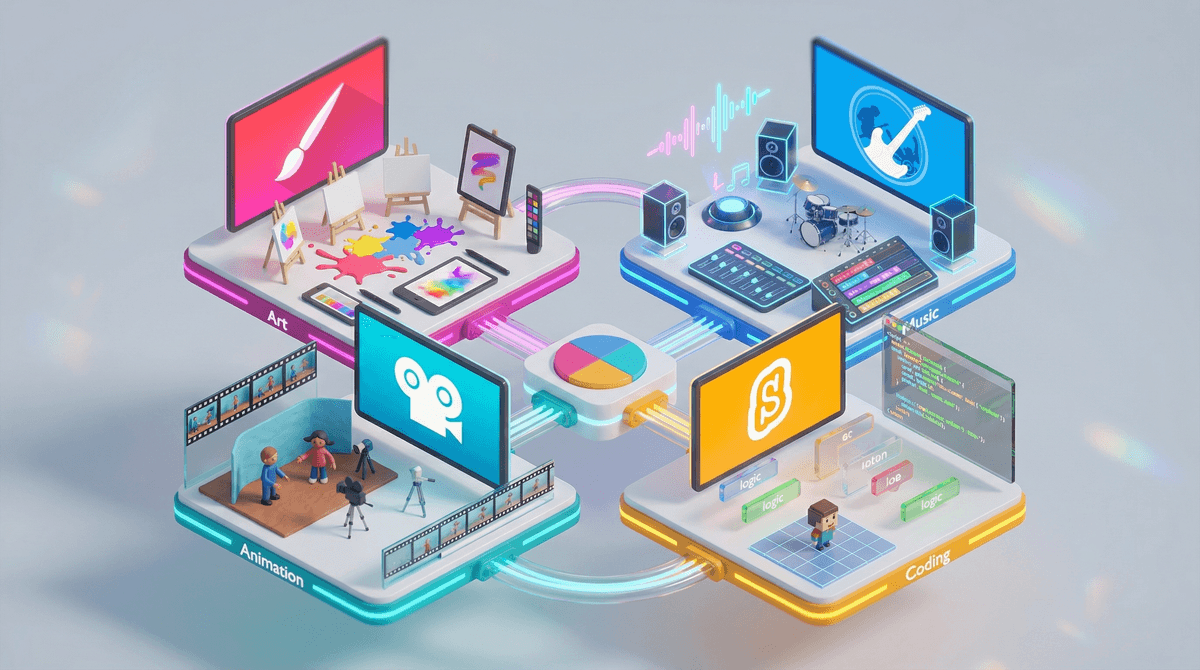
This guide is about apps that turn your kid into a creator, not just a consumer. We're talking drawing, music-making, animation, coding, video editing—the stuff that requires actual thought, problem-solving, and creative expression. The kind of screen time where they're so focused they don't even hear you calling them for dinner (okay, maybe that's still annoying, but at least it's productive).
The internet is designed to keep kids consuming. Algorithms want eyeballs on content, not hands on creation tools. But when kids create instead of just consume, they're developing completely different skills: spatial reasoning, cause-and-effect thinking, storytelling, design sense, and most importantly—agency. They learn that they can make things, not just watch things.
Plus, let's be honest: a kid who can edit a video or code a simple game has actual marketable skills. Compare that to knowing every Skibidi Toilet lore detail.
Drawing & Art
Procreate (Ages 8+, iPad only, $12.99 one-time)
This is the real deal—the same app professional illustrators use. No dumbed-down kid version, no monthly subscription trying to nickel-and-dime you. The learning curve is real, but there are tons of YouTube tutorials, and kids who get into it can create genuinely impressive work. Worth every penny if you have an iPad.
Tayasui Sketches (Ages 6+, iOS/Android, Free with in-app purchases)
If Procreate feels too intense, this is your gateway drug. Beautiful, intuitive interface. The free version is actually usable (rare!), and the watercolor tools are chef's kiss. Great for younger kids who just want to make pretty things without a steep learning curve.
Adobe Fresco (Ages 10+, iPad/Windows, Free with premium features)
Adobe's answer to Procreate. The live brushes that blend and bloom like real paint are legitimately magical. Free version is generous. Good middle ground between professional tools and kid-friendly interfaces.
Animation & Video
FlipaClip (Ages 8+, iOS/Android, Free with in-app purchases)
Frame-by-frame animation on a tablet. This is how kids learn that animation is hard work—and then they appreciate Pixar movies 10x more. The free version limits frames per project, but honestly that's not the worst constraint for learning. Kids on YouTube are making genuinely cool stuff with this.
Stop Motion Studio (Ages 7+, iOS/Android, Free with in-app purchases)
For the kid who wants to make their LEGOs come alive. Simple interface, onion skinning, green screen effects. This one gets kids off the couch—they're building sets, positioning figures, problem-solving lighting. It's screen time that bleeds into physical creativity.
CapCut (Ages 11+, iOS/Android, Free)
The video editor every teen on TikTok uses. Powerful, free, and honestly kind of impressive. Parental heads-up: it's owned by ByteDance (same company as TikTok), so be aware of data collection concerns. Also has built-in trending sounds/effects that might expose kids to mature content. Best for middle school+ with some guidance on what they're accessing.
Music & Sound
GarageBand (Ages 8+, iOS/Mac, Free)
If you have an Apple device, this is a no-brainer. Kids can record actual instruments, layer loops, make beats. It's legitimately professional software that happens to be free and (mostly) kid-friendly. The Smart Instruments feature lets even non-musical kids make things that sound good.
Incredibox (Ages 6+, iOS/Android/Web, $4.99)
This one's pure joy. Drag and drop beatboxers to create layered music. It's more toy than tool, but it teaches rhythm, layering, and composition in the most fun way possible. Great for younger kids or non-musical kids who think they can't make music.
Bandlab (Ages 10+, iOS/Android/Web, Free)
Free, cloud-based music creation. Kids can collaborate with friends remotely (with your supervision), which is actually pretty cool. More serious than GarageBand in some ways, less polished in others. The social features mean you'll want to check privacy settings.
Coding & Game Creation
Scratch (Ages 8-16, Web/iOS/Android, Free)
MIT's block-based coding platform. This is where millions of kids learn to code. The community is huge (maybe too huge—monitor what they're browsing), but the creative potential is real. Kids go from making a cat move across the screen to building actual games with levels, scoring, and logic.
Tynker (Ages 7-14, iOS/Android/Web, Free with subscription)
More structured than Scratch, with guided lessons. The free version is limited, but the paid version ($10/month) has Minecraft and Roblox modding courses that kids actually want to do. Good for kids who need more hand-holding than Scratch provides.
Swift Playgrounds (Ages 10+, iPad/Mac, Free)
Apple's coding app that teaches actual Swift (the language used for iOS apps). Starts with puzzles, progresses to real code. This is the one where a motivated teen could actually build something for the App Store. Not as immediately gratifying as Scratch, but way more powerful long-term.
3D & Design
Tinkercad (Ages 8+, Web, Free)
Browser-based 3D modeling. Kids can design things that can actually be 3D printed (if you have access to a printer—libraries often do). It's like digital LEGOs that can become real objects. Mind-blowing for kids when they see their design turn physical.
Minecraft (Ages 7+, All platforms, $6.99-26.95)
Yes, I'm including Minecraft. In creative mode, it's a genuine 3D design tool. Kids build elaborate structures, learn spatial reasoning, and problem-solve engineering challenges. Is it an app specifically designed for creativity? No. Does it foster creativity anyway? Absolutely.
The subscription trap is real. Many "free" creativity apps have severely limited free versions designed to frustrate kids into begging for the paid version. I've tried to flag these above. Sometimes the one-time purchase apps (like Procreate) are actually cheaper long-term than the monthly subscriptions.
Community features are a double-edged sword. Apps like Scratch and Bandlab have social features that can inspire kids but also expose them to random internet strangers. You know your kid—some are ready for moderated online communities at 10, others aren't ready at 14.
Creation takes longer than consumption. Your kid might spend 2 hours making a 30-second animation. That's not a bug, it's a feature. But it does mean they might get frustrated or need encouragement. This isn't the dopamine slot machine of YouTube—it's actual work.
Save their stuff. Kids are devastating when they lose creative work. Make sure projects are backed up, exported, or saved properly. Nothing kills creative motivation like losing 3 hours of work because the app crashed.
YouTube tutorials are your friend. Almost every app here has thousands of kid-made tutorials on YouTube. Yes, this means more screen time, but watching a tutorial to learn a skill is fundamentally different from watching someone else play video games.
Ages 5-7: Start with simple, immediate-gratification apps like Tayasui Sketches or Incredibox. They need to see results fast or they'll bounce.
Ages 8-10: This is the sweet spot for Scratch, FlipaClip, and GarageBand. They can handle some complexity and delayed gratification.
Ages 11-14: They're ready for more powerful tools like Procreate, CapCut, and Swift Playgrounds. They might also start having opinions about which tools are "professional" vs "for babies."
Ages 15+: At this point, they should be using the same tools as adults. Don't infantilize their creative work with kid-specific apps unless they choose them.
The best creativity app is the one your kid will actually use. Some kids are digital artists, some are musicians, some are coders, some are video editors. Try a few, see what sticks.
And here's the thing: even if they don't become professional animators or game developers, the skills they learn—problem-solving, persistence through frustration, iterative design, creative expression—transfer to everything. Plus, when they inevitably want to make a birthday video for grandma or edit their college essay video or code a simple website, they'll have actual skills.
Not all screen time is created equal. This is the good stuff.
Start with one app in a category your kid already shows interest in. Artist? Try Procreate or Tayasui Sketches. Musician? GarageBand or Incredibox. Wants to make games? Scratch is your starting point.
Set up a "creation hour" once or twice a week where screen time = creation time only. No YouTube, no games, just making stuff.
Share their work. Not necessarily on social media, but with family, friends, or even just saving it in a portfolio folder. Kids create more when they know someone will see it.
Want more specific guidance? Find age-appropriate creativity apps for your specific kid or explore alternatives to passive screen time.