

The Ultimate Guide to Xbox Game Sharing and Home Console Setup
TL;DR: Xbox's "Home Console" feature lets you share your entire digital game library across two consoles—perfect for families with multiple Xboxes. Set one console as your "Home Xbox" (where anyone can play your games), and you can still play everything on a second console when signed in. It's completely legitimate, can save hundreds of dollars, and takes about 5 minutes to set up.
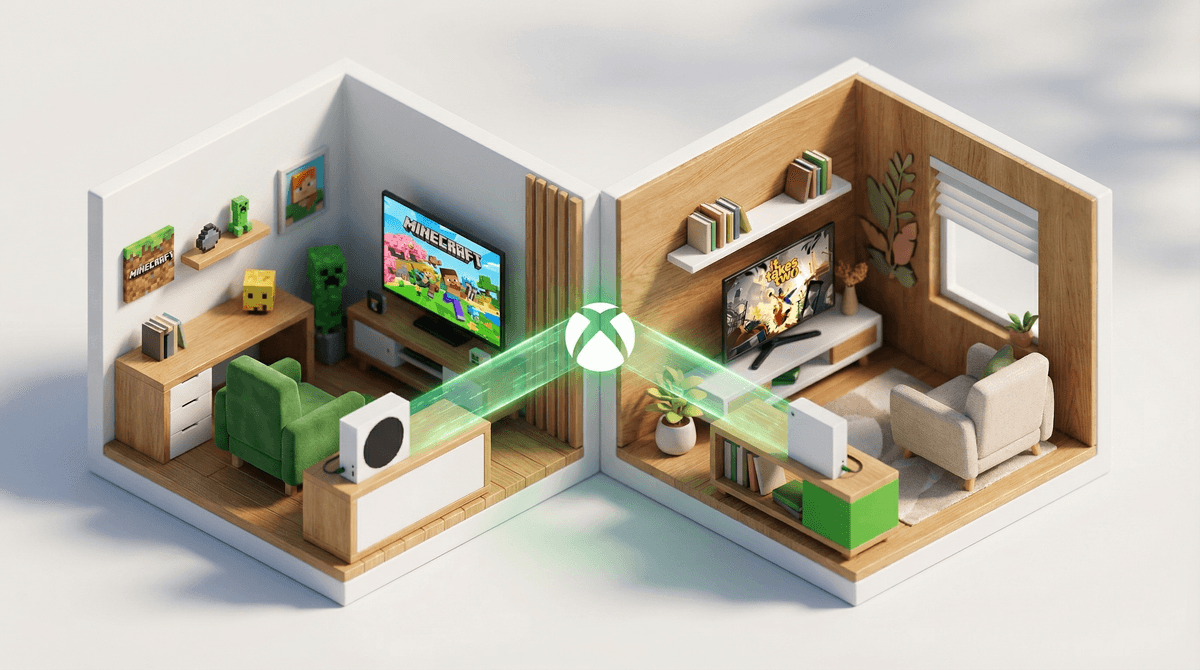
If you've got more than one Xbox in your house, you've probably had that moment: your kid wants to play Minecraft in the living room, but you bought it digitally on the console in their bedroom. Do you really need to buy it again?
The answer is no. Xbox's game sharing setup is one of the most parent-friendly features Microsoft ever created, and it's shockingly underused because nobody explains it clearly.
Every Xbox account can designate one console as its "Home Xbox." When you do this, anyone using that console can play all your digital games, use your subscriptions (like Game Pass), and access your DLC—even when you're not signed in.
Meanwhile, you can still play everything from your library on any other Xbox, as long as you're signed into your account.
This means a family with two Xboxes only needs to buy games once. It also means Game Pass can work across multiple consoles without paying for multiple subscriptions.
Let's say you have:
- An Xbox in the living room (the family console)
- An Xbox in your teenager's room
You buy Fortnite skins, Roblox premium, and a few digital games like Stardew Valley on your account. You also pay for Game Pass Ultimate.
Without game sharing: Your kid can only play those games on whichever console you happened to buy them on. If they want to play in a different room, tough luck. You'd need to buy everything twice or physically move consoles around.
With game sharing: Set the living room Xbox as your Home Xbox. Now your kid can play every game you own on that console, even when you're not around. Meanwhile, you can sign into the bedroom Xbox and play the same games simultaneously. You can even play together online in the same game.
This isn't a hack or a loophole. It's a designed feature, and it's completely within Xbox's terms of service.
Step 1: Decide Which Console Should Be "Home"
The Home Xbox should be the one other people use most often—usually the shared family console. That's the one where people can play your games without you being signed in.
You'll use the other console while signed into your account.
Step 2: Set Your Home Xbox
On the console you want to designate as Home:
- Press the Xbox button to open the guide
- Go to Profile & system > Settings
- Select General > Personalization
- Choose My home Xbox
- Select Make this my home Xbox
Done. That's it.
Step 3: Sign Into the Second Console
On your other Xbox, just sign in with your account. As long as you're connected to the internet, you can access your entire library.
Step 4: Test It
Sign out of your account on the Home Xbox. Have another family member try to launch one of your games. If it works, you're all set.
On the second console, make sure you can launch games while signed in. If you can, you're good to go.
Share Game Pass across consoles: If you have Game Pass Ultimate, anyone on your Home Xbox can play Game Pass games. You can also play them on the second console while signed in. Essentially, one subscription works across two consoles.
Play together online: You and your kid can play the same game at the same time, even online co-op, using just one digital copy. This works great for games like Minecraft, It Takes Two, or Fortnite.
Share DLC and in-game purchases: If you buy a Fortnite Battle Pass or a Minecraft texture pack, it's accessible on both consoles.
Access your saves anywhere: Xbox saves game progress to the cloud automatically, so you can start a game on one console and pick up where you left off on the other.
You can only change your Home Xbox five times per year: Microsoft limits how often you can switch which console is your Home Xbox. This is to prevent abuse (like sharing with friends across the country). For families, this is rarely an issue unless you're constantly swapping consoles.
The non-Home console needs internet: The console that's not set as Home requires an internet connection to verify your account and access your games. The Home Xbox can play your games offline.
Only one Home Xbox at a time: You can't set two consoles as Home. It's one per account.
This works for two consoles, not three: If you have three Xboxes in your house, you'll need a second account with its own games/subscriptions for the third console. Some families handle this by having two parent accounts, each with their own Home Xbox setup.
Technically, you could set a friend's console as your Home Xbox and share your library with them. They'd get access to all your games, and you could still play on your own console.
This is where things get into a gray area. Microsoft's terms of service say the Home Xbox feature is for sharing within a household. Sharing with someone outside your home isn't explicitly forbidden, but it's not the intended use either.
More importantly, it's risky:
- You can only have one Home Xbox, so if you give that slot to a friend, your own family can't use the feature
- If that friend changes your account settings or makes purchases, you're on the hook
- You're trusting someone else with access to your account's payment methods and personal info
For families, the risk isn't worth it. Stick to sharing within your household.
Xbox also has a "Family" feature where you can add child accounts, set screen time limits, approve purchases, and more. This is separate from game sharing, but they work well together.
You can learn more about Xbox parental controls here , but the short version: Family settings control who can play and when. Game sharing controls what they can play.
Set up both for maximum control and convenience.
Here's how a typical family might use this:
The Setup:
- Dad's account has Game Pass Ultimate and owns 20+ digital games
- Living room Xbox is set as Dad's Home Xbox
- Bedroom Xbox is where Dad actually plays, signed into his account
What Happens:
- The kids can play any of Dad's games on the living room Xbox, even when Dad's not home
- Dad can play his games in the bedroom while signed in
- If Dad and his daughter both want to play Minecraft at the same time, they can—even in the same world together
- Game Pass works on both consoles
- Dad's account settings and parental controls apply to both consoles
The Cost Savings: Instead of buying Game Pass twice ($17/month × 12 = $204/year) and buying popular games like Hogwarts Legacy twice ($70 × 2 = $140), the family pays for everything once. That's $344 saved in year one alone, and it scales with every game purchase.
"It says I need to buy the game again": You're probably on the non-Home console and not signed in. Sign into your account, or switch which console is set as Home.
"My kid can't access Game Pass games": Make sure the console they're using is set as your Home Xbox, and that your Game Pass subscription is active.
"I can't play offline": The non-Home console requires internet. If you need offline play, that console needs to be set as Home.
"I want to change my Home Xbox but it won't let me": You've hit the five-changes-per-year limit. You'll need to wait, or contact Xbox support if there's an extenuating circumstance (like a console breaking).
Xbox game sharing is a legitimately great feature for families with multiple consoles. It's not a workaround or a hack—it's designed to work exactly this way.
Set it up once, and you'll wonder why you ever bought games twice. It works seamlessly with Game Pass, saves you money, and makes it way easier for siblings to play together without fighting over the same console.
If you've got two Xboxes in your house and you haven't set this up yet, do it today. It takes five minutes and will save you hundreds of dollars.
- Set your Home Xbox on your family's shared console
- Sign into your account on your personal console and test it
- Check out Xbox parental controls to manage screen time and content ratings
- Explore Game Pass games for kids to make the most of your subscription
And if your kids are also into Roblox or Fortnite, this setup means you only need to buy Robux or V-Bucks once—they'll be accessible on both consoles. You're welcome.