

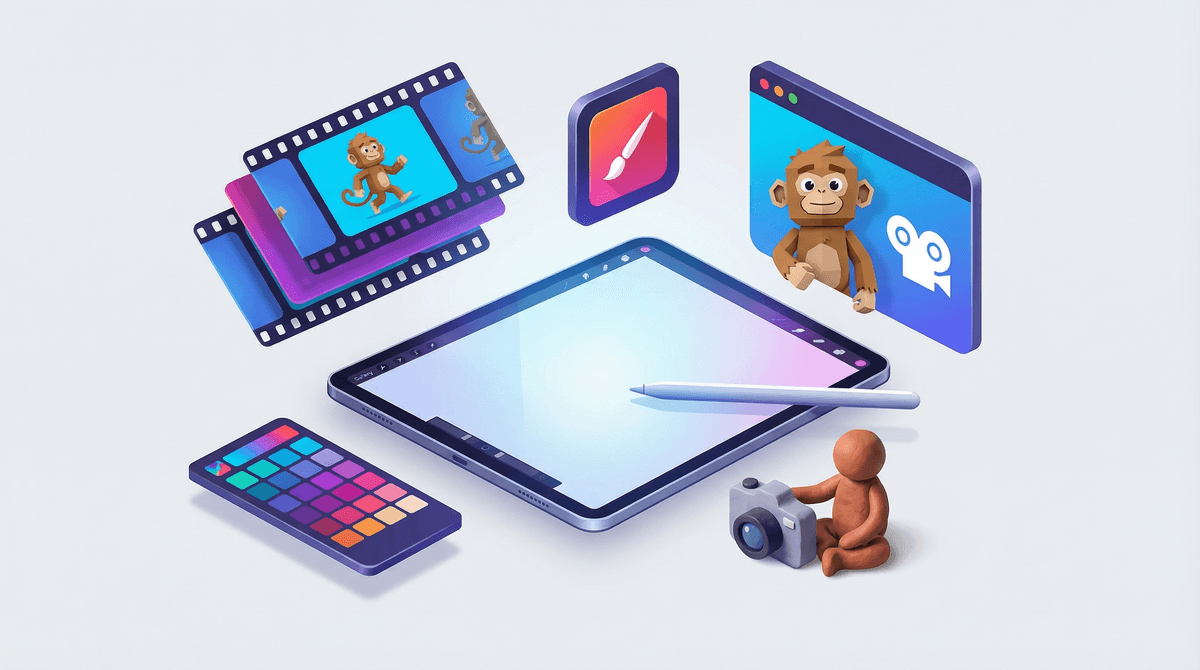
The Ultimate Guide to Kids' Animation and Drawing Apps
TL;DR: The animation app landscape is wild right now—from legit creative tools like FlipaClip to AI-powered cartoon generators that feel like magic (or cheating, depending on your perspective). Here's what's actually worth downloading, what costs real money, and which apps are building genuine creative skills vs. just keeping kids busy.
Quick picks:
- Best for beginners (ages 5-8): Drawing Desk
- Best for serious young animators (ages 9+): FlipaClip
- Best for stop-motion fans: Stop Motion Studio
- Most impressive AI tool: Toontastic 3D (free!)
- Best drawing foundation: Procreate (not animation-specific, but worth mentioning)
Animation apps for kids fall into a few distinct categories, and it matters which one you're downloading:
Traditional frame-by-frame animation apps teach the fundamentals—draw, duplicate, adjust, repeat. Think old-school Disney but on an iPad. These build real skills but require patience.
Stop-motion apps use your device's camera to capture physical objects frame by frame. Great for kids who need to move their hands while creating.
Character animation apps let kids pose pre-made characters and record their movements. Less drawing, more directing.
AI-powered tools that generate animations from prompts or turn drawings into moving cartoons. The newest category, and honestly, the most controversial.
The question isn't which category is "better"—it's which matches your kid's current skills, interests, and your family's values around AI and creative development.
Ages 8+ | Free with premium options
This is the gold standard for kids learning actual animation. FlipaClip teaches onion skinning (seeing previous frames as you draw new ones), frame rates, and timing—the same fundamentals professional animators use.
The free version is genuinely usable. You get 3 layers per project, which is enough for most beginner animations. Premium ($6/month or $30/year) unlocks unlimited layers, removes watermarks, and adds more export options.
The catch: Your kid needs basic drawing skills and serious patience. A 5-second animation might take an hour. But when they see their character actually move for the first time? Pure magic.
Parent tip: The FlipaClip community features are where things get dicey. Kids can share animations and comment on others' work. The content moderation is... inconsistent. Definitely worth exploring how to set up parental controls before letting them loose in the community section.
Ages 10+ | $5 one-time purchase
More advanced than FlipaClip with a steeper learning curve. This is for kids who've already done some animation and want more professional tools. It supports rotoscoping (tracing over video), has better brush engines, and exports at higher quality.
The interface is less kid-friendly, which is both good and bad. Good because it's teaching real software skills. Bad because you'll probably need to sit through the first few projects together.
Ages 6+ | Free with in-app purchases
Hands down the best stop-motion app for kids. The free version is fully functional—you can shoot, edit, add sound, and export videos without paying anything.
What makes this special: the overlay feature shows the previous frame as a ghost image, so kids can see exactly how much to move their LEGO minifigure or clay blob between shots. Game changer for young creators who don't yet have the spatial reasoning to eyeball it.
The $5 premium upgrade adds green screen effects and more advanced editing tools, but honestly, most kids under 10 won't need them.
Why this matters: Stop-motion teaches planning, patience, and problem-solving in ways that digital drawing doesn't. When the character falls over mid-scene, they can't just undo—they have to figure out how to fix it in-camera. That's valuable.
Ages 8+ | Free with premium options
Similar to Stop Motion Studio but with time-lapse capabilities. Better for older kids interested in longer-form projects or mixing stop-motion with time-lapse footage.
The interface is slightly more complex, which makes it less ideal for beginners but better for kids who've outgrown Stop Motion Studio's simplicity.
Ages 5-10 | Completely free (Google-owned)
This is the app that makes parents go "wait, they made THAT?" The concept is brilliant: kids choose characters and settings, then move them around while recording their own voices. The app automatically animates the characters' mouths to match the dialogue.
It's structured around story arcs—setup, conflict, challenge, climax, resolution—which sneakily teaches narrative structure while kids think they're just making cartoons.
The limitation: You can't draw your own characters or settings. Everything uses Google's pre-made assets. Some kids find this restrictive; others find it liberating because they can focus on storytelling without worrying about drawing skills.
No ads, no in-app purchases, no data collection beyond basic analytics. In 2026, that's basically unicorn territory for kids' apps.
Ages 4-8 | $3 one-time purchase
The OG character animation app, and still solid for younger kids. Choose characters, move them around on screen, record your voice, done. It's simpler than Toontastic but also less structured.
Good for: Kids who just want to play and aren't ready for story structure. Skip if: Your kid is over 8 or wants more creative control.
Ages 10+ | $5 with in-app purchases
This sits in an interesting middle ground—it's not pure AI, but it uses smart interpolation to create in-between frames. Kids draw keyframes, and the app generates the movement between them.
It's teaching animation principles (keyframes, timing) while reducing the tedious work. Whether that's "learning efficiency" or "skipping the hard part that builds skills" depends on your perspective.
Ages 12+ | Free with watermark, $10/month for pro
More of a motion graphics tool than traditional animation. Kids can create animated videos using pre-made elements, or import their own drawings and animate them with drag-and-drop timelines.
The learning curve is significant, but for middle schoolers interested in YouTube content creation or graphic design, this teaches actual marketable skills. The interface looks like baby After Effects, which is exactly what it is.
Real talk: The subscription model is annoying, but if your kid actually uses it regularly, $10/month for professional-grade software is cheaper than most creative hobbies.
Ages 8+ | $13 one-time purchase (iPad only)
Not technically an animation app (though Procreate Dreams exists for that), but Procreate is the drawing app that serious young artists eventually gravitate toward. Professional illustrators use it. The brush engine is incredible. The one-time purchase means no subscription guilt.
If your kid is serious about digital art, this is the foundation. They'll use it for years, possibly into adulthood.
Ages 10+ | $20 one-time purchase
Procreate's animation-specific app. More powerful than FlipaClip, more expensive, steeper learning curve. For kids who've outgrown beginner tools and are ready for semi-professional software.
The timeline-based interface teaches thinking in layers and time simultaneously, which is how professional animation software works.
Ages 4-6: Stick with Puppet Pals or Drawing Desk. At this age, it's about play and experimentation, not technique.
Ages 7-9: Toontastic 3D for storytelling, Stop Motion Studio for hands-on creation, or FlipaClip if they're ready for frame-by-frame work.
Ages 10-12: FlipaClip premium, Stop Motion Studio with green screen effects, or Procreate if they're more interested in illustration.
Ages 13+: Procreate Dreams, Animation Desk, or Animatron Studio for motion graphics.
Here's the uncomfortable truth: most "free" animation apps are either severely limited or ad-filled nightmares. The good news is that several legitimately excellent apps charge one-time fees instead of subscriptions:
One-time purchases worth it:
- Procreate ($13)
- Procreate Dreams ($20)
- Animation Desk ($5)
- Puppet Pals ($3)
Subscriptions that might be worth it:
- FlipaClip Premium ($30/year) if they're using it weekly
- Animatron Studio ($10/month) for serious teen creators
Actually free and good:
- Toontastic 3D
- Stop Motion Studio (free version is fully functional)
Animation is slow. Like, really slow. A 10-second animation might take hours. If your kid isn't naturally patient, start with stop-motion using physical toys—at least they can see and touch what they're creating.
The community features are where problems happen. Most animation apps have sharing platforms where kids can post their work and comment on others'. These are poorly moderated. A 9-year-old searching for "animation tutorials" on the FlipaClip community will absolutely encounter content made by teenagers that includes swearing, violence, and occasionally sexual themes. Not because the app is inherently inappropriate, but because user-generated content is a minefield.
AI tools are changing the game faster than we can evaluate them. New AI animation apps drop monthly. Some are impressive. Some are concerning. The question isn't whether to let kids use AI tools—they're going to encounter them regardless—but how to talk about what AI is doing vs. what they're creating themselves. This gets complicated fast .
.
The best animation app is the one they'll actually use. Procreate Dreams is objectively more powerful than FlipaClip, but if the interface intimidates your kid and they never open it, it's worthless. Start simple, upgrade when they hit limitations.
If you're downloading just one app to test the waters: Stop Motion Studio for younger kids (it's free and immediately engaging) or FlipaClip for older kids ready to learn real animation.
If your kid is serious and you're ready to invest: Procreate for drawing foundation, then Procreate Dreams when they're ready for animation.
If you want something that teaches storytelling without requiring drawing skills: Toontastic 3D, no question.
The real win isn't which app you choose—it's watching your kid spend three hours making a 5-second animation of a stick figure doing a backflip, then replaying it 47 times with pure pride. That's the good stuff, regardless of the software.
Want to dig deeper? Check out alternatives to YouTube for creative kids or how to encourage creative screen time.