

The Ultimate Age Guide to YouTube Kids Content Settings
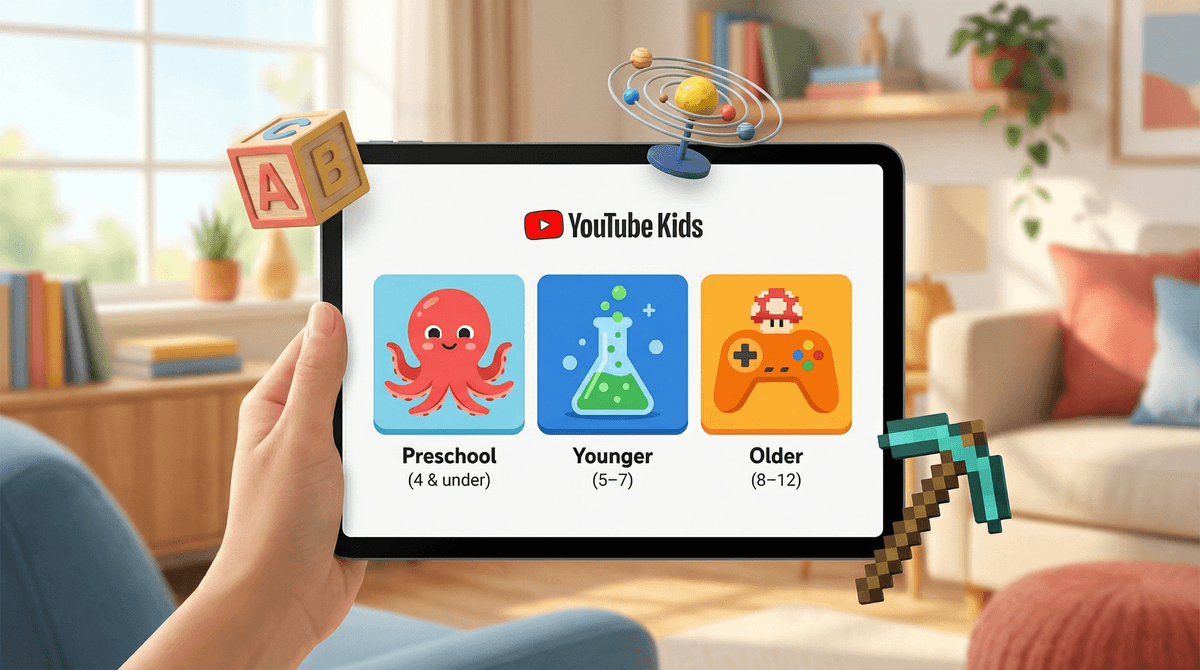
TL;DR: YouTube Kids has three content levels—Preschool (ages 4 and under), Younger (ages 5-8), and Older (ages 9-12)—plus the ability to turn search on or off. Most parents don't realize these settings exist or how dramatically different the content is between them. Here's exactly which setting to use at each age, when to disable search, and what to watch out for.
When you set up YouTube Kids, the app asks you to choose a content level. This isn't just a suggestion—it fundamentally changes what your child can access. Each level uses different algorithms and human review processes to determine what shows up.
The three levels:
- Preschool: Ages 4 and under
- Younger: Ages 5-8
- Older: Ages 9-12
Plus, there's a fourth crucial setting: Search on or off. When search is disabled, kids can only watch content that YouTube Kids surfaces in the app. When it's on, they can search for anything within their age level.
And here's what trips up most parents: You can also create a completely custom experience where you hand-pick every single channel your child can watch. This "Approved Content Only" mode essentially turns YouTube Kids into your own curated streaming service.
The setting: Preschool
Search: OFF (this is non-negotiable)
Preschool mode is the most restricted setting, focused entirely on videos that promote creativity, playfulness, learning, and exploration. Think Bluey, Sesame Street, and Daniel Tiger's Neighborhood.
What you'll find: Educational content, sing-alongs, basic counting and colors, gentle storytelling. The algorithm heavily favors established children's brands and educational channels.
What you won't find: Anything remotely stimulating or fast-paced. No unboxing videos (thank god), no gaming content, no kid influencers doing challenges.
The reality check: Even in Preschool mode with search off, weird stuff can slip through. YouTube's algorithm isn't perfect, and some content that technically meets their guidelines is still... odd. The "Learn Colors with Lightning McQueen" genre of videos—where established characters are animated in bizarre scenarios—sometimes makes it through.
What to do: Check the Watch History regularly (it's in the parent settings). Set a timer for screen time because the autoplay feature is designed to keep them watching forever. Consider using Approved Content Only mode and hand-picking 10-15 channels you trust.
The setting: Younger
Search: OFF initially, consider ON around age 7-8
This is where YouTube Kids opens up significantly. You'll see a much wider variety of content, including some kid-focused vloggers, basic gaming content, arts and crafts, science experiments, and more adventure-oriented shows.
What you'll find: Ryan's World, Blippi, Art for Kids Hub, simple Minecraft videos, National Geographic Kids, and tons of "how-to" content.
What you still won't find: Roblox gameplay with any kind of combat, Fortnite, anything with mild cartoon violence, most gaming content that's popular with older kids.
The search question: This is the age where the search debate gets real. With search off, kids are limited to what the algorithm recommends. With search on, they can look for specific shows or topics, but they can also stumble into the weird corners of YouTube Kids.
My take: Keep search off until at least age 7, and even then, only turn it on if you're actively monitoring what they're watching. The Watch History feature is your best friend here. Check it weekly. If you see a bunch of videos with ALL CAPS TITLES or thumbnails with shocked faces and arrows pointing at things, that's your cue to have a conversation about clickbait.
The influencer problem: At this age level, kid influencers become a thing. Some of them are fine—genuinely creative kids making content with parent supervision. Others are essentially walking advertisements or modeling behavior that's... not great. Learn more about kid influencer culture if this is new territory for you.
The setting: Older
Search: Your call, but most kids this age will want it on
Older mode is basically "YouTube Lite." It includes music videos, gaming content, vlogs, news for kids, and a lot more. This is where you'll find popular gaming YouTubers (the family-friendly ones), DIY projects, science content, and basically everything that's popular with the tween crowd.
What you'll find: Minecraft gameplay from popular creators, Roblox videos, sports content, cooking channels, fashion and beauty content (yes, already), and educational content that doesn't feel like it's talking down to them.
What you still won't find: Anything with strong language, violence, or mature themes. No horror content, no true crime, nothing overtly sexual. In theory.
The reality: YouTube's filters aren't perfect, and at this age, kids are sophisticated enough to work around them if they want to. They know how to spell things in creative ways, they know which channels push the boundaries, and they definitely know that regular YouTube exists.
The transition question: This is the age where many parents start asking whether it's time to graduate from YouTube Kids to regular YouTube with parental controls. There's no right answer, but here's the framework:
- Stay on YouTube Kids if your child isn't actively complaining about it and you want maximum control
- Switch to YouTube with Restricted Mode if they need access to educational content for school, want to follow specific creators who aren't on YouTube Kids, or are mature enough to handle more responsibility
- Consider a hybrid approach where YouTube Kids stays on their tablet but they can use regular YouTube on a family computer for specific purposes
Search is powerful and dangerous. With search on, kids can find exactly what they're looking for. Without it, they're limited to YouTube's recommendations, which are... fine, mostly, but also algorithmically designed to maximize watch time, not parental peace of mind.
Turn search on when:
- Your child is at least 7-8 years old
- They want to find specific educational content or shows they know about
- You're checking Watch History regularly
- You've had conversations about what's appropriate and what's not
- They've demonstrated good judgment with screen content
Turn search off (or back off) when:
- You notice them watching increasingly weird or inappropriate content
- The Watch History shows a lot of clickbait or low-quality videos
- They're spending hours searching and watching random videos rather than engaging with quality content
- You find content that violates your family's rules
Pro tip: You can toggle search on and off as needed. Some parents turn it on for specific purposes ("You can search for origami tutorials this weekend") and turn it back off afterward.
This is the setting most parents don't know exists, but it's honestly the best option for younger kids or families who want maximum control.
How it works: You manually select every single channel your child can watch. That's it. They can't see anything else. No algorithm, no recommendations, no surprises.
The upside: Complete control. You know exactly what they're watching because you've pre-approved every channel.
The downside: It's work. You need to find and approve channels. Your child will probably complain that they're missing out on what their friends watch. You'll need to add new channels periodically as their interests change.
Who it's for:
- Parents of kids under 6
- Families who've had bad experiences with YouTube's algorithm
- Kids who struggle with self-regulation and will watch literally anything the algorithm serves up
- Parents who want YouTube to be more like a curated streaming service
Here's how to set up Approved Content Only mode if you want to try it.
The settings aren't set-and-forget: Your child's digital needs change every few months at these ages. What worked at 5 might be too restrictive at 6. What was fine at 9 might feel babyish at 10. Plan to revisit these settings every 3-6 months.
Watch History is your superpower: Check it weekly. You'll learn what your child is actually interested in (often surprising), what kind of content they're gravitating toward, and whether the current settings are working.
The algorithm is not your friend: YouTube's recommendation algorithm is designed to maximize engagement, not child development. Even within YouTube Kids, it will push content that keeps kids watching, which isn't always the same as content that's good for them.
Content levels don't replace supervision: No setting is perfect. Even Preschool mode with search off and Approved Content Only can't replace you occasionally sitting down and watching with your child or checking in on what they're viewing.
Your child will probably ask to switch to regular YouTube: Usually around age 9-11. This is normal. It's also okay to say no, or to say "not yet," or to say "yes, but with these specific rules." Here's how to think about that transition.
Even with the right settings, here's what should make you take a closer look:
- Lots of videos with ALL CAPS TITLES and shocked-face thumbnails: This is usually low-quality clickbait content
- Videos that are just compilations of other videos: Often these are algorithmically generated and weird
- Content featuring established characters in strange scenarios: The "Elsa and Spider-Man" genre has mostly been cleaned up, but variations still slip through
- Unboxing videos and toy reviews: Not inherently bad, but they're essentially advertisements and can create a lot of "I want that" conversations
- Challenge videos: Some are fine, many encourage risky behavior
- Gaming videos with excessive screaming or rage: Common in gaming content, not great for kids to internalize as normal
YouTube Kids isn't perfect, but with the right settings, it's significantly better than regular YouTube for kids under 13. Here's the cheat sheet:
- Ages 4 and under: Preschool mode, search OFF, strongly consider Approved Content Only
- Ages 5-6: Younger mode, search OFF
- Ages 7-8: Younger mode, search ON if they're ready and you're monitoring
- Ages 9-12: Older mode, search ON, with regular check-ins about what they're watching
- All ages: Check Watch History weekly, have ongoing conversations about quality content vs. junk, and be ready to adjust settings as needed
The goal isn't to find the perfect setting that you never have to think about again. It's to find the right balance of freedom and protection for your child's current age and maturity level, knowing you'll need to adjust it in a few months.
And if you're feeling overwhelmed by all of this, you're not alone. Managing kids' YouTube access is genuinely one of the more complicated parts of modern parenting. Start with the most restrictive setting that makes sense for your child's age, check in regularly, and adjust as you go. You've got this.
- Check your current YouTube Kids settings (Parent Settings > Select Child > Content Level)
- Review your child's Watch History from the past week
- Decide whether search should be on or off based on your child's age and maturity
- Consider setting up Approved Content Only if your child is under 6
- Put a recurring reminder in your calendar to check Watch History weekly and review settings every 3-6 months
Want more help navigating YouTube for kids? Check out our guides on YouTube vs. YouTube Kids, setting up YouTube parental controls, and alternatives to YouTube if you're ready to explore other options.