

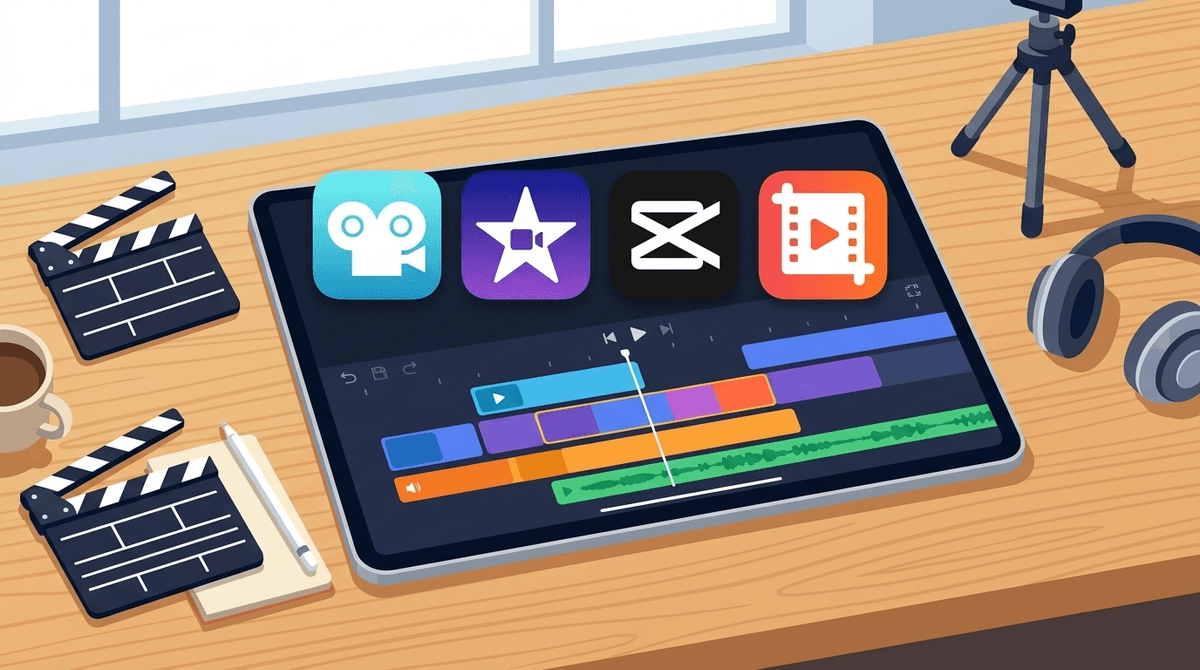
TL;DR: iMovie is the "vegetables" of screen time—except your kids will actually want to eat it. It’s a powerful, free, and surprisingly safe sandbox for kids to transition from passive consumers to active creators. If they’re begging to be a YouTuber, this is the training wheels.
Quick Links:
- The "Safety First" Alternative: Clips
- The "Pro" Step Up: LumaFusion
- The "Cool" (but data-hungry) Rival: CapCut
- For Stop-Motion Fans: Stop Motion Studio
If you’ve bought an iPhone, iPad, or Mac in the last decade, you already own iMovie. It’s Apple’s flagship consumer video editing software. It sits in that perfect "Goldilocks" zone: more powerful than the basic trim tools in your Photos app, but way less intimidating than professional software like Final Cut Pro.
For kids, it’s the place where they take those 47 random clips of Minecraft gameplay or the dog sleeping and turn them into something that actually resembles a story.
We spend a lot of time worrying about "brain rot"—that passive, glazed-eye state kids get into when scrolling TikTok or watching endless "Skibidi Toilet" memes. iMovie is the antidote.
When a kid is editing, they are making thousands of micro-decisions. Does this transition look weird? Is this music too loud? Should I cut this part where I tripped over the rug? It’s executive function training disguised as fun.
The "Magic Movie" Shift: Apple recently introduced "Magic Movie" and "Storyboards." Magic Movie uses AI to instantly create a finished video from a selection of photos or clips. It’s great for the "I want it now" generation, but the real magic still happens in the manual timeline where they learn the craft.
See the difference between active and passive screen time
Depending on your kid's age and "tech-fluency," iMovie might be the starting point or the destination. Here’s how to navigate the options:
Before you throw them into a full editing timeline, try Clips. It’s also made by Apple, it’s free, and it’s much more "vertical" (phone-shaped). It allows kids to add filters, stickers, and live captions that appear as they talk. It feels like TikTok but without the algorithm or the strangers.
This is the sweet spot. By 4th or 5th grade, most kids have the fine motor skills to drag and drop clips on an iPad. The "Trailer" feature is a massive hit here—it provides templates that make a backyard soccer game look like a Hollywood blockbuster. It teaches them about "shots" (wide shot, close up) without them realizing they're learning cinematography.
If your kid is obsessed with LEGO or clay, Stop Motion Studio is the perfect companion. They can capture the frames there and then export the whole thing into iMovie to add "epic" music and sound effects.
You need to know about CapCut. It is currently the #1 video editing app for teens because it’s owned by ByteDance (the TikTok people). It has way more "trending" filters and AI effects than iMovie. However, it comes with the same privacy baggage as TikTok. If your kid says iMovie is "mid" or "for babies," they’re probably looking at CapCut.
Check out our guide on CapCut vs. iMovie privacy
The best thing about iMovie is that it is offline.
There is no "iMovie Social Network." There are no comments, no likes, and no "Ohio" memes being pushed by an algorithm. Your kid’s data stays on the device (or in your iCloud).
The Safety Catch: The risk isn't the app itself; it’s the Share Button. Once a kid finishes a masterpiece, they naturally want people to see it.
Community Data Note: Screenwise data shows that while 65% of middle schoolers use video editing tools, only about 20% of parents have a formal "upload agreement" with their kids. Most "accidental" social media debuts happen because a kid was proud of an iMovie project and didn't realize YouTube defaults to public.
Apple’s new "Magic Movie" feature is essentially AI curation. You pick a folder of photos from your vacation, and it uses machine learning to find the "best" shots, syncs them to a beat, and adds titles.
Is it cheating? Not really. But if your goal is "deliberate digital wellness," encourage your kid to use the Storyboard feature instead. Storyboards give them a "recipe" for a video (like a "Cooking" or "Product Review" template) but still require them to film the shots and make the edits. It’s the difference between buying a pre-made cake and using a box mix—the box mix still requires some work.
Learn more about how AI is changing kids' creativity
If your kid is spending hours on iMovie, don't just ask "Are you still on that iPad?" Try these instead:
- "Can I see your 'rough cut'?" (Using film lingo makes them feel like a pro).
- "How did you do that transition?" (Letting them be the expert is a huge confidence booster).
- "Who is the audience for this?" (This is a sneaky way to start the conversation about public vs. private sharing).
If they are making "gaming montages" of Minecraft or Fortnite, acknowledge the effort. Editing a 10-minute gaming session down to a 30-second highlight reel is actually a sophisticated editing task.
IMovie is one of the few apps that gets a nearly perfect "WISE" score from us. It’s free, it’s private by design, and it moves kids from "zombie mode" to "creator mode."
Is it teaching them entrepreneurship? Maybe. If they learn to edit well, they're developing a skill that is basically a superpower in the modern economy. But even if they never make a dime, they’re learning to tell a story—and that’s a win in any century.
Next Steps:
- Check the iPad: See if iMovie is already installed. If not, it’s a free download.
- Set a Challenge: Ask them to make a 60-second "movie trailer" for the family dog this weekend.
- Review the "Exit" Strategy: Talk about where those videos go once they're done. If you're not ready for YouTube, stick to iCloud Shared Albums.