

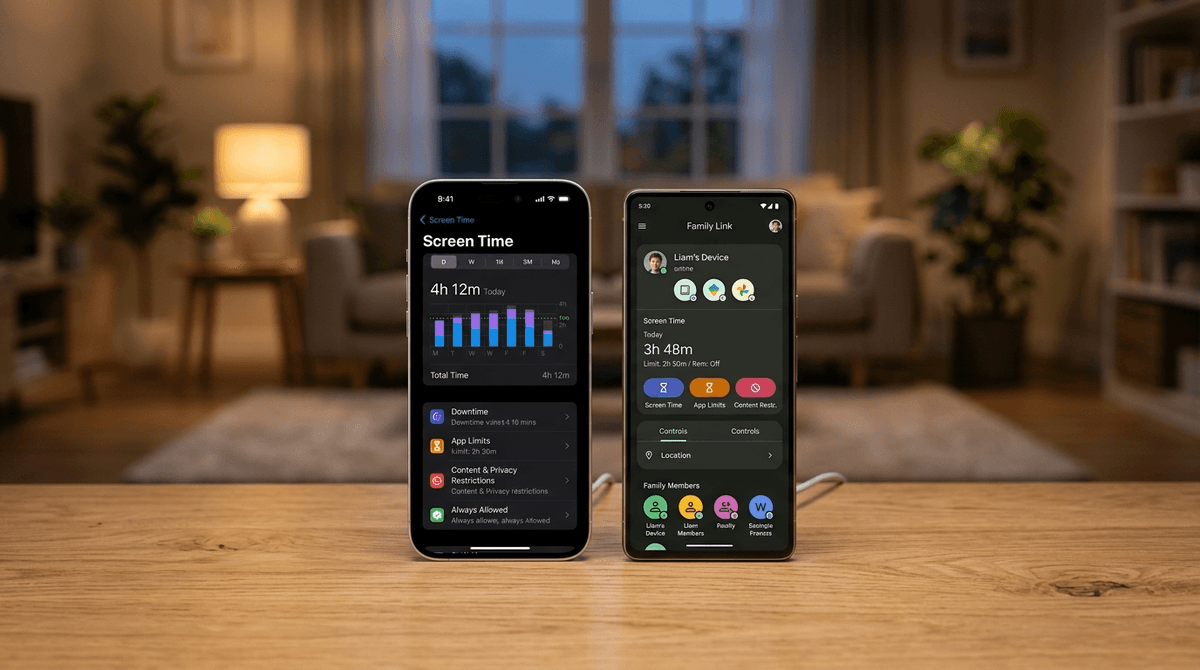
TL;DR: If you want granular, "remote control" style management that actually works across different device brands, Google Family Link is the winner. If you are a fully committed Apple household and want features that focus on eye health and "School Time" for the Apple Watch, Apple Screen Time is your native choice—just be prepared for some "it just works... until it doesn't" bugs.
Quick Links for the Digital Toolbelt:
- Best for Android/Chromebooks: Google Family Link
- Best for iPhones/iPads/Apple Watch: Apple Screen Time
- For the "Skibidi Toilet" era: YouTube Kids
- Managing the bank account drain: Roblox
We’ve all been there. It’s 9:00 PM, you’re trying to decompress with a show that isn’t animated, and you hear the tell-tale "oof" sound of Roblox coming from under a duvet three rooms away. You thought you set the limits. You thought the "digital fence" was electrified.
Choosing between Google and Apple isn't just about whether you prefer green or blue text bubbles anymore; it’s about which ecosystem gives you the best tools to stop your kid from falling down a TikTok rabbit hole at 2:00 AM.
Both Google and Apple have stepped up their game recently, adding features like "School Time" and better passcode protections. But they approach "digital wellness" with completely different philosophies. One feels like a remote control for your child’s life, while the other feels like a set of guardrails built into the hardware.
Google Family Link is the "Swiss Army Knife" of parental controls. It’s an app you download on your phone (iOS or Android) to manage your child’s Google account.
The biggest selling point? Granularity. If your kid is obsessed with [Brawl Stars](https://screenwiseapp.com/media/brawl-stars-app, you can give them exactly 30 minutes on that specific app, while leaving Duolingo open for as long as they want.
Why It Works
Family Link is particularly good if your kid uses a Chromebook for school. Since the controls are tied to the Google account, the limits follow them from their phone to their laptop.
One of the most satisfying features is the "Lock Devices Now" button. It’s the digital equivalent of flipping the circuit breaker. When you hit it, the device becomes a paperweight instantly. No "one more minute" prompts (unless you allow them).
Apple’s approach is more "set it and forget it." Instead of a separate app, Screen Time is baked directly into the Settings of every iPhone, iPad, and Mac.
Apple’s philosophy focuses heavily on Downtime. You set a window (say, 8:00 PM to 7:00 AM) where the phone essentially goes into a coma, only allowing "Always Allowed" apps like Phone or Messages.
The "School Time" Edge
Apple recently introduced "School Time," which is a game-changer for kids with an Apple Watch. You can schedule specific blocks where the watch face simplifies, notifications are silenced, and apps are restricted. It’s great for making sure they aren't checking Discord during pre-algebra.
Apple also wins on the "Physical Health" front. Their Screen Distance feature uses the FaceID camera to detect if a kid is holding the iPad three inches from their eyeballs. If they are, the screen freezes until they move it back. It’s a small thing, but it saves you from being the "don't sit so close to the TV" parent every five minutes.
1. App Limits and "Always Allowed"
- Google: You can set limits for specific apps, categories, or the whole device. The "Bonus Time" feature is great for when they’ve earned an extra 15 minutes of Minecraft without you having to go in and rewrite the whole schedule.
- Apple: You can set limits by category (e.g., "Social Media" or "Games") or individual apps. However, Apple’s "Request More Time" system can be buggy. Sometimes the request never shows up on the parent's phone, leading to an inevitable "It’s not working!" scream from across the house.
2. Content Filtering
- Google: Deeply integrated with YouTube and Google Search. You can toggle "SafeSearch" and manage "Supervised Experiences" on YouTube, which is a middle ground between the "babyish" YouTube Kids and the "Wild West" of standard YouTube.
- Apple: Excellent web content filtering. You can restrict adult websites across all browsers (Safari, Chrome, etc.) with one toggle. Apple also has a "Communication Safety" feature that blurs explicit photos sent or received via Messages.
3. Location Tracking
- Google: Uses Google Maps. It’s accurate and allows you to set "Places" (like school or home) so you get a notification when they arrive or leave.
- Apple: Uses the "Find My" network. Because there are billions of Apple devices out there, the tracking is incredibly precise. You can see if they are in the gym or the cafeteria.
Let’s be real: kids are basically junior penetration testers. If there is a way to bypass a limit, they will find it.
Apple’s Passcode Alerts: A major pain point for Apple parents used to be kids changing the Screen Time passcode or using "Screen Recording" to see the parent typing it in. Apple has improved this by tying the Screen Time passcode to your Apple ID, making it harder to "reset" without your password.
Google’s "Device Admin" Protection: Google makes it very difficult for a kid to just delete the Family Link app. If they try to remove the management profile, the phone locks down for 24 hours and sends you an email immediately. It’s a "scorched earth" policy that usually stops the behavior after one attempt.
Ages 5-9: The "Training Wheels" Phase
At this age, Google Family Link is often superior because of how it handles YouTube Kids and Google Play Store approvals. You can set it so they literally cannot download a single thing—even a free game—without a notification popping up on your phone for a "Yes" or "No."
Ages 10-13: The "Middle School Transition"
This is when the "School Time" features on Apple become valuable. As kids start carrying phones to school or wearing watches, having a system that automatically mutes the "brain rot" during school hours is essential. This is also the age where Roblox and Fortnite become their social life. Both platforms allow you to lock down in-app purchases, which you should do immediately.
Ages 14+: The "Digital Trust" Phase
By high school, these tools should move from "control" to "consultation." Use the weekly reports in both apps to have a conversation. If they spent 6 hours on Instagram on a Tuesday, don't just lock the phone—ask them how they felt after that. Did it make them happy, or just "Ohio" (weird/bad)?
Neither of these tools is a substitute for a conversation.
- Privacy: Apple is generally better about data privacy. They process most Screen Time data on the device itself, whereas Google (being an ad company) tracks more of the "what" and "where" in the cloud.
- False Security: Just because you have "SafeSearch" on doesn't mean they won't see something weird. A "clean" search for a popular show can still lead to "fan art" that is definitely not age-appropriate.
Choose Google Family Link if:
- You or your child uses Android or a Chromebook.
- You want a "Remote Control" for the device.
- You want the most reliable app-specific time limits.
- You want to manage everything from your iPhone (Yes, the Google Family Link app for parents works great on iOS).
Choose Apple Screen Time if:
- Your whole family is on iPhones/Macs.
- You want the "Screen Distance" eye-health features.
- You want to use "School Time" for an Apple Watch.
- You prefer a "Set it and forget it" schedule.
The "best" system is the one you actually check. If you set up Apple Screen Time but never look at the reports, it’s just a minor speed bump for a kid who wants to watch MrBeast until dawn.
- Audit the Apps: Sit down with your kid and look at their "Top 5" apps. If you don't know what one of them is, search Screenwise for a quick breakdown
 .
. - Pick One Ecosystem: Mixed-device households (Mom has iPhone, Kid has Samsung) should stick with Google Family Link. Apple Screen Time simply does not work if the parent doesn't have an Apple device.
- Set a "Digital Sunset": Regardless of the app, pick a time when all devices go to a central charging station (not the bedroom).
Want a personalized digital wellness plan? take the Screenwise survey