

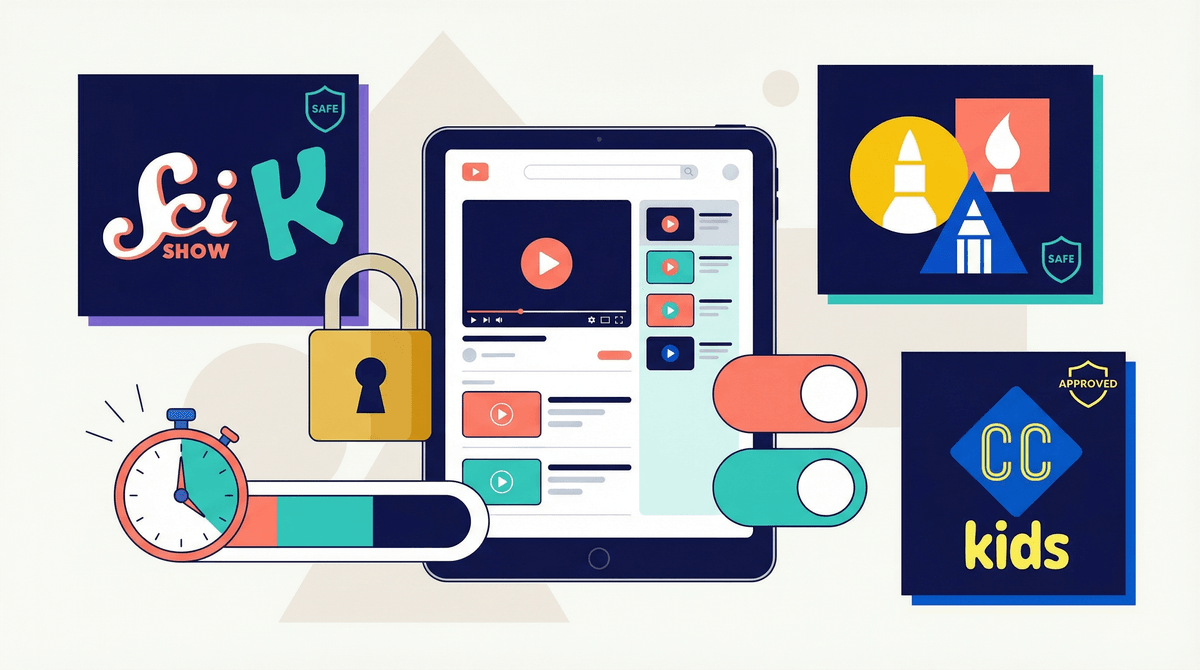
YouTube Kids is Google's attempt at creating a safer, more controlled version of YouTube for children under 13. It's a separate app (and website) that filters content, removes comments, limits search capabilities, and gives parents a bunch of controls over what their kids can watch.
Here's the thing: YouTube Kids is not perfect, but it's significantly better than handing your 7-year-old regular YouTube and hoping for the best. The parental controls are actually pretty robust—if you know where to find them and how to use them.
Let's be real: YouTube is a juggernaut. Kids are watching it. A lot. And while there's genuinely great educational content on there (Crash Course Kids, SciShow Kids, Art for Kids Hub), there's also an ocean of low-quality "surprise egg" videos, bizarre Elsagate-adjacent content, and stuff that's technically "for kids" but feels... off.
YouTube's algorithm is designed to keep eyeballs glued to screens, not to nurture developing brains. Even with filters, weird stuff can slip through. The parental controls in YouTube Kids are your best defense—but only if you actually set them up.
1. Content Level Settings (The Big One)
This is the most important control, and it's the first thing you should set up. YouTube Kids offers three content levels:
-
Preschool (Ages 4 and under): Highly curated, very limited content. Think Sesame Street, Daniel Tiger, simple songs and crafts.
-
Younger (Ages 5-8): Broader selection including educational content, arts and crafts, music, and shows. This is where you start seeing more gaming content and popular kid YouTubers.
-
Older (Ages 9-12): Even wider range including music videos, gaming, vlogs, and news for kids. This level has the most content but also the highest chance of something questionable slipping through.
Pro tip: Start more restrictive than you think you need to. You can always open it up, but it's harder to walk back once your kid has tasted the forbidden fruit of unlimited Roblox gameplay videos.
2. Approved Content Only Mode (The Nuclear Option)
This is the setting for parents who want maximum control. Instead of relying on YouTube's algorithms to filter content, you manually approve every single channel and video your child can watch.
The good: Your kid literally cannot watch anything you haven't vetted.
The bad: It's time-consuming to set up, and your kid will constantly ask you to approve new stuff.
Best for: Younger kids (under 7), families who want tight control, or if your kid has already found inappropriate content on the regular settings.
3. Search On/Off Toggle
You can completely disable search in YouTube Kids. When search is off, kids can only watch content that appears on the home screen (which is based on the content level you've selected).
Why you might turn it off: Prevents kids from searching for and finding edge-case weird stuff. Limits them to curated content.
Why you might leave it on: Older kids (9+) can find specific educational content they need for school or genuine interests.
The reality: Most parents of younger kids (under 8) should probably turn search off. For older kids, consider leaving it on but having conversations about what they're searching for .
.
4. Timer Function
You can set a timer directly in the app that locks YouTube Kids after a set amount of time. When time's up, kids need to enter a passcode to continue watching.
Does it work? Yes, surprisingly well. The kid gets a warning when time is almost up, then the app locks.
The catch: Your kid will 100% come ask you to unlock it. You need to be prepared to hold the boundary.
5. Viewing History and Pause Watch History
You can review everything your kid has watched. This is huge for understanding what they're actually consuming and catching any problematic content that slipped through.
Pro move: Check this weekly, especially when you first set up the app. You'll quickly learn what's getting through the filters and can adjust settings or block specific channels.
You can also pause watch history, which stops YouTube from using viewing data to recommend videos. This can help if your kid accidentally watched something weird and now their recommendations are full of similar garbage.
6. Block Specific Videos or Channels
If something inappropriate makes it through (and it will), you can block that specific video or the entire channel. Just tap the three dots on any video.
Important: Blocking is reactive, not proactive. You're always playing catch-up with YouTube's massive content library.
The autoplay feature: Even with all these controls, autoplay can lead kids down rabbit holes. Turn it off in settings if possible, or at least be aware that "just one video" often becomes 47 minutes of content you didn't approve.
The "it's for kids so it's fine" assumption: YouTube Kids is better than regular YouTube, but it's not a substitute for parental involvement. The algorithm isn't perfect. Weird stuff gets through. Channels that seem fine at first can take strange turns.
Thinking you can set it and forget it: YouTube is constantly adding new content. Creators are constantly finding ways around filters. You need to check in regularly.
Ages 4-6: Use Preschool mode with search turned off. Consider Approved Content Only if you have the time to curate. Set 20-30 minute timers.
Ages 7-9: Younger mode with search off (or on with supervision). Regular spot-checks of viewing history. 30-45 minute timers.
Ages 10-12: Older mode, search probably on, but with clear rules about what's appropriate. Check history weekly. This is also the age where many kids start pushing for regular YouTube—here's how to think about that transition.
Ages 13+: YouTube Kids is technically for under-13, so you're likely moving to regular YouTube with parental supervision and clear expectations.
YouTube Kids parental controls actually work—if you use them. The problem is that most parents download the app, let their kid start watching, and never dig into the settings.
Take 15 minutes right now to:
- Set the appropriate content level (start restrictive)
- Turn off search for younger kids
- Set up a timer
- Decide if Approved Content Only makes sense for your family
- Check viewing history this week
Is YouTube Kids perfect? No. Will inappropriate content sometimes slip through? Probably. But with these controls properly configured, you're in a much better position than just handing over an iPad with regular YouTube.
And remember: no amount of parental controls replaces actual parenting. The controls buy you peace of mind and reduce risk, but you still need to know what your kids are watching, talk to them about it, and help them develop media literacy.
- Set up your YouTube Kids parental controls right now (seriously, do it before you forget)
- Check out our guides to kid-friendly YouTube channels worth watching
- If you're curious about alternatives, explore other video platforms for kids
- For older kids ready to transition, read about YouTube vs. YouTube Kids