

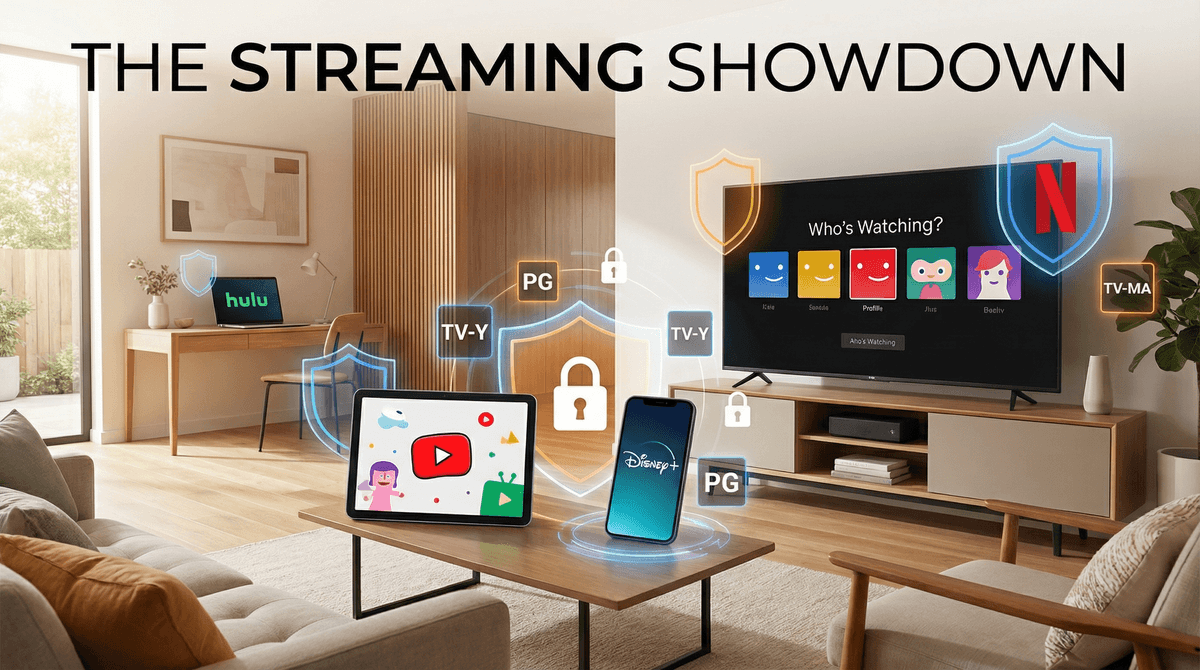
Netflix vs Hulu vs YouTube Kids: Which Streaming Service Has the Best Parental Controls?
Netflix has the most robust parental controls overall, with excellent profile management and content filtering. YouTube Kids is purpose-built for children but requires the most active supervision. Hulu lags behind both, with basic controls that feel like an afterthought.
Best for most families: Netflix's Kids profile + PIN protection Best for under-8s: YouTube Kids with approved content only Skip if you can: Hulu for young kids (seriously, the controls are weak)
Let's be real: streaming services have become the default babysitter for millions of families, and pretending otherwise is pointless. The question isn't whether your kids are watching streaming content—it's whether you have any control over what they're watching.
I've spent way too much time clicking through every parental control menu on these platforms, and the differences are stark. Some services clearly care about helping parents manage content. Others... not so much.
Here's what's at stake: without proper controls, your 7-year-old can go from watching Bluey to stumbling onto true crime documentaries about serial killers in about three clicks. Or your 10-year-old can binge-watch TV-14 content all night because you thought you set up restrictions but actually didn't.
The average kid watches 2-3 hours of streaming content daily according to recent data, and that number spikes to 4+ hours on weekends. That's a lot of potential exposure to content you may not want them seeing.
Age Range: Works for all ages, from toddlers to teens
Netflix has clearly put actual thought into parental controls, probably because they got tired of parents complaining about their kids finding Squid Game.
What Works Well:
Kids Profiles: When you create a Kids profile (for 12 and under), Netflix automatically filters out anything rated TV-14, R, or otherwise inappropriate. The interface is colorful and simplified, showing only age-appropriate content. No true crime documentaries popping up in the "Because you watched" section.
Maturity Ratings: You can set specific maturity levels for each profile:
- Little Kids (TV-Y, TV-G, G, PG)
- Older Kids (up to TV-PG, PG)
- Teens (up to TV-14, PG-13)
- Adults (everything)
PIN Protection: You can require a PIN to access profiles above a certain rating, switch out of Kids profiles, or watch specific titles. This is clutch for preventing your kid from just switching to your profile when they want to watch something restricted.
Title-Specific Blocking: You can block individual shows or movies by title. So if your kid is obsessed with trying to watch Stranger Things and you're not ready for that conversation, you can block it specifically.
Viewing History: Check what your kids have been watching. Useful for catching when they've figured out your PIN or borrowed a friend's login.
What's Annoying:
The Kids profile UI is almost too simplified—older kids (10-12) often find it babyish and will push to use a regular profile. You'll need to decide whether to stick with Kids profiles or graduate them to a restricted regular profile with a PIN.
Also, Netflix's algorithm can be weirdly aggressive about recommending similar content, so if your kid watches one slightly edgy show you approved, they'll get bombarded with recommendations for similar content that might be too mature.
Age Range: Designed for 12 and under, best for under-10
YouTube Kids is a separate app from regular YouTube, and that's important to understand. It's not just YouTube with filters—it's a different platform.
What Works Well:
Approved Content Only Mode: This is the nuclear option for younger kids. You manually approve every single channel and video your child can watch. It's time-consuming to set up, but for kids under 6, it's the only way to truly control what they see.
Age-Based Content Settings:
- Preschool (4 and under)
- Younger (5-8)
- Older (9-12)
Each tier filters content differently, though the algorithm isn't perfect (more on that below).
Timer Function: Built-in timer that locks the app after a set amount of time. Your kid can see the timer counting down, which actually helps with transitions better than just yanking the device away.
No Comments: Kids can't read or post comments, which eliminates a huge source of inappropriate content and potential grooming.
Search Toggle: You can turn off search entirely, limiting kids to only the curated home screen content.
What's Problematic:
YouTube Kids' content filtering is not foolproof. Despite Google's claims about AI moderation and human review, inappropriate content regularly slips through. We're talking about:
- Fake "kids" videos with disturbing themes
- Inappropriate ads (yes, even on YouTube Kids)
- Channels that start innocent but gradually introduce mature themes
The "Younger" and "Older" categories are particularly prone to letting questionable content through. The algorithm struggles with context—it might allow a video about Minecraft that includes inappropriate language or themes because it's tagged as "gaming content."
Bottom line: YouTube Kids requires active parental supervision. It's not a "set it and forget it" solution. You need to periodically check what your kids are watching and be ready to block channels aggressively.
For a deeper dive, check out this guide on YouTube vs YouTube Kids.
Age Range: Really only suitable for teens with supervision
Here's where I stop being diplomatic: Hulu's parental controls are embarrassingly bad for a major streaming platform in 2026.
What Exists (Barely):
Kids Profile: Hulu has a Kids profile that shows only TV-Y, TV-Y7, G, and PG content. That's it. That's the whole feature.
PIN Protection: You can set a PIN to restrict access to content rated TV-14, TV-MA, R, and NR (not rated). But here's the problem: the PIN system is all-or-nothing. You can't set different restrictions for different profiles.
What's Missing (Everything Else):
- No granular age settings
- No viewing history per profile
- No ability to block specific titles
- No time limits
- No content warnings or filters beyond basic ratings
- The Kids profile interface is just the regular interface with fewer titles—no kid-friendly design
The real issue: Hulu's content library skews heavily toward adult content (it's where a lot of FX, ABC, and other network shows live), and the controls don't match the content. The Kids profile is fine for very young children who will just watch Bluey and Sesame Street on repeat, but for anyone over 7, you're basically relying on the honor system.
The Disney+ Bundle Situation:
Many families get Hulu bundled with Disney+, and honestly? Just use Disney+ for your kids. Disney+ has significantly better parental controls (similar to Netflix) and a much more kid-friendly content library. Use Hulu for your own viewing and keep it off the kids' devices entirely.
| Feature | Netflix | YouTube Kids | Hulu |
|---|---|---|---|
| Kids Profile | ✓ Excellent | ✓ Good | ✓ Basic |
| Age-Based Filtering | ✓ 4 levels | ✓ 3 levels | ✗ One size fits all |
| PIN Protection | ✓ Customizable | N/A | ✓ Basic |
| Block Specific Titles | ✓ Yes | ✓ Yes | ✗ No |
| Viewing History | ✓ Yes | ✓ Yes | ✗ No |
| Time Limits | ✗ No | ✓ Yes | ✗ No |
| Search Control | ✓ Via Kids profile | ✓ Toggle on/off | ✗ No |
| Content Quality | ✓ Reliable | ⚠ Requires monitoring | ✓ Reliable but limited |
The PIN Is Only As Good As Your Memory
Every parent I know has had the experience of their kid figuring out the PIN by watching them type it in. Use a non-obvious PIN (not your birth year or 1234), and enter it when your kids aren't watching. Consider changing it periodically if you suspect it's been compromised.
"Kids" Content Isn't Always Kid-Appropriate
Just because something is in a Kids profile doesn't mean it's appropriate for your specific kid at their specific age. Ratings are guidelines, not gospel. A TV-Y7 show might be fine for one 7-year-old and too intense for another. Learn more about how to evaluate age ratings .
.
Auto-Play Is the Enemy
All three platforms default to auto-playing the next episode. This is designed to keep viewers watching (and keep subscription numbers up), but it's terrible for kids who struggle with self-regulation.
On Netflix, you can disable auto-play in account settings. On YouTube Kids, each video ends and requires a new selection (though the recommendations are aggressive). On Hulu, you're stuck with it.
Ads Are a Whole Different Problem
YouTube Kids has ads (unless you pay for YouTube Premium). These ads are supposedly filtered for kids, but in practice, you'll see ads for toys, games, and other products that will immediately end up on your kid's wish list. Netflix and Hulu's ad-free tiers eliminate this issue, but Hulu's ad-supported tier shows regular commercials that may not be appropriate for kids, even in the Kids profile.
Ages 2-5: YouTube Kids with Approved Content Only mode, or Netflix Kids profile with Little Kids setting. Actively co-view as much as possible.
Ages 6-8: Netflix Kids profile (Little Kids or Older Kids setting depending on maturity), or YouTube Kids with Younger setting and regular check-ins on viewing history.
Ages 9-12: Netflix Kids profile (Older Kids setting) or regular profile with TV-PG limit and PIN protection. YouTube Kids (Older setting) with periodic monitoring, or consider graduating to regular YouTube with parental controls enabled.
Ages 13+: Netflix profile with TV-14/PG-13 limit and PIN for mature content. Regular YouTube with SafeSearch and restricted mode. Hulu becomes more viable at this age, but still use PIN protection for TV-MA/R content.
Netflix is the clear winner for parental controls. It's not perfect, but it's the most comprehensive, user-friendly, and reliable option for families with kids of any age.
YouTube Kids is valuable for younger children but requires active parental involvement. It's not a "set it and forget it" solution—you need to treat it as a tool that requires supervision, not a replacement for supervision.
Hulu is fine for families who primarily use it for adult content and occasionally let young kids watch a specific show, but it's not a kid-focused platform and shouldn't be treated as one.
-
Audit your current setup: Open each streaming app on your devices and check what controls are actually enabled. You might be surprised.
-
Set up Kids profiles properly: Don't just create them—configure the maturity settings and PINs. Test them by trying to access restricted content.
-
Have the conversation: Talk to your kids about why these controls exist. Kids who understand the reasoning are more likely to respect the boundaries (and less likely to try to hack around them).
-
Check viewing history weekly: Make it a Sunday night routine. Five minutes of scrolling through what your kids watched can prevent bigger issues down the line.
-
Consider device-level controls: Streaming app controls are one layer, but you should also look at device-level parental controls for comprehensive protection.
Want to dive deeper into specific shows and whether they're appropriate for your kids? Check out our guides on best Netflix shows for kids, YouTube channels actually worth watching, and how to talk to kids about screen time.