

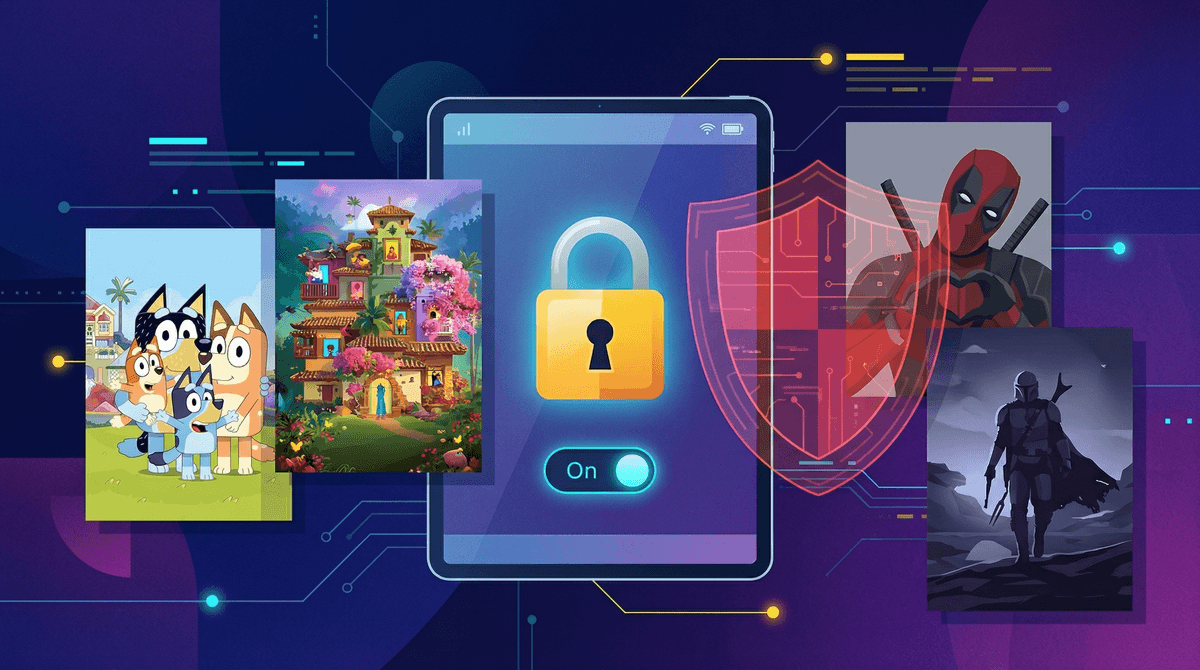
Disney+ parental controls are the built-in tools that let you filter content by rating, create kid-safe profiles, and set PINs to keep your 6-year-old from accidentally stumbling into Alien (yes, it's on Disney+ now—thanks, merger with Hulu).
The good news: Disney+ actually has pretty robust parental controls compared to other streaming platforms. The bad news: they're not always intuitive to find, and the default settings are more permissive than many parents realize.
Here's what you can actually control:
- Content ratings for each profile (G, PG, PG-13, etc.)
- Profile PINs to lock adult profiles
- Kids profiles with curated, age-appropriate content
- Viewing restrictions by maturity level
Let's walk through exactly how to set these up so you're not playing content whack-a-mole every time your kid opens the app.
Disney+ has evolved way beyond Frozen and The Mandalorian. With the addition of Hulu content, you've now got everything from The Bear to Predator sitting right next to Bluey](https://screenwiseapp.com/media/bluey-show).
The platform's algorithm doesn't always distinguish between "this 8-year-old likes Star Wars" and "this 8-year-old should definitely not see the R-rated Deadpool movies." Without proper controls, your kid's "Because You Watched" recommendations can get weird fast.
Plus, Disney+ autoplay is aggressive. One minute they're watching Encanto, the next they've autoplayed into a true crime documentary about a Disney theme park accident. (Yes, really.)
Step 1: Create a Kids Profile
- Go to your Disney+ account (on web or app)
- Click on your profile icon
- Select "Edit Profiles"
- Click "Add Profile"
- Toggle "Kids Profile" ON — this is the crucial step many parents miss
When you enable Kids Profile mode, Disney+ automatically filters to content rated TV-7FV and below (basically G and some PG content). The interface also changes to be more kid-friendly with larger tiles and simpler navigation.
What's included in Kids Profiles:
- Disney Junior shows
- Classic Disney animated films
- Age-appropriate Pixar, Marvel, and Star Wars content
- National Geographic kids content
What's NOT included:
- Most Marvel movies (even PG-13 ones)
- Star Wars films rated PG-13
- Simpsons episodes
- Any Hulu content
- Anything rated TV-PG or higher
Step 2: Set Content Rating Limits for Older Kids
If your kid has outgrown the Kids Profile but isn't ready for everything, you can set specific rating limits:
- Go to your profile icon → "Edit Profiles"
- Select the profile you want to restrict
- Under "Parental Controls," select "Content Rating"
- Choose from:
- 6+ (G and TV-Y)
- 9+ (adds PG and TV-Y7)
- 12+ (adds TV-PG)
- 14+ (adds PG-13 and TV-14)
- 16+ (adds TV-MA-L and TV-MA-V)
- 18+ (everything, including R-rated films)
Real talk: The 12+ setting is a sweet spot for many elementary-aged kids. It includes most Marvel movies, Star Wars content, and popular shows like The Mandalorian, but filters out truly mature content.
Step 3: Lock Adult Profiles with a PIN
This is non-negotiable if you have curious kids who know how to switch profiles.
- Go to your Disney+ account settings (on web browser—you can't do this in-app)
- Navigate to "Profile" → "Parental Controls"
- Enter your account password
- Turn ON "Profile PIN"
- Set a 4-digit PIN
- Select which profiles require the PIN to access
Pro tip: Don't use 1234 or your kid's birthday. Kids are shockingly good at guessing PINs. Use something random.
The "Kids Profile" toggle is easy to miss
When creating a new profile, that little toggle for "Kids Profile" doesn't look important, but it's the difference between a curated kids experience and the entire Disney+ catalog. Double-check that it's ON for young kids.
Rating systems vary by country
If you're traveling internationally or using a VPN, Disney+'s content ratings might shift. A TV-PG show in the US might be rated differently in the UK or Australia, which can affect what appears in restricted profiles.
Autoplay can be your enemy
Even with a Kids Profile, autoplay will keep serving up content. To disable it:
- Go to account settings on web
- Select your profile
- Toggle OFF "Autoplay"
This forces intentional viewing rather than the endless scroll into whatever the algorithm thinks is next.
Downloaded content bypasses some restrictions
If your kid downloads content to a device while on an unrestricted profile, they can watch it later even if you've since added restrictions. Periodically check Downloads and clear them out.
GroupWatch doesn't respect individual profile restrictions
Disney+'s GroupWatch feature (for watching with friends remotely) uses the host's profile settings. If your kid joins a GroupWatch session hosted by someone else, your parental controls won't apply.
"But my kid knows the PIN!"
Yeah, this happens. Kids watch you type it in, or they try common combinations until something works. Change your PIN regularly, and don't use it in front of them if possible.
"The Kids Profile is too restrictive for my 10-year-old"
Fair. The Kids Profile caps out at pretty young content. For tweens, a custom profile with 12+ or 14+ content rating limits is usually the better move. You can always adjust as they get older .
.
"My kid just uses my profile"
If your kid defaults to your profile instead of their own, it's time to add a PIN to yours and make their profile the default when opening the app. You can't set a default profile on Disney+, but you can at least make yours harder to access.
Disney+ parental controls are actually pretty good—if you use them. The problem is that many parents set up one profile for the whole family and call it a day, which means kids have access to way more content than intended.
Take 10 minutes to:
- ✅ Create separate profiles for each kid
- ✅ Enable Kids Profile for young children (under 8-9)
- ✅ Set content rating limits for older kids
- ✅ Add a PIN to adult profiles
- ✅ Turn off autoplay
Once it's set up, Disney+ is genuinely one of the better streaming platforms for families. The content library is massive, and when properly filtered, kids can browse independently without you worrying they'll end up watching something nightmare-inducing.
Just remember: parental controls are not a substitute for talking to your kids about what they're watching. Check in periodically, ask what shows they're into, and watch stuff together when you can. The controls are the guardrails, but you're still the driver.
Want more streaming platform guides? Check out:
Need help figuring out what's age-appropriate on Disney+? Our Disney+ recommendations by age guide breaks down the best shows and movies for every stage, from preschool through high school.