

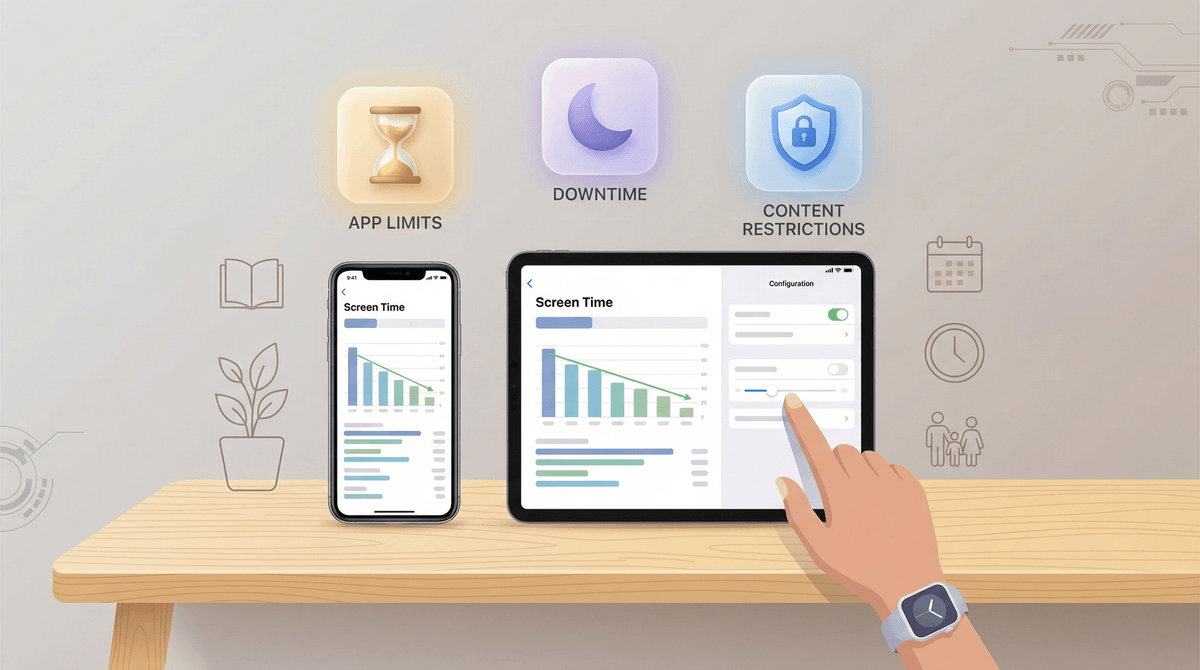
The Ultimate Guide to Apple Screen Time Parental Controls
TL;DR: Apple's Screen Time is powerful but weirdly confusing. Here's what actually works: set it up through Family Sharing (not on your kid's device), use Downtime for bedtime/homework, App Limits for specific apps, and Communication Limits to control who they can text. The real trick? Kids will find workarounds, so this is about creating friction, not building Fort Knox.
Let me be straight with you: Screen Time is both Apple's greatest parenting gift and most frustrating puzzle. When it works, it's genuinely helpful. When it doesn't, you'll want to throw your iPhone out a window.
The big problem? Apple designed Screen Time for adults tracking their own usage, then bolted on parental controls as an afterthought. So the interface is confusing, the settings are scattered across multiple menus, and some features work brilliantly while others are basically useless.
But here's the thing: it's still the best native option for managing iOS devices. And once you understand how it actually works (not how Apple's help docs say it works), you can make it genuinely useful.
First, the most important thing nobody tells you: Do not set up Screen Time on your child's device. I know the prompts make it seem like that's what you should do, but trust me on this.
Instead, set it up through Family Sharing on your device:
- Settings → [Your Name] → Family Sharing → Screen Time
- Select your child's name
- Turn on Screen Time for them
Why does this matter? Because when you set it up this way, you control everything from your phone. Your kid can't just go into settings and disable it (which they absolutely will try to do if you set it up locally on their device with a "parental passcode").
Also critical: Use a Screen Time passcode that's different from your regular device passcode. Kids are observant. They watch you unlock your phone a hundred times a day. Don't make it easy.
Screen Time has like fifteen different toggles and options, but really only four matter for most families:
1. Downtime
This is your "phone goes to sleep" feature. During Downtime, only apps you specifically allow (and phone calls) work. Everything else is locked.
How to set it: Screen Time → Downtime → Set a schedule
What actually works:
- Bedtime (8pm-7am for younger kids, 10pm-6am for teens)
- Homework hours if needed (3pm-5pm on weekdays)
- Family dinner time if you're feeling ambitious
The catch: Kids can tap "Ignore Limit" and keep using apps anyway. Yes, really. You have to enable "Block at Downtime" for this to actually work. (Settings → Screen Time → [Child's Name] → Downtime → Block at Downtime)
2. App Limits
This lets you set daily time limits for specific apps or categories (like "Social" or "Games").
How to set it: Screen Time → App Limits → Add Limit
What actually works:
The catch: The categories are weirdly broad. "Entertainment" includes everything from Netflix to Spotify. You're better off limiting specific apps.
3. Communication Limits
This controls who your kid can call, text, and FaceTime.
How to set it: Screen Time → Communication Limits
What actually works:
- "Contacts Only" during school hours
- "Everyone" during Downtime if you want them reachable for emergencies
- Managing their contacts list so "Contacts Only" actually means something
The catch: If your kid has iMessage, they can still receive messages from anyone. Communication Limits only controls who they can initiate conversations with. Yeah, it's weird.
4. Content & Privacy Restrictions
This is the big one. It's where you control:
- App downloads (require approval for every app)
- In-app purchases (block them entirely, please)
- Web content filtering
- Location sharing
- Screen recording (which kids use to save Snapchats)
How to set it: Screen Time → Content & Privacy Restrictions → Enable
Critical settings to change:
- iTunes & App Store Purchases → Installing Apps → Require approval
- iTunes & App Store Purchases → In-app Purchases → Don't Allow
- Content Restrictions → Web Content → Limit Adult Websites (or Allowed Websites Only for younger kids)
- Content Restrictions → Apps → Set age rating
- Privacy → Location Services → Find My → Allow Changes (so you can track their device)
Let's talk about the elephant in the room: kids share workarounds like trading cards. Here are the main ones:
"I'll just delete and reinstall the app": If you require approval for app downloads, this doesn't work. They can delete Instagram, but they can't reinstall it without your permission.
"I'll change the time zone to get more time": Doesn't work if you've set it up through Family Sharing. The limits are based on Apple's servers, not the device clock.
"I'll use Safari instead of the app": This is why web content filtering matters. Set it to "Limit Adult Websites" at minimum. For younger kids, "Allowed Websites Only" with a whitelist actually works well.
"I'll use Screen Recording to bypass Snapchat's screenshot detection": Go to Content & Privacy Restrictions → Content Restrictions → Screen Recording → Don't Allow. (Though honestly, if your kid is on Snapchat, you've got bigger fish to fry than screenshots. Read this guide about whether kids should be on Snapchat.)
"I'll factory reset my phone": If you set up Family Sharing correctly, a factory reset requires your Apple ID password. But this is why you should regularly check that Family Sharing is still enabled.
"I'll message from my iPad/Mac": This is the real problem. Screen Time settings don't sync perfectly across devices. You need to set up Screen Time separately on each device your kid uses.
Screen Time has real limitations:
It can't monitor content: It can tell you your kid spent 3 hours on YouTube, but not what they watched. For that, you need to actually look at their watch history or use YouTube's restricted mode.
It can't filter social media content: Your kid can still see whatever their friends post on Instagram or TikTok. Screen Time just limits how long they can scroll.
It can't block specific websites well: The "Limit Adult Websites" filter is okay but not great. It misses a lot and blocks random stuff. For better web filtering, you need router-level controls or a service like Bark.
It doesn't work on Android: If your kid has friends with Android phones and they're texting through Google Messages or WhatsApp, you're out of luck. This is one reason some parents stick with Apple's ecosystem—at least you can manage it.
Ages 6-9:
- Downtime: 7pm-7am
- Total screen time: 1-2 hours/day
- App Limits: Specific limits on YouTube Kids, games
- Content Restrictions: Apps rated 9+, Allowed Websites Only
- Communication: Contacts Only (and you manage the contacts list)
Ages 10-12:
- Downtime: 8pm-7am on school nights
- Total screen time: 2-3 hours/day
- App Limits: 30-60 min on social/entertainment apps
- Content Restrictions: Apps rated 12+, Limit Adult Websites
- Communication: Contacts Only during school
- Require approval for all app downloads
Ages 13-15:
- Downtime: 10pm-6am on school nights
- App Limits: 1-2 hours on problem apps (you know which ones)
- Content Restrictions: Apps rated 12+, Limit Adult Websites
- Require approval for app downloads (yes, still)
- Check Screen Time reports weekly
Ages 16+:
- This is where Screen Time becomes more about transparency than control
- Focus on Downtime for sleep health
- Use Screen Time reports as conversation starters, not gotchas
- Gradually remove restrictions as they demonstrate responsibility
Here's what actually makes Screen Time useful: checking the reports together with your kid.
Once a week (Sunday evening works for many families), pull up Screen Time and look at:
- Total screen time vs. last week
- Most-used apps
- Pickups (how many times they unlocked their phone)
- Notifications
Don't make it an interrogation. Make it data. "Huh, TikTok was up 2 hours this week. What's going on?" Sometimes there's a legitimate reason (school project, sick day). Sometimes it's just mindless scrolling.
The goal isn't to shame them. It's to build awareness. Most kids (and adults) have no idea how much time they actually spend on their phones.
"It says I'm the parent but I can't change settings": You probably set up Screen Time on their device instead of through Family Sharing. You'll need to turn off Screen Time on their device, then set it up fresh through Family Sharing on your device.
"The time limits reset at random times": Check that you didn't accidentally set limits in multiple places. If you set a limit in Screen Time AND through Family Sharing, they can conflict.
"My kid keeps getting 'one more minute' notifications": That's normal. It's actually helpful—it gives them a warning. But if you want it to be a hard stop, enable "Block at Downtime."
"Screen Time isn't tracking correctly": Make sure their device is connected to WiFi or cellular and signed into iCloud. Screen Time syncs through Apple's servers.
"I forgot my Screen Time passcode": You'll need to factory reset the device. Yes, really. This is why you should store it in your password manager.
Screen Time isn't perfect, but it's free, built-in, and good enough for most families. The key is understanding that it's a tool for creating friction, not a foolproof security system.
Think of it like a fence around a pool. It's not going to stop a determined teenager, but it makes the barrier clear and gives you data about what's happening.
The real parenting happens in conversations—about why limits exist, what healthy phone use looks like, and how to build self-regulation skills. Screen Time just makes those conversations easier to have.
Set it up through Family Sharing, focus on the four features that matter (Downtime, App Limits, Communication Limits, Content & Privacy), and check in regularly. That's 90% of what you need.
And when your kid inevitably finds a workaround? Don't freak out. Close the loophole, have the conversation, and remember: they're learning problem-solving skills. Just maybe not the ones you hoped for.
- Set up Family Sharing if you haven't already
- Enable Screen Time for your child through your device
- Set a unique Screen Time passcode and store it somewhere safe
- Configure the four core features (start with Downtime and Content Restrictions)
- Schedule your first weekly Screen Time check-in
Want to dive deeper into specific apps your kids are using? Check out guides for Roblox parental controls, YouTube vs. YouTube Kids, or whether your kid should be on social media.