

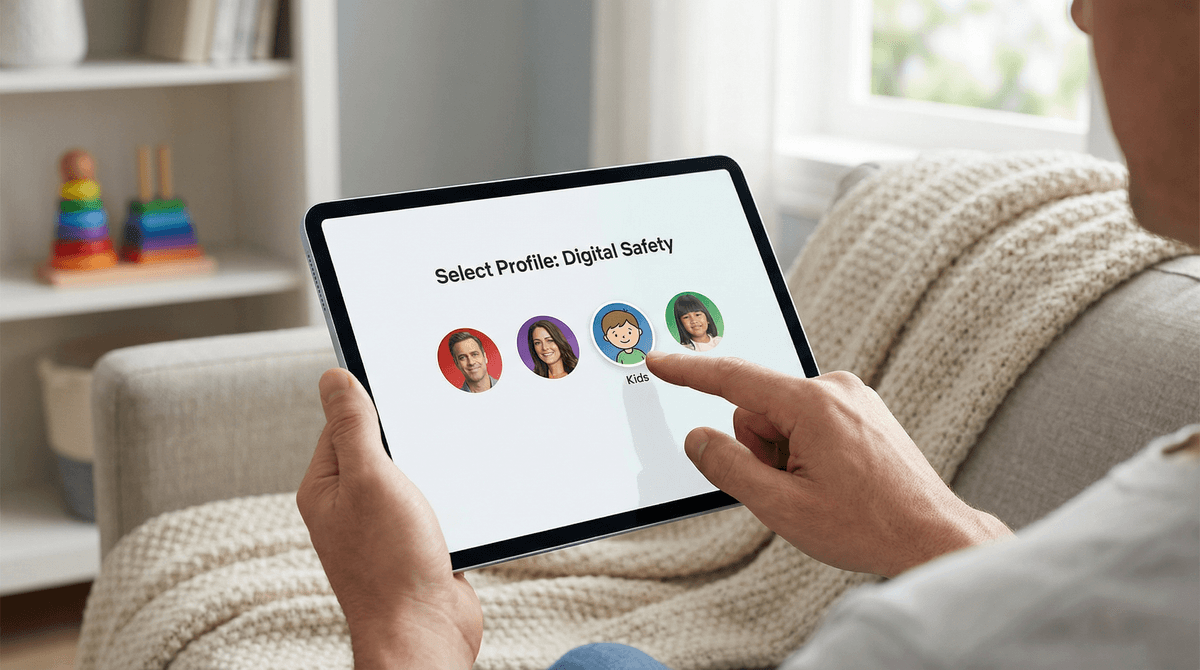
How to Set Up Netflix Kids Profiles (And Actually Keep Them Kid-Friendly)
Netflix Kids profiles are free and take about 5 minutes to set up, but the default settings aren't actually that restrictive. Here's what you need to do:
- Create a dedicated Kids profile (not just a regular profile with a kid's name)
- Set age-appropriate maturity ratings (Little Kids, Older Kids, or Teens)
- Add a PIN lock to your adult profile so kids can't just switch over
- Review and block specific titles that slip through
- Turn off autoplay if you want to reduce the "just one more episode" spiral
Let's walk through exactly how to do all of this, because Netflix's settings are buried deeper than you'd think.
Netflix's algorithm is really good at keeping kids engaged—which is great when it's serving up Bluey but less great when your 6-year-old stumbles onto a true crime documentary or your 10-year-old finds themselves watching a teen drama with content you're not ready for them to see yet.
The default Kids profile blocks anything rated TV-MA or R, but that still leaves a lot of content that might not align with your family's values or your kid's maturity level. And here's the thing that catches a lot of parents off guard: kids can easily switch to your profile unless you set up a PIN.
About 60% of parents with Netflix don't realize their kids can just click over to Mom or Dad's profile and suddenly have access to everything. So step one is actually step zero: lock down your own profile first.
Step 1: Create the Profile
- Log into Netflix on a web browser (not the app—you need the full settings)
- Click on your profile icon in the top right
- Select "Manage Profiles"
- Click "Add Profile"
- Check the box that says "Kid?" — this is critical, don't just name it "Emma" and call it a day
- Choose an avatar (this part is actually fun)
Step 2: Set the Age Rating
This is where it gets interesting. Netflix gives you three options:
Little Kids (ages 0-6): Only shows content rated TV-Y and G. Think Cocomelon, Daniel Tiger, and early Sesame Street. Very safe, but also very limiting if you have a 5-year-old who's ready for Wild Kratts or Octonauts.
Older Kids (ages 7-12): Adds TV-Y7, TV-G, G, and PG content. This is where you get most of the good stuff: Avatar: The Last Airbender, The Wild Robot, Carmen Sandiego, and Nailed It!. This is the sweet spot for most elementary schoolers.
Teens (ages 13+): Includes TV-PG, PG-13, and some TV-14 content. This opens up shows like Stranger Things (which, real talk, is probably too intense for most 13-year-olds despite the rating), The Dragon Prince, and teen dramas that deal with more mature themes.
My recommendation: Start one level more restrictive than you think you need, then manually approve shows as your kid asks for them. It's way easier to add content than to deal with the fallout of your 8-year-old accidentally watching something that gives them nightmares.
Step 3: Lock Down Your Adult Profile
This is non-negotiable. Here's how:
- Go to Account Settings (on the web, not the app)
- Under Profile & Parental Controls, select your profile
- Click "Change" next to Profile Lock
- Enter your Netflix password
- Check "Require a PIN to access [Your Name]'s profile"
- Create a 4-digit PIN (and no, don't make it 1234)
- Save
Pro tip: Set different PINs for different profiles if you have multiple kids at different ages. That way your 12-year-old can't just watch your 15-year-old's profile.
Step 4: Review and Block Specific Titles
Even with age ratings set, some stuff slips through that you might not want your kid watching. Maybe you're not ready for them to see The Boss Baby for the 47th time, or maybe there's a show that's technically age-appropriate but has themes you want to discuss first.
To block specific titles:
- Go to Account Settings
- Select your kid's profile under Profile & Parental Controls
- Click "Change" next to Viewing Restrictions
- Enter your password
- Scroll down to "Title Restrictions"
- Type in the name of the show or movie you want to block
- Save
You can also do this on the fly: when you're browsing Netflix with your kid and see something questionable, click on it, scroll down, and select "Not for Kids" to remove it from their profile immediately.
Netflix defaults to autoplaying the next episode, which is designed to keep people watching (shocking, I know). For kids, this can turn "one episode before bed" into a 2am binge session if you're not careful.
To turn off autoplay:
- Go to Account Settings
- Select your kid's profile
- Uncheck "Autoplay next episode in a series on all devices"
- Also uncheck "Autoplay previews while browsing on all devices" (because those previews are LOUD and annoying)
Some parents love this feature because it gives them natural stopping points. Others find that their kids have the self-regulation to stop when they're supposed to. You know your kid better than anyone , so adjust accordingly.
Netflix has a separate Kids app that's even more locked down—it only shows content from Kids profiles and doesn't allow profile switching at all. The interface is also more toddler-friendly with bigger buttons and simpler navigation.
The downside? It's a separate app, which means if your kid is old enough to use the regular Netflix app for some content, they'll need to switch back and forth. Most parents find it's easier to just set up the profiles correctly in the main app and use PIN locks.
That said, if you have a younger kid (under 7) who's using a tablet independently, the Kids app is genuinely great. No risk of them wandering into your profile, no ads for mature content, and the interface is actually designed for little fingers.
The "I'll just use my profile" trap: Your kid asks to watch something on your profile because it's not showing up on theirs. You think "just this once" and suddenly they've discovered they can switch to your profile anytime. Set that PIN.
The maturity rating confusion: A TV-Y7 show can still have scary moments (looking at you, Gravity Falls). Ratings are guidelines, not gospel. Watch the first episode of anything new with your kid, or at least check parent reviews first.
The sibling sharing problem: If you have kids at different ages sharing a profile, you're either restricting your older kid or exposing your younger kid to content they're not ready for. Make separate profiles. It takes 3 minutes.
The smart TV loophole: You set everything up perfectly on your laptop, but your smart TV app doesn't require the PIN because you're already logged in. Go into the TV app settings and make sure PIN protection is enabled there too.
Ages 4-6: Use the Little Kids setting, but be prepared to manually add shows like Wild Kratts or Puffin Rock if they're rated TV-Y7 but you're comfortable with them.
Ages 7-10: Older Kids setting works well here. You'll want to spot-check shows before they watch—The Dragon Prince and Hilda are both great, but have moments that might be intense for sensitive kids.
Ages 11-13: This is the awkward zone. Some kids are ready for teen content, others aren't. Consider keeping them on Older Kids but manually approving specific teen shows. Heartstopper is very different from Wednesday, even though both are teen-rated.
Ages 14+: If you're still using parental controls at this age, it's probably more about content values than age-appropriateness. Have honest conversations about what you're comfortable with and why. The goal is to teach them to make good choices, not to control every pixel they see.
Netflix's algorithm learns from what your kid watches and serves up similar content. This is mostly helpful (if they love The Last Airbender, they'll probably like Kipo and the Age of Wonderbeasts), but it can also create echo chambers where they only see one type of content.
Every few weeks, browse the Kids section yourself and add some variety to their list. Throw in a nature documentary, a cooking show, or something in a different genre. The Toys That Made Us is technically not a kids show, but it's fascinating for kids interested in how things are designed.
Also worth noting: Netflix's Kids content is heavily skewed toward animated shows. If you want more live-action options, you'll need to seek them out. Shows like Gabby's Dollhouse and Ada Twist, Scientist are great, but there's a whole world of content beyond animation.
Setting up Netflix Kids profiles properly takes about 15 minutes of your time, but it's worth it. The peace of mind knowing your kid can't accidentally stumble onto Squid Game or binge-watch 6 hours of CoComelon without you noticing is real.
But here's the thing: no parental control system is perfect. The best protection is teaching your kids media literacy and having ongoing conversations about what they're watching. Use the Netflix profile as a guardrail, not a replacement for parenting.
And if you're looking for specific recommendations for what to actually watch, check out our guides on best Netflix shows for elementary schoolers and educational shows that don't feel like homework.
- Set up (or fix) your kids' Netflix profiles today—seriously, it takes 15 minutes
- Add PIN locks to all adult profiles
- Watch the first episode of anything new with your kid, especially if it's at the edge of their age range
- Check in monthly on their viewing history (yes, Netflix tracks this) to see what they're actually watching
- Have a conversation about why some content is restricted—kids are more likely to respect boundaries they understand
And if your kid is also using YouTube, Disney+, or other streaming services, the same principles apply. Each platform has its own parental controls, and they're all worth setting up properly. Learn more about managing multiple streaming services if you're feeling overwhelmed by all the different settings.