

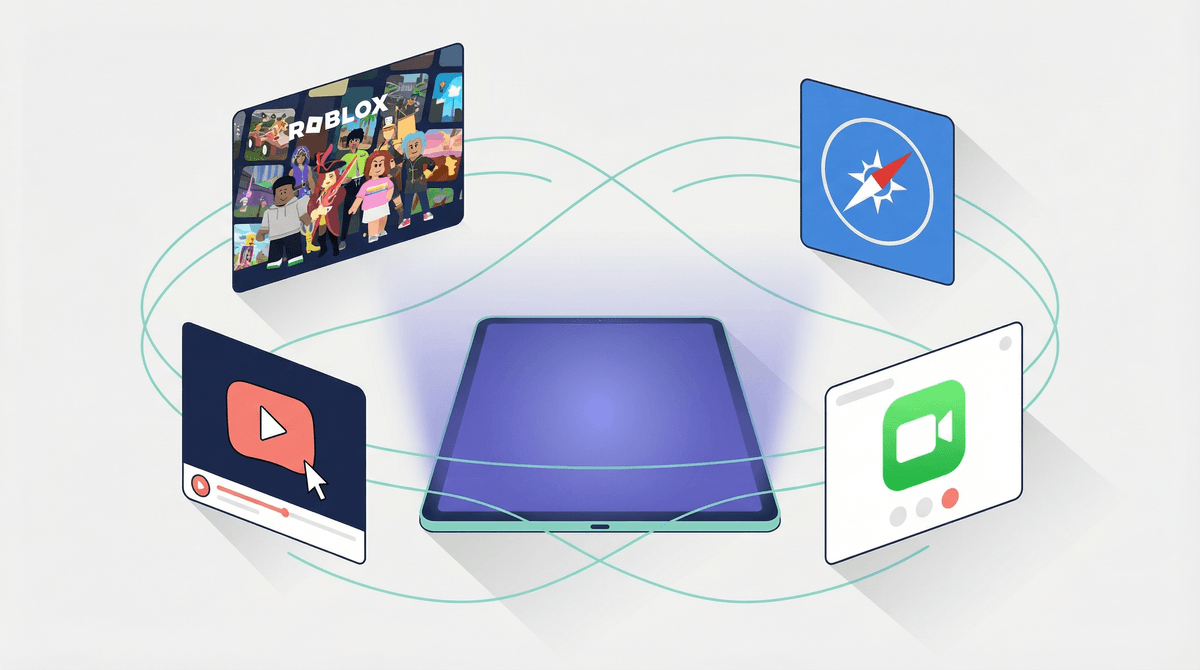
Look, if you've handed your kid an iPad, you've probably had that moment of panic where you wonder if they're about to accidentally buy $500 worth of Robux or stumble into the weird part of YouTube at 2am.
Parent controls (or "parental controls" if we're being formal) are basically the safety features built into iPads that let you decide what your kids can and can't do on the device. Think of them as digital guardrails – not a perfect solution, but a helpful layer of protection while your kids are learning to navigate screens.
Apple calls their system Screen Time, and honestly? It's gotten pretty robust over the years. You can limit app usage, filter content, prevent purchases, and even control who your kid can text or FaceTime. It's all built right into iOS, so you don't need to download anything extra.
But here's the thing – parental controls aren't a "set it and forget it" solution. They're more like training wheels. The goal isn't to control everything forever; it's to create a safer space while you're teaching your kids how to make good choices on their own.
Let me be real with you: iPads are amazing and also kind of terrifying as a parent.
On one hand, they're incredible learning tools. Kids can video chat with grandparents, create art, learn to code, and access basically all human knowledge. On the other hand, they're also a gateway to endless content (some great, some... not), in-app purchases that can drain your bank account, and social interactions you might not be ready for them to have.
The average kid gets their first tablet around age 8, but many start using them much younger. And unlike when we were kids, there's no "Saturday morning cartoon" limit anymore – the content never stops, the games are designed to be addictive, and the algorithms are really good at keeping eyeballs on screens.
Here's what keeps parents up at night:
- Inappropriate content (violence, sexual content, or just stuff that's too mature)
- Screen addiction and the tantrum that comes when it's time to put the iPad down
- Accidental purchases (those "free" games aren't really free)
- Privacy concerns and data collection
- Online predators in games or apps with chat features
- The impact on sleep, especially if they're sneaking screen time after bedtime
Parental controls won't solve all of these issues, but they're a solid starting point. They buy you time to have conversations, make mistakes, and figure out what works for your family.
Okay, let's get practical. Here's how to actually set this stuff up.
Getting Started
Go to Settings > Screen Time on your kid's iPad (or on your own device if you're managing their iPad through Family Sharing). If you haven't set it up yet, tap "Turn On Screen Time."
The setup wizard will ask if this is your iPad or your child's. Choose "This is My Child's iPad" and you'll get the more restrictive options by default.
Downtime
This is basically "iPad bedtime." You set hours when only apps you approve (like Phone or Books) will work. Everything else gets locked.
Real talk: Most families set downtime for overnight (like 8pm-7am for younger kids) and sometimes during homework hours. But you know your kid and your schedule. Maybe dinner time is sacred in your house, or maybe Sunday mornings are screen-free. You do you.
App Limits
This lets you set time limits for categories of apps (Games, Social, Entertainment) or specific apps. When time's up, the app gets locked unless you approve more time.
Pro tip: Don't just blanket-limit everything to 30 minutes. Think about what actually concerns you. Maybe YouTube gets 1 hour, but reading apps are unlimited. Educational apps might get more time than games. The goal is to encourage good choices, not make the iPad useless.
Communication Limits
This controls who your kid can communicate with during screen time and downtime. You can limit it to just contacts you've approved, which is huge for younger kids.
Content & Privacy Restrictions
This is where the real safety stuff lives. You can:
- Block inappropriate content in Safari
- Prevent them from downloading apps without your approval
- Restrict content by age rating (4+, 9+, 12+, 17+)
- Turn off in-app purchases (DO THIS)
- Disable certain apps entirely (like Safari or the Camera)
Ages 4-7: Maximum Protection Mode
At this age, you're basically building a walled garden. These kids need heavy supervision and tight controls.
Recommended settings:
- Downtime: 7pm-7am (or whenever your schedule says)
- App Limits: 30-60 minutes for games/entertainment
- Content Restrictions: Only 4+ rated content
- In-app purchases: Blocked completely
- Safari: Disabled (use YouTube Kids or other curated apps instead)
- App installation: Requires parent approval
Reality check: Even with all this, you still need to be physically nearby when they're using the iPad. These controls prevent accidents and exposure to inappropriate stuff, but they don't replace supervision.
Ages 8-11: Training Wheels
These kids are more capable but still need guardrails. You're starting to teach them about time management and good choices.
Recommended settings:
- Downtime: 8pm-7am
- App Limits: 1-2 hours for entertainment, maybe separate limits for social media if they're on it
- Content Restrictions: 9+ rated content
- In-app purchases: Require approval (teach them to ask first)
- Safari: Enabled but with content filters on
- App installation: Still requires approval
Add this layer: Start having conversations about what they're watching and playing. Check in on their screen time reports together weekly. Make it collaborative, not punitive.
Ages 12-14: Gradual Independence
Middle schoolers need more freedom, but they're also navigating social media, group chats, and all the drama that comes with it.
Recommended settings:
- Downtime: 9pm-6am (or no phones in bedrooms overnight)
- App Limits: Consider removing limits on some apps, keeping them on others
- Content Restrictions: 12+ rated content
- In-app purchases: May allow with limits or approval
- Safari: Full access with filters
- App installation: May allow, but review together regularly
The big shift: At this age, controls should feel more like accountability than restriction. They should be able to see their own screen time data and be part of the conversation about limits.
Ages 15+: Mostly Trust, Some Verification
High schoolers are almost adults. Your controls should be minimal, focused mainly on safety and sleep.
Recommended settings:
- Downtime: Probably just overnight (devices out of bedrooms)
- App Limits: Mostly removed, maybe keep some for apps that are problematic
- Content Restrictions: 17+ or none
- In-app purchases: Allowed with spending limits
- Full access to most features
Focus on: Open communication, checking in about what they're experiencing online, and being available when things go wrong (because they will).
Parental Controls Aren't Perfect
Kids are clever. Really clever. And the internet is full of tutorials on how to bypass Screen Time. (Yes, really. Don't Google it unless you want to be depressed.)
The workarounds they might try:
- Changing the time zone to add more screen time
- Deleting and reinstalling apps to reset timers
- Using Siri to send messages during downtime
- Asking friends to look things up for them
This is why controls are just one tool. The conversation matters more.
You Need Your Own Passcode
When you set up Screen Time, you'll create a separate passcode. Make it different from your regular iPad passcode and don't share it with your kids. Write it down somewhere safe because if you forget it, recovering it is a huge pain.
Check In Regularly
Screen Time gives you weekly reports of what your kid is doing on their device. Actually look at them. You might be surprised by what apps they're using most or when they're sneaking screen time.
Family Sharing Is Your Friend
If your kid has their own Apple ID (which they should by age 13), set up Family Sharing. This lets you manage their device from your own phone, approve purchases, and share subscriptions. It's way easier than trying to physically grab their iPad every time you need to adjust something.
Don't Spy, But Do Monitor
There's a difference between keeping your kid safe and invading their privacy. Reading every text message? Probably too far for a 15-year-old. Knowing what apps they're using and having the ability to check if you're concerned? Reasonable.
The balance shifts as they get older. A 7-year-old has no expectation of privacy on their iPad. A 16-year-old deserves some, even if you maintain the right to check in.
It's Going to Be Annoying
Your kid will complain. They'll tell you that "everyone else" has unlimited screen time. They'll negotiate, whine, and test boundaries. This is normal. Hold your line, but also be willing to adjust if something genuinely isn't working.
Being too restrictive: If the limits are unreasonable, kids will find workarounds or just give up on following the rules entirely.
Setting it up and never adjusting: Your 8-year-old's limits don't make sense when they're 12. Revisit every few months.
Using it as punishment: Taking away screen time as discipline is fine, but don't randomly change limits out of anger. Be consistent.
Forgetting to explain why: Just locking things