

TL;DR
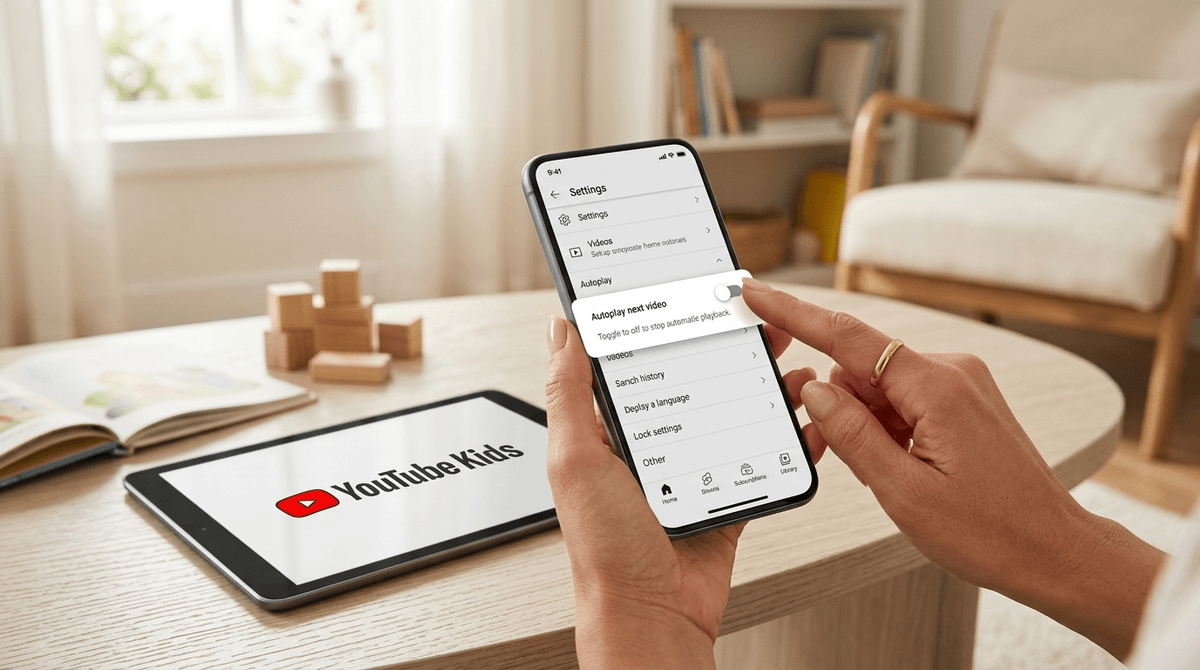
- Autoplay is the enemy: It’s designed to keep kids in a dopamine loop. Turn it off in the settings of both YouTube and the YouTube Kids app.
- Use the "Take a Break" feature: Set it for every 15–30 minutes to force a moment of clarity.
- Curate, don't just browse: Swap "brain rot" for high-quality creators like Mark Rober or Kurzgesagt.
- Watch for the "Ohio" effect: If your kid is speaking in memes and can't look away from the screen, the algorithm has them.
Get a step-by-step guide to YouTube parental controls
We’ve all seen it. You tell your kid they have 20 minutes on YouTube. You walk back into the room 45 minutes later, and they’re staring at the screen with a glazed look while a giant head in a toilet—yes, Skibidi Toilet—screams at them. They aren't even "watching" anymore; they're just consuming.
This isn't a lack of discipline on your kid's part. It’s the result of billions of dollars of engineering designed to keep them on the platform. The primary weapon in this fight? Autoplay.
Autoplay removes the "stopping cue." In the old days, a TV show ended, commercials came on, or the movie credits rolled. Today, YouTube just serves up the next hit of dopamine before the brain can even process that the last video finished. For a developing brain, that "just one more" cycle is almost impossible to break without help.
When Autoplay is on, the algorithm decides what your child watches next. Usually, it’s something louder, faster, and more stimulating than what they just finished. This leads to the "infinite scroll" or "infinite play" where kids lose track of time entirely.
It’s also how they end up in the weird corners of the internet. They start with a Minecraft tutorial and, four videos later, they’re watching a high-octane MrBeast clone or some "only in Ohio" meme compilation that makes zero sense to anyone over the age of 14.
Learn more about the YouTube algorithm and kids
You don't have to be a tech genius to fix this, but you do have to be deliberate.
1. Disable Autoplay
On the YouTube app or website, there is a small toggle switch right on the video player (usually at the top or bottom depending on the device). Flip it off. In the YouTube Kids app, you can find this in the "Parental Settings" area. Turning this off forces the kid to actually choose the next video, which introduces a micro-moment of intentionality.
2. Set "Take a Break" Reminders
Inside the YouTube settings under "General," you’ll find "Remind me to take a break." You can set this for 15, 30, or 60 minutes. When the time is up, the video pauses and a friendly reminder pops up. It’s a great way to outsource the "time's up" argument to the app itself.
3. Use Bedtime Reminders
Similarly, there is a "Remind me when it's bedtime" setting. This is great for older kids who might be sneaking YouTube on a laptop or tablet late at night. It darkens the screen and tells them it’s time to shut it down.
If we’re going to let them watch YouTube, let’s make sure they’re watching something that actually feeds their brain instead of just rotting it. Here are some Screenwise-approved channels that are actually worth the screen time:
Ages 7+ The gold standard. He’s a former NASA engineer who builds crazy stuff (like squirrel obstacle courses and glitter bombs). It’s high-energy enough to keep them engaged but teaches actual physics and engineering.
Ages 10+ Beautifully animated videos about science, space, and philosophy. It’s visually stunning and incredibly smart. It’s the kind of content that actually sparks dinner table conversations.
Ages 5+ This is "active" screen time. A dad and his kids teach you how to draw everything from Pokémon to holiday characters. If they’re watching this, they should have a sketchbook in their lap.
Ages 3-8 If you need them to burn energy instead of just sitting like a statue, this is it. It’s yoga told through stories (like Frozen or Star Wars).
Ages 4-9 Famous actors reading children's books with slight animations. It’s much lower stimulation than your average YouTube fare and great for winding down.
Grades K-2: The YouTube Kids Phase
At this age, the main YouTube app is a hard no. Stick to YouTube Kids and use the "Approved Content Only" setting. This means they can only watch channels you have manually white-listed. Avoid Cocomelon if you value your sanity and your child’s attention span—it’s designed to be hyper-stimulating in a way that often leads to meltdowns when the screen goes away.
Grades 3-5: The "Supervised Experience"
This is the transition phase. YouTube offers a "Supervised Experience" for kids under 13 where you can choose between "Explore," "Explore More," and "Most of YouTube."
Middle School: The Algorithm Talk
By now, they’re likely on the full YouTube app. Instead of just policing time, start talking about how the platform works. Explain that the "Recommended" sidebar isn't a list of "good" videos—it's a list of videos the computer thinks will keep them from closing the app.
Check out our guide on how to talk to middle schoolers about algorithms
Let’s talk about Skibidi Toilet. It’s weird. It’s loud. It’s objectively kind of "brain rot." But it’s also the current language of the playground. Watching one or two isn't going to break your kid's brain, but the Autoplay feature will feed them 50 in a row.
The same goes for "unboxing" videos or "toy play" channels like Ryan’s World or Blippi. These channels are essentially long-form commercials. They are designed to trigger a "want" response. If your kid is becoming obsessed with buying the next thing, look at what they’re watching.
When you go to turn off Autoplay, don't do it in secret. Make it a conversation.
- "I noticed that when the videos just keep playing, it’s really hard for us to stop when it’s dinner time. We’re going to turn this off so we can be the ones in charge of what we watch, not the computer."
- "Let’s look at your 'History' together. Do you actually remember the last three videos you watched? If not, maybe we were just in a 'YouTube trance.'"
YouTube is a tool, not a babysitter. It has some of the most incredible educational content ever created, but it’s hidden behind a system designed to exploit our attention.
By disabling Autoplay, setting break reminders, and curating a list of high-quality channels, you move from being a "screen time cop" to a digital mentor. You’re teaching them how to use a powerful tool without getting used by it.
- Open the YouTube app on your kid's device right now.
- Toggle Autoplay to OFF.
- Set a "Take a Break" reminder for 20 minutes.
- Subscribe to one "smart" channel like Mark Rober or Art for Kids Hub together.