

TL;DR: Leonardo.ai is a powerhouse generative AI art platform that goes way beyond basic filters. It’s a fantastic tool for creative teens who want to build worlds or design characters, but it requires a bit more maturity than your average drawing app. Think of it as the "pro" version of AI art—amazing for creators, but something that needs a conversation about ethics, public vs. private sharing, and the reality of deepfakes.
If you’re looking for simpler or more "walled garden" creative tools, check out:
- Canva – Great for school projects with built-in AI safety.
- Adobe Firefly – High-quality AI art with a heavy focus on ethical sourcing.
- Procreate – For kids who want to actually learn the digital brushstrokes.
If ChatGPT is the "writer" of the AI world, Leonardo.ai is the "concept artist." While most of us are used to the AI art generators that live inside other apps, Leonardo is a dedicated platform. It’s built on Stable Diffusion (the open-source engine behind a lot of AI art), but it wraps it in a much more user-friendly interface.
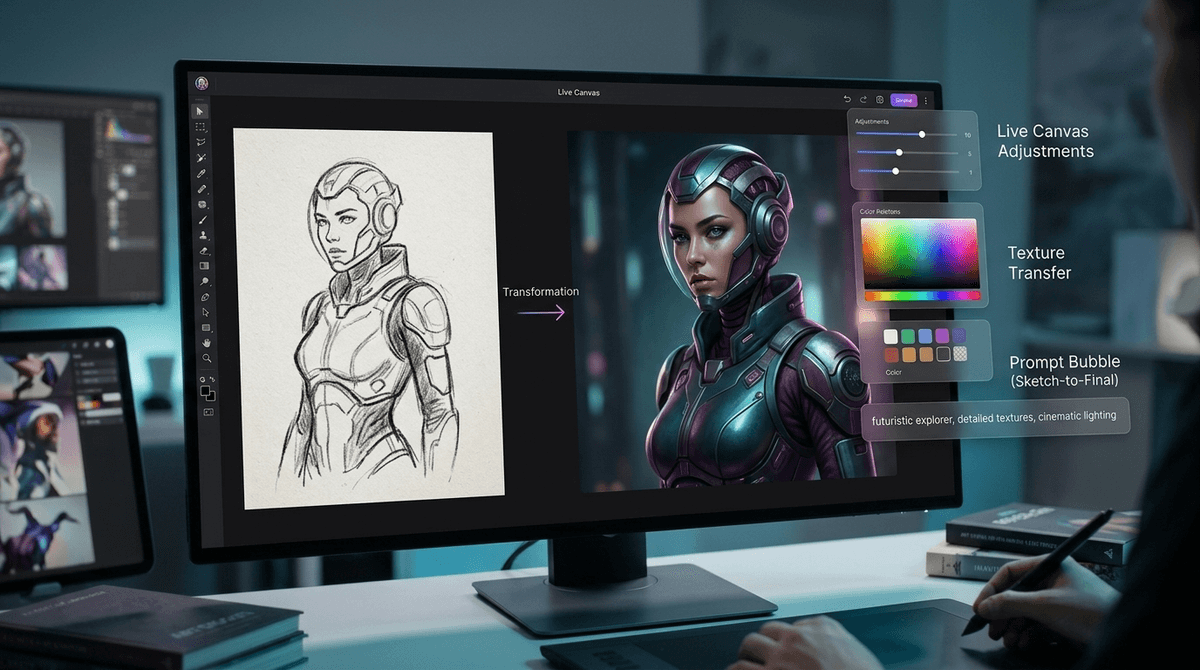
It’s not just "type a prompt and get a picture." It has features like Live Canvas, where you can literally doodle a stick figure on one side of the screen while the AI turns it into a cinematic masterpiece on the other in real-time. It also allows for "Image-to-Image" generation, where a kid can upload a sketch they did in their notebook and ask the AI to "render" it as a 3D Pixar-style character.
In the world of 2026, this is the "industrial strength" stuff. It’s used by game designers, architects, and—increasingly—teens who are tired of the limited options on social media apps. For a deeper dive into the technical side, you can check out this Leonardo.ai guide.
We’ve all seen the "brain rot" side of the internet—the endless scrolling of low-effort memes. But for a lot of kids, Leonardo.ai represents a shift from consumer to creator.
- World Building: If your kid is into Dungeons & Dragons or writes fanfiction, Leonardo is a dream. They can generate consistent-looking characters, maps, and landscapes that bring their stories to life.
- The "Live" Factor: The Live Canvas feature is genuinely addictive. It feels like magic. There’s a specific dopamine hit that comes from seeing a rough sketch instantly transform into a professional-grade painting.
- No "Artistic Wall": Not every kid has the fine motor skills to be a master painter, but many have incredible visual ideas. Leonardo lowers the barrier to entry, allowing them to express those ideas without the frustration of "my hands won't do what my brain wants."

This is the big dinner table debate. Is using Leonardo.ai "cheating"?
At Screenwise, we tend to look at AI as a new type of camera. When photography was invented, people said it wasn't art because the "machine" did the work. Now, we recognize photography as a skill. Prompt engineering and using tools like "Canvas Editor" in Leonardo require a vision.
However, there’s a real conversation to be had about training data. These models were trained on millions of images created by human artists, often without their consent. For an intentional parent, this is a great opening to talk about intellectual property and what it means to be an "original" creator.
Leonardo.ai’s Terms of Service generally require users to be 13 or older, and like many AI platforms, they have stricter rules for those under 18 regarding commercial rights and account management.
Ages 10-12: The "Side-by-Side" Phase
At this age, kids should probably stick to more moderated environments. If they really want to try Leonardo, it should be a "together" activity on a parent's account. The Community Feed on Leonardo can sometimes feature content that, while not necessarily "adult," can be dark, intense, or feature "uncanny valley" imagery that might be unsettling.
- Alternative: Canva Magic Media is a much safer, more filtered sandbox for this age group.
Ages 13-15: The "Exploration" Phase
This is the sweet spot for Leonardo. Teens at this age are tech-savvy enough to navigate the complex settings (like "Guidance Scale" or "Prompt Magic"). This is a good time to discuss Deepfakes. Leonardo has filters to prevent the generation of real people’s faces, but it’s not foolproof.
- Safety Tip: Encourage them to keep their generations Private. On the free tier of Leonardo, your images are often public by default in the community feed. If they want privacy, it usually requires a paid subscription.
Ages 16+: The "Creator" Phase
For older teens looking at careers in graphic design, gaming, or marketing, Leonardo is a legitimate skill-building tool. Knowing how to use "AI-assisted workflows" is going to be a resume requirement by the time they hit the job market.
The biggest "yellow flag" with Leonardo.ai isn't the tool itself—it’s the community.
Leonardo has a social component where users share their creations. While they have NSFW (Not Safe For Work) filters, no filter is 100% effective. A kid browsing the community feed for "cool dragons" might stumble across "waifu" style characters or hyper-realistic horror imagery that you might not want them seeing.
If your kid is using the app, it’s worth doing a "scroll-through" together every once in a while. See what’s trending. If the feed looks a bit too "wild west" for your family’s comfort level, you might want to steer them back to Adobe Firefly, which is much more corporate and "safe."
Instead of "Don't use that, it's weird," try these conversation starters:
- "Show me how you made that." (This gets them talking about the process rather than just the result.)
- "How do you think the AI knew what a 'cyberpunk cat' looks like?" (This leads into a talk about training data and artists.)
- "If you saw a photo of a celebrity doing something crazy on the news, how would you know if it was real or made in Leonardo?" (This is a crucial media literacy skill.)
Leonardo.ai is an incredible piece of tech. It’s the difference between playing a kazoo and conducting an orchestra. It gives kids massive creative power, but as the old saying goes, with great power comes... a lot of weird AI-generated fingers (AI still struggles with hands sometimes).
If you have a creative teen who is responsible and interested in digital art, Leonardo is a "Yes" with supervision. If you have a younger child who just wants to play, stick to the AI tools inside PBS Kids or Scratch.
Next Steps:
- Set up an account together and spend 20 minutes in the "Live Canvas" mode. It’s genuinely fun.
- Check the settings to see if "Public" sharing is toggled on.
- Discuss the "Why"—is this for fun, or are they trying to learn a new skill?