

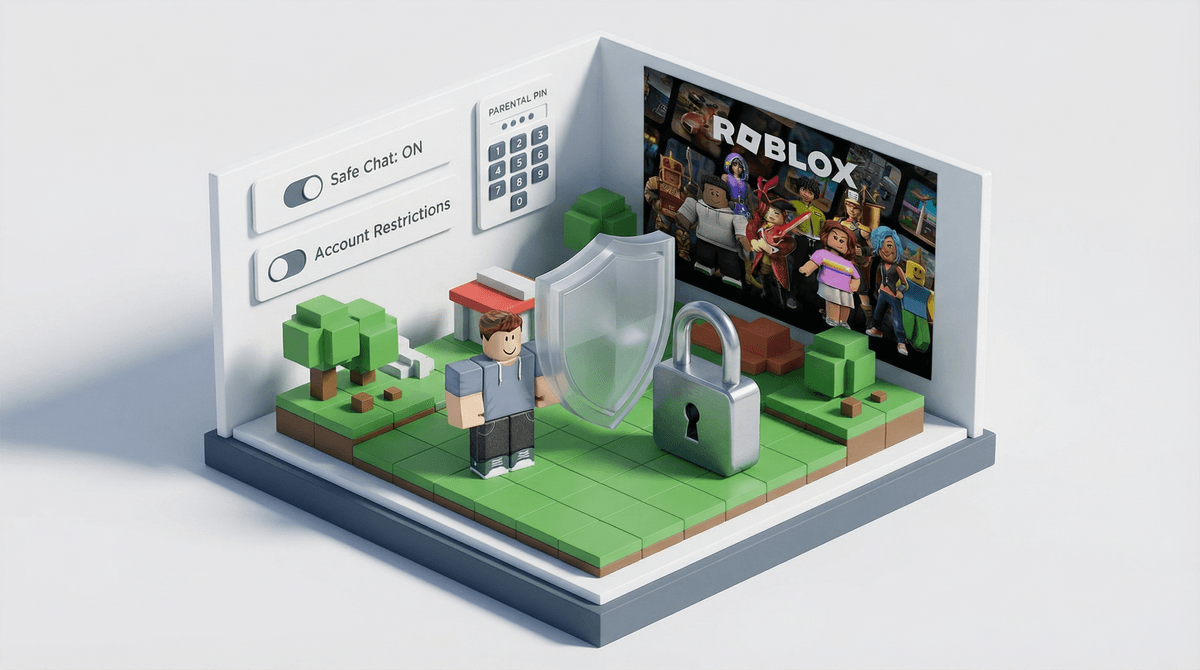
How to Lock Down Roblox Chat and Voice Settings
Roblox has multiple layers of communication settings that aren't obvious to find. Here's what you need to lock down:
- Text chat can be set to No One, Friends, or Everyone
- Voice chat is technically 13+ but kids lie about their age constantly
- Privacy settings control who can message, follow, and invite your kid
- Parental PIN prevents kids from changing settings back
Jump to: Finding the Settings | Text Chat Options | Voice Chat Controls | The PIN System
Roblox's communication settings are buried deeper than treasure in a pirate game, and that's probably intentional. The platform wants kids talking to each other—that's how games spread, how friend groups form, and honestly, how the whole ecosystem thrives. But as a parent, you need to know that the default settings are way more open than you probably want.
About 67% of kids ages 9-12 are on Roblox right now, and most of their parents have no idea that voice chat exists or that their kid might be chatting with strangers while building a virtual pizza restaurant. So let's fix that.
First, you need to get into the actual settings, which requires either:
- Logging into your kid's account on a web browser at roblox.com (not the app)
- Or sitting with them while they do it on their device
The settings are under the gear icon in the upper right corner, then Settings, then Privacy. On mobile, it's the three dots, then Settings, then Privacy.
This is the control center for everything communication-related. Bookmark it mentally because you'll be back here.
Roblox has two main text chat systems, and yes, it's confusing:
In-game chat is what kids type while playing. This is controlled by the "Who can chat with me in app?" setting, with three options:
- No one - Completely disables chat. Your kid can't see what others are saying and can't respond.
- Friends - Only mutual friends can chat. This is the sweet spot for most families.
- Everyone - Any player in the game can send messages. This is the wild west.
Private messages are direct messages outside of games, like texting within Roblox. This is controlled separately under "Who can message me?" with the same three options.
Here's what most parents don't realize: even if you set chat to "Friends," your kid can still receive friend requests from anyone. So you also need to lock down "Who can send me friend requests?" to either Friends of Friends or No One.
Otherwise, a stranger can friend request your kid, your kid accepts (because they assume anyone who plays the same game is safe), and boom—now they're "friends" and can chat freely.
Roblox rolled out spatial voice chat in 2021, and it's been a parental nightmare ever since.
Officially, voice chat requires users to be 13+ and verify their age with a government ID or phone number. In reality, kids lie about their birthdate when creating accounts, and Roblox's age verification is inconsistent at best.
If your kid's account is set to under 13, voice chat should be automatically disabled and not even show up as an option. But if they made their account with a fake birthdate (extremely common), they might have access to voice chat and you'd never know unless you specifically check.
Go to Settings → Privacy and look for "Enable Voice Chat". If you see this toggle at all, it means the account is registered as 13+. If your kid is actually under 13, this is your red flag that they lied about their age.
You have two choices:
- Turn off voice chat entirely - Flip the toggle to off
- Change the account birthdate - This requires contacting Roblox support with proof of age, and it will disable voice chat automatically
I'll be honest: voice chat in Roblox is not well-moderated. Kids report hearing swearing, bullying, and inappropriate conversations regularly. The spatial audio means you only hear people near your avatar, which sounds cool but makes moderation nearly impossible. Unless your kid is genuinely 13+ and you trust their judgment, turn this off.
These settings are easy to miss but matter:
- Who can invite me to VIP servers? - Private servers that cost Robux. Set to Friends or No One.
- Who can invite me to experiences? - Game invites. Friends is reasonable here.
- Who can see my inventory? - This shows what items your kid owns. Friends or No One prevents strangers from seeing valuable items (which can lead to scamming attempts).
The "join" settings control whether people can jump into the same game server as your kid:
- Who can join me? - Set to Friends or No One to prevent strangers from following your kid across games
This is the most important step and the one most parents skip.
Without a PIN, your kid can change all these settings back the moment you leave the room. With a PIN, they need a 4-digit code to modify privacy settings, spending limits, and account details.
Go to Settings → Security → Account PIN
Set a 4-digit PIN that your kid doesn't know. This PIN will be required to:
- Change privacy settings
- Change the account email or password
- Update parental controls
- Make purchases (if you enable that option)
Write this PIN down somewhere safe because if you forget it, you'll need to go through Roblox support to reset it, which is a whole thing.
There's also a setting called Account Restrictions under Security. When enabled, this limits your kid to a curated list of Roblox-approved experiences and completely disables all social features—no chat, no messaging, nothing.
This is basically Roblox's version of a kids mode. It's great for ages 7 and under, but most kids 9+ will find it too limiting because it blocks a huge number of popular games that aren't actually inappropriate, just not on Roblox's approved list.
If you enable Account Restrictions, you don't really need to worry about the other chat settings because everything is locked down. But it's an all-or-nothing approach.
Roblox does have automatic text filtering that blocks profanity, personal information, and inappropriate content. For accounts under 13, the filtering is more aggressive.
But here's the reality: kids are creative. They use workarounds like "bypasses" (intentional misspellings or symbols that get past filters), and the system isn't perfect. I've seen screenshots from parents where inappropriate messages clearly got through.
Don't rely on filtering alone. The privacy settings are your actual defense.
Here's the thing about Roblox: it updates constantly. New features roll out, settings change locations, and your kid's account can drift from what you originally set up.
Set a calendar reminder to check these settings every 3-4 months:
- Are chat settings still locked down?
- Has your kid changed their birthdate somehow?
- Are there new privacy options you need to configure?
- Is the PIN still working?
Also, actually watch your kid play for 15 minutes. You'll learn more about how they're using Roblox than any settings menu can tell you. Are they chatting constantly? Playing with strangers? Spending time in games that seem sketchy?
Roblox isn't going anywhere—it's too big, too social, and too embedded in kid culture. But you can absolutely make it safer by locking down communication settings properly.
The move for most families with kids under 12:
- Set chat to Friends only (both in-game and messages)
- Turn off voice chat entirely
- Restrict friend requests to Friends of Friends or No One
- Set join settings to Friends only
- Enable a Parental PIN so they can't undo your work
For kids 8 and under, consider enabling Account Restrictions and treating Roblox more like a single-player game collection than a social platform.
And remember: these settings don't replace actual conversations about online safety, stranger danger, and what to do if someone makes them uncomfortable. Technology can help, but it can't parent for you.
If you want to dig deeper into Roblox safety, check out our full guide to Roblox parental controls, or explore alternatives to Roblox if you're thinking about pulling the plug entirely.