

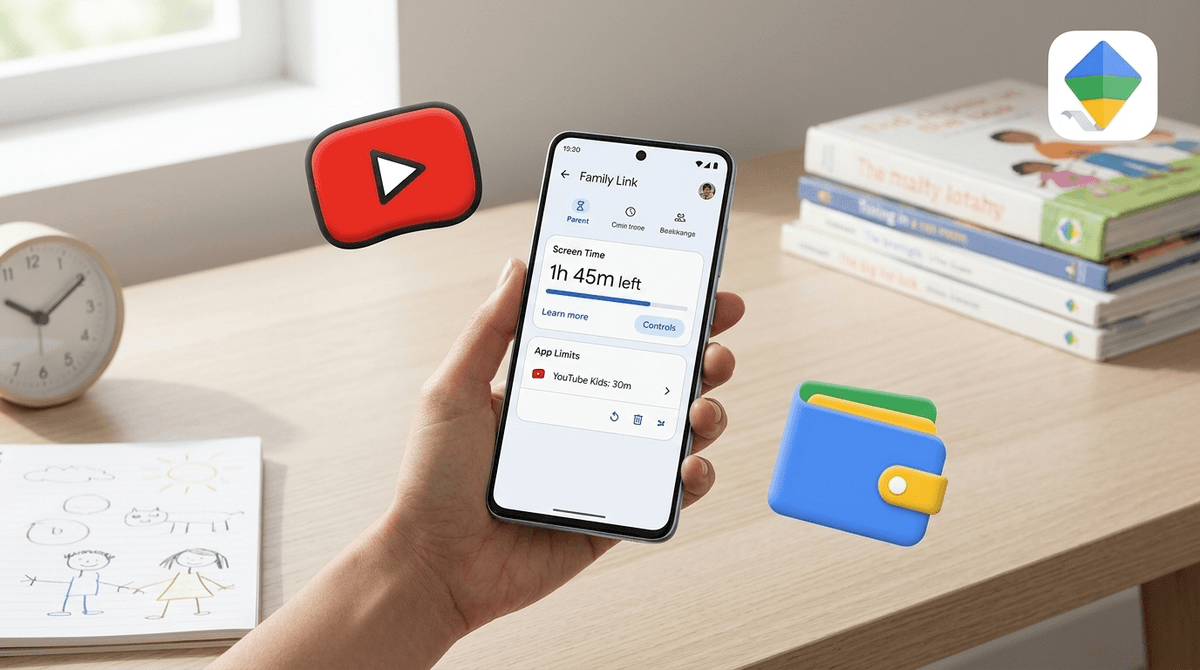
TL;DR: Google Family Link is the gold standard for managing Android devices, but it’s not a "set it and forget it" solution. With the 2025 rollout of School Time, improved Contact Management, and Google Wallet for kids, the tools are better than ever. However, the "Age 13 Graduation" loophole remains a massive hurdle for parents of teens.
Check out our guide on the best first phones for kids
Learn how to set up an iPhone if you're an Apple family
See recommended app limits for your child's age
If your child has an Android phone, a Chromebook, or a Google account, Google Family Link is the software that acts as the digital "parental glue." It’s a free app that lives on your phone (the parent) and connects to theirs.
It allows you to set "bedtimes," block specific apps like TikTok or Instagram, and see exactly where they are on a map. It’s powerful, but as anyone who has tried to block Roblox for "just five minutes" knows, it’s only as effective as your setup.
Google recently overhauled the interface, making it way less of a headache to navigate. They’ve moved everything into two main buckets: Screen Time and Controls.
This is the big 2026 update. Previously, you could only really lock a phone entirely or leave it open. School Time allows you to turn the phone into a "dumb phone" during school hours. You can set a dedicated home screen that only shows essential apps (like a calculator or a school-mandated app) and silences all notifications. It’s a game-changer for kids who get distracted by Snapchat pings in the middle of Algebra.
Parent-Managed Contacts
Starting this year, if your kid is on Android 14 or higher and uses Google Messages, you can finally control who they’re talking to. You can approve or block specific contacts, ensuring they aren't texting "randoms" they met on a Discord server.
Google is also rolling out a kids' version of Wallet. It allows for NFC tap-to-pay (using a parent’s card) with a full transaction history sent to your phone. It’s a great way to teach financial literacy without giving them a physical debit card they’ll inevitably lose at the park.
Here is the thing Google doesn't like to highlight: The Graduation.
When your child turns 13 (in the US), Google sends them an email that essentially says, "Happy Birthday! Do you want to kick your parents out of your digital life?"
If they click "Yes," they "graduate" to a standard Google account. You lose the ability to see their location, set screen time, or block apps. If they choose to stay supervised, they can still opt-out at any time later. If they opt-out, the phone locks for 24 hours (giving you a "warning" period), but after that, they are on their own.
The Screenwise Take: This is where digital parenting shifts from "technical controls" to "relational trust." If you haven't had the "why we have these rules" talk by age 12, age 13 is going to be a very bumpy ride.
Your kids are smarter than the developers at Google. They spend 18 hours a day thinking about how to get five more minutes of Minecraft. Here are the common bypasses we’re seeing in 2026:
- The "Secure Folder" (Samsung Devices): On many Samsung phones, there is a feature called "Secure Folder." Kids can install apps inside this folder that Google Family Link often can't see or track.
- The Fix: You need to manually disable "Secure Folder" in the phone's biometric settings or lock it with your own PIN.
- The "Accessibility Menu" Trick: Kids enable the Accessibility Menu in settings, which allows them to "overlay" apps even after the screen is locked.
- The Fix: In the Family Link app, go to Controls > Device Settings and restrict "Changes to Accessibility Settings."
- Clearing Play Store Cache: Sometimes, clearing the data of the Google Play Store app can temporarily "reset" the parental control PIN.
- The Fix: Set a "Screen Time" limit for the Settings app itself! If they can't get into Settings, they can't clear the cache.
Family Link gives you granular control over what they see on Google’s video platforms.
- For Younger Kids (Ages 3-9): Use YouTube Kids. In Family Link, set it to "Approved Content Only." This means they can only watch channels you have manually white-listed. It’s the only way to avoid the "brain rot" of weird unboxing videos and Skibidi Toilet clones.
- For Tweens/Teens (Ages 10-17): Use "Supervised Experiences" on the main YouTube. This allows them to use the regular app but filters out mature content and gives you a report of their search and watch history.
Read our full guide on setting up YouTube Supervised Experiences
Google Family Link is a tool, not a babysitter. It works best when:
- You are consistent. If you "grant 15 more minutes" every time they ask, the limit becomes meaningless.
- You use "Always Allowed" sparingly. If you mark WhatsApp as "Always Allowed," kids will use the in-app browser to surf the web long after bedtime.
- You talk about the "Why." Explain that the "Bedtime" setting isn't about punishment; it's about their brain needing sleep to function for that soccer game tomorrow.
If you are an Android family, Google Family Link is essential. It provides a solid framework for safety, especially with the new School Time features. But remember: technology moves faster than software updates. Stay curious, check the "Screen Time" tab once a week, and don't be afraid to take the phone away if the "Secure Folder" tricks start happening.
Next Steps:
- Audit your "Always Allowed" apps. (Hint: Only keep the Phone app and maybe a Calculator here).
- Set up School Time for the upcoming week.
- Check for "Secure Folders" if your kid has a Samsung device.
Check out our recommendations for age-appropriate apps that aren't "brain rot" Learn how to manage Roblox spending through Family Link