

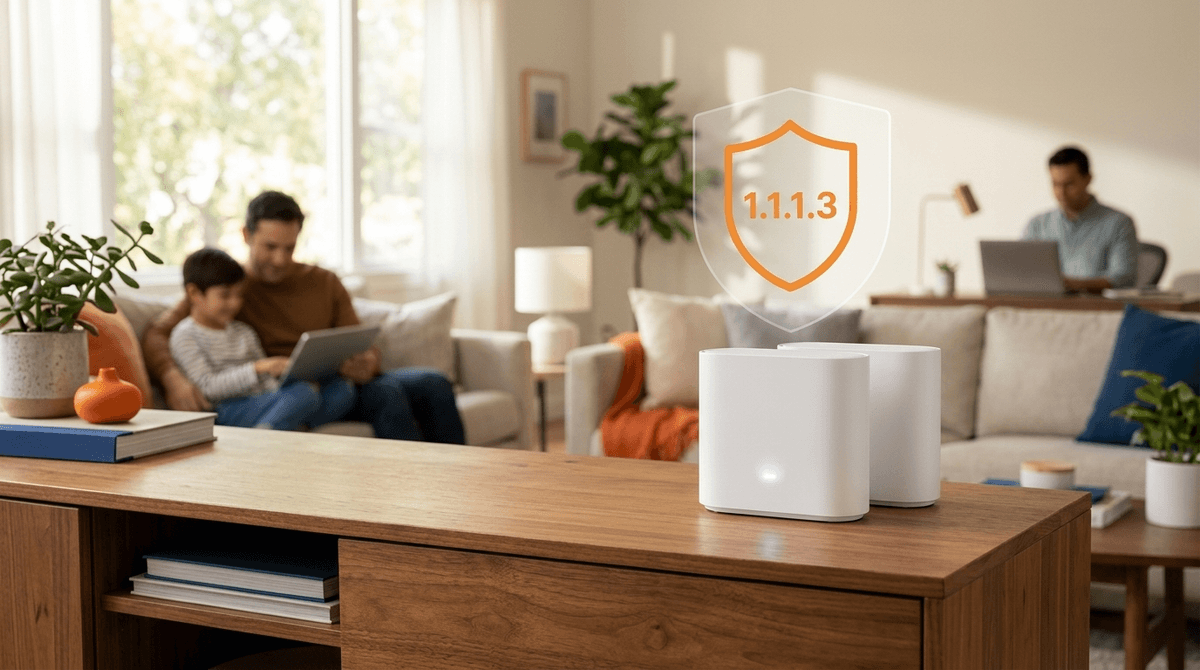
1.1.1.1 for Families is a free filter from Cloudflare. You change two numbers in your router's settings, and every device on your home Wi-Fi gets malware (and optionally adult-content) blocking. It takes about a minute, costs nothing, and then you forget about it.
Two flavors:
- 1.1.1.2 — blocks malware
- 1.1.1.3 — blocks malware and adult content
It's the rare set-and-forget win. But don't set it in secret. Tell your kids it's on — that conversation is worth more than the filter itself.
Every time a device looks up a website, it asks a "DNS resolver" to translate the name (screenwiseapp.com) into the numeric address computers use. 1.1.1.1 for Families is just a DNS resolver that refuses to answer for known-bad sites — malware, phishing, and (on the stricter setting) adult content. The bad page never loads because the address never comes back.
Because it works at the lookup level, it covers every device on the network at once — phones, tablets, the smart TV, the kid's laptop, the game console — without installing anything on any of them.
Pick one and use both the primary and secondary addresses.
Malware blocking only (1.1.1.2):
- IPv4: 1.1.1.2 and 1.0.0.2
- IPv6: 2606:4700:4700::1112 and 2606:4700:4700::1002
Malware + adult content blocking (1.1.1.3):
- IPv4: 1.1.1.3 and 1.0.0.3
- IPv6: 2606:4700:4700::1113 and 2606:4700:4700::1003
For a house with kids, 1.1.1.3 is the one you want.
On your router (best — covers the whole house): Log into your router's admin page (usually 192.168.1.1 or 192.168.0.1 in a browser), find the DNS settings, and replace the existing DNS servers with the two numbers above. Save, and you're done. Cloudflare says it "usually takes less than a minute" — it's "just changing two numbers in the settings."
On a single device: If you can't get into the router (or you only want it on one device), set the DNS in that device's Wi-Fi settings instead. Same two numbers.
Cloudflare also keeps the same privacy promise as regular 1.1.1.1: they don't sell user data or run targeted ads off your browsing.
This is a blunt, free tool, and it's honest about that. Know the gaps before you lean on it:
- No per-kid rules, time limits, or reports. It's the same filter for everyone on the network. For app limits, bedtime, and per-child settings you still need on-device controls like Apple Screen Time or Google Family Link.
- It stops at your front door. Cellular data, a friend's hotspot, or a VPN walks right around it. A kid on their phone away from home isn't covered.
- Adult-content filtering isn't perfect. It catches a lot, misses some, and occasionally blocks something harmless. It's a net, not a wall.
- A motivated teen can change the DNS back on their own device if they have admin access. Like every control, it's a guardrail, not a guarantee — see what kids can bypass.
Use it as the free bottom layer of a stack, not the whole stack.
Here's the part most setup guides skip. The filter is the easy 1%. The conversation is the 99%.
When you flip it on, tell your kids: "I turned on a filter for the house. It blocks malware and the worst stuff. It's not because I don't trust you — it's because the internet is full of junk that's engineered to grab you, and a filter takes some of that off your plate."
Then say the thing that actually matters: the goal is for them to become their own algorithm. Right now, an algorithm decides what they see — autoplay, the For You page, the next recommended video, all of it tuned to keep them watching, not to help them. A filter is training wheels. The real skill, the one that outlasts every parental control, is learning to notice when something is pulling at them and to choose for themselves what gets their attention.
Naming the filter out loud turns a hidden setting into an ongoing conversation about being intentional online. That conversation is the thing that keeps a kid safe long after they've left your Wi-Fi — and long after they've figured out how to change a DNS setting.
1.1.1.1 for Families is the free, network-level layer. Pair it with on-device controls and a content-filtering plan:
- The full picture, by device and age: Parental Controls
- Which filters actually work: Content filtering, honestly
- A paid network option with per-kid rules and reports: Circle for your home network
If you do one free thing this week, this is it: set your router to 1.1.1.3, then tell your kids you did it and why. The filter takes a minute. The conversation about being their own algorithm is the part that sticks.
Take the family survey and we'll tailor the rest of your setup — by device, by worry, and by your kid's age.