

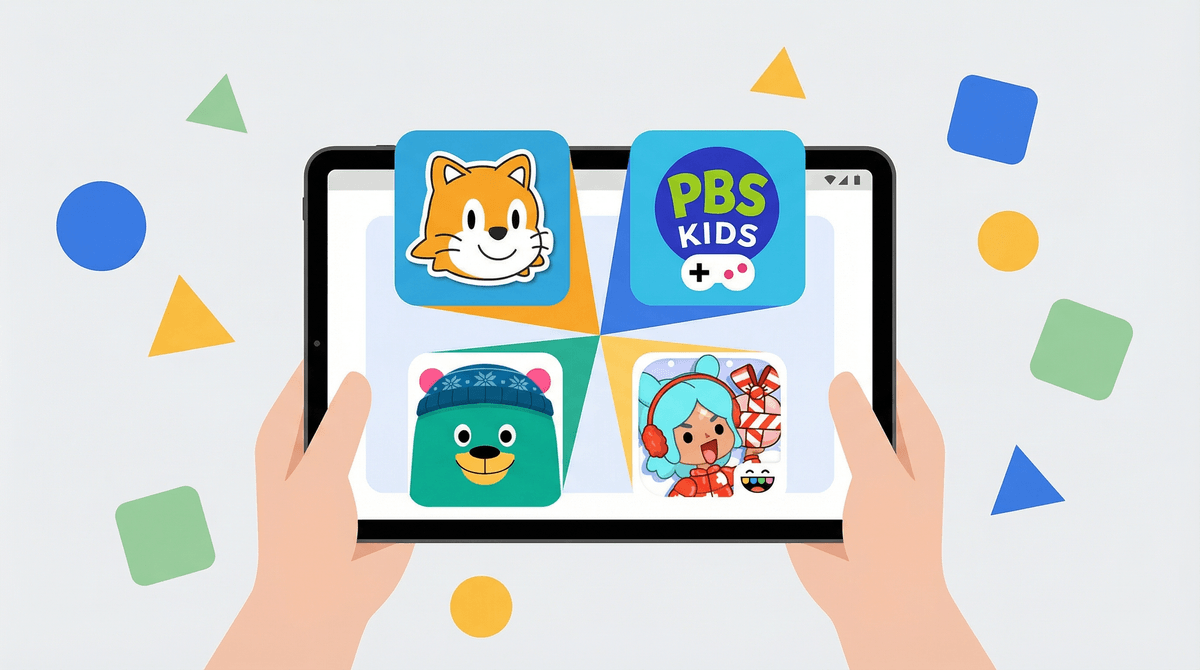
Android Apps for Kids: A Parent's Guide to the Play Store
Look, I get it. You hand your kid your Android phone for "just five minutes" at the restaurant, and suddenly they've downloaded three games, subscribed to a premium service, and somehow found their way to YouTube videos of someone unboxing toys for 40 minutes straight.
The Google Play Store is a wild west of kids' apps—some genuinely educational and thoughtful, others designed with the sole purpose of extracting as much money and attention from your family as possible. Let's talk about how to navigate it without losing your mind (or your credit card).
Here's the thing about Android: it's more open than iOS, which is both a blessing and a curse. You get more flexibility, more free options, and more customization. But you also get more junk, more sketchy permissions requests, and a slightly less curated experience overall.
The Play Store has over 250,000 apps labeled as "family"—and the quality varies wildly. Google's vetting process isn't as strict as Apple's, which means more freedom but also more responsibility on your end to actually check what you're downloading.
It's not the "stranger danger" stuff. Most kids aren't getting contacted by predators through Toca Boca. The actual issues are:
1. Data collection that would make a surveillance state jealous. That free coloring app? It might be tracking your kid's location, collecting their device ID, and building an advertising profile. Many "free" kids apps are just data harvesting operations dressed up with cartoon characters.
2. In-app purchases designed to exploit developing brains. Games that make your 7-year-old feel like they're failing unless they buy more coins. Apps that put the "buy" button exactly where little fingers tap most often. It's not an accident.
3. Addictive design patterns. Infinite scroll, random rewards, streaks, push notifications—these apps use the same techniques that keep adults glued to social media, but targeted at kids whose impulse control is still developing.
4. The "educational" lie. Slapping ABCs on a slot machine doesn't make it educational. Many apps in the "educational" category are just gamified busywork with zero pedagogical value.
Start with these trusted sources:
- PBS Kids and Khan Academy Kids are genuinely free (no ads, no IAP, no BS)
- Toca Boca apps are expensive upfront but worth it—no ads, no subscriptions, actual creative play
- Epic! for books (though watch out, it's subscription-based)
- Duolingo for language learning (the free version is usable, though pushy)
- Google Kids Space (built into some Android tablets) curates decent options
Before downloading anything, check:
- Rating: Is it actually rated "Everyone" or "Everyone 10+"? Don't trust the "family" label alone.
- In-app purchases: What's the range? If you see "$0.99 - $99.99 per item," run. That's designed to confuse kids into big purchases.
- Permissions: Why does a coloring app need your location? Review what data it's requesting.
- Reviews from actual parents: Scroll past the 5-star "my kid loves it!" reviews and find the detailed ones from parents who mention privacy, ads, or surprise costs.
Ages 2-5: At this age, honestly? Less is more. If you're going to use apps, stick to truly offline, no-IAP options like Sago Mini or Toca Boca. But also—they don't need apps. They need blocks and crayons and running around.
Ages 6-9: This is when apps can actually add value. Prodigy Math (with parental controls on), Scratch Jr for basic coding, Minecraft in creative mode. Set up a kids' Google account with Family Link so you can approve downloads.
Ages 10-12: They're probably asking for Roblox, Among Us, and Discord. These aren't necessarily bad, but they require active parental involvement. Read this guide to Roblox parental controls before you just hand it over.
Ages 13+: They're on the real internet now. The Play Store is the least of your concerns—focus on teaching digital literacy, critical thinking about data privacy, and having ongoing conversations about online behavior.
Google Family Link lets you:
- Approve or block app downloads
- Set screen time limits per app
- See what they're using and for how long
- Remotely lock their device
Is it perfect? No. Kids will find workarounds. But it's a baseline that takes 10 minutes to set up and saves you from the "I accidentally spent $200 on Robux" conversation.
Here's what "free" often means in the Play Store:
- Free with ads: Your kid watches 30 seconds of ads between every level
- Freemium: First three levels are free, then it's $9.99/month forever
- Free-to-play: Technically playable without paying, but designed to make you feel like a failure unless you buy gems/coins/whatever
My honest take: I'd rather pay $5 upfront for an app that's actually complete than deal with the psychological manipulation of "free" games. Your kid's developing brain is worth more than saving a few bucks.
You can request refunds. If your kid makes an unauthorized purchase, you can request a refund through Google Play within 48 hours. After that, it's harder but not impossible.
"Educational" is an unregulated term. Anyone can slap that label on anything. Don't trust it without doing your own research.
YouTube Kids isn't the solution you think it is. It's better than regular YouTube, but the algorithm still serves up some genuinely weird content. Learn more about YouTube vs. YouTube Kids here.
Offline mode is your friend. Download apps and content when you have WiFi, then put the device in airplane mode. Suddenly, no ads, no in-app purchase temptations, no algorithm trying to keep them hooked.
The Google Play Store isn't inherently evil, but it's designed to maximize engagement and revenue—not to protect your kid's developing brain or your family's values.
Your job isn't to find the "perfect" apps. It's to be intentional about what you're allowing, why you're allowing it, and how it fits into your family's bigger picture around screens.
Actionable next steps:
- Set up Google Family Link this week (not "eventually")
- Audit what's currently on your kid's device—delete the junk
- Turn off in-app purchases in your Google Play settings
- Have a conversation with your kid about why some apps are designed to be addictive
And maybe—just maybe—leave the phone in the car next time you go to a restaurant and see what happens. They might surprise you.
Want to dig deeper? Explore alternatives to popular apps or learn about setting up device-wide parental controls.