

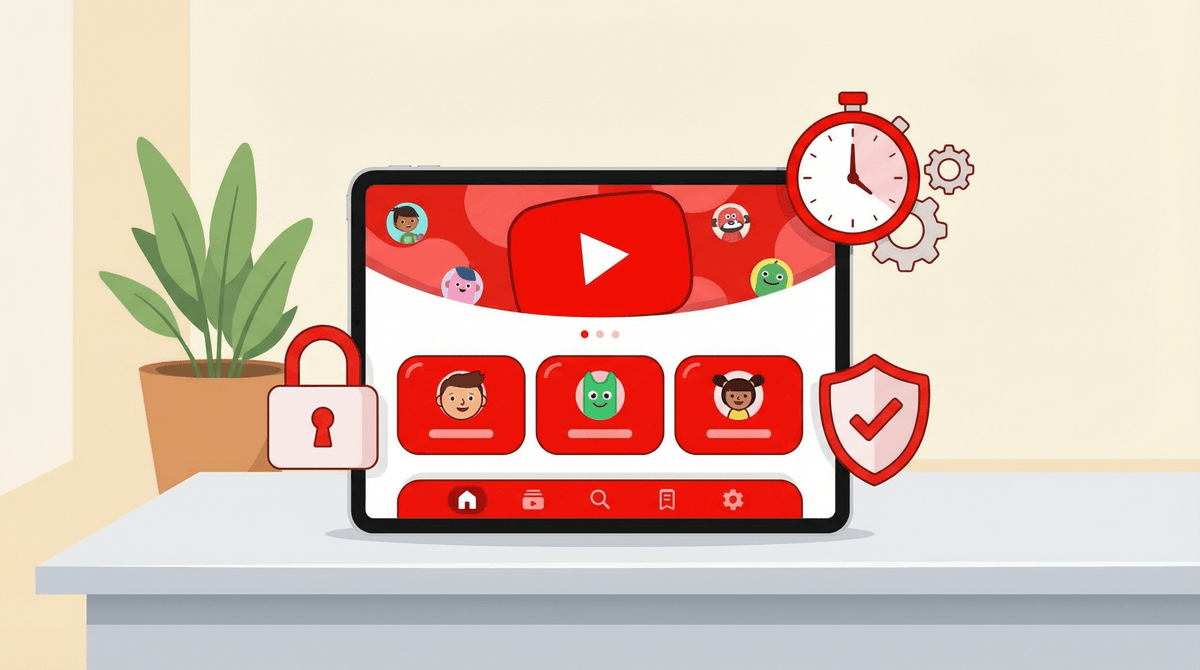
The Ultimate Parent Guide to YouTube Kids
YouTube Kids promises a safer viewing experience than regular YouTube, but it's not foolproof. The app uses a mix of algorithms and human review to filter content, but weird stuff still slips through. Your best bet: use the app's tightest settings (Preschool or Younger mode), turn off Search, actively curate approved channels, and check in regularly on what they're actually watching. And honestly? For kids under 5, hand-picked alternatives might be worth exploring.
Quick action items:
- Set up YouTube Kids parental controls before handing over the device
- Review the difference between YouTube vs. YouTube Kids
- Check out kid-friendly YouTube channels worth approving
YouTube Kids launched in 2015 as Google's answer to parents rightfully freaking out about what their kids were finding on regular YouTube. It's a separate app (not just a setting) that filters the massive YouTube library down to supposedly kid-appropriate content.
The app offers three content levels:
- Preschool (Ages 4 & under): Focused on creativity, learning, and exploration
- Younger (Ages 5-8): Adds songs, gaming, and crafts
- Older (Ages 9-12): Broader content including vlogs and gaming videos
Here's what you need to understand: YouTube Kids uses automated filters plus human review to decide what makes it through. But with 500 hours of video uploaded to YouTube every minute, it's mathematically impossible to catch everything. The algorithm looks at metadata, user feedback, and content signals—but it's not watching every video with human eyes.
Let's start with what YouTube Kids gets right:
No comments section. This alone is huge. Kids can't interact with strangers or read the absolute cesspool that is YouTube comments.
Better content filtering than regular YouTube. The app does block a ton of inappropriate content that would show up on the main platform. Most mainstream kids' channels work fine here—Bluey clips, Sesame Street, National Geographic Kids.
Built-in timer. You can set viewing limits directly in the app, which actually works (unlike the honor system).
Separate profiles for different ages. If you've got a 4-year-old and a 9-year-old, they can have different content experiences.
No ads for food, beverages, or toys (in theory—more on this later).
Now for the reality check.
The Algorithm Isn't Perfect
Weird, inappropriate, or just straight-up bizarre content still makes it through. Remember the "Elsagate" scandal from 2017? Videos featuring popular characters in violent or sexual situations, aimed at kids? That was on YouTube Kids. While Google cracked down hard, the fundamental problem remains: automated filtering misses things.
You might find:
- Knockoff channels mimicking popular shows but with off-brand weirdness
- "Educational" content that's actually just low-quality clickbait
- Gaming videos with language or themes that don't match your family's standards
- Videos that are technically "fine" but feel...wrong
The Commercialization Is Real
YouTube Kids might restrict traditional ads, but the platform is packed with influencer marketing. Kids watch "unboxing" videos, toy reviews, and product placements that are essentially 10-minute commercials. Ryan's World built an empire this way—and your kid is absolutely going to ask for every toy they see.
This isn't necessarily evil, but you need to know it's happening. Talk to your kids about advertising and media literacy early.
The "Educational" Label Is Generous
Just because something is on YouTube Kids doesn't mean it's enriching. A lot of content is pure brain candy—not harmful, but not exactly building critical thinking skills either. Endless toy unboxings, low-effort animation, and repetitive nursery rhyme compilations dominate the platform.
Autoplay Is Designed to Keep Them Watching
The autoplay feature is optimized for engagement, not education. One Bluey clip can lead to three hours of random content if you're not paying attention. Turn autoplay OFF.
Ages 2-4 (Preschool Mode): Use the strictest settings. Honestly, at this age, you might be better off with curated apps like PBS Kids Video or Disney+ where every piece of content is intentionally selected. If you do use YouTube Kids, turn off Search completely and manually approve every channel.
Good channels for this age: Sesame Street, Daniel Tiger's Neighborhood, Puffin Rock.
Ages 5-8 (Younger Mode): This is where YouTube Kids starts to make more sense. Kids this age love gaming content, craft tutorials, and science experiments. The key is active curation—spend time watching with them initially and building an approved channel list.
Worth checking out: Mark Rober, Art for Kids Hub, National Geographic Kids, SciShow Kids.
Ages 9-12 (Older Mode): At this age, many kids are pushing for regular YouTube anyway. If you're keeping them on YouTube Kids, have honest conversations about why. Use this as a bridge period—they get more content freedom, but you're still monitoring what they watch.
They'll probably want gaming content (DanTDM, LDShadowLady), DIY channels, and maybe some appropriate vloggers. This is also when you should be teaching them how to spot clickbait and misinformation.
1. Turn off Search. Seriously. In the app settings, disable the search function. This forces kids to only watch content that's been surfaced through the algorithm or channels you've approved. It's not perfect, but it dramatically reduces the chances of them stumbling onto garbage.
2. Use "Approved Content Only" mode. This is the nuclear option, but it works. You manually select every channel or video they can watch. Nothing else appears. It's time-consuming to set up, but if you have a young kid or serious concerns, it's worth it.
3. Set up a timer. The built-in timer is your friend. Decide on daily limits and enforce them through the app.
4. Turn off autoplay. This is buried in settings, but do it. Autoplay is designed to keep eyeballs on screens, not to serve your family's interests.
5. Check watch history regularly. YouTube Kids tracks what they're watching. Review it weekly, especially at first. You'll quickly spot patterns or channels that don't align with your values.
6. Disable background play. This prevents videos from playing when the app isn't actively open—useful for preventing sneaky extended viewing sessions.
For a full walkthrough, check out our detailed YouTube Kids parental controls guide.
Beyond the settings, here are red flags to monitor:
Knockoff channels. If you approve "Peppa Pig," make sure it's the official channel, not "Peppa Pig Fun Times" or some variation that's actually weird fan content.
Endless unboxing videos. These are designed to trigger the "I want that" response. If your kid is suddenly obsessed with toys they've never mentioned before, check their watch history.
Overstimulating content. Fast cuts, loud music, constant excitement—some content is engineered to be addictive. If your kid seems wired or zoned out after watching, that's a sign.
Inappropriate gaming content. Not all gaming videos are kid-friendly, even on YouTube Kids. Minecraft and Roblox content can range from wholesome to completely inappropriate.
YouTube Kids isn't your only option. Depending on your kid's age and your family's priorities, you might prefer:
- PBS Kids Video: Completely curated, ad-free, genuinely educational
- Disney+ or Netflix Kids: Professionally produced content with no algorithm rabbit holes
- Khan Academy Kids: Free, educational, and actually well-designed
- Epic!: If you want to shift toward books and reading instead
- Podcasts: Brains On!, Wow in the World, and Story Pirates are legitimately great
For more options, see our full list of alternatives to YouTube Kids.
If your kid is old enough for conversation (roughly 6+), involve them in the process:
"YouTube has a lot of videos, and some are great and some aren't. We're going to watch together at first so we can figure out what's worth your time."
"If you see something that feels weird or makes you uncomfortable, tell me. You won't get in trouble."
"Those toy videos are fun, but remember—the people making them are trying to get you to want to buy stuff. That's their job."
For older kids pushing for regular YouTube, acknowledge their maturity while setting clear boundaries: "I know you're ready for more content, but we're going to start with YouTube Kids in Older mode and see how it goes. Show me you can make good choices here, and we'll talk about the next step."
YouTube Kids is better than regular YouTube for young kids, but it's not a set-it-and-forget-it solution. The app works best when you:
- Use the strictest settings appropriate for your kid's age
- Actively curate approved channels
- Turn off Search and autoplay
- Check watch history regularly
- Have ongoing conversations about what they're watching
The algorithm will never replace parental judgment. YouTube Kids is a tool, not a babysitter—and it works a lot better when you treat it that way.
If you're feeling overwhelmed by all this, you're not alone. Managing kids' digital lives is genuinely one of the hardest parts of modern parenting. Take it one step at a time, start with the settings that matter most to your family, and adjust as you go.
- Download YouTube Kids and set up profiles for your kids with age-appropriate content levels
- Go through the parental controls and adjust Search, autoplay, and timer settings
- Spend 30 minutes watching with your kid to see what content they're drawn to
- Build an approved channel list based on what you've seen and recommendations from other parents
- Check watch history weekly for the first month, then adjust your monitoring based on what you find
Need help figuring out specific settings? Check out our YouTube Kids parental controls walkthrough or ask our chatbot specific questions about your family's situation.