

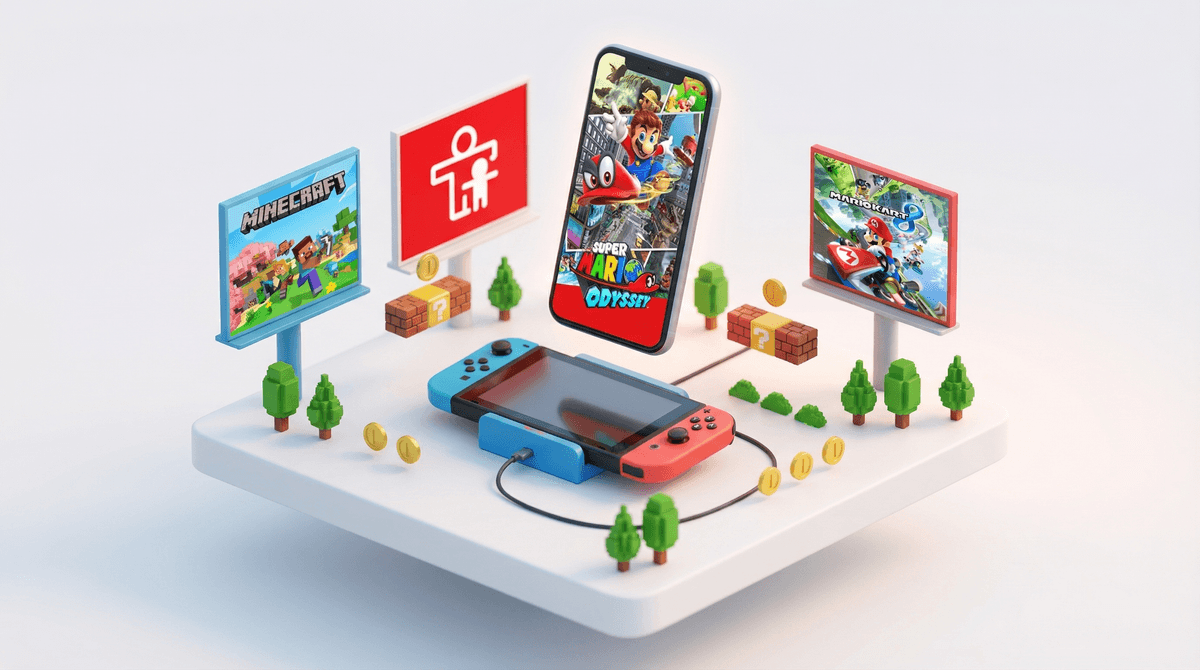
The Nintendo Switch has surprisingly robust parental controls — and I mean that as a compliment, because most gaming consoles treat parental controls like an afterthought. Nintendo actually built a separate smartphone app specifically for parents to monitor and manage their kids' gaming without hovering over their shoulder.
The parental controls let you set daily play time limits, restrict games by age rating, disable social features, monitor what your kids are actually playing, and even pause gameplay remotely when dinner's ready and they're "in the middle of a level" for the 47th time.
Here's what makes Nintendo's approach different: instead of burying settings in twelve menu layers on the console itself, they created the Nintendo Switch Parental Controls app (free for iOS and Android) that gives you a dashboard of your kid's gaming activity. It's like a Fitbit, but for Minecraft and Mario Kart.
Let's be real: the Switch is often a kid's first real gaming console. It's portable, it has a massive library of games ranging from genuinely educational to absolute chaos, and it's everywhere. According to most surveys, by 3rd grade, around 60-70% of kids have access to a Switch at home or at friends' houses.
The problem? Without any guardrails, kids will play until their eyes glaze over. The "just one more level" phenomenon is real, and game developers are exceptionally good at their jobs — they want your kid to keep playing. That's not evil, it's just capitalism.
But here's where parental controls actually help: they let you set boundaries before the meltdowns happen. When the Switch itself tells your kid that time's up, you're no longer the villain. The console is. And that's honestly worth the ten minutes it takes to set up.
Download the App First
Don't mess with the on-console settings yet. Download the Nintendo Switch Parental Controls app on your phone. It's infinitely easier than using the tiny Joy-Con controllers to navigate menus.
Link Your Console
- Open the app and tap "Set Up Parental Controls"
- The app will give you a 6-digit registration code
- On the Switch, go to System Settings → Parental Controls → "Use Your Smart Device"
- Enter the code
- Done
The whole process takes maybe 3 minutes. If you can link a Bluetooth speaker, you can do this.
Set Your Restrictions
Here's where you actually make decisions. The app has several key settings:
Play Time Limit: You can set daily limits (like 1 hour on weekdays, 2 hours on weekends). When time's up, the game will give a warning, then either pause or force-quit depending on your settings. Pro tip: use the "suspend software" option rather than force-quit — it's less rage-inducing because they don't lose progress.
Restriction Level: Nintendo offers preset levels (Child, Pre-Teen, Teen, Custom). Honestly? Go Custom. The presets are weirdly conservative. "Child" blocks games rated E10+ (Everyone 10+), which means your 9-year-old can't play Super Mario Odyssey. That's ridiculous.
Age Ratings: You can restrict games by ESRB rating (E, E10+, T, M). Most parents find E10+ to be the sweet spot for elementary schoolers. If you need help figuring out what games are actually age-appropriate, check out our guide to age-appropriate Switch games.
Social Media Posting: This blocks screenshots from being posted to social media. Keep this ON unless your kid is older and you've had explicit conversations about digital footprints.
Communication with Other Users: This is huge. It restricts your kid from chatting with strangers online. Keep this ON for younger kids. Fortnite, Splatoon, and other online games can have voice/text chat, and you do not want your 8-year-old in an unmoderated lobby with random adults.
VR/3D Settings: Restricts VR content for young kids (good for eye development reasons).
Once everything's set up, the app shows you:
- Daily play time broken down by game
- What games they're playing and for how long
- Monthly summaries so you can spot patterns
This isn't about surveillance — it's about awareness. If your kid is spending 90% of their Switch time on Roblox (yes, it's on Switch now), that's useful information. Maybe they'd enjoy other creative games too, or maybe you need to have a conversation about why they're so drawn to it.
Let's be clear about limitations:
- They don't filter in-game content. If a game has user-generated content (like Roblox or Dreams), the parental controls can't screen individual levels or creations.
- They don't block in-game purchases automatically. You need to set up a separate PIN for the Nintendo eShop. Do this immediately. Here's how to prevent surprise charges
 .
. - They don't control what happens at friends' houses. Your kid's friend's Switch might have zero restrictions. This is a conversation you need to have with your kid AND with other parents.
Ages 5-8: Use tight daily limits (30-60 minutes), block anything above E rating, disable all social features. At this age, the Switch should be treated like a special activity, not a default boredom solution.
Ages 9-12: You can loosen up to 1-2 hours daily, allow E10+ games, but keep social features locked down. This is the age where kids start playing online multiplayer, and you want to be very involved in those decisions. Not all online games are created equal.
Ages 13+: This is where you transition from controls to conversations. Many teens will find workarounds or just be resentful of heavy-handed restrictions. Consider shifting to time limits only, having regular check-ins about what they're playing, and treating them like the emerging adults they are. That said, if your teen is showing signs of gaming addiction or their grades are tanking, tighter controls might be necessary.
"Won't they just create a new profile to bypass this?"
They can't. The parental controls apply to the entire console, not individual user profiles. Smart kid, though.
"What if there's an emergency and they need more time?"
You can add time remotely through the app, or they can request more time (you'll get a notification). You can also temporarily suspend restrictions if needed.
"This feels controlling."
It is controlling. That's literally the point. But here's the thing: boundaries aren't punishment. Kids actually feel safer with clear, consistent limits. The key is being transparent about WHY the limits exist and involving them in the conversation as they get older.
Nintendo Switch parental controls are genuinely good — better than PlayStation or Xbox, honestly. They're easy to set up, actually functional, and give you real visibility into gaming habits without requiring a computer science degree.
But controls are just tools. They work best when combined with:
- Actual conversations about healthy gaming habits
- Modeling good screen behavior yourself (yes, you)
- Staying curious about what your kids are playing instead of just restricting everything
Set up the controls, adjust as needed, and remember: the goal isn't to eliminate gaming. It's to help your kid develop a healthy relationship with it.
- Download the app right now (seriously, do it before you forget)
- Spend 10 minutes setting it up — do it with your kid so they understand what's happening and why
- Check the dashboard weekly for the first month to see actual usage patterns
- Set up eShop PIN protection to prevent surprise $200 charges for V-Bucks or whatever
- Have a family conversation about screen time expectations and why they exist
If you're wondering what games are actually worth your kid's time, check out our recommendations for quality Switch games by age. And if you want to understand whether your family's gaming habits are typical compared to other families in your community, take the Screenwise survey — it's genuinely eye-opening.